
Your dashboard
What this does
Names every part of the screen you land on when you open a profile, and says which guide owns each one.
That way the recipes beginning “On the dashboard…” start somewhere you recognise.
Before you start
- A profile is open (→ A8). The dashboard belongs to one logbook, so switch profiles and every number on it changes.
- Nothing on this screen is Pro-only, although one control on it is gated by the free hour limit (→ K2).
Steps
- Open a profile. The app opens on Dashboard, the first of four
destinations in the navigation: Dashboard, Logbook, Aircraft,
Directory. Where they sit depends on the window width (see below).
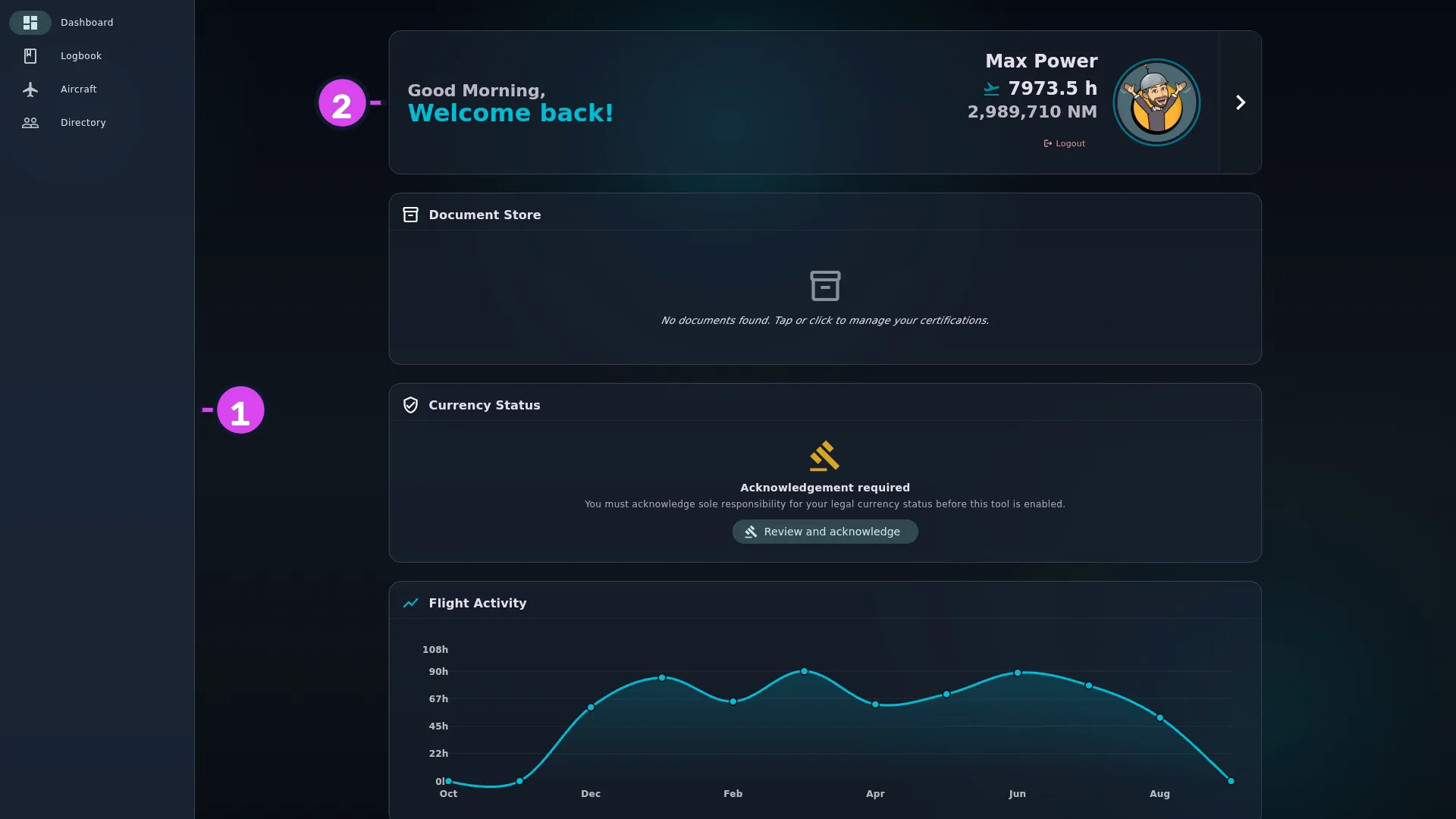
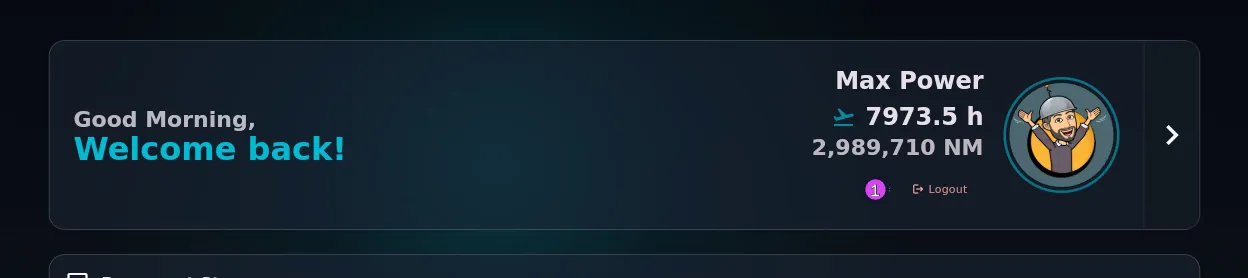
1 the rail2 the profile card - Find your profile card at the top: your greeting, avatar and name, with your
total hours and total distance. Tap it to open Profile Settings
(→ A9). Logout in its corner takes you back to
the profile selector without closing the app
(→ A8).
1 Logout — closes the logbook and not the account - Scroll down to Document Store — a sideways strip of document tiles, each with a coloured status line, soonest to expire first, and ten of them at most (→ G1).
- Below it is Currency Status, which stays empty until you switch currency tracking on (→ G6, G8).
- Next is Duty & Rest, if an authority is active. With none active the card isn’t empty, it’s absent (→ G10).
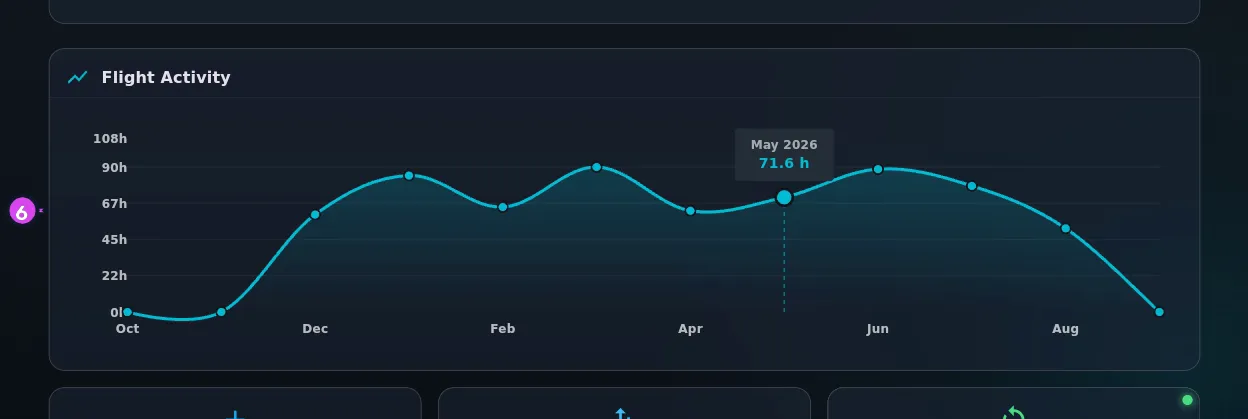
- Next is Flight Activity, a line across your last twelve months. Touch or
hover a point for that month’s total. What it counts is below.
- At the bottom, tap one of the three cards: Log Flight opens the entry form
(→ C1); Import / Export / Backup
opens the panel with the Import, Export and Backup segments
(→ B2,
F1,
H1); Cloud-Less Sync
opens the sync screen, and carries a small green dot whenever this device is
listening for a peer (→ I5).

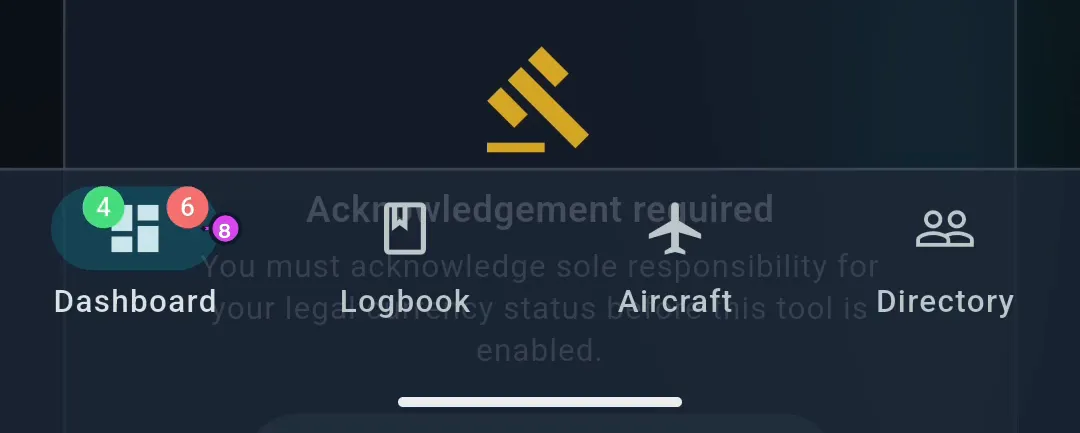
7 Log Flight8 red = needs review / green = scans ready - Check the middle card, and the Dashboard icon in the navigation, for
badges. They mean two different jobs are waiting for you — see The two
badges below.
How to tell it worked
You can name every card on the screen, say which of them can be empty or absent, and say where each one leads.
If something goes wrong
| What you see | Why | What to do |
|---|---|---|
| Could not load your profile. where the profile card should be | The card couldn’t read your profile, or your own Directory record | Retry from the notice. If it keeps happening, report it with your version (→ A11) |
| A spinner where the profile card should be, and it stays there | The profile list has loaded but the open profile isn’t in it yet — usually for a moment during a profile switch | Reopen the profile from the selector (→ A4) |
| Your name is the profile’s name rather than the one you go by | The card prefers your own Directory record, and falls back to the profile’s display name when that record has no first name | Fill in your Directory record (→ A9) |
| A greeting you never wrote, and a different one tomorrow | With no greeting set, the app picks one from its own list and keeps it for the calendar day | Set your own in Profile Settings → PILOT IDENTITY → Greeting (→ A9) |
| Hours on the profile card disagree with the Logbook screen’s total | The card is a career total; the Logbook stats bar obeys your filter | Clear the filter and compare again (→ D4) |
| No Duty & Rest card at all | No authority is active. It’s hidden, not empty (→ G10) | Nothing, unless you want it |
| No data available inside Flight Activity | Nothing in the last twelve months counts as flight time to this chart | See below — simulator sessions, drafts and opening balances are all left out |
| Could not load this chart. | The chart couldn’t read your flights | Tap Retry on the notice. The rest of the dashboard carries on; each card fails on its own |
| Log Flight opens the upgrade sheet instead of the entry form | You’re on a free logbook at the hour limit, and that gates every path into the entry form, not this card alone | → K2 |
| You saved a flight from here and got Saved as draft rather than the arrival animation | You used Save as Draft. A draft isn’t a filed flight, so it’s confirmed quietly (→ C3) | Nothing. Finish the draft when you’ve got the rest of it |
Where the navigation sits
In a window narrower than 800 pixels, the four destinations sit in a bar along the bottom. At 800 and above they become a rail down the left side, and from 1200 the rail widens so each label sits beside its icon.
The profile card
It opens with a time-of-day line — Good Morning, / Good Afternoon, / Good Evening, — then your greeting, your avatar, your name, and two figures: total hours and total distance. Those two are career totals. A filter you left on the Logbook screen never touches them.
Reading the Flight Activity chart
One point per month across the last twelve calendar months, this month
included. Months you didn’t fly are drawn as zero, not skipped. The vertical axis
follows your Time Format — 12h in decimal, 12:00 in HH:MM
(→ J3). Touch or
hover near the line and it snaps to the nearest month, with a dashed guideline
and a tooltip showing the month, the year and that month’s hours.
What it counts is flight time, which is narrower than your logbook:
- A simulator session isn’t flight time, so it isn’t here (→ E4).
- A draft isn’t here until you finish it (→ C3).
- A carry-forward opening balance isn’t here at all, whatever date you gave it (→ B7).
- A filter on the Logbook screen does nothing to it. No chart anywhere in the app obeys that filter (→ D9).
It also isn’t the same chart as Monthly Activity on the Analytics screen, which can be pointed at a single year and split by aircraft type. This one has no controls at all.
The two badges
| Badge | Where | What it means | What tapping it does |
|---|---|---|---|
| A red circle with a bug glyph | Top-right corner of Import / Export / Backup | Imported records the app couldn’t place are waiting for you | Opens the review inbox — not the panel the card itself opens (→ B5) |
| A green circle with a tick-list glyph | Top-left corner of the same card | Scanned pages have come back and need confirming | Opens the Scans page (→ B9) |
The two sit on opposite corners, so both can show at once. The same pair appears on the Dashboard icon in the navigation, with the count as a number — red for records to review, green for scans ready — so you can see them from the Logbook or the Hangar. Both come from the logbook, not from this device, so a scan that arrived by sync lights up here too (→ I5).
What the dashboard is not
It isn’t a monitor. Nothing here notifies you. Every card is a display you have to come and look at. There are no notifications, no emails and no reminders anywhere in the app — the two badges above are the closest thing, and they only show while you’re in the app looking at them. From the navigation bar, a red row on Currency Status or Duty & Rest looks exactly as urgent as a green one: not at all. If a date matters to you, keep it in your own diary.
Nor is it configurable. The cards are in a fixed order and can’t be hidden, reordered or removed. Only two things come and go, on their own: Duty & Rest when an authority is active, and the badges when there’s something behind them. What is configurable is the Logbook screen’s stats bar and cards — a different screen and a different guide (→ D2).