
The Document Store
What this does
Shows you where your certificates live, the two ways to open the full list, and how to read one card.
A document here is one certificate and every renewal of it — last week’s medical and the four before it are one document, not five.
Before you start
- A profile is open.
- Deleting a document can’t be undone, and there’s no restore. Read Deleting, below, before you delete anything.
Steps
- On the dashboard, find the card headed Document Store. It shows one tile
per document, each with its type, its date and a coloured status line. With
nothing filed yet it reads No documents found. Tap or click to manage your
certifications.
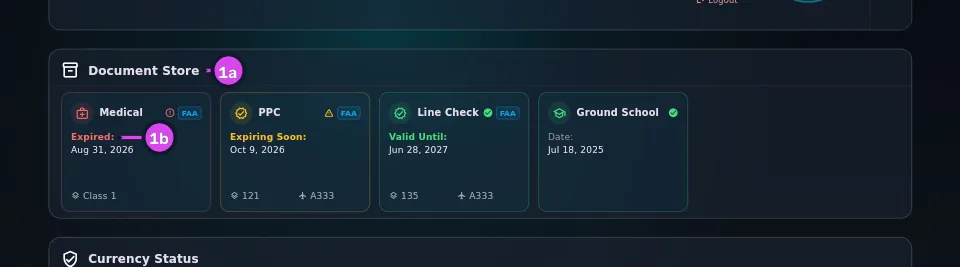
1a the card title1b a tile's status line — coloured by validity 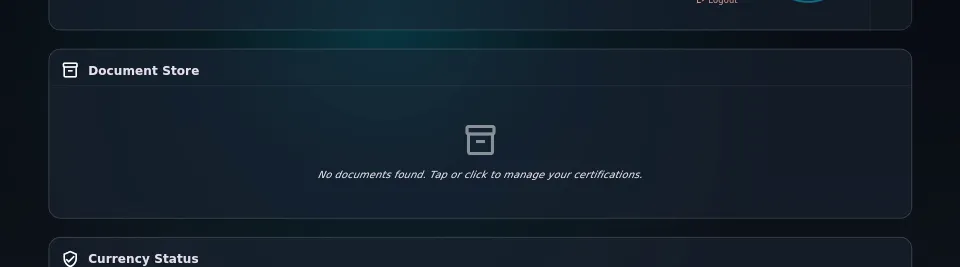
- Tap or click anywhere on the card — not on a tile — to open the full manager,
headed Document Store. (Tapping a tile does something else — see
below.)
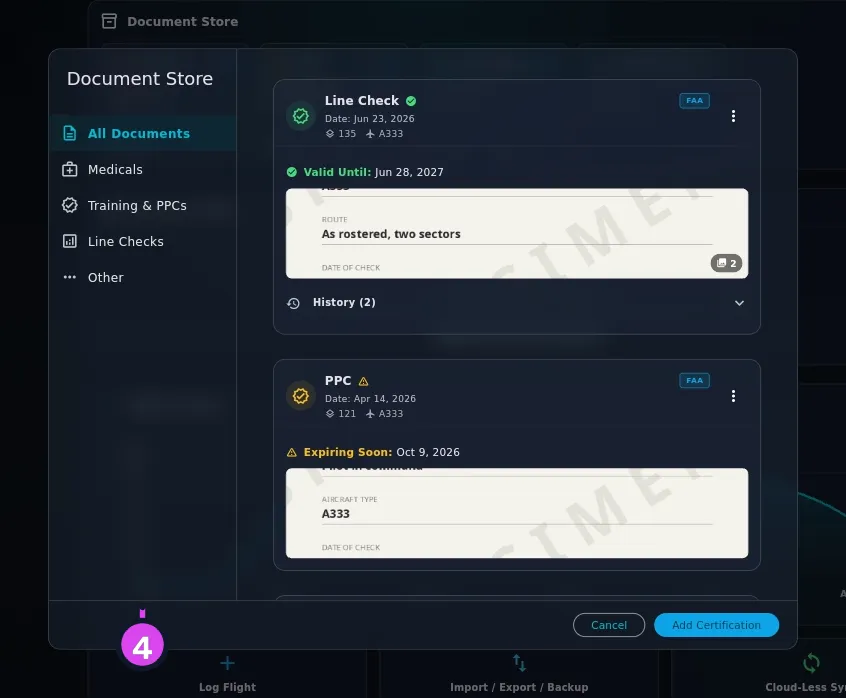
4 the sidebar — narrows the list by category 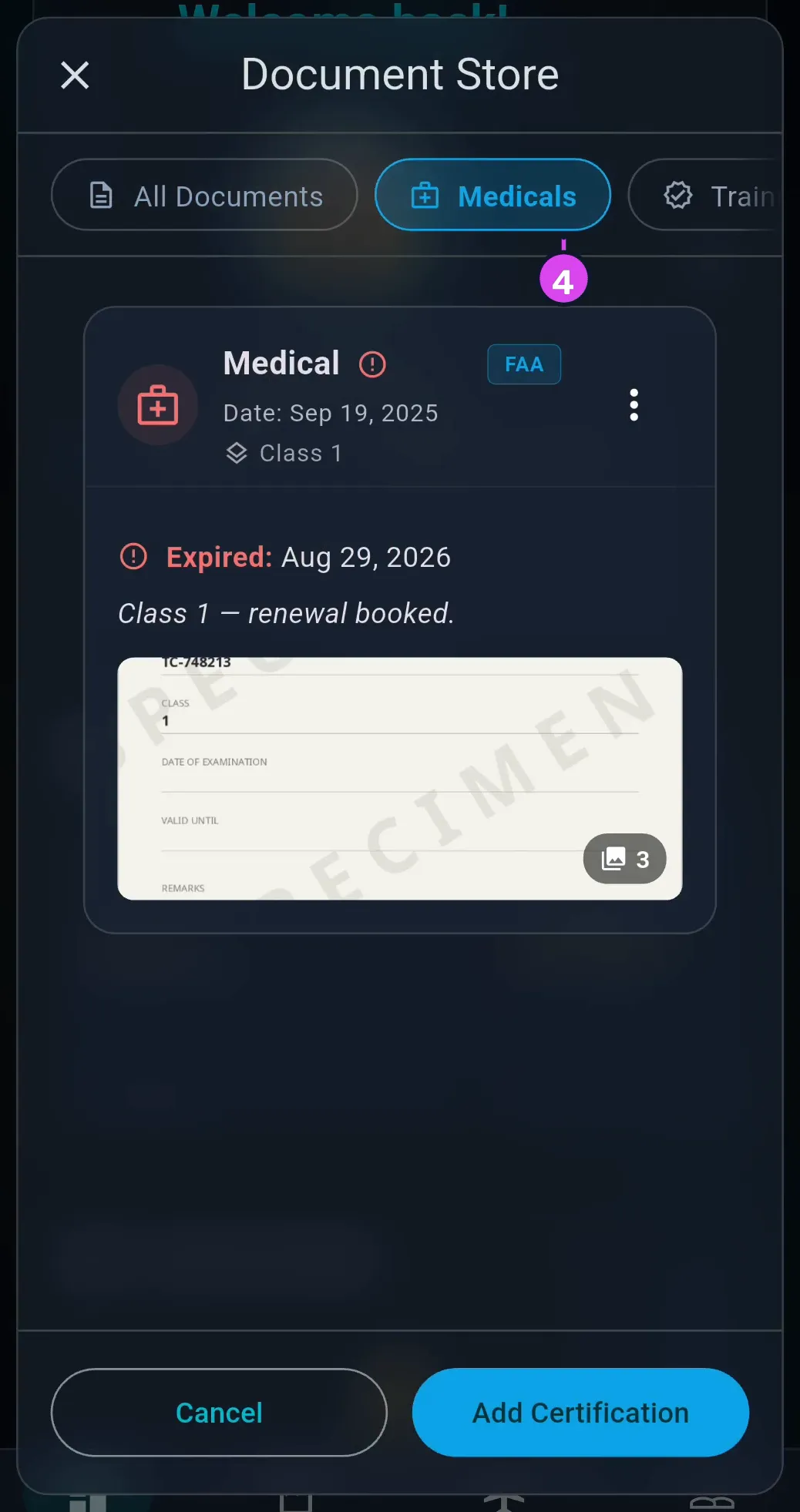
- You can also open the same screen from settings: on the dashboard, tap your own profile card → PILOT IDENTITY → Document Store — PPC, Line Check, Medical, etc.
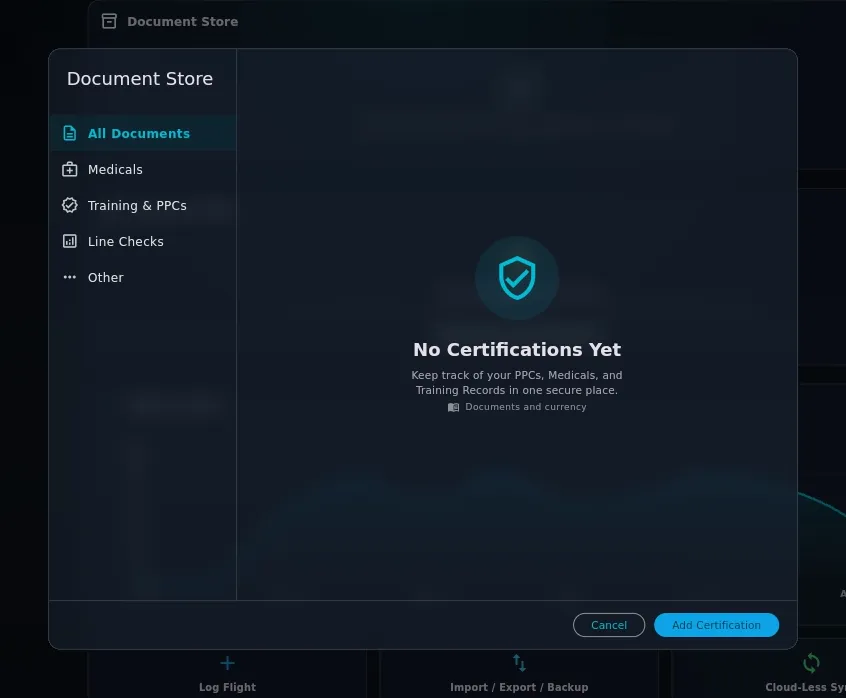
- Choose a category to narrow the list — from the sidebar down the left, or from the row of chips across the top on a narrow window: All Documents, Medicals, Training & PPCs, Line Checks, Other.
- Pick a card and match its parts against the table below.
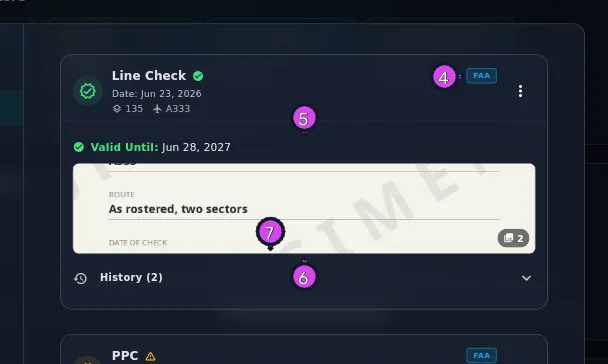
4 the badge — the issuing authority's acronym5 the status line — coloured by validity6 the scan thumbnail — badged if there is more than one7 History — the renewals behind this one
| On the card | What it is |
|---|---|
| The heading | The event type — Medical, Line Check, Flight Review |
| The badge beside it | The authority’s acronym: FAA, TCCA, EASA, UK CAA, CASA, CAANZ |
Date: | The day the check was taken or the certificate issued |
| The small chips | The operating part the record is filed under, and the aircraft type if one was entered |
| The coloured line | **Valid Until: ** in green, **Expiring Soon: ** in amber, **Expired: ** in red, or Deleted |
| The thumbnail | The first scan on the record. A number badge means there’s more than one |
| History (N) | The renewals behind this one (→ G4). Not shown on a document with only one record |
On a medical, the date on that coloured line may be one the app worked out rather than one you typed. See A medical’s expiry date may be computed, below, before you trust it.
How to tell it worked
You’re on a screen headed Document Store, with your documents as cards and an Add Certification button at the bottom. With nothing filed yet it reads No Certifications Yet over Keep track of your PPCs, Medicals, and Training Records in one secure place.
If something goes wrong
| What you see | Why | What to do |
|---|---|---|
| No documents found. Tap or click to manage your certifications. on the dashboard | Nothing is filed yet | Add one (→ G2) |
| No Items Found / Try selecting a different category or add a new event. | The category you chose is empty | Select All Documents |
| A record isn’t in the category you expected | Only Medical, PPC, IPC, LOFT, Ground School and Line Check are sorted into a category by name | Look in Other. A Route Check, a CRM course and a Dangerous Goods record all land there |
| A document you added isn’t on the dashboard strip | The strip stops at ten documents, with nothing to say it has stopped. It keeps the ten closest to expiring, so what drops off is what needs attention least | Open the Document Store screen, which lists all of them |
| A thumbnail reads Syncing… | The image hasn’t arrived from your other device yet | Run a sync (→ I5) and look again. The record is already here; the picture is following |
| A card is struck through and reads Deleted | It was deleted on this device or another | See Deleting, below. It doesn’t come back |
A tile on the dashboard strip opens a choice, not the manager. Tapping one asks whether you want to Renew the record or Edit details. They’re very different: Edit details overwrites the record instead of adding a renewal (→ G3).
Older versions of the app used other names. Documents Store on the dashboard card, Certifications on the screen it opens, Certifications & Documents in settings, and an Add Event button. They’re all the same feature: it now reads Document Store everywhere, and the button reads Add Certification.
On a narrow window, the categories move. The screen switches layout at 700 pixels of its own width, and it sits 16 pixels in from each window edge. So from a window of about 732 pixels wide, the five categories are a sidebar down the left. Below that, they’re a row of chips across the top.
Documents travel with the logbook. They go to your other devices, and so do their scans.
What a document is, and what a record is
A document is a certificate and every renewal of it. A record is one dated entry inside it. Your medical from 2024, the one from 2025 and the one you took last week are three records in one document. The card shows the newest one that isn’t deleted, and the rest sit under History (N). This is called supersession, and it’s why an expired medical you’ve since renewed raises nothing: it’s history, not an alarm.
Five things decide which records count as the same document: the pilot, the event type, the authority, the subcategory and the aircraft type. Change any of them on a renewal and you’ve started a second document instead of continuing the first (→ G3).
A medical’s expiry date may be computed rather than typed
If you filled in Valid Until (Optional) on the record, that’s the date the coloured line shows. If you left it blank, the app works out the expiry from the matching rule’s own validity period — and for a medical, that period depends on how old you were on the day of the exam.
With no date of birth on file, the app can’t pick an age tier, so it uses the shortest period that rule allows anybody: six months on most Class 1 medicals, three on a TCCA Category 1. The date shown is early rather than late. On this card, the line then reads **Expires no later than: ** (or **May have expired: ** once that date has passed), with a note underneath: This date assumes the shortest validity this rule allows, because your date of birth is not on file and the rule is age-tiered. Set your date of birth (→ A9) and read G5 before you act on a medical’s colour.
When more than one shipped rule reads the same record — an FAA PPC filed under 121 is read by four — the card shows the expiry of the strictest one, the one that lapses soonest. Each of those rules still gets its own row, with its own date, on the Currency Status card (→ G8).
Deleting
The ⋮ menu on a card offers Renew, Edit and Delete. Delete asks Delete Event? and warns This action cannot be undone. It means it.
The record stays on the device, marked deleted. It’s left off the dashboard strip but stays in the Document Store struck through, and the deletion reaches your paired devices on the next sync. There’s no way back: tapping a struck-through record opens the edit sheet as though you could revive it, but saving from there saves it still deleted. If you delete a document you needed, add it again (→ G2), with its scans.