
The Review inbox
What this does
Empties the queue of rows an import couldn’t place, so every one ends up in your logbook, merged into a flight you already had, or knowingly discarded.
Before you start
- Nothing in this queue is in your logbook. It’s a holding area with no expiry, and rows sit in it until you do something about them.
- Discarding a row happens immediately and can’t be undone. There’s no confirmation and no message afterwards; the row leaves the queue on this device the instant you tap it.
Steps
- Open the import screen (dashboard → Import / Export / Backup →
Import) and tap Review — or tap the red badge on the dashboard card.
The screen is titled Review (N), with the subtitle Tick rows to import;
use Override to commit a row whose required fields the model could not read.
Both ticks are saved with the row, so you can close this and come back.
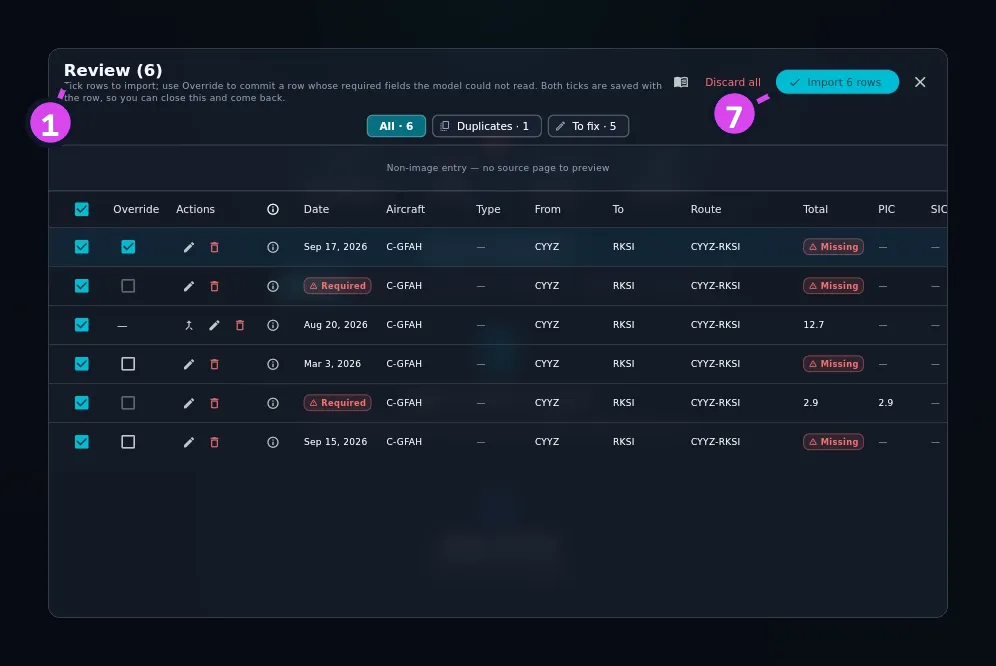
1 the title7 Import N rows — they arrive already ticked - Choose a lane — one of the groups the queue splits into: All,
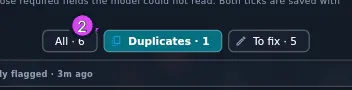
Duplicates or To fix, each with a count. When only one lane holds
anything the bar is hidden, so a queue that’s all duplicates shows no lane bar
at all. That isn’t a fault.
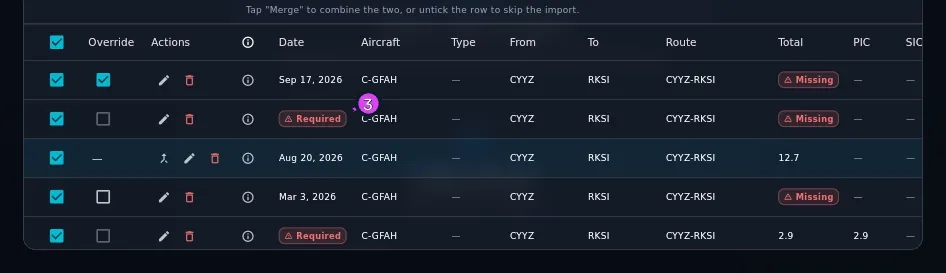
- Check each row’s pills. A Required pill marks a field the row can’t be
imported without; Missing marks one it can be imported without if you
insist; a — is an empty optional field. (Everything else on a row is
listed under What’s on a row below.)
- To supply what’s missing, tap Edit. The Edit extracted flight dialog
opens with **Date ***, **Aircraft registration ***, **Departure ***,
**Arrival ***, the hours fields and Remarks. Fill in what you know and tap
Save.
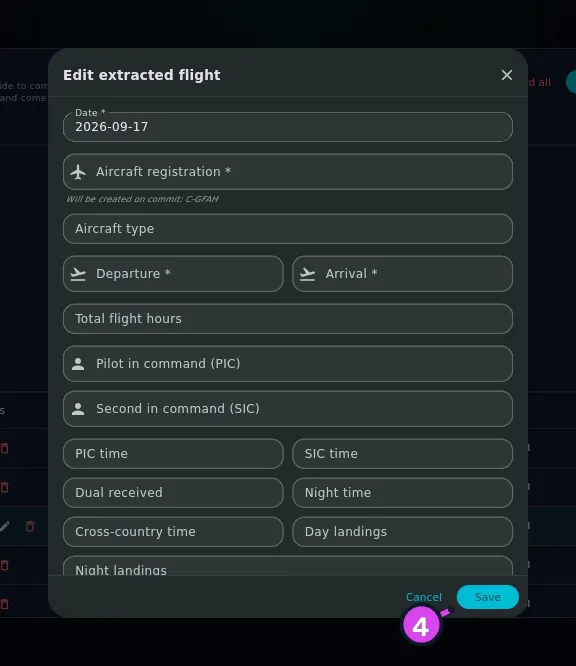
4 Save — keeps the fix - For a row in Duplicates, compare the two sides — Incoming
(quarantined) and In database, field by field — and the Merge fills: …
line, which names what merging would add to the flight you already have. Tap
the merge icon (Merge with existing) to combine them, or untick the row to
leave the incoming copy out.
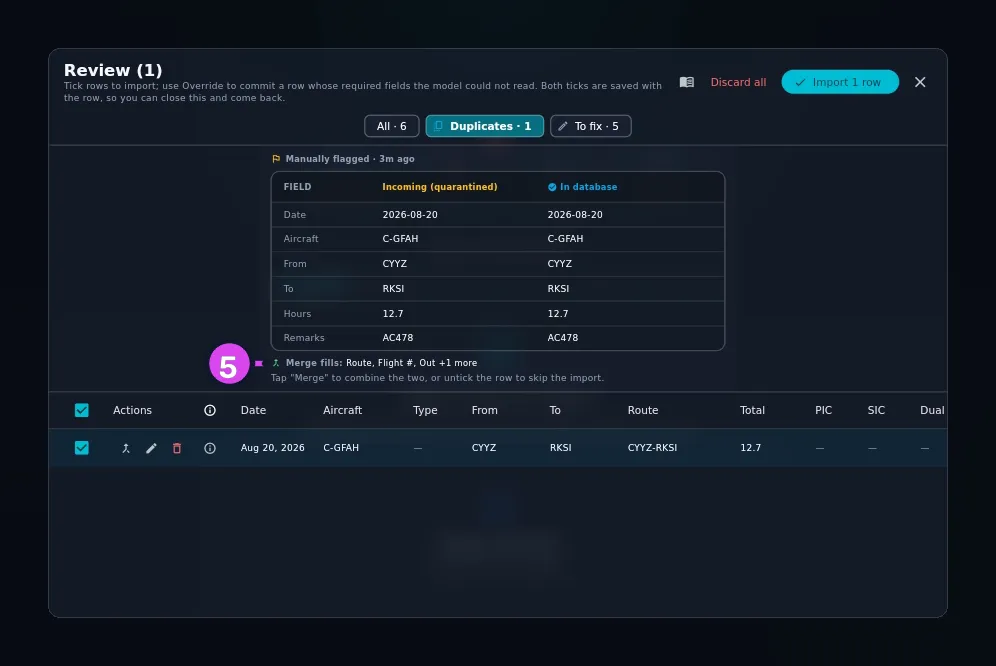
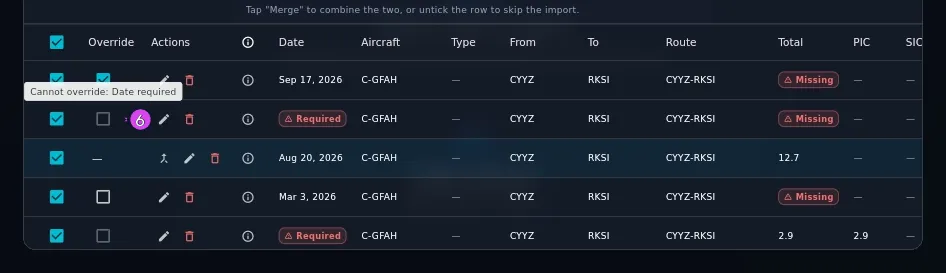
5 the Merge fills line — naming what merging adds - To commit a row whose aircraft, airports or hours couldn’t be read, tick its
box in the Override column. The column only appears when at least one row
on screen needs it. A greyed-out tick says what it can’t get past — Cannot
override: Date required when the date is missing. A date can never be
overridden, so that row has to be fixed with Edit.
- Tick the rows you want and tap Import N rows. Rows arrive already ticked,
so this is usually a matter of unticking, and the tick box in the header covers
every row on screen. The result reads Imported N rows, or Imported N/M · K
failed followed by the first few reasons; when more than three rows fail, a
Details action lists them all.

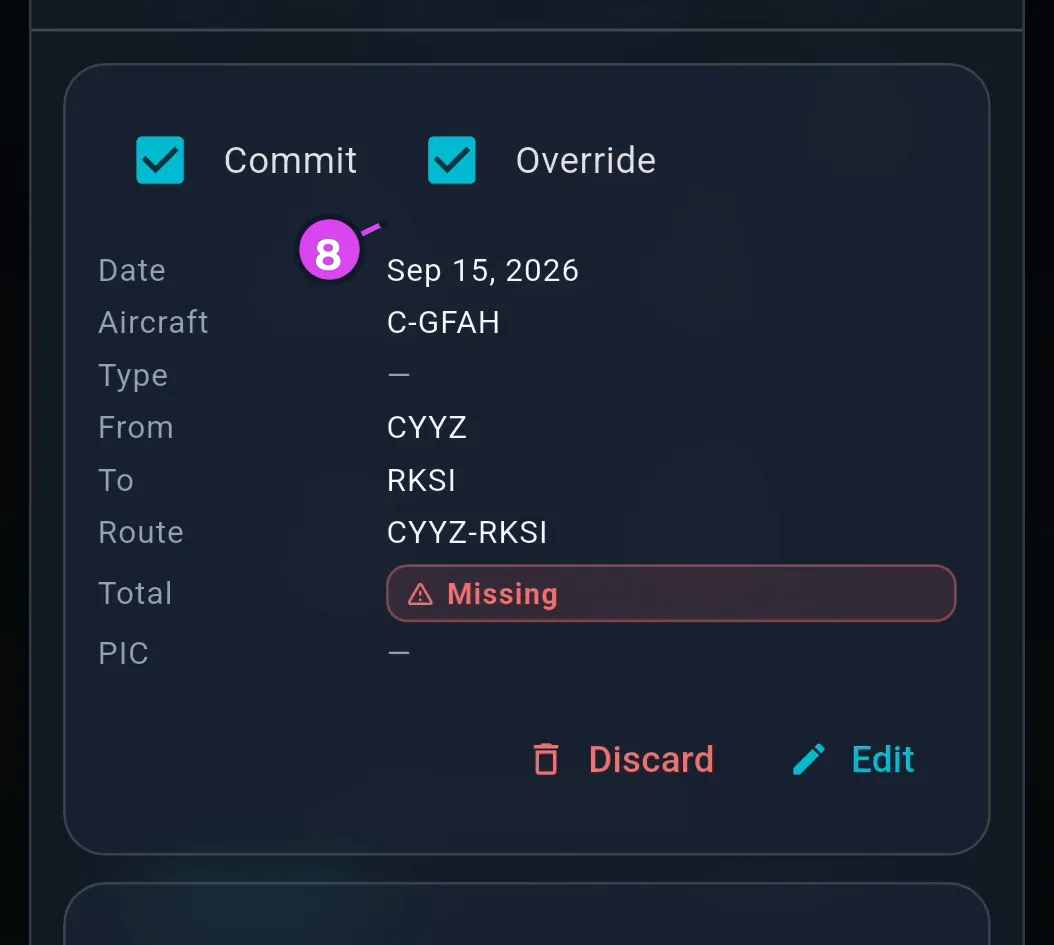
- On a phone, work from cards instead of table rows. Each card has the same
Commit and Override ticks and the same three actions, labelled
Merge, Discard and Edit in that order.
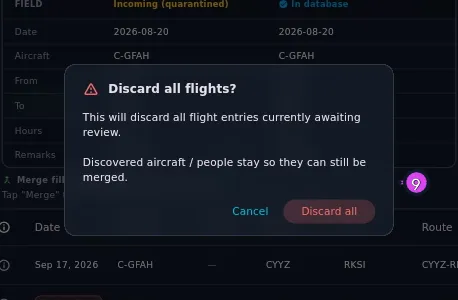
- To empty the queue without importing any of it, tap Discard all and
confirm. The dialog reads This will discard all flight entries currently
awaiting review. — Discovered aircraft / people stay so they can still be
merged.
How to tell it worked
The screen reads Nothing to review, and the badge has gone from the Review button and from the dashboard’s Import / Export / Backup card. Rows you committed are in your logbook and open like any other flight.
If something goes wrong
| What you see | Why | What to do |
|---|---|---|
| An airport duplicate row has no Edit button | There’s no airport editor that opens from here | Discard the row and add the airport by hand (→ E9) |
| An organization or airport duplicate row has no Merge button | Merge is only offered for flights, aircraft and people | For that row, Discard is the only way out |
| Imported N/M · K failed | Some rows still had a field that couldn’t be fixed | Read the reasons in the message — above three failures, tap Details for the full list — then fix or discard those rows |
| No active profile — cannot commit | The profile closed while the screen was open | Close the screen, open your profile, and start again |
| Error parsing original data | The stored copy of that row can’t be read | Discard it and re-import that flight from the source file |
| The badge still shows a number after Discard all | It clears every flight row however it arrived; what’s left is a discovered aircraft or person still waiting to be merged, which it doesn’t touch — see below | Resolve or merge those one at a time, or leave them. They don’t affect your logbook |
| A banner about hidden rows | More than 200 rows are queued | Import or discard a batch, and the rest appear as the queue shrinks |
What’s on a row
Every row carries four controls: the Commit tick box that decides whether it gets imported; Merge with existing, which shows up only where merging is possible; Edit, hidden only for a kind of row with nowhere to open; and Discard, which is final the moment you tap it. On a duplicate, the comparison block also carries a chip saying where the row came from and when — Flagged during sync, Manually flagged or Possible duplicate.
Your Commit and Override ticks are saved with the row, so you can close the screen mid-batch and come back to them.
Why a row is here
Rows arrive from five places: an import couldn’t check them, you excluded them by hand on the Review step, you skipped them as duplicates, you set them aside from Find Duplicates — the tool that looks for flights you’ve logged twice (→ D8) — or a sync flagged them as matching something already on this device.
Every row carries a recorded reason. On a computer, tap the info icon beside Actions for the full text. The wording differs between an import, a sync and a duplicate scan, but it always names the actual problem. On a phone there’s no such icon, so work from the lane, the Required and Missing pills, the chip saying where the row came from, and — for duplicates — the side-by-side comparison.
Usually the lane is enough on its own. A row in To fix is missing something the pills point at. A row in Duplicates matched a flight you already have, and the comparison shows you which one.
Discard, and what it can’t be taken back from
Discard on a single row acts immediately: no confirmation, no undo, and no message to tell you it happened. Treat that button as final every time you go near it.
Discard all clears every flight row, however it got here. Rows an import couldn’t check, rows flagged during a sync, and rows set aside from Find Duplicates are all cleared and counted in the Discarded N flight entries. message. What it leaves behind is what its own confirmation says: a discovered aircraft or person, still in the queue so it can be merged later. So if the badge isn’t zero afterwards, that’s what’s left — not a row that failed to clear.
One thing about long queues
Above 200 rows, the table only shows the first 200, and the button matches it. On a computer you see the first 200 rows of the lane with a banner — Showing first 200 of N items to review. Import a batch (or use “Discard all”) to whittle the queue down… — and Import N rows counts only the ticked rows among those 200, the same ones the header tick box reaches. The title, Review (N), still shows the true total for the lane. Import or discard a batch to bring the rest into view. (On a phone the list isn’t capped.)
There is no separate lane for scans
Every row here is either a Duplicate or something To fix, whether it came from a file import, a sync, or an AI Scan. A scanned page is reviewed from the Scans page instead, through the import wizard (→ B8).