
About, version and getting help
What this does
Finds the exact version you’re running, and the places to read, ask and report.
Before you start
- A profile is open. The About screen is in settings, behind your profile card.
- The links open in your web browser, outside the app.
Steps
- On the dashboard, tap your profile card at the top to open Profile Settings.
- Scroll down to HELP & ABOUT and tap About Aviator Archive — Version,
mission, credits, open-source licences. (The same section has User guide,
which opens this guide in your browser.)
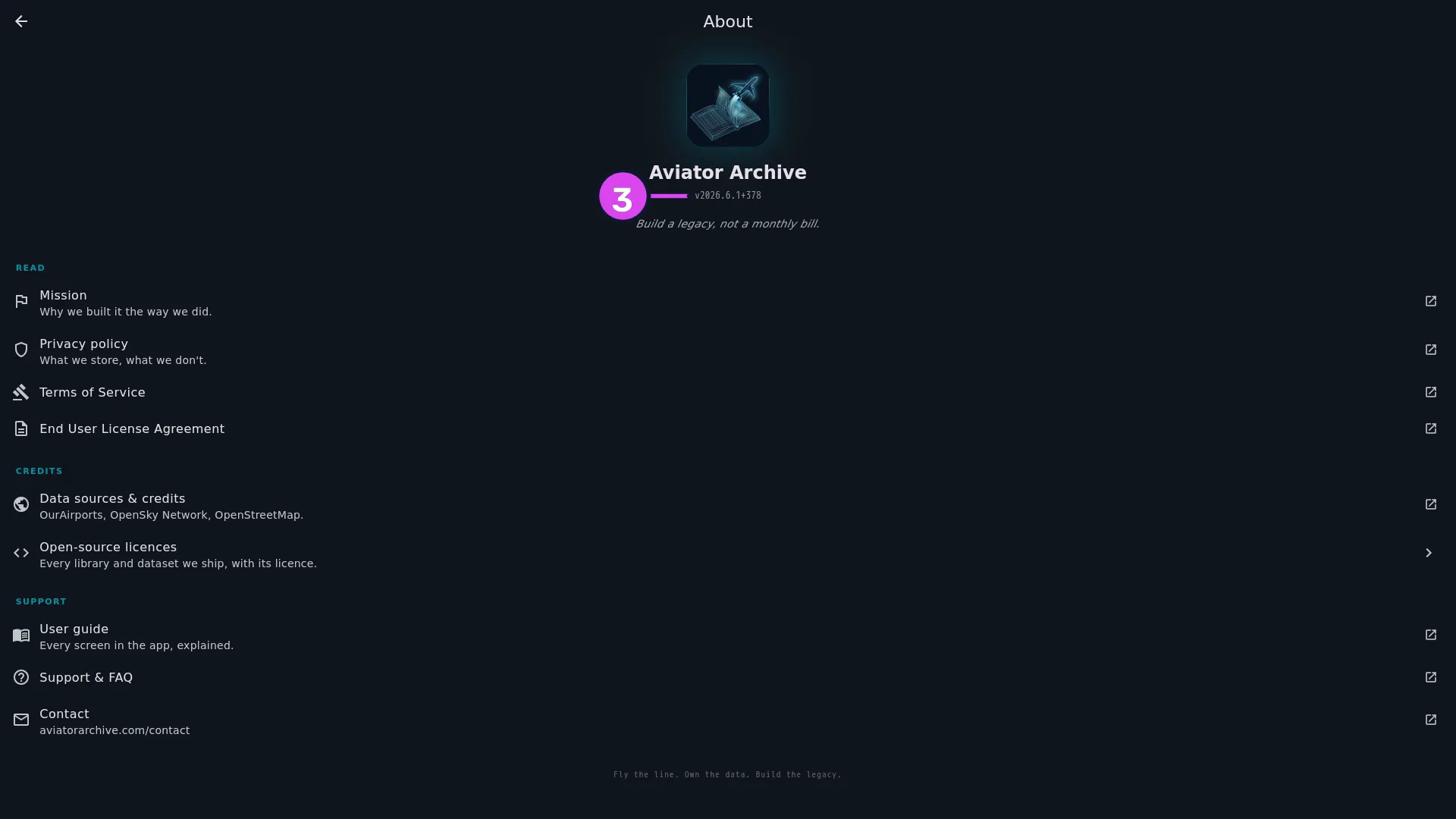
- Find the version under the app name, near the top. It looks like v2026.6.1+378.
How to tell it worked
You’re on a screen titled About, showing the app name, the version, and three groups of links: READ, CREDITS and SUPPORT.
If something goes wrong
| What you see | Why | What to do |
|---|---|---|
| The version reads v… | It hasn’t finished loading | Give it a moment. If it stays that way, restart the app |
| Could not open | Nothing on this device is registered to open web links | Type the address into a browser by hand |
Reading the version
v2026.6.1+378 is the year, the month, and which release it was that month, then the build number after the +. Quote the whole thing when you report a problem, build number included. Two builds can carry the same version and behave differently, and the build number tells them apart.
What’s on the screen
| Group | Row | Where it goes |
|---|---|---|
| READ | Mission | Why the app is built the way it is |
| Privacy policy | What’s stored and what isn’t | |
| Terms of Service, End User License Agreement | The documents you agreed to (→ A1) | |
| CREDITS | Data sources & credits | OurAirports, OpenSky Network, OpenStreetMap |
| Open-source licences | Every library the app ships, with its licence. This is the one that opens inside the app | |
| SUPPORT | User guide | This guide, in your browser — every screen in the app, explained |
| Support & FAQ | The answers to the questions that come up most. Start here | |
| Contact | The contact form on the site, in your browser |
Reporting a problem well
Send the version and build, what you did, what you expected, and what happened instead. If it’s about a particular flight or import, say which one. Don’t send your logbook or a backup unless you’re asked for it — it’s yours, and most questions can be answered without it.