
Save as draft and finish later
What this does
Parks a half-entered flight in your logbook so nothing is lost, and turns it into a real flight when you’ve got the rest of it.
It works equally well on a flight that’s already complete, if you want to file it later rather than now.
Before you start
- The entry form is open on a flight (→ C1).
- An aircraft is the one thing a draft still needs. Without one, Save as Draft won’t respond.
- A draft counts toward nothing until it’s finished. Not totals, not currency, not exports, not analytics, not your flight count.
Steps
- Fill in whatever you’ve got — the times you know, the airports, the aircraft.
- Tap Save as Draft, beside Save — in the app bar on a phone, below
Cancel / Save on a desktop. The entry is saved as it stands, complete
or not, with no checklist to get through first.
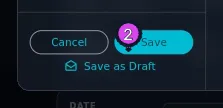
2 Save as Draft
How to tell it worked
A message reads Saved as draft, and the flight is in the logbook list as a card with an amber border and a DRAFT pill on it. No totals anywhere in the app have moved.

If something goes wrong
| What you see | Why | What to do |
|---|---|---|
| Save as Draft beside Save won’t respond | You haven’t chosen an aircraft yet | Choose one on General Info. The tooltip says so: Select an aircraft to save a draft |
| Save as Draft is greyed out, with Select an aircraft to save a draft. in italics under the five items | The draft has no aircraft | Tap Keep Editing, choose an aircraft on General Info, and tap Save again |
| No Required Items dialog — the flight files instead | The flight already has all five required items, so the dialog has nothing to stop | Tap Save as Draft rather than Save — see Drafting a flight that is already complete below |
| The flight-saved animation plays instead of the Saved as draft message | You saved from the dashboard’s Log Flight action, which plays it either way | Check the logbook. An amber card with a DRAFT pill means the draft saved, whatever the animation showed |
| Your monthly total is lower than you’d expect | Drafts count toward nothing, and nothing on a totals screen tells you so | Look for amber cards in the logbook, and finish them |
| The draft is on your other device, still a draft | Drafts sync like any other flight, and they stay drafts | Finish it on either device. The result syncs back |
The other way in: Required Items
Tap Save on an entry that’s missing something required, and you’re offered the same thing a second way:
- Tap Save.
- The Required Items dialog appears: Complete the following to file this
flight — or save it as a draft and finish it later. Each of the five items is
ticked or not, depending on what you’ve filled in.
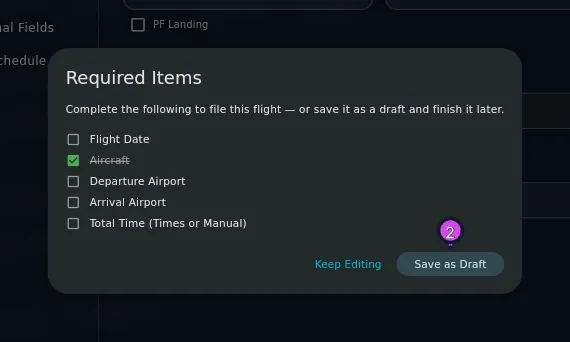
2 Save as Draft - Tap Save as Draft.
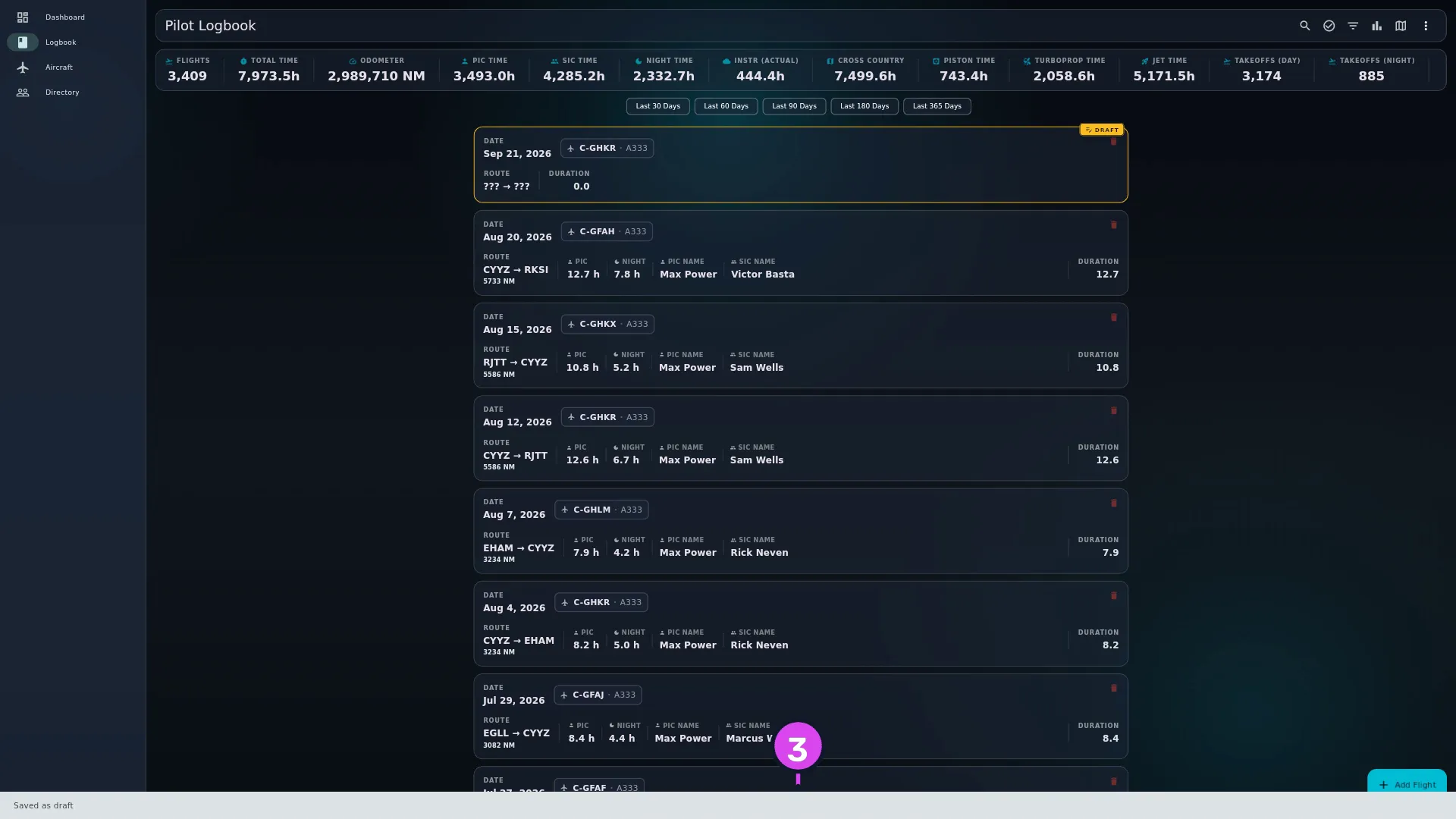
3 the Saved as draft toast
Why a draft still needs an aircraft
A draft is stored against an airframe, so an aircraft is the one thing it can’t do without, whichever way you save it. With Aircraft Registration empty, the Required Items dialog shows the same five items and the same Keep Editing, but its Save as Draft won’t respond, and the reason is in italics under the last item. The button beside Save is disabled the same way.
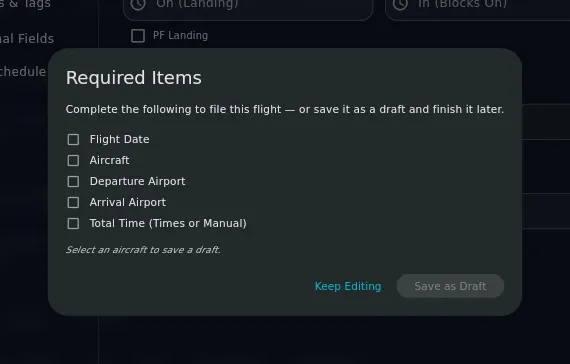
Anything else can be missing: no date, no airports, no times.
A registration you’ve typed that the app has never seen counts as an aircraft here. Both Save as Draft buttons work, and the Aircraft item on the checklist ticks too, because Save is going to create the aircraft. The draft creates it the same way a filed flight does (→ C4).
Finishing a draft
- Tap the draft’s card in the logbook. The flight’s detail view opens, read-only.
- Tap Edit.
- Fill in what was missing.
- Tap Save.
If the save passes its checks, the draft becomes a real flight there and then: the amber border goes, the DRAFT pill goes, and the hours appear in your totals. There’s no separate “file this” step afterwards.
The DRAFT pill’s own tooltip says so: Draft — tap to view, then Edit, to complete and file it.
Drafting a flight that is already complete
Tap Save on a flight with all five required items and it goes straight into the logbook — the Required Items dialog only opens when something’s missing. The Save as Draft button beside Save skips the checklist entirely and saves whatever’s on the form, complete or not.
So to hold a finished flight back, fill in everything and tap Save as Draft instead of Save. It’s still a draft: it counts toward nothing until you open it, tap Edit, and tap Save.
What a draft is, exactly
A draft is a real entry in your logbook, marked not finished. It holds every field you filled in, it syncs to your paired devices, and it survives backups and restores like any other flight. The difference is that the logbook list is the only place in the app that shows it: every count, chart, currency window and export leaves it out until it’s finished.
That’s what makes it safe, and it’s also the trap. Draft four legs of a trip, then look at your month, and you’re four legs short — correctly, with nothing on that screen to explain the gap. Clear your drafts before you check your totals.