
Simulators and training devices
What this does
Sets up a simulator so its sessions stay out of your flight-time totals and land on the right row of an FAA 8710-1.
Before you start
- A profile is open.
- Choose your route. There are two ways to mark a session, and this guide is the thorough one. Setting a device class on an aircraft type gives the device a permanent identity in your Hangar — what you want for a box you use regularly. For a single session, the flight-entry form’s Simulator / FTD session block does it in one field, and C1 covers that.
- For this route you’ll end up with two things: a type carrying a device class, and an airframe on that type. The box needs a tail in the Hangar like any other aircraft (→ E2).
Steps
- Tap Aircraft in the navigation, then Add and Add Aircraft Type.
- On the Identity tab, fill in the three required fields — ICAO Designator (e.g. C172), ICAO Description (e.g. L1P) and Model Name (e.g. Skyhawk) — for the aircraft the device represents. Name the model so you’ll recognise it as the device (→ E3).
- On the Specs tab, set Simulator Device (optional) to the class the
device is qualified as: FFS, FTD or ATD. Its helper text reads:
Set this only when the type models a simulator. The category, class, and
capability flags above still describe the airframe the device represents.
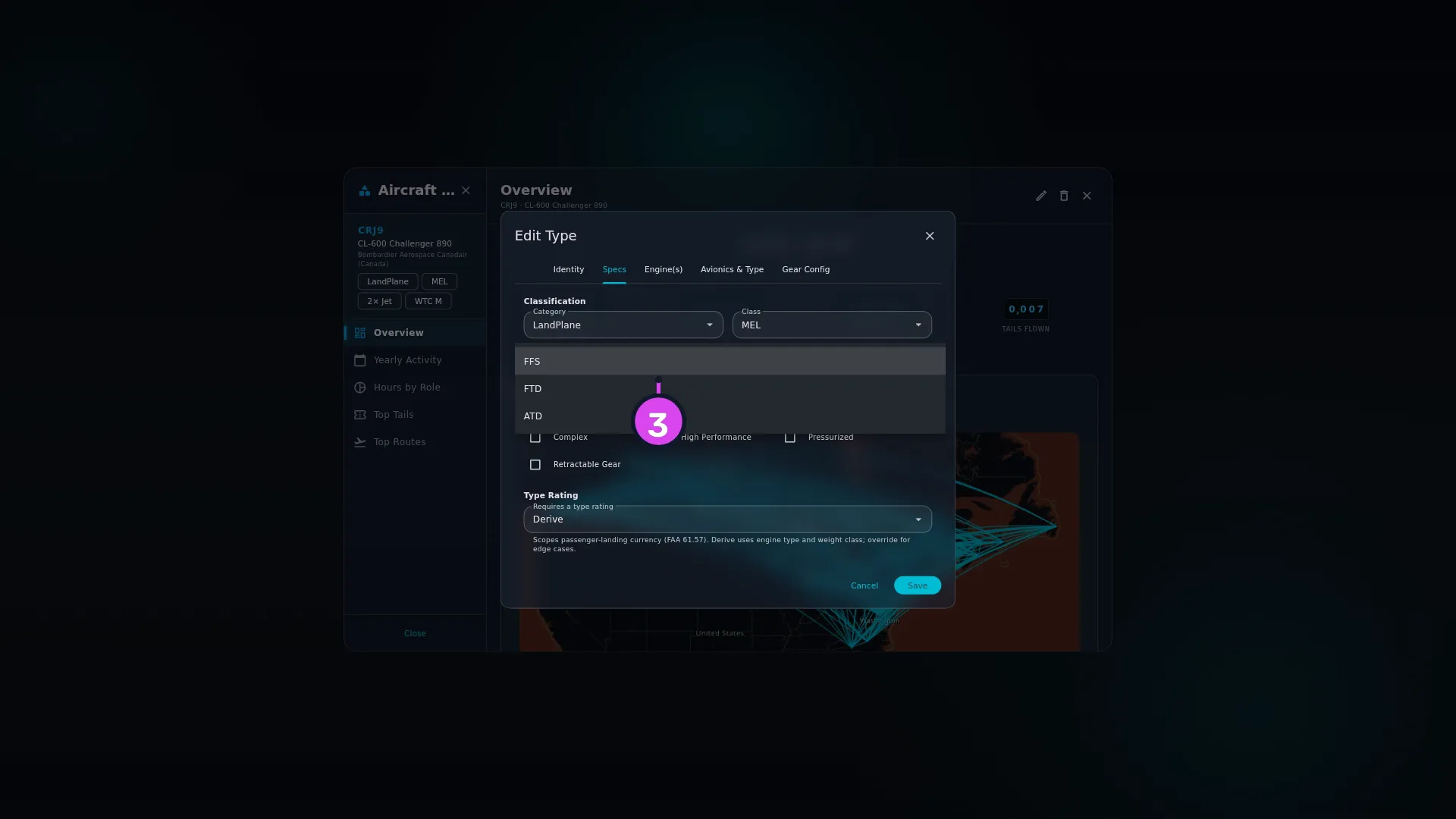
- Set Qualification Level (optional), which appears beneath it once a class
is set, to the level on the device’s own qualification certificate — A,
B, C or D. A couple of currency rules read it (→ G5); leaving it
unset is fine (see below).
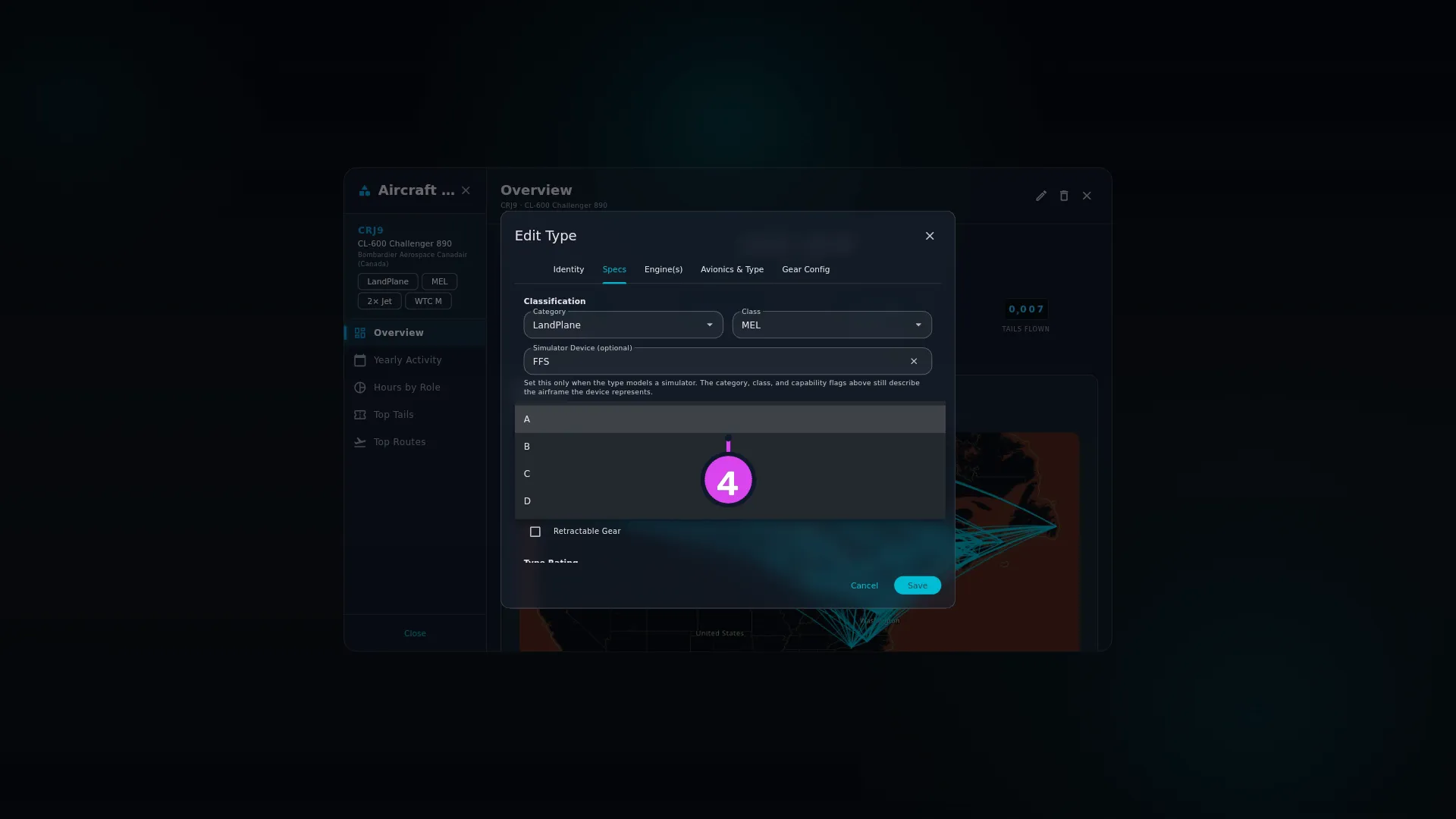
4 the Qualification Level dropdown — read by currency rules - Leave Category, Class and the capability switches describing the real aircraft, as the Simulator Device helper says. Tap Save.
- Find the new type in the Aircraft Types list. Its card carries a chip reading SIM · FFS — or SIM · FTD, or SIM · ATD — which also appears in the type autocomplete. It names the class only, never the level.
- Add an airframe on that type (→ E2), with the device’s own identifier in Registration or Fleet / Ship No. The simulator’s name is a perfectly good entry.
- Log the session against that airframe like any other flight (→ C1).
How to tell it worked
The type card shows the SIM · chip, the session is in your logbook with its hours on the card, and your total time hasn’t moved. The hours don’t disappear: the flight card shows them and the FAA 8710-1 reads them. It’s only your flight-time totals that leave them out. On an FAA 8710-1 preview the session appears under FFS · Full Flight Simulator, FTD · Flight Training Device or ATD · Aviation Training Device, depending on the class you set (→ F5).
The qualification level shows nowhere on screen. Reopening Edit Type and finding it still set is the only confirmation here; its effect shows up on your currency card instead (→ G5).
If something goes wrong
| What you see | Why | What to do |
|---|---|---|
| No SIM · chip on the type card | The device class didn’t save, or was cleared with the Clear button beside the field | Open the type again, go to the Specs tab, and set it |
| BATD or AATD isn’t offered | Neither is a separate class anywhere in the app — both come under ATD | Use ATD |
| FNPT or BITD isn’t offered on the type | The FAA 8710-1 these classes feed has no row for either, so there’s no type-level setting | Record the class on each session instead, with the flight-entry form’s Device class picker, which offers all five (→ C1) |
| Qualification Level (optional) isn’t there | Simulator Device (optional) isn’t set yet | Set the device class first |
| The level has gone after you cleared the device class | Clearing the class clears the level with it — a level means nothing on a type that isn’t a device | Set the device class again, then the level |
| The hours still show on the flight card | Normal. Sessions keep their time; only the totals leave them out | Nothing |
| A session is still in your total time | That flight isn’t using the simulator type. A flight keeps the type it was saved with, so a session logged before you set the device class keeps the old answer | Open the flight and set its aircraft again, or set the device class on the type the flight actually points at (→ E3) |
| Landings in the box didn’t make you landing-current | Currency also goes by the device class, and a device session doesn’t count | Nothing. Fly the aircraft |
| The device class is missing from a tail’s edit form | There’s no simulator field on an individual aircraft. It’s a setting on the type | Edit the type |
| You’re looking for somewhere to type simulator hours on the flight form | It’s there — the Simulator / FTD session block in the Training section | Use it for a one-off, and set a class in the block’s Device class picker. For a device you fly often, use this guide’s type route (→ C1) |
| You set up the type and the session still counts | The flight isn’t using that type — see the row above | Either fix the type, or set a Device class on the flight itself, which overrides it |
Where these hours land
| Class | On the FAA 8710-1 |
|---|---|
| FFS | FFS · Full Flight Simulator |
| FTD | FTD · Flight Training Device |
| ATD | ATD · Aviation Training Device |
| FNPT | FTD, the nearest FAA equivalent |
| BITD | FTD, the nearest FAA equivalent |
FNPT and BITD are European (EASA) classes, and Form 8710-1 has no row for either. They print on the FTD row so that a device session never lands in Airplanes.
The long forms — Full Flight Simulator (FFS), Flight Training Device (FTD), Aviation Training Device (ATD) — also appear in the Previous Experience wizard, when you record simulator time flown before this logbook (→ B7).
What the qualification level is for
Nothing on the type card, the type autocomplete or the flight card shows it, but a couple of currency rules read it. Canada counts a device toward instrument-approach currency only at Level B, C or D, and its sector-substitution rule asks more of a Level A device than of a Level B, C or D one. G5 has both rules; G2 has how a rule like that reaches your currency card (→ G5, G2).
Leave it unset and a session in the device is still credited, exactly as if the control weren’t there. Setting it only lets those two rules tell a compliant session from one they can’t check. It changes nothing about flights you’ve already logged.
The one field that sounds like this and isn’t
The flight-entry form’s Training section has Instrument (Simulated), and the name misleads. Instrument (Simulated) is hood or view-limiting-device time in a real aircraft. It’s flight time, it belongs in your totals, and it has nothing to do with simulators. Logging it doesn’t exclude anything, and shouldn’t.
The Simulator / FTD hours box in the same section sits with a Device class picker, and the class is the switch. Enter hours without choosing a class and the form warns you in red rather than accepting them quietly.
So: what keeps a session out of your totals is a device class — on its type, set here in the Hangar, or on the flight itself. Hours alone never do.