
Previous Experience
What this does
Records the hours you flew before this logbook began as a single set of totals, so your career figures come out right without entering decades of flights.
Before you start
- A profile is open. This isn’t a Pro feature.
- It’s one summary, not a set of flights. Saving replaces the whole brought-forward balance rather than adding to it, so edit the summary you’ve got rather than entering a second one.
- Have your closing totals to hand from the logbook you’re carrying forward from, split the way you mean to record them.
Steps
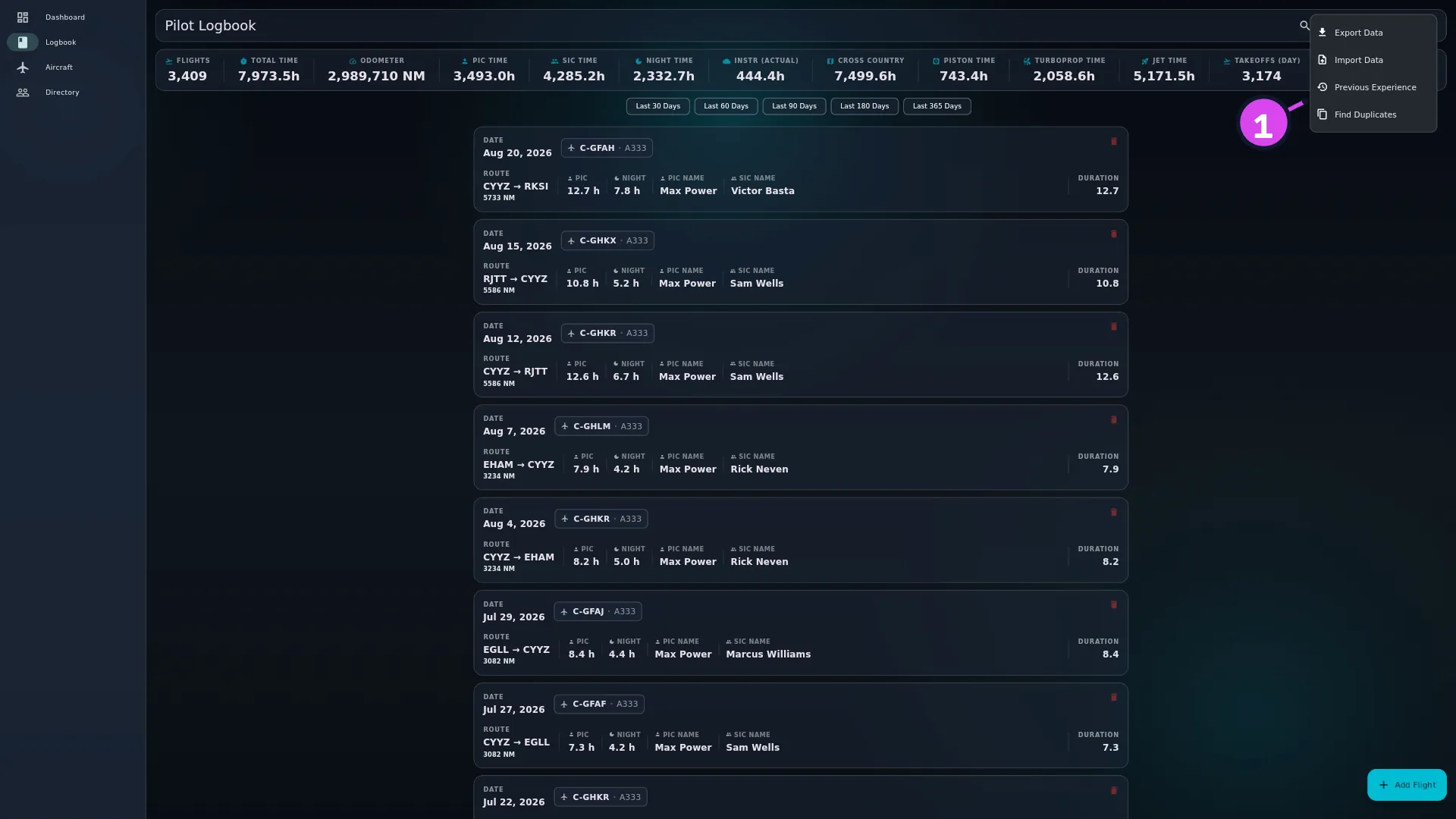
- Open the wizard, from either way in: in your logbook, tap ⋮ (More Actions)
→ Previous Experience; or tap your profile card on the dashboard to open
Profile Settings, then Pilot Identity → Previous Experience
(Summarize hours flown before this logbook).
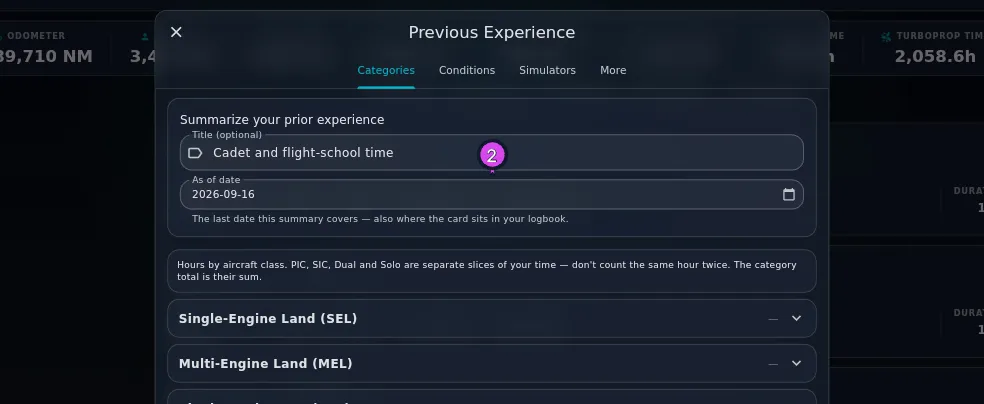
1 Previous Experience - Under Summarize your prior experience, type a Title (optional) — the
hint suggests e.g. Airline transport experience — and set the As of
date: the last date this summary covers — also where the card sits in your
logbook.
2 As of date — also sets where the card sits - On Categories, expand the aircraft class you flew — Single-Engine Land
(SEL), Multi-Engine Land (MEL), Helicopter and the rest — and enter
PIC, SIC, Dual and Solo, typed as
3000.0or3000:00, never a bare3000(→ Three things that catch people out). The tab states the rule: PIC, SIC, Dual and Solo are separate slices of your time — don’t count the same hour twice. The category total is their sum.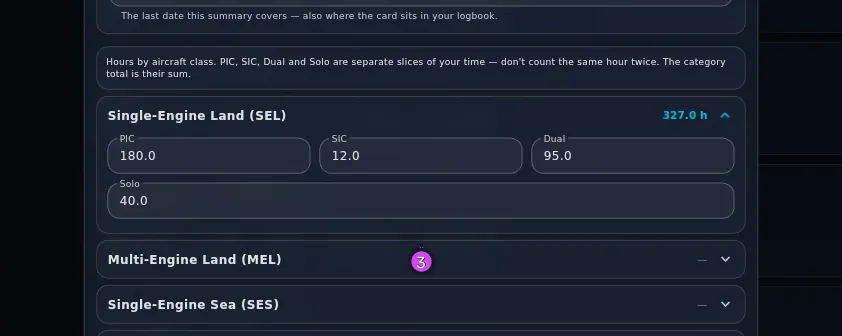
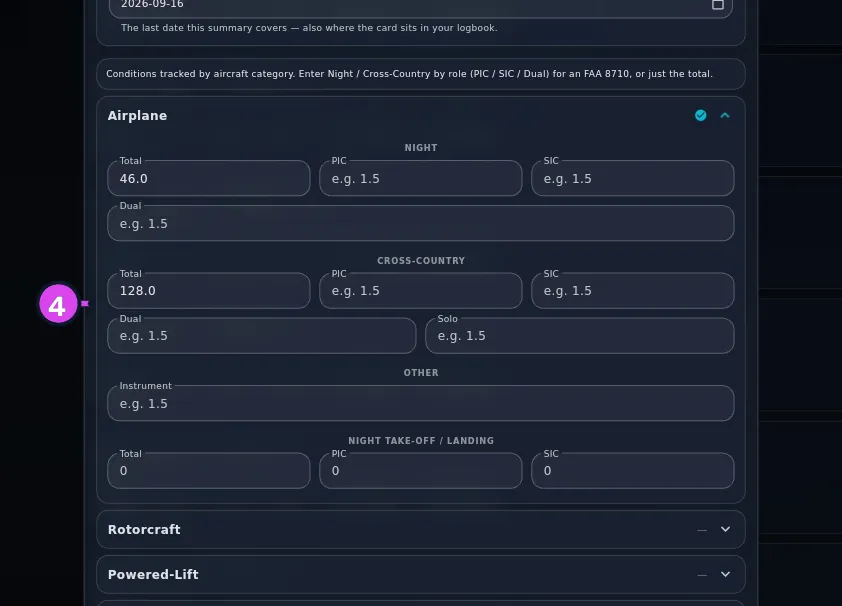
- On Conditions, expand the aircraft category — Airplane,
Rotorcraft, Powered-Lift, Glider, Uncategorized — and fill in
the NIGHT, CROSS-COUNTRY, OTHER and NIGHT TAKE-OFF / LANDING
sections. Glider has no night sections. Conditions go in per category, not
per class (→ How condition hours are shared out).
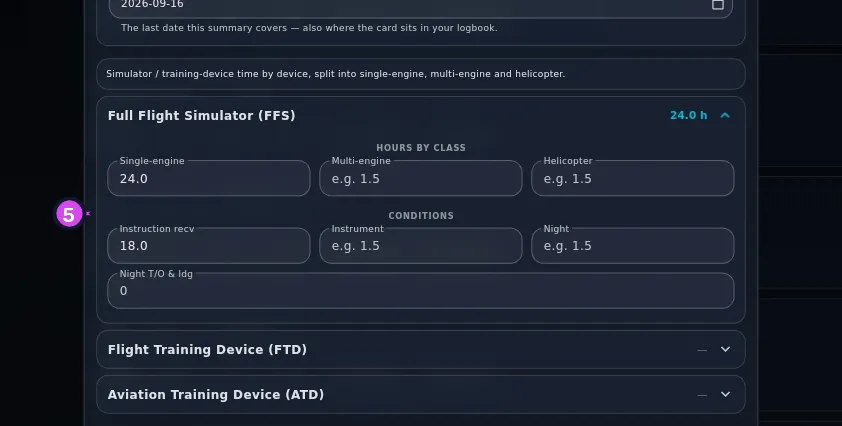
- On Simulators, expand Full Flight Simulator (FFS), Flight Training
Device (FTD) or Aviation Training Device (ATD) and enter the hours by
class first, then any conditions against them — conditions with no class hours
to hold them are dropped.
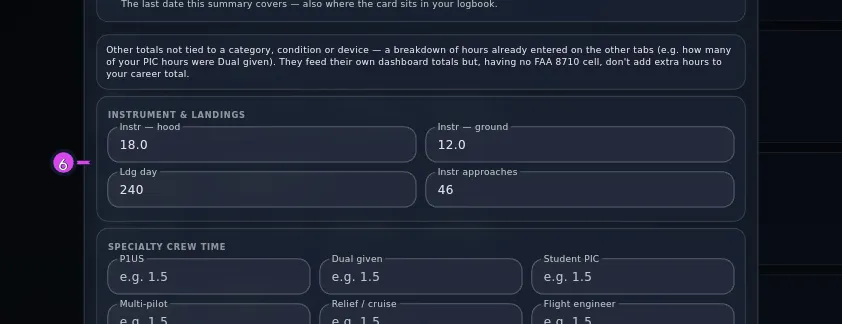
- On More, enter the totals that belong to no category, condition or device
— Dual given, P1US, Student PIC, NVG and the rest.
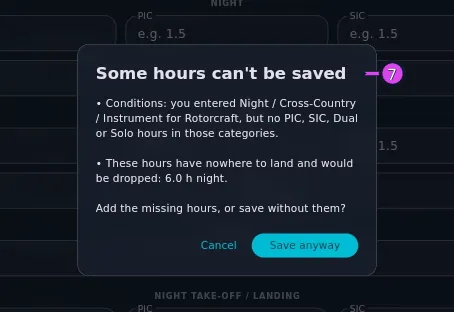
- Tap Save. If Some hours can’t be saved appears, tap Cancel and fix
what it lists, or Save anyway to drop exactly the hours listed.
- To change the summary later, reopen the wizard from either way in. It’s the same screen, titled Edit Previous Experience, with your figures already in it — and saving replaces the balance rather than adding a second one.
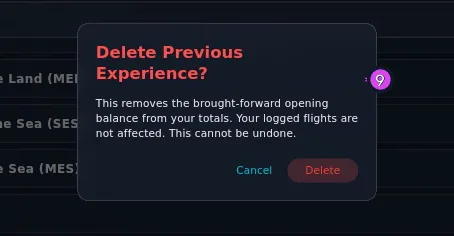
- To remove the balance altogether, tap the bin icon (Delete brought-forward
totals), then tap Delete in Delete Previous Experience? — This
removes the brought-forward opening balance from your totals. Your logged
flights are not affected. This cannot be undone.
How to tell it worked
A message reads Previous experience saved., and a BROUGHT FORWARD card appears in your logbook list at the as-of date you chose, showing Total, PIC, Night and Landings. It sits in the list at that date and scrolls with it.
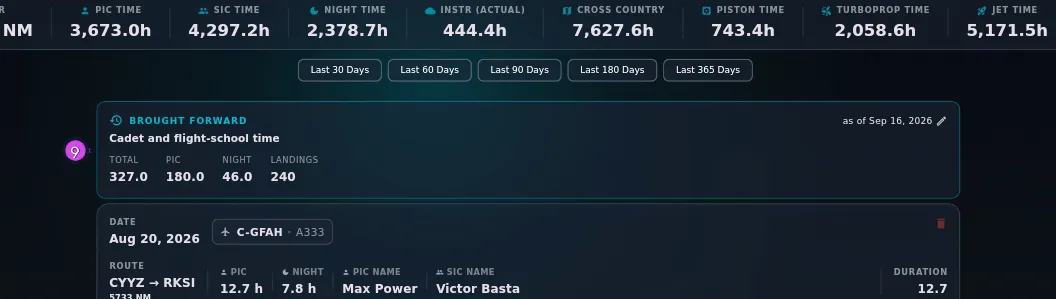
Reopen the wizard and check the numbers while you’re there. Every hours field
shows what was actually stored, so a field you typed 3000 into that now reads
50:00 was read as minutes — retype it as 3000.0.
If something goes wrong
| What you see | Why | What to do |
|---|---|---|
| Enter at least one hours value before saving. | Every hours field is empty | Put hours somewhere before you save |
A field you typed 3000 into now reads 50 hours | A bare whole number of 24 or more is read as minutes | Retype it as 3000.0 or 3000:00 |
| A condition figure is smaller than the one you typed | Condition hours can’t exceed the category hours holding them, and Some hours can’t be saved named the excess before you tapped Save anyway | Raise the category hours on Categories and save again, or accept the trimmed figure |
| The Simulators tab is empty when you reopen it | Conditions went in with no hours by class on that device, and Some hours can’t be saved named the device before you tapped Save anyway | Enter the hours by class first, then the conditions, and save again |
| The card shows a total of 0 and no as of line | The balance is simulator hours only | Add flight hours to Categories, or expect the card to read this way |
| No BROUGHT FORWARD card in the logbook | A filter is on — the card is hidden whenever one is applied (a text search isn’t a filter, and leaves it visible) | Clear the filter (→ D4) |
| Nothing happens after Delete | There’s no confirmation message after a delete | Look at the logbook list: the card has gone |
What “Some hours can’t be saved” lists
The dialog lists, by tab and by category or device, every hour that’s about to be lost, each one quantified in hours:
- night, cross-country or instrument hours entered against a category or simulator device with no PIC, SIC, Dual, Solo or device hours to hold them
- condition hours that come to more than the flying time available to hold them
It checks Simulators the same way it checks Conditions, and names the device before anything is lost.
How condition hours are shared out
Conditions go in per aircraft category, and are spread across the classes under it in proportion to their hours. Enter 100 hours of Airplane night against 1,000 h SEL and 1,000 h MEL and you’ll get 50 h attributed to each.
There’s no way to say “80 of those night hours were in the twin”. If that split matters for a licence application, work out what you want each class to show and adjust the category hours to suit before you save.
Condition hours larger than the category hours holding them are trimmed to fit. Save names the excess in the Some hours can’t be saved dialog first, and reopening the wizard afterwards shows the trimmed number.
What the balance counts toward
It’s included in:
- every hours total in the app
- the FAA 8710-1 (→ F5)
- the PDF logbook’s Brought forward running total (→ F1)
- the free 100-hour limit
- the career distribution charts (→ D9)
It’s left out of:
- the flight list — it’s one card, not flights
- every flight count
- currency and recency, entirely. Night landings entered here don’t restore night currency (→ G5)
- CSV and Excel export (→ F3)
Three things that catch people out
Type hours with a decimal point or a colon — 3000.0 or 3000:00, never a
bare 3000. A whole number of 24 or more is read as minutes.
Cancel and the close × both discard everything you’ve typed, with no prompt.
The More tab says its totals add to your grand totals. Most of them don’t add to total time. Dual given, P1US, Student PIC, NVG and the rest are recorded and appear in their own columns, but they add nothing to the hours on the BROUGHT FORWARD card. Enter them so your exports are complete, not to make the headline number come out right.