
Customise the stats bar
What this does
Chooses which numbers run across the top of your logbook, and the order they sit in.
Before you start
- A profile is open. The control isn’t on the logbook screen — it’s in Profile Settings, behind your profile card on the dashboard.
- This selection follows you. It’s stored with the logbook, so it syncs to your paired devices and survives a restore. The editor’s subtitle says Syncs across your devices.
Steps
- On the dashboard, tap your own profile card at the top to open Profile
Settings, then scroll down to LAYOUTS.
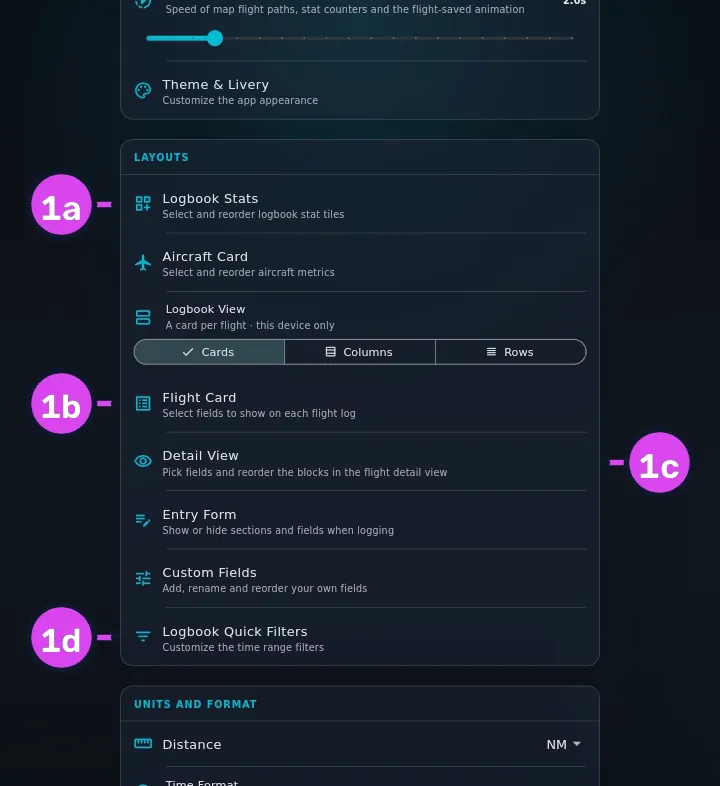
1a Logbook Stats1b Flight Card1c Detail View1d Logbook Quick Filters - Tap Logbook Stats — Select and reorder logbook stat tiles. The editor
opens, headed Logbook Stats / Pick and order the stat tiles on your
logbook dashboard.
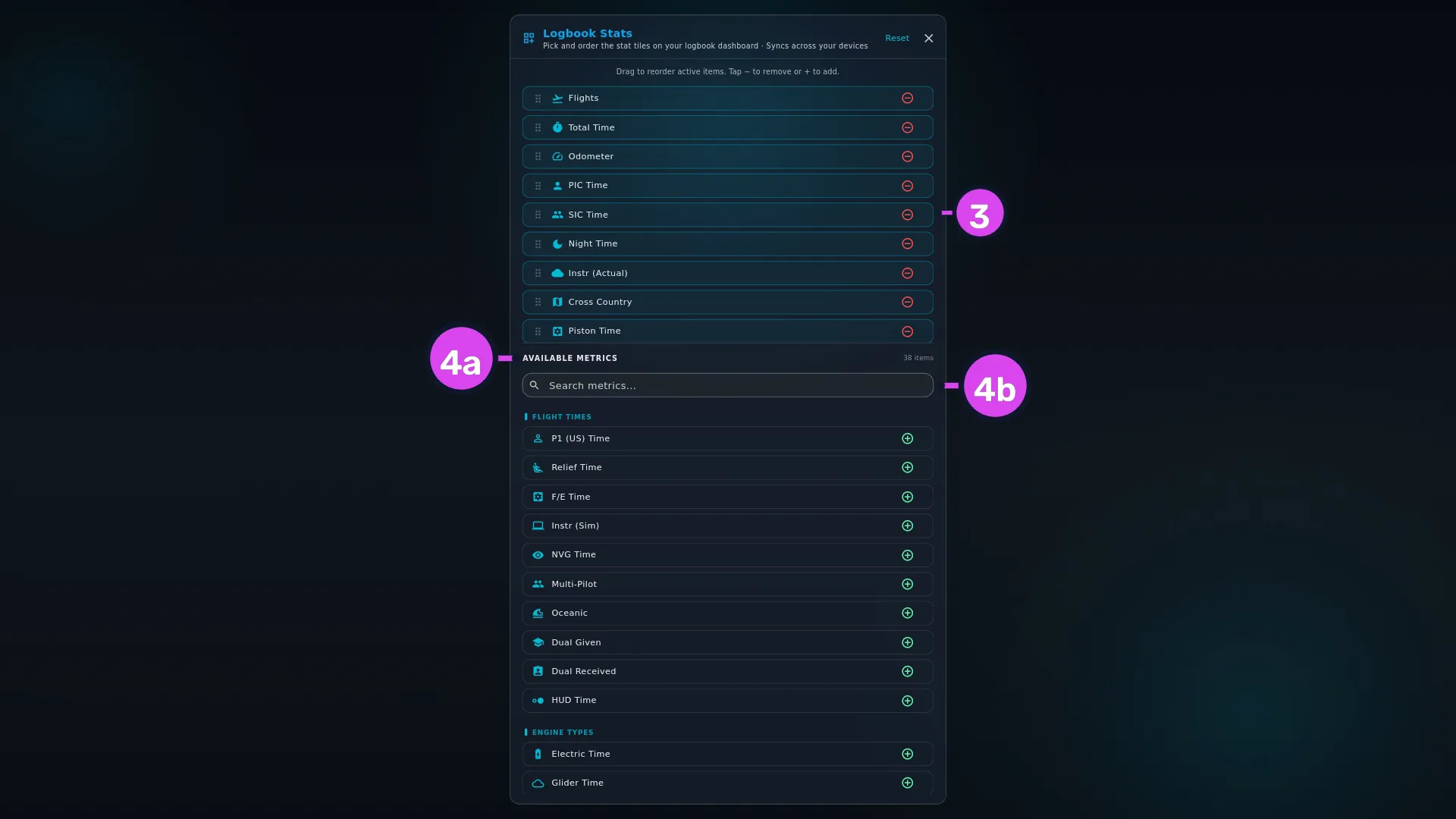
3 active pool4a AVAILABLE METRICS4b search - Check the upper list. It’s what the bar shows now — on a new logbook, Flights, Total Time and Odometer. The line above it reads Drag to reorder active items. Tap − to remove or + to add.
- To add a tile, find it under AVAILABLE METRICS and tap +. To jump straight to one, type into Search metrics….
- To remove a tile, tap − beside it in the upper list. To reorder, drag it.
- Go back when you’re done. The stats bar has already changed.
How to tell it worked
The logbook’s stats bar shows your tiles, in your order. If there are more than fit, it scrolls sideways.

If something goes wrong
| What you see | Why | What to do |
|---|---|---|
| No more metrics available under the pool | Every metric is already on the bar | Remove the tiles you don’t read. A bar with all of them scrolls a very long way |
| No matches found while searching | No metric’s name contains what you typed | Clear the box and browse the five categories |
| A tile reads 0 for a period you know you flew | The bar follows the active filter, and re-reads every time you filter | Clear the filter (→ D4) |
| The bar is empty | Every tile has been removed, and there’s no reset to default here | Add Flights, Total Time and Odometer back by hand |
The five categories
The pool of metrics is grouped into five categories, in this order: General, Flight Times, Engine Types, Operations, Aircraft Capabilities.
How the numbers are formatted
Each metric has its own format; you don’t choose it. Counts — Flights, landings, takeoffs, passengers — are whole numbers. Odometer is in your distance unit. Everything else is hours, shown as decimals or as HH:MM depending on your time-format setting (→ J3).
The Flights tile doesn’t count the same flights as the tiles beside it
Flights includes simulator sessions and leaves out hours you carried forward from a previous logbook. Every other tile does the opposite. So Flights and Total Time side by side are describing two different sets of flights. The full account is the table in D1, under Reference: what each surface counts.