
Import a CSV or Excel logbook
What this does
Takes a file exported from another logbook — or a spreadsheet you’ve been keeping by hand — and puts its flights into your logbook.
The aircraft, airports and people those flights refer to come in with them.
Before you start
- A profile is open, and the file is on this device in a format the app reads — in its own words, Supported formats: CSV, TSV, Excel (.xlsx), HTML, LogTen Pro (.txt, .ics). Size limits and the files it can’t read are listed under Reference: files the app can read below.
- The file holds 10,000 data rows or fewer, on one sheet. Only the first 10,000 data rows are read, an Excel workbook is read one sheet deep, and an HTML file one table deep. Anything past that isn’t imported, isn’t held for review and isn’t archived. Split a bigger file, and export each sheet of a multi-sheet logbook separately.
- Convert the date column to
YYYY-MM-DDin your spreadsheet first. Any other order can be read the wrong way round without the app stopping to ask you (→ B4). It’s the most valuable five minutes in this area. - Once the import itself starts, there’s no stopping it. You can undo the whole session afterwards, and the limits on that are worth knowing first (→ B6).
Steps
- On the dashboard, tap the Import / Export / Backup card.
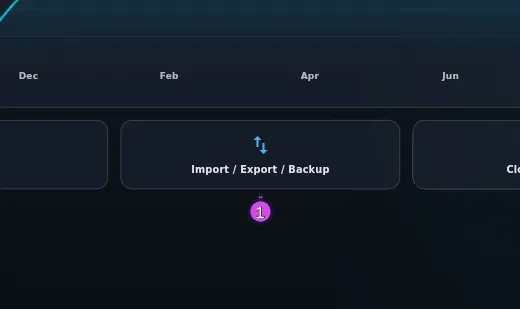
1 the card - Choose Import on the segmented control at the top, then under What are
you importing?, choose Logbook.
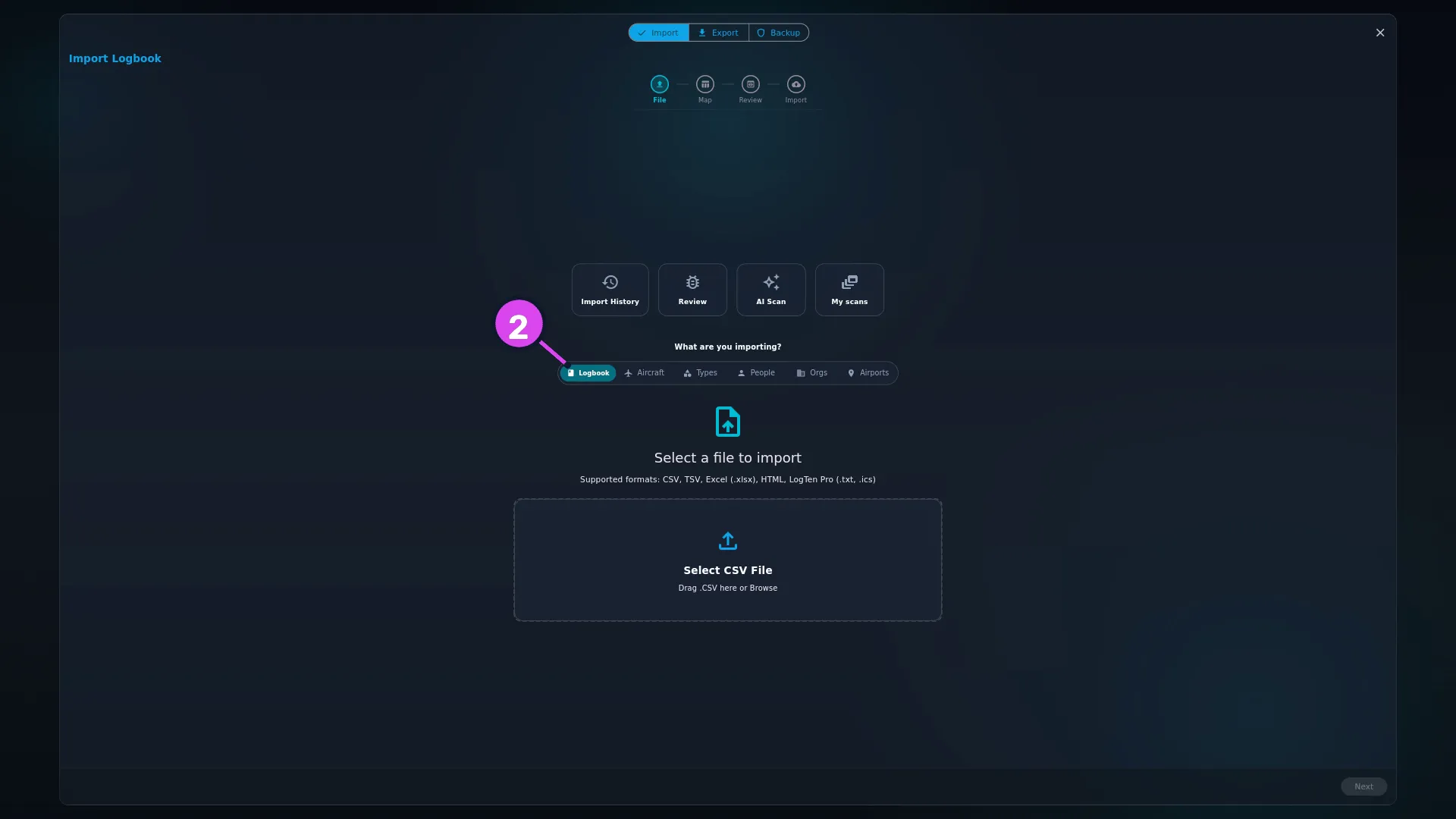
2 Logbook - Drag the file onto the drop card, or tap Select CSV File and browse to it.
The card reads Drag .CSV here or Browse whatever the file type — an
.xlsxgoes here too — and the file is read as soon as you choose it (Reading file… — Large spreadsheets can take a few seconds).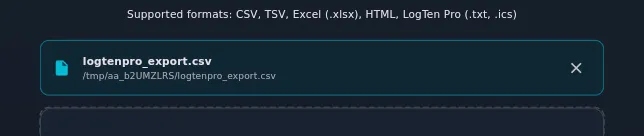
- Tap Next. The Map step opens, where each column of your file is linked
to a field in the logbook. Check the mapping before you go on
(→ B3).

- Tap Generate Preview. The Review step opens with pills across the top
— Total and Valid always, plus Warnings, Errors and
Duplicates when the file produced any. Each pill is a filter: tap
Errors to see only the rows that won’t import.

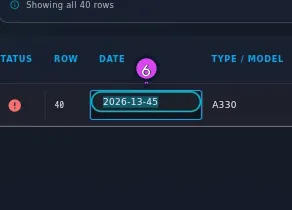
5 Errors7 Skip All — sends duplicates to the inbox - Fix a flagged row where it sits: click the red cell, type the value, and press
Enter to save or Esc to cancel. To see what’s wrong first, click the status
icon at the start of the row — Row N — validation issues names the problem
and how to fix it.
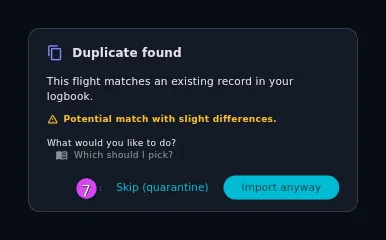
- Deal with the duplicates. Tap the status icon on a flagged row to open
Duplicate found, then tap Skip (quarantine) to send the row to the
Review inbox, or Import anyway to bring it in beside the existing flight.
A row the app judged an exact match is already excluded, so Import anyway
is how you overrule it. Skip All, beside the duplicates pill, sends every
detected duplicate to the inbox in one go.
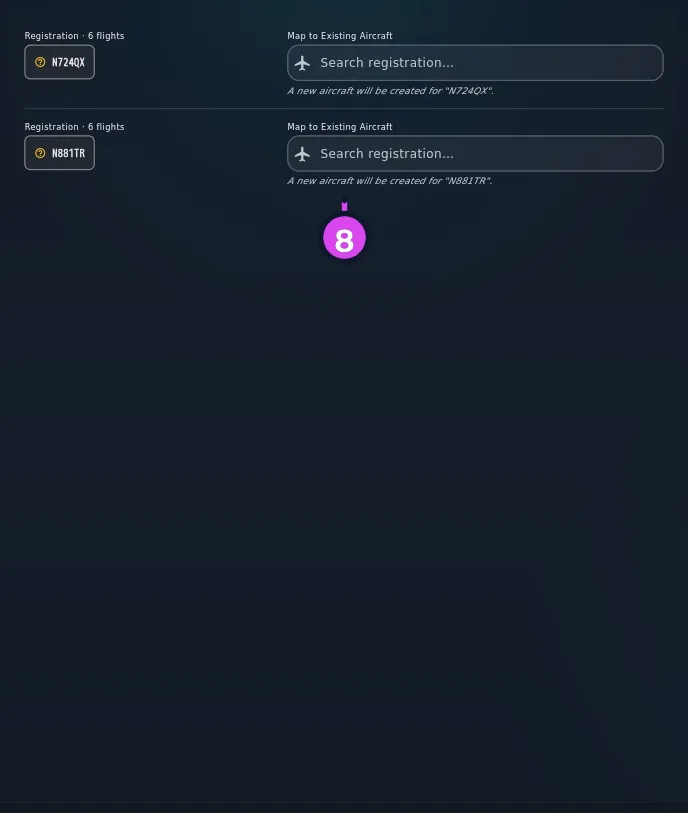
7 Skip (quarantine) / Import anyway - Work through whichever mapping steps appear: Map Operators, Map Unknown
Aircraft, Map Unknown Aircraft Types and Review Crew. On each line,
point it at a record you already have, or leave it to create a new one, which
is the default. They only appear when the file holds something the app can’t
match, so a tidy import may skip all four.
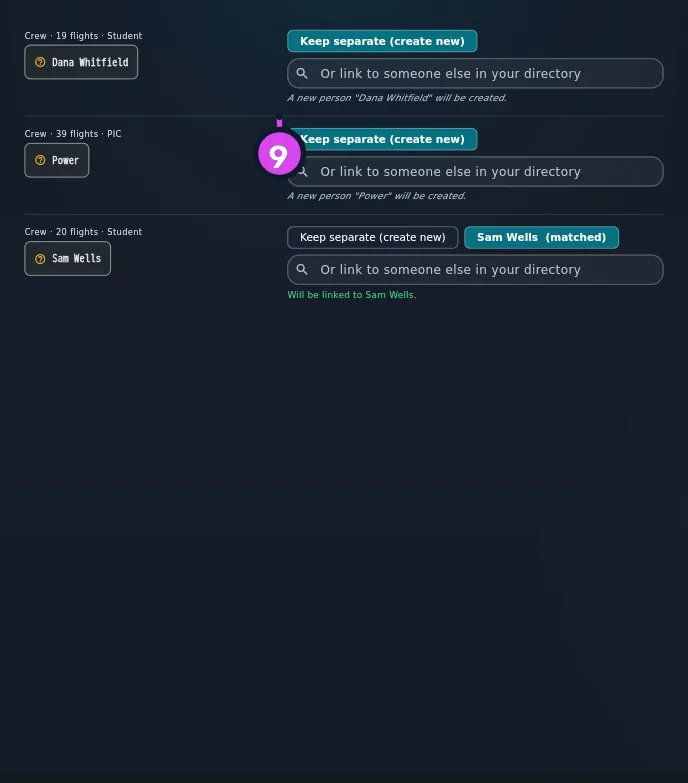
- On Review Crew, check the names. Anyone who clearly matches a person in
your Directory — the app’s list of the people and organisations you fly
with (→ E6) — is already linked and carries a (matched) chip. Every other
name is set to Keep separate (create new), so two different pilots never
get merged by mistake.
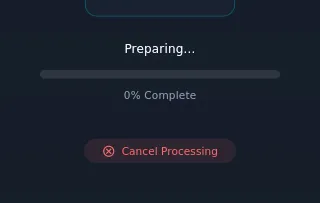
- Tap Import N flights and wait. The progress bar says what it’s doing —
Archiving original rows…, Saving custom fields…, Finalizing….
- On Import Complete!, check the count (→ How to tell it worked), then
tap Done.
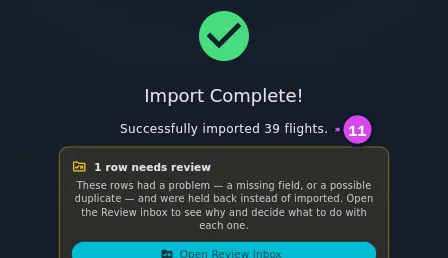
11 the total — warning rows included
How to tell it worked
The completion screen reads Successfully imported N flights. That N is everything actually written — clean rows and warning rows together — so it matches what your logbook gained. Underneath, Archived N original rows — nothing was discarded confirms that a copy of each source row has been kept (→ B6).
If any rows were held back, a callout on the same screen says so: N row(s) need review — These rows had a problem — a missing field, or a possible duplicate — and were held back instead of imported. — with an Open Review Inbox button beside it. No callout means nothing is waiting for you.
If something goes wrong
| What you see | Why | What to do |
|---|---|---|
| Please select a supported file (CSV, TSV, Excel (.xlsx), HTML, LogTen Pro (.txt, .ics)) | The dropped file’s extension isn’t one the app accepts | Use one of the listed formats |
| Legacy Excel files (.xls) can’t be read… | The file is Excel 97-2003, not .xlsx | Save it as .xlsx or CSV from your spreadsheet app, and import that |
| Unsupported file type ”.…” | A file with an extension the app doesn’t recognise was opened anyway | Rename it to the format it actually is, or re-export from the source app in a supported one |
| Import file is empty | The file has no rows, or none after the header | Open it and check the export really produced data |
| Import file is too large (N MB). The limit is M MB — split the export into smaller files. | Over 50 MB, or over 25 MB for Excel | Split the export, or save the spreadsheet as CSV, which is far smaller |
| Error parsing file: … / Failed to parse CSV: … | The file is damaged, or isn’t the format its extension claims | Re-export it. A spreadsheet saved as CSV on your own machine is the most reliable source there is |
| No valid rows to import | Every row has an error, and an unreadable date is the usual cause | Go back to Map and check the date column (→ B4) |
| Import failed: … | Saving the flights failed part-way through | Check free storage, then undo the session if one was recorded (→ B6) and import again |
| Cancel Processing does nothing | It stops the preview being built, not the import | Let it finish, then undo the session (→ B6) |
Reference: files the app can read
- A file whose extension isn’t a supported format is refused, and the message names it. The app doesn’t try to read it as CSV.
- Size limits are 50 MB for a file, and 25 MB for
.xlsx. - A legacy
.xlsworkbook can’t be read. Excel 97-2003 files are a different format inside, sharing nothing with.xlsxbut the name. The picker still lets you choose one, so the app can tell you what to do: open it in Excel, Numbers or Google Sheets, save it as.xlsx(or export it as CSV), and import that. - Formula cells import as their calculated value. A total column holding
=SUM(...)brings in the number, not the formula. If a workbook was saved without its last calculated values, those cells arrive blank and the app says so — paste the affected columns back as values and import the saved copy. - From LogTen Pro, use the tab export (
.txt). The calendar export (.ics) carries no per-bucket hours, no landings and no aircraft type, and nothing warns you they’re missing. - Hours that arrive by import count toward the free 100-hour limit. An import that starts under the limit always finishes, however many hours it brings. Once the logbook is at 100 hours on the free tier, the app stops accepting new flights — including another logbook import — until you buy Pro (→ K2).
Reference: the six things you can import
The selector at the top of the file step decides which fields the wizard offers you. The steps are the same in every case.
| Selector | What the file should hold | Notes |
|---|---|---|
| Logbook | Flights, one per row | This guide. Creates aircraft, airports, people and operators as it goes |
| Aircraft | Tail numbers and their details | Use it to fill your Hangar — the app’s list of the aircraft you fly (→ E1) — before you import flights |
| Types | Aircraft types by designator | Rarely needed, since the app ships a type database |
| People | Crew and instructors | Names imported here get matched on Review Crew later |
| Orgs | Operators, airlines, schools | Gives fleet numbers a carrier to belong to |
| Airports | Airports that aren’t in the built-in database | Private strips and helipads |
Gotchas
The row cap warns you three times. Load a 14,000-row file and a banner appears straight away, giving the true row count against what was read. The same warning sits above the Import button, and can’t be dismissed. If you miss both, the completion screen carries it too. If you see any of the three, split the file — only the first 10,000 data rows are ever read.
Excel and HTML files: read the banner on the Map step. When a workbook has more than one sheet, or an HTML page more than one table, a dismissible banner names the one that was read and every one that was skipped, with its row count. The skipped ones still aren’t imported. Export the sheet you want on its own, or export each sheet separately and import them one at a time.
Choosing a mapping preset can replace mappings you made by hand. It asks first — Replace current mappings? names up to five of the columns at risk, with Cancel and Replace — and a snackbar afterwards offers Undo either way. Still, choosing the preset first and correcting it afterwards is the simpler order (→ B3).
Worked example
A 40-row ForeFlight export. One row’s date cell holds text rather than a date, one flight is already in the logbook, and two tail numbers aren’t in the Hangar.
| Where | What it shows |
|---|---|
| The Review step | Total 40 · Valid 38 · Errors 2 · Duplicates 1 — and no Warnings pill, because nothing here is a warning |
| Map Unknown Aircraft | Both tails, each reading A new aircraft will be created for ”…” |
| The button | Import 38 flights — every row that’s neither an error nor excluded. Warning rows would be counted here too |
| Import Complete! | Successfully imported 38 flights. Below it, 2 rows need review with Open Review Inbox |
| The logbook | 38 new flights |
| The Review inbox | 2 rows — the error row, and the skipped duplicate |
The arithmetic is the point: 40 rows in the file, 38 on screen, 38 written, 2 held and named on the same screen. Every row lands in exactly one of Valid, Warnings and Errors, so those three always add up to the total. Duplicates counts across them rather than beside them — it’s the one pill you mustn’t add in.
Both held rows are errors, and only one of them is a mistake. The text-date row failed its check. The duplicate was an exact match, so it was excluded on arrival (step 7), and an excluded row is counted with the errors because, like them, it won’t be written. A duplicate the app is less sure about isn’t excluded: it counts as a warning, and imports unless you say otherwise. That’s the case the picture above shows, which is why its pills read differently from this table.