
Manage scan pages and quota
What this does
Shows you the scan queue, so you can tell a page that’s working from a page that’s stuck, and clear out the ones that are never going to finish.
Before you start
- Pages have been captured on this device (→ B8).
- Check the device that took the photographs. A device that received the logbook over sync can’t report the true state of another device’s scans.
- Clear queue and Remove scan can’t be undone, and neither of them refunds a page.
Steps
- Open the Scans page: tap My scans on the import screen, the green
badge on the dashboard’s Import / Export / Backup card, or the status
strip that runs across the top of the app while anything is queued. The app
bar carries a small chip naming where your pages are sent — EU processing
or Global processing — and tapping it changes that (→ Processing
region).
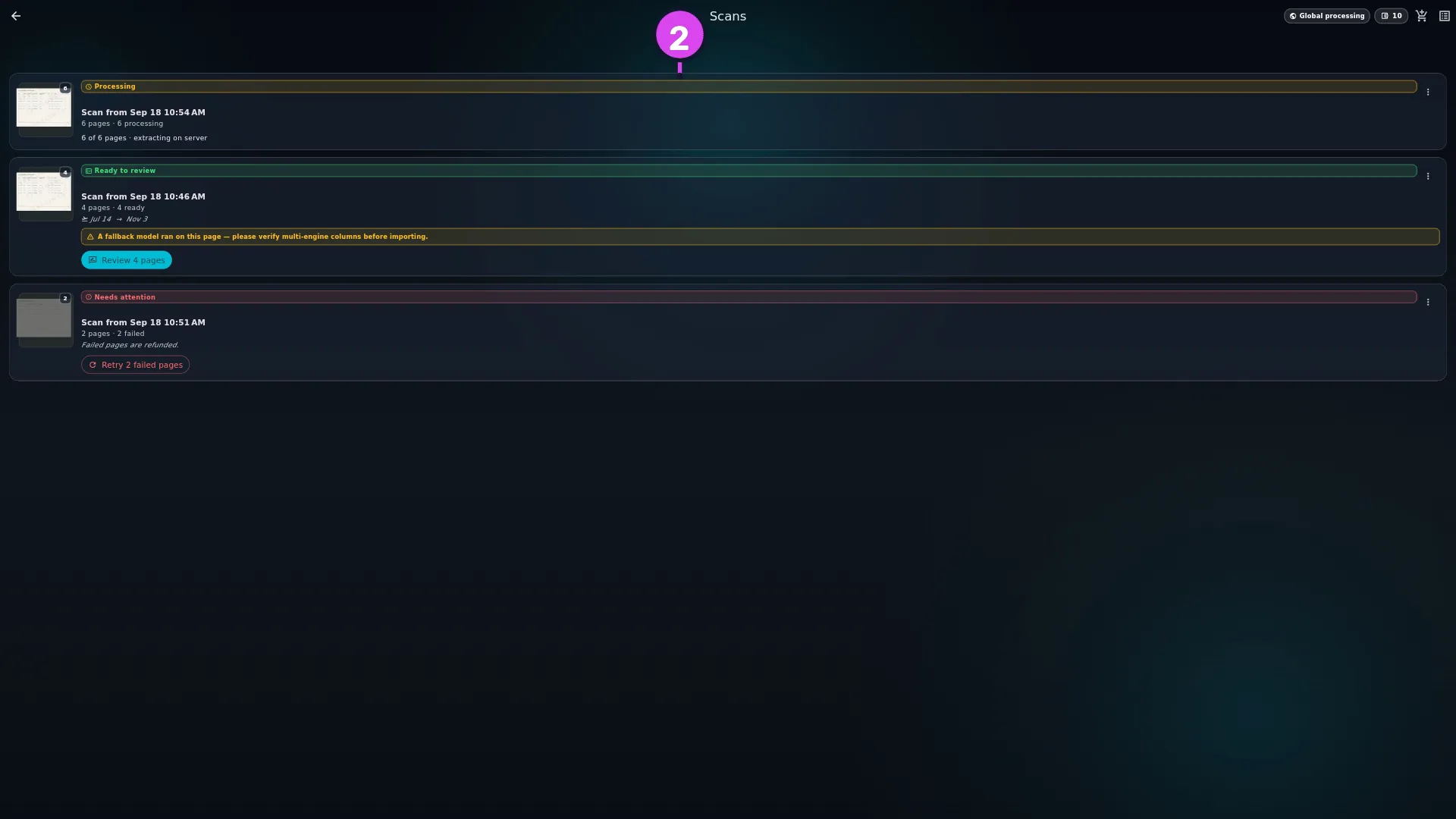
2 the pills — each the state of a whole session 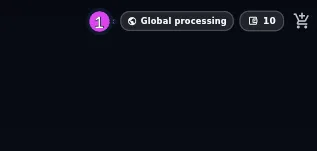
1 the chip naming where your pages are sent - Check each card’s pill. It’s the state of the whole session (→ What each
pill means), and the subtitle under it breaks the pages down — 3 pages · 2
processing · 1 ready, for instance. While pages are being read, the line
beneath says N of M pages · extracting on server.

- On a card that’s still processing, tap ⋮ (More actions) → Why is this
taking longer? for the app’s own answer: your pages are queued for a
background job that runs every minute, most scans finish within a few minutes
though one can occasionally take longer, and you can close the app — the
results will be waiting when you come back.

- Check the status strip at the top of the app. Uploading N · M queued and N
scans queued mean work is in progress; N scans failed — tap to manage and
Out of AI Scan pages — tap to top up both need something from you.

- To see individual pages, open Upload queue from the Scans page. On a
failed page, tap Retry to send it again, or Discard to remove it (→
The Upload queue, page by page).
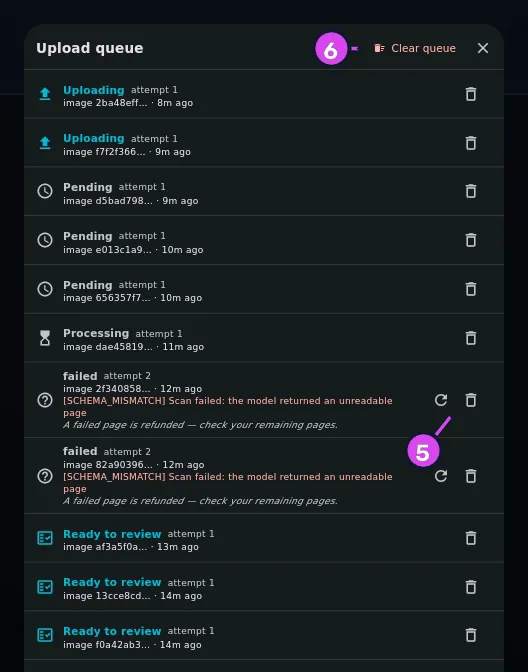
5 a row's Discard6 Clear queue - To empty the queue completely, tap Clear queue and confirm. The dialog
reads Hard-deletes every row in the queue (pending, uploading, and failed).
Anything that has already extracted into the review queue is unaffected. This
cannot be undone.

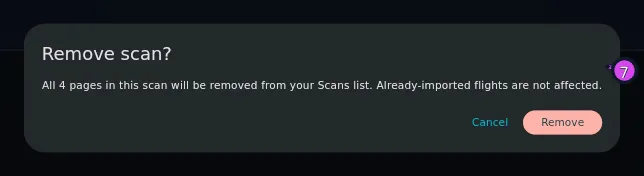
- To take a whole session off the list, tap ⋮ (More actions) on its card →
Remove scan, and confirm. The dialog reads All N pages in this scan will
be removed from your Scans list. Already-imported flights are not affected.
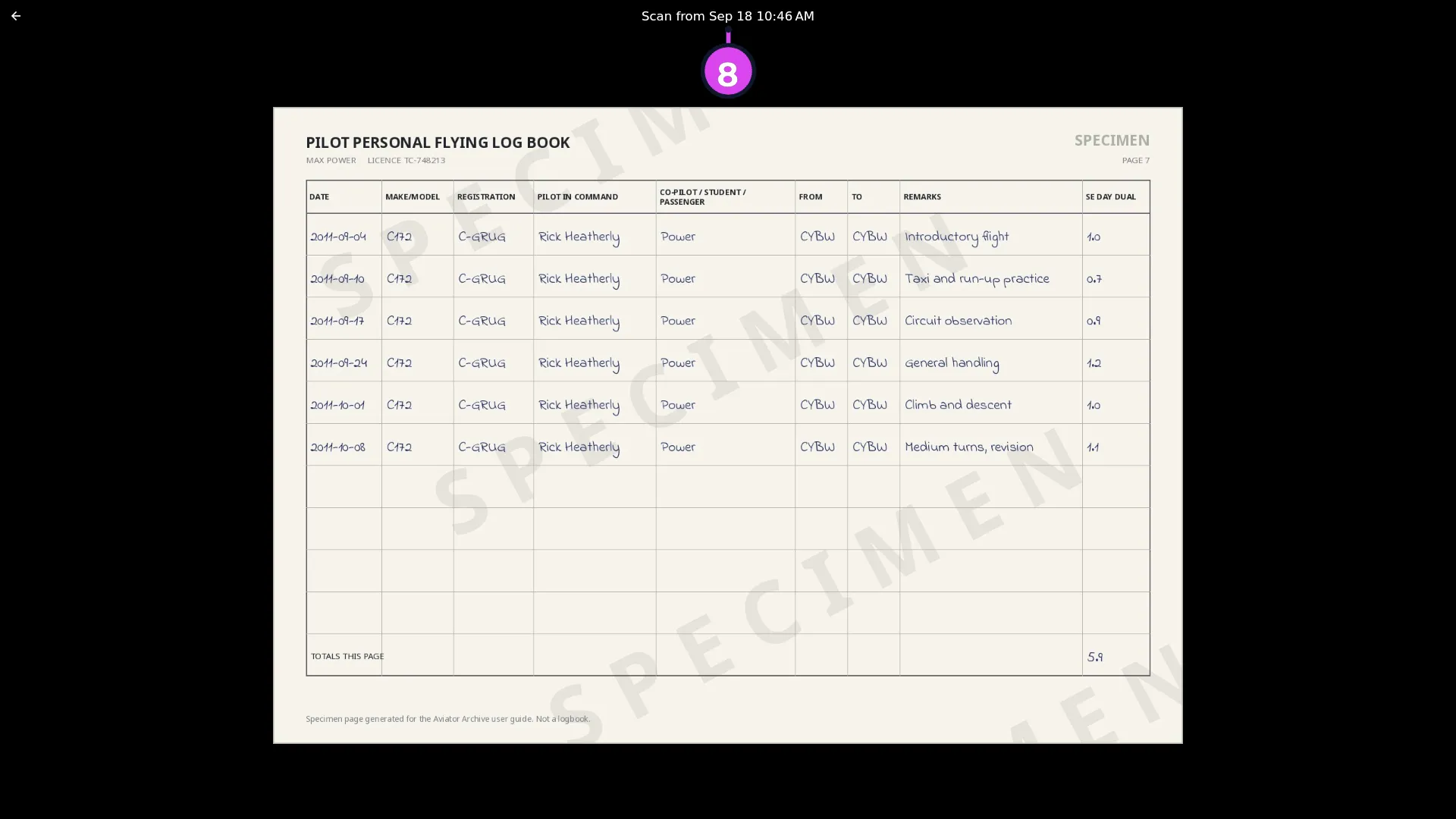
- To see the page a card came from, open the scan and tap its image.
- When the banner AI Scan paused — out of pages appears, top up (→ K6) and
tap I’ve topped up to restart the queue.

How to tell it worked
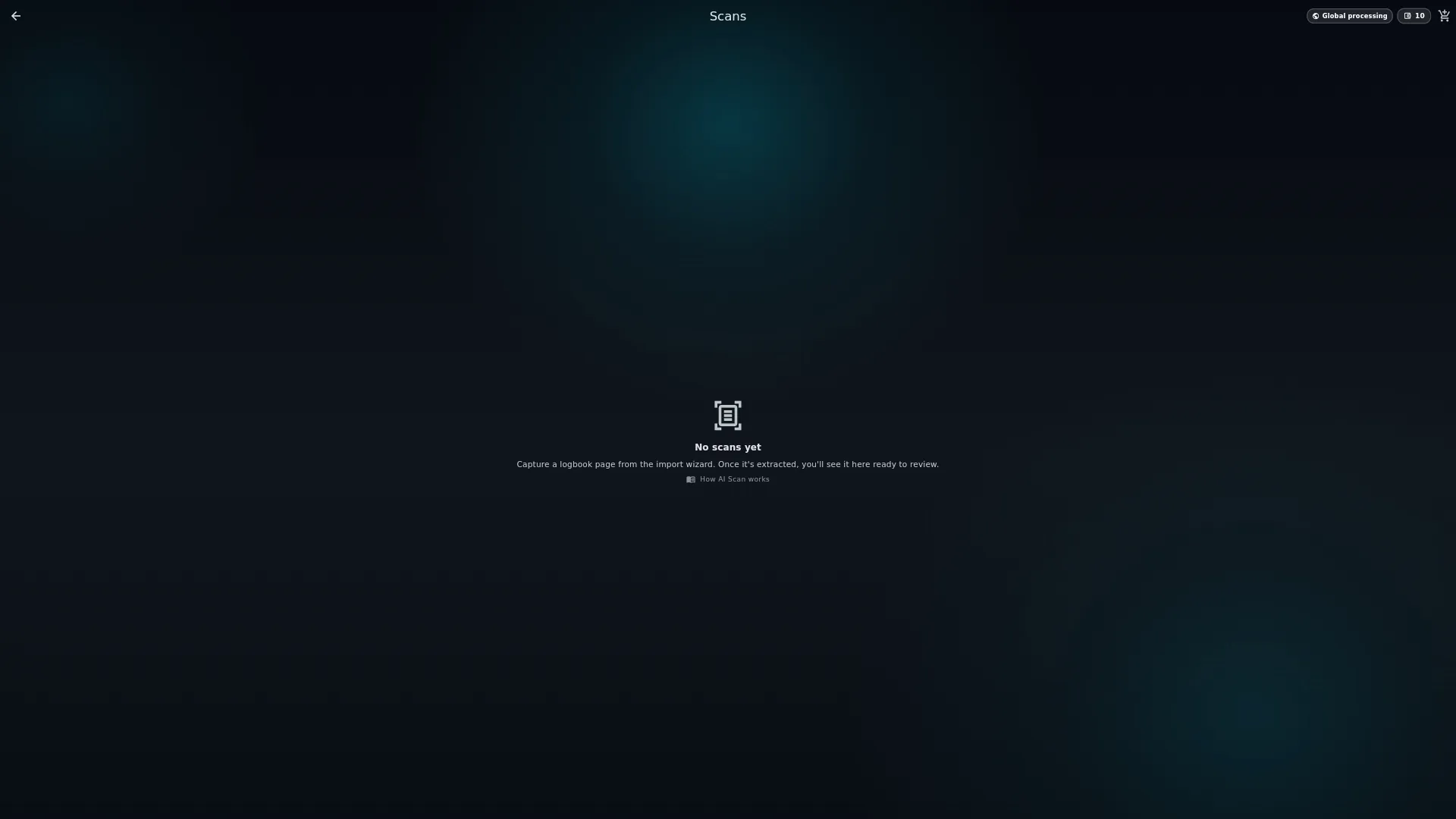
The Scans page reads No scans yet, or holds nothing but cards marked Imported, and the green badge has gone from the dashboard card. The status strip disappears once nothing is paused, pending, uploading or failed.
If something goes wrong
| What you see | Why | What to do |
|---|---|---|
| N scans failed — tap to manage | Pages couldn’t be uploaded or read | Open the queue sheet and tap Retry on a row, or Retry N failed pages on the card if every page in the session failed |
| A card stays Ready to review, and reopening it shows Not enough data to read | The page gave fewer than two rows — a blank page, or a header with nothing under it | This won’t resolve on a later pass. Remove scan is the only way out, and there’s nothing to report: the page had nothing to read |
| A card stays Ready to review, and reopening it shows Could not read this scan — the page came back in a format we don’t recognize yet | What came back from the server can’t be turned into rows at all | Remove scan is the only way out, or try re-scanning the page |
| Image not yet synced from capturing device. / Wait for the originating device to come online. | You’re looking at a scan captured on another device | Open the app on the device that took it |
| No Upload queue entry point on a session | The sheet only appears when something is pending, uploading or failed | Nothing to manage on that session |
| Failed to load scans | The list couldn’t be read | Close the page and open it again. Captured pages aren’t affected |
| Your scans need attention with an Open queue button | A rare internal mismatch stopped queued pages from grouping into a card. Nothing is lost | Tap Open queue to see and manage the pages directly |
What each pill means
| Pill | What it means |
|---|---|
| Waiting for connection | Captured, not uploaded yet. Nothing to do but reconnect |
| Processing · ~20 min | Uploaded, being read on the server |
| Processing | Working, with no time estimate to give you |
| Ready to review | Finished. Tap Review N pages (→ B8) |
| Imported | The flights from this scan are in your logbook |
| Needs attention | One or more pages failed |
| Partial | Some pages are ready and others aren’t |
The Upload queue, page by page
Each page shows its state — Uploading, Waiting for connection, Pending, Failed, or the raw status for anything else — its attempt count, and the error text where there is one. A failed row carries Retry and Discard, and the app’s own note: A failed page is refunded — check your remaining pages.
Discard on a queue row doesn’t stop a transfer already in flight, and it doesn’t refund the page either.
Processing region
Moving to EU processing needs no confirmation; moving away from it needs an explicit declaration first. The full detail on what the region decides is in → J9.
Your page quota
One image is one page of your quota — one photograph, one image from your gallery, or one page of a PDF. Where to see the pages you’ve got left, and what more of them cost, is covered in Area K (→ K6).
A card that will never finish looks like one that is working
A page that gave too little to read, or something the app can’t turn into rows at all, sits at Ready to review indefinitely. The badge never clears on its own, and neither cause resolves by waiting. Open it and you’re told which it is:
- Not enough data to read — a blank page or a header row with nothing under it. That’s a normal outcome for some pages, not a fault.
- Could not read this scan — a plain-English explanation (a blurry photo, an unusual table layout) with a suggestion to re-scan or remove it.
The tell is time. A session that’s read Ready to review for hours and opens to either of those is finished, not slow. Remove scan is the only way out, and it doesn’t refund the page.
On a second device, everything reads as processing
A device that received your logbook over sync shows Processing · ~20 min and N of M pages · extracting on server for pages that finished — or failed — hours ago on the device that captured them. Failures never travel between devices, so check the capturing device before you conclude anything about a scan.
When you run out of pages
The queue pauses and the banner AI Scan paused — out of pages appears, with Buy pages and I’ve topped up.
That pause isn’t remembered across restarts. Close and reopen the app and the banner has gone even though you still have no pages — the queue tries again and stops again, with nothing on screen to say so. So if pages aren’t moving and there’s no banner, check your remaining pages first.