
Filter your logbook
What this does
Narrows the logbook to the flights you want to see — by date, aircraft, approach, tag, or any recorded number — and shows you how to get back out again.
Before you start
- Flights exist.
- A filter is remembered. It survives closing the app, and it follows you to your paired devices, so a filter you left on last week is still on today.
Steps
- On the logbook screen, tap Filter Logbook in the toolbar. A sheet opens,
also titled Filter Logbook.
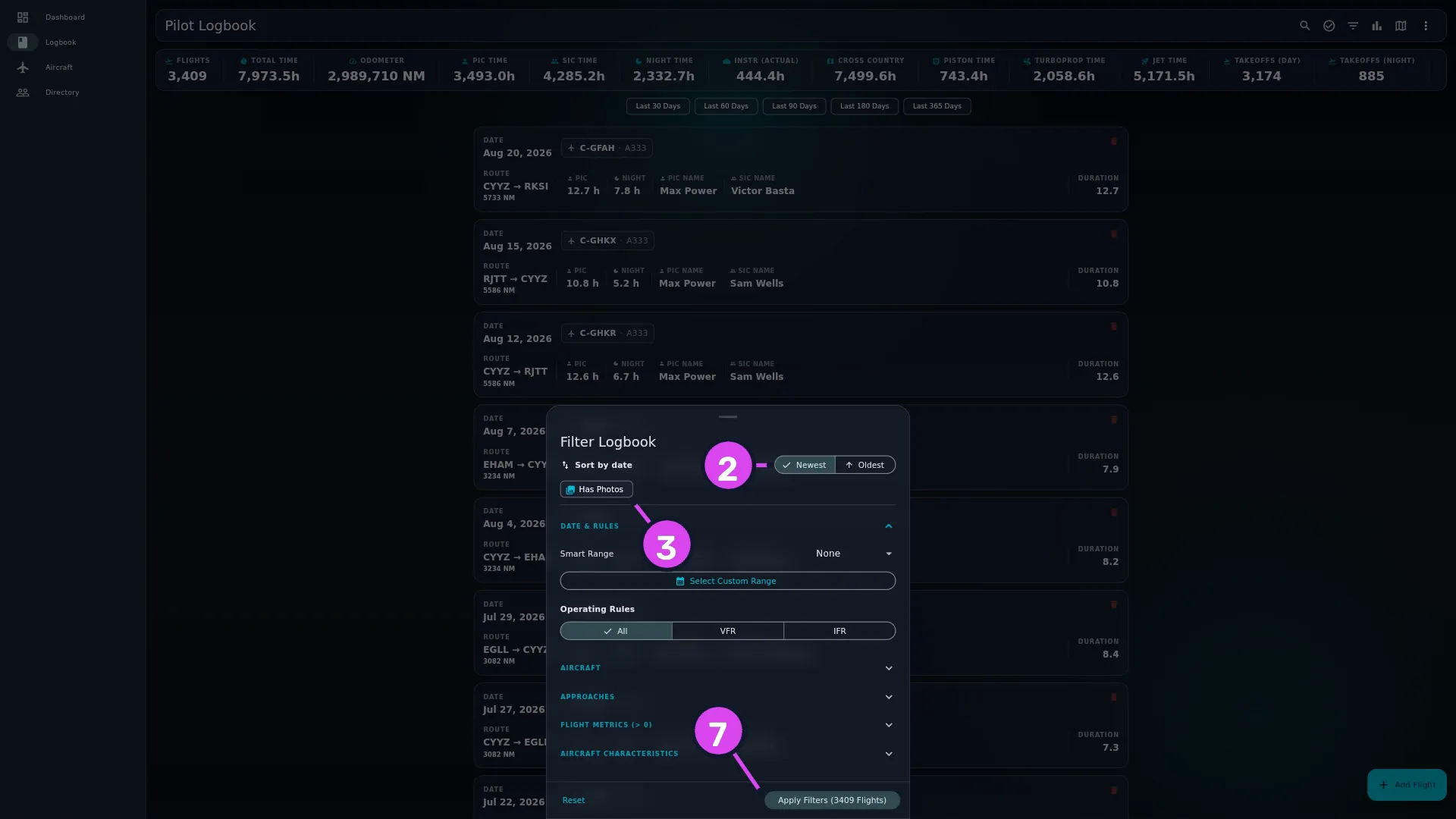
2 sort — not a filter3 Has Photos7 Apply Filters (N Flights) — counting live - Set Sort by date — Newest or Oldest — if you want the list the other way up. This isn’t a filter, and it never turns on the banner.
- Turn on Has Photos to keep only the flights with photos.
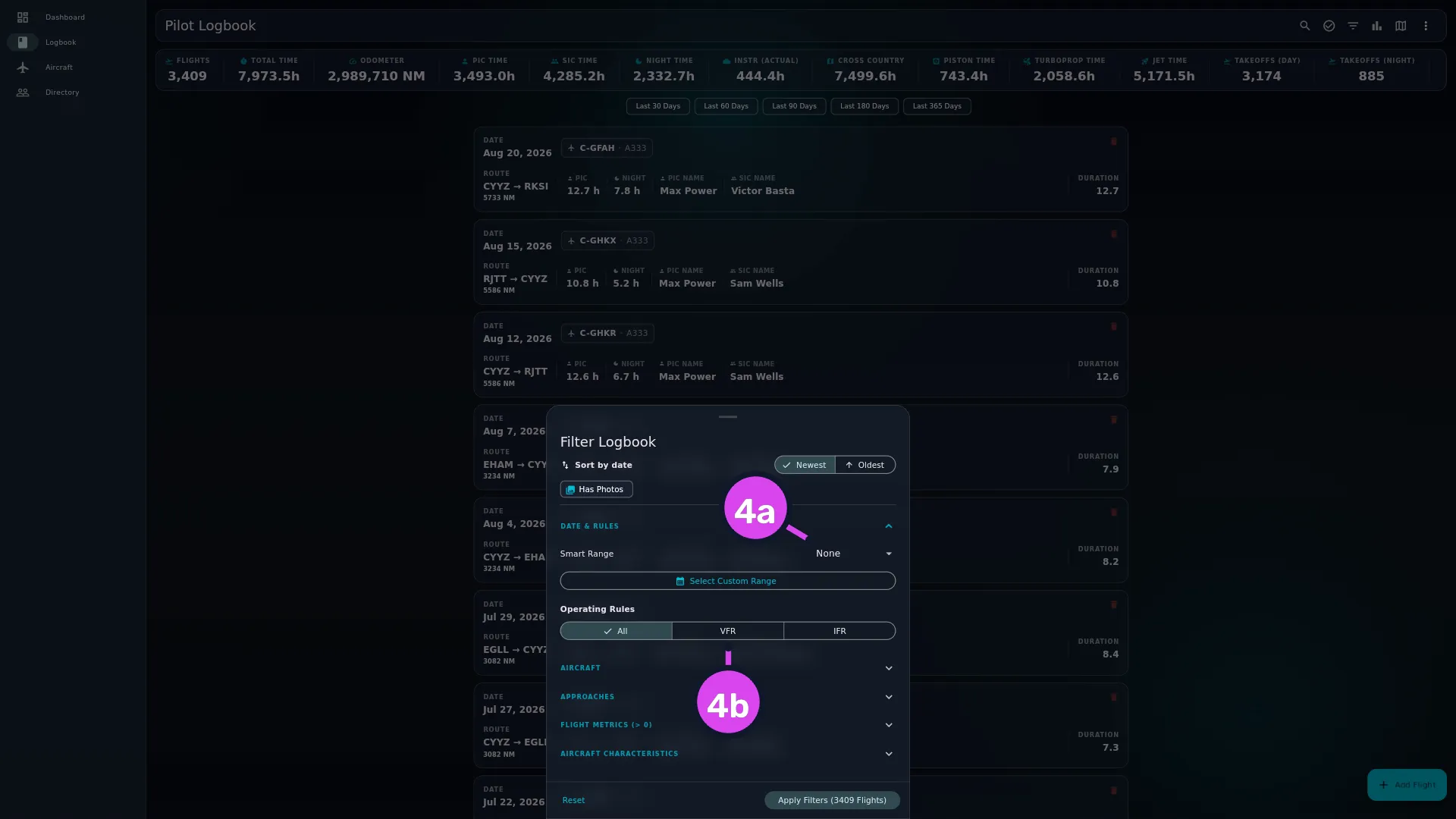
- Open DATE & RULES. Pick a period from Smart Range (None, Last 30
Days, Last 60 Days, Last 90 Days, Last 180 Days, Last 365
Days), or tap Select Custom Range and pick two dates. Set Operating
Rules to All, VFR or IFR.
- Open AIRCRAFT and tick tails under Specific Aircraft, models under
Aircraft Types, or both. Both lists come from your Hangar — every aircraft
in it, flown or not (→ E2).
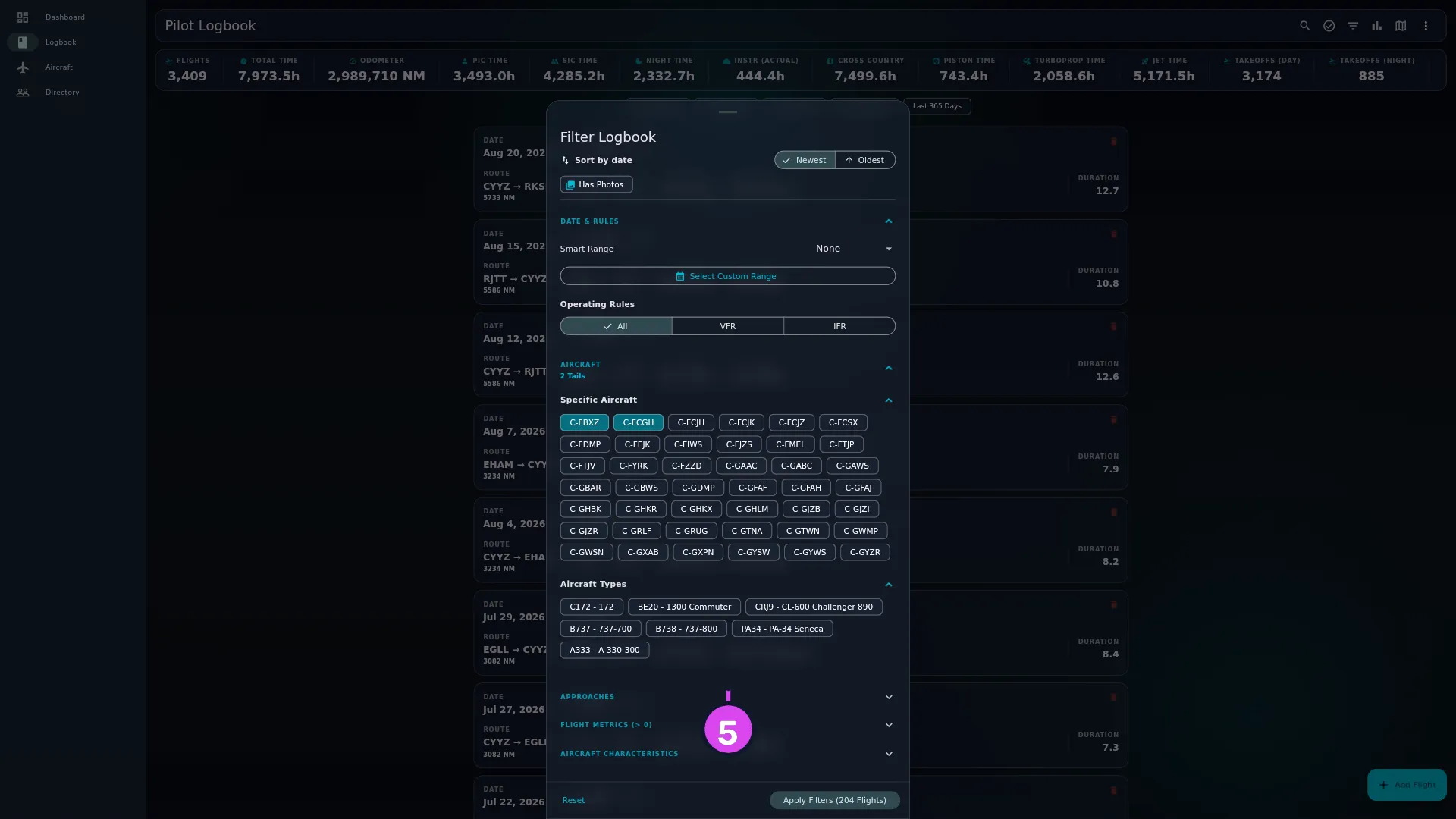
- Open any of the other sections you need: APPROACHES, TAGS, FLIGHT METRICS (> 0), AIRCRAFT CHARACTERISTICS.
- Check the count on the button at the bottom. It reads Apply Filters (N Flights) and updates as you tick.
- Tap Apply Filters (N Flights). Nothing you ticked takes effect until you do.
How to tell it worked
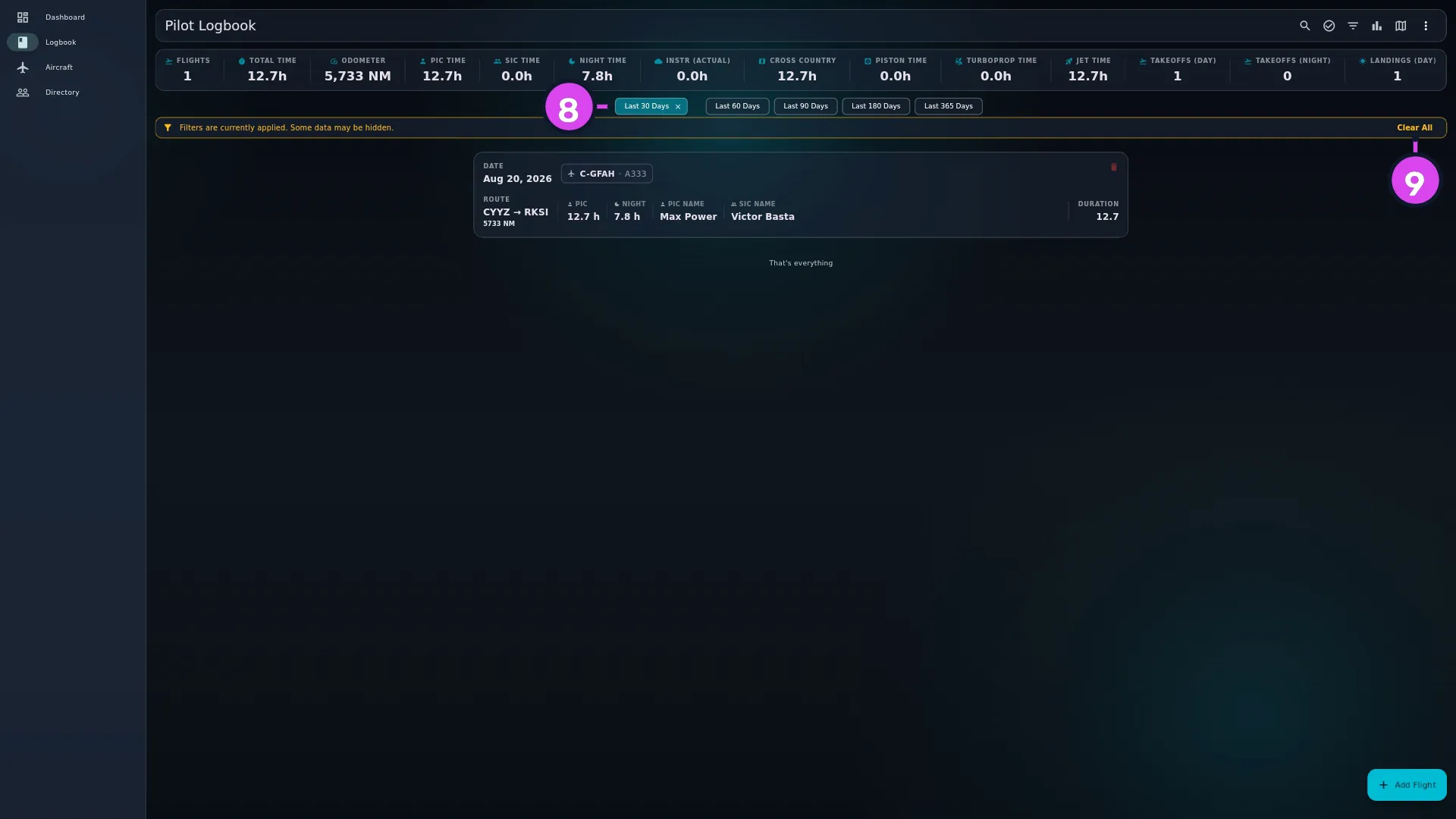
The list is shorter, the stats bar shows totals for the smaller set, and an amber banner sits above the list: Filters are currently applied. Some data may be hidden. with Clear All beside it. That banner appears for every filter, and Clear All removes all of them at once. Search results and the Career Map are narrowed too — but nothing in Analytics is (→ D9).
If something goes wrong
| What you see | Why | What to do |
|---|---|---|
| The sheet closed and nothing changed | Closing the sheet throws your choices away. Reset clears the sheet’s controls, and doesn’t apply anything either | Open it again, set what you want, and tap Apply Filters (N Flights) |
| Select Custom Range is greyed out | A Smart Range is set, and you can only have one or the other | Set Smart Range to None, then pick your dates |
| The stats bar’s Flights tile shows a different number from the button | The button counts drafts, because it’s counting the cards you’re about to see; the stats tile never counts them | Expected. See D1, Reference: what each surface counts |
| VFR or IFR returns fewer flights than you expected | Only a flight with its Operating Rule field set will match | See Gotchas |
| No aircraft found in the AIRCRAFT section | There are no aircraft in the Hangar yet | Add one (→ E2) |
| There’s no TAGS section | The section only appears once a flight in your logbook has a tag | Tag a flight (→ C1) and it appears |
| The BROUGHT FORWARD card has gone | Any filter hides it | Its hours are still in the stats bar. Clear All brings the card back |
Reference: the sections and how they combine
| Section | Controls | Notes |
|---|---|---|
| (top of the sheet) | Sort by date — Newest / Oldest | Not a filter |
| (top of the sheet) | Has Photos | Keeps flights with at least one photo |
| DATE & RULES | Smart Range, Select Custom Range, Operating Rules | A custom range includes the whole of both end days. You can use a smart range or a custom range, not both |
| AIRCRAFT | Specific Aircraft (by tail), Aircraft Types | The header shows N Tails / N Types when set |
| APPROACHES | ILS, LOC, VOR, NDB, RNAV (GPS), RNP, LDA, SDF, Visual, Contact — those ten, plus any custom type already selected in the filter | Matches flights with that approach. A custom approach type you’ve flown but never filtered on gets no chip, so you can’t pick it here |
| TAGS | One chip per tag used on your flights | Only there when tags exist |
| FLIGHT METRICS (> 0) | Any recorded number, plus PF Departure and PF Landing | Keeps flights whose value is above zero. HUD Time is the exception: it has no test of its own and keeps any flight with hours above zero |
| AIRCRAFT CHARACTERISTICS | Complex, High Performance, Tailwheel and the rest | See Gotchas about zero-hour flights |
How they combine. Different sections combine with AND — a tail and a date range means flights that are both. Inside a section, it depends:
- OR within one list: two tails means either tail, two types means either type, two approaches means either approach.
- AND between the two AIRCRAFT lists: a tail and a type means flights that are both, so picking a tail and a type it isn’t returns nothing.
- AND between tag chips: two tags gives you the flights with both.
- AND between FLIGHT METRICS chips, and between AIRCRAFT CHARACTERISTICS chips: tick Night Time and Oceanic and you keep only flights with both above zero; tick Complex and Tailwheel and you keep only flights that are both.
Gotchas
Every active filter shows a chip above the list, and you can remove it there. A smart range, a custom date range and an operating rule each get their own chip. Aircraft, types, approaches and tags show as a count (2 Aircraft, 3 Tags). Has Photos, PF Departure, PF Landing and your search term each get a chip too, and Flight Metrics and Aircraft Characteristics share one count chip. Tap the ✕ on any chip to drop that one filter without opening the sheet.
VFR and IFR only match a flight once its Operating Rule is set. The entry form has its own Operating Rule (VFR/IFR) field, separate from Operating Under (your regulatory Part number). Set it on a flight and this filter finds it. A flight logged without it — including one logged before the field existed — returns nothing for VFR or IFR until you open it and set Operating Rule (→ C1). The flight isn’t damaged. Imported logbooks that had their own VFR/IFR column already match.
Aircraft Characteristics need hours too. A characteristic chip only matches flights with flight hours above zero, so a zero-hour entry in a Complex aircraft won’t appear under Complex. If a flight is missing from a characteristics filter, check its duration first.
The filter stays on, and it travels. It’s saved with the logbook, so it’s still on when you open the app tomorrow, and on your other device too. If the logbook looks short for no obvious reason, look for the amber banner before you go looking for a sync problem.