Five things are required, and the app lists them in its own checklist:
Flight Date, Aircraft, Departure Airport, Arrival Airport, and
Total Time (Times or Manual). Everything else is optional. If you don’t
have all five yet, you can save the flight as a draft — an entry that sits in
your logbook and counts toward nothing until you complete it
(→ C3).
On the free tier, you can’t add a new flight once your logbook passes 100 hours
(→ K2). Editing a flight you already have is never limited.
Steps
Tap Add Flight at the bottom right of the logbook, or Log Flight on the
dashboard. The form opens, titled New Flight.
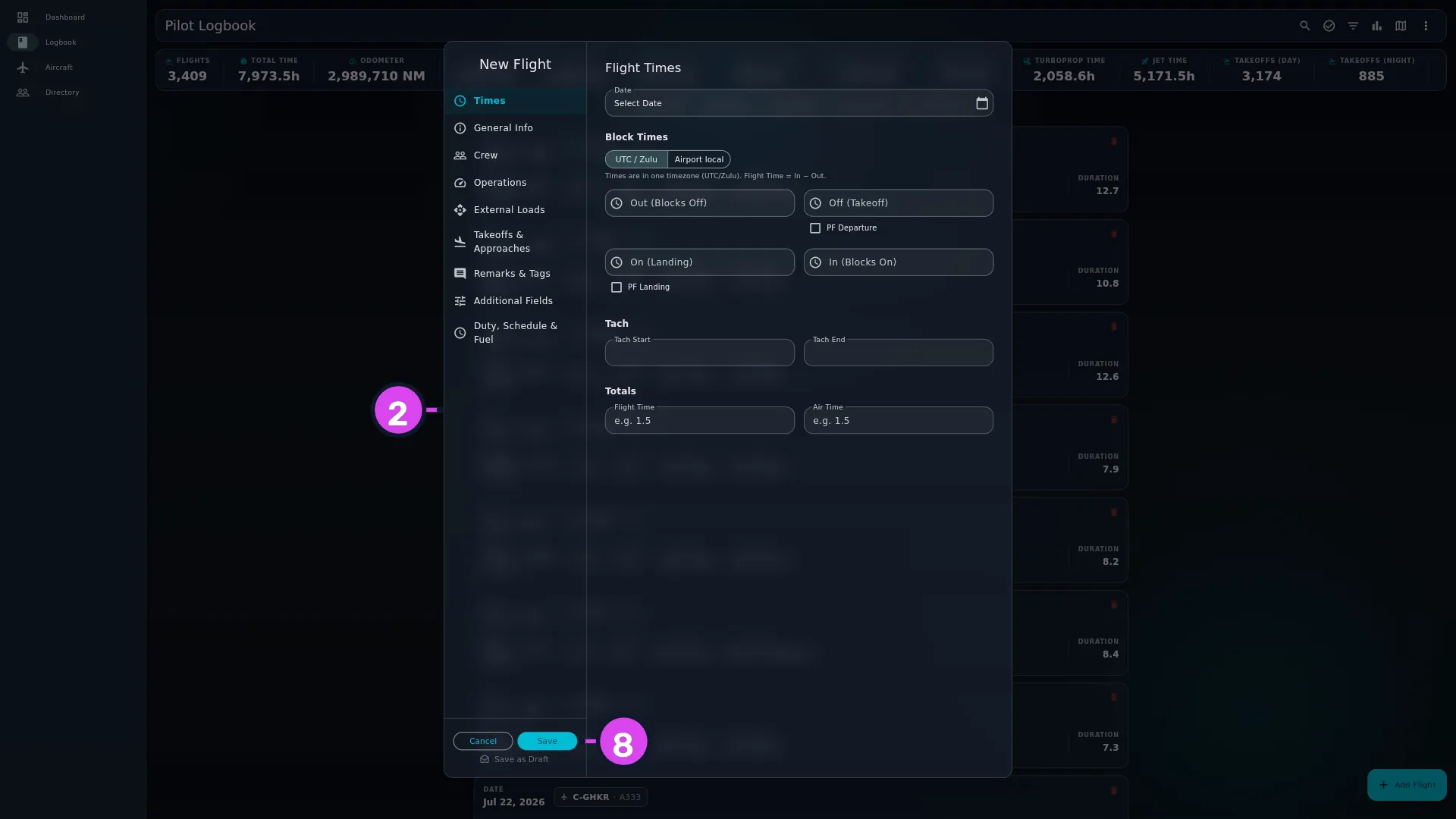
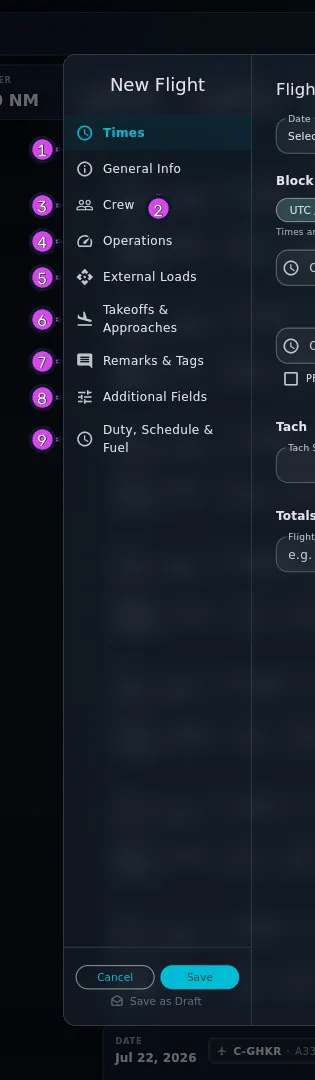
Expand2 the sidebar — with Times already open8 Save
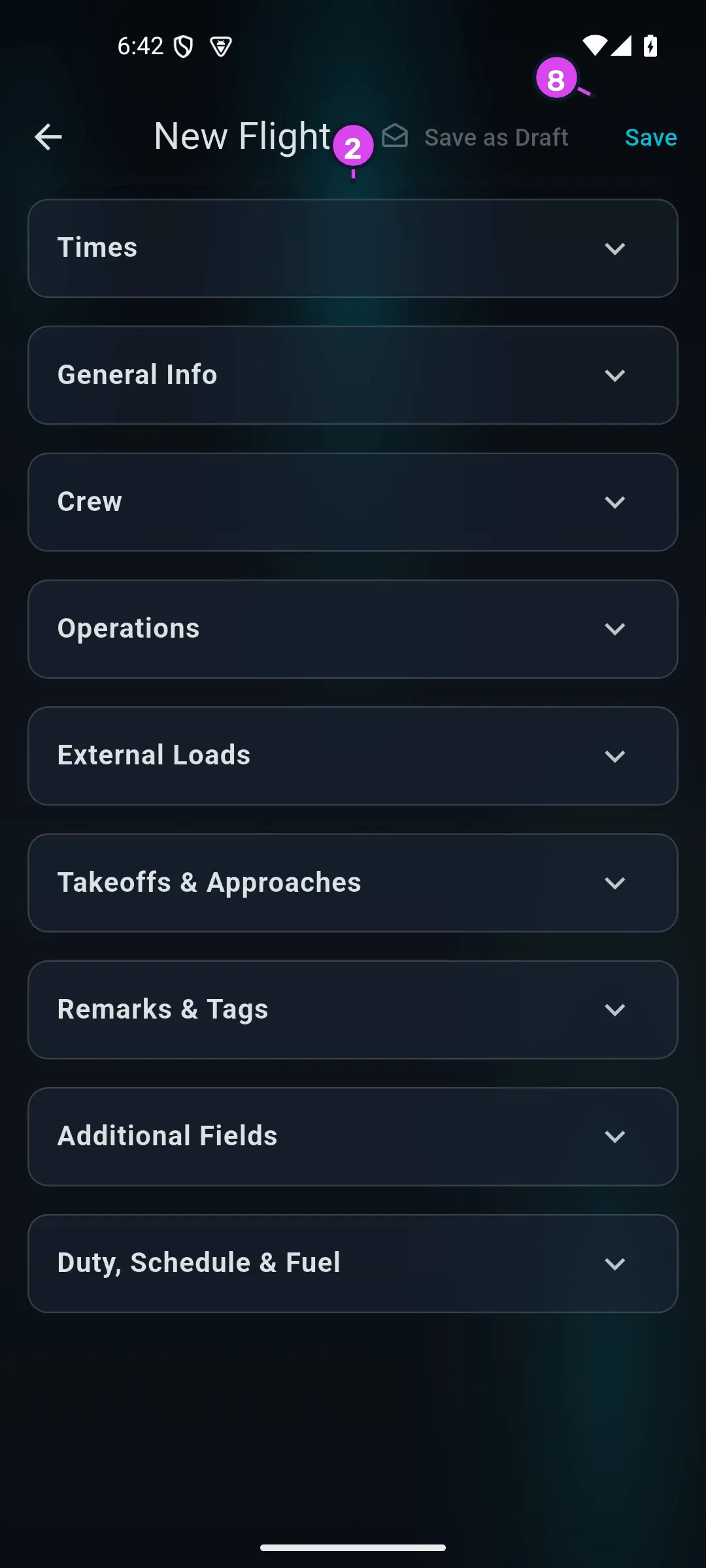
On a phone, it’s a full-screen page with each section folded into a card. Tap a
card to open it.
Expand2 Times8 app-bar Save
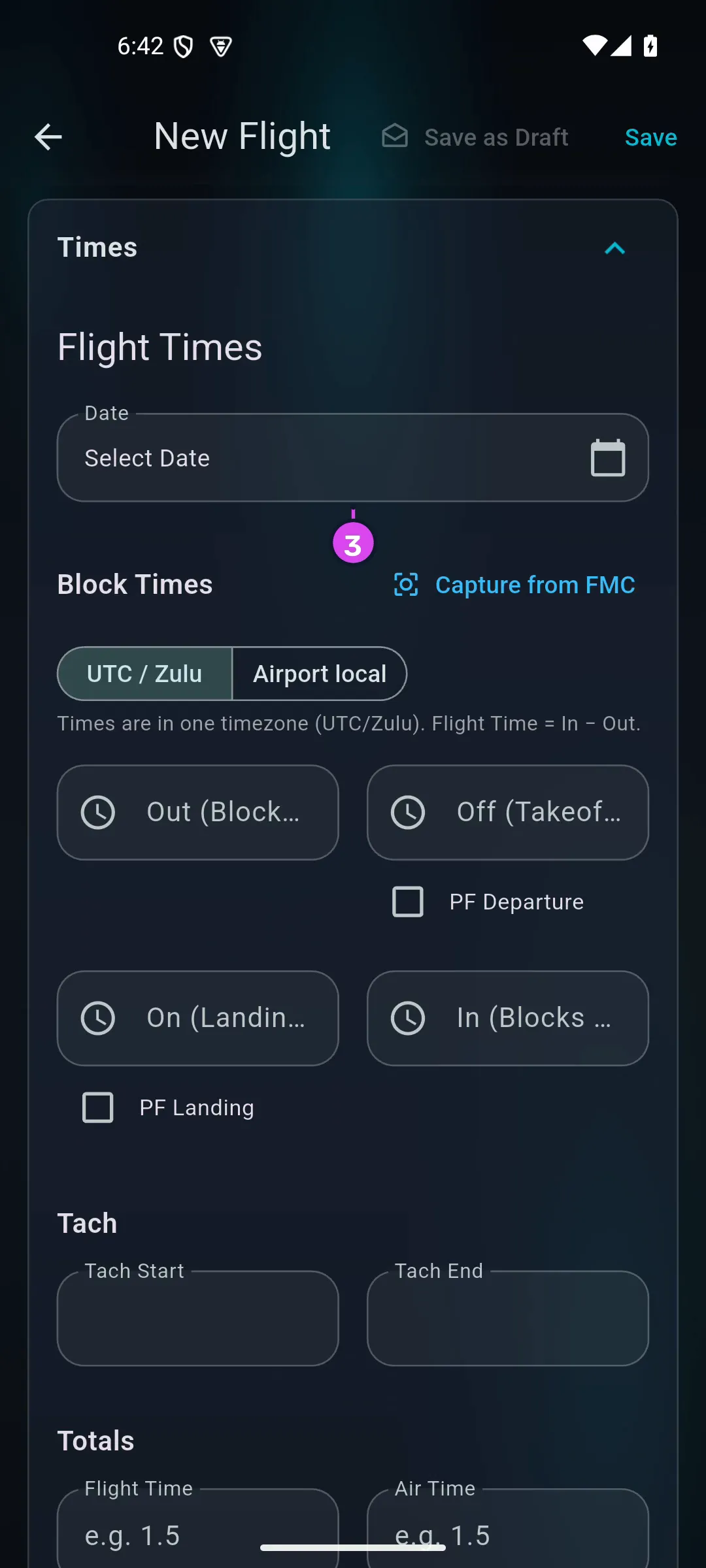
Open Times. On a desktop it’s first in the sidebar and already open; on a
phone, tap the Times card.
Expand3 Date
Tap Date — it reads Select Date until you set it — and pick the day of the
flight. The date is here on Times, not on General Info.
Under Block Times, tap Out (Blocks Off) and set the time you came off
blocks. Then tap In (Blocks On) and set the time you went back on. Each one
asks for a date first and then a time, which is how you log a leg that crosses
midnight (→ C2).
Check Flight Time, under Totals. The app has filled it in for you:
In minus Out, or Tach End minus Tach Start if you have no block
times. You can type over it, but the app will ask you to confirm with
Override Flight Time? — read C2 before
you do.
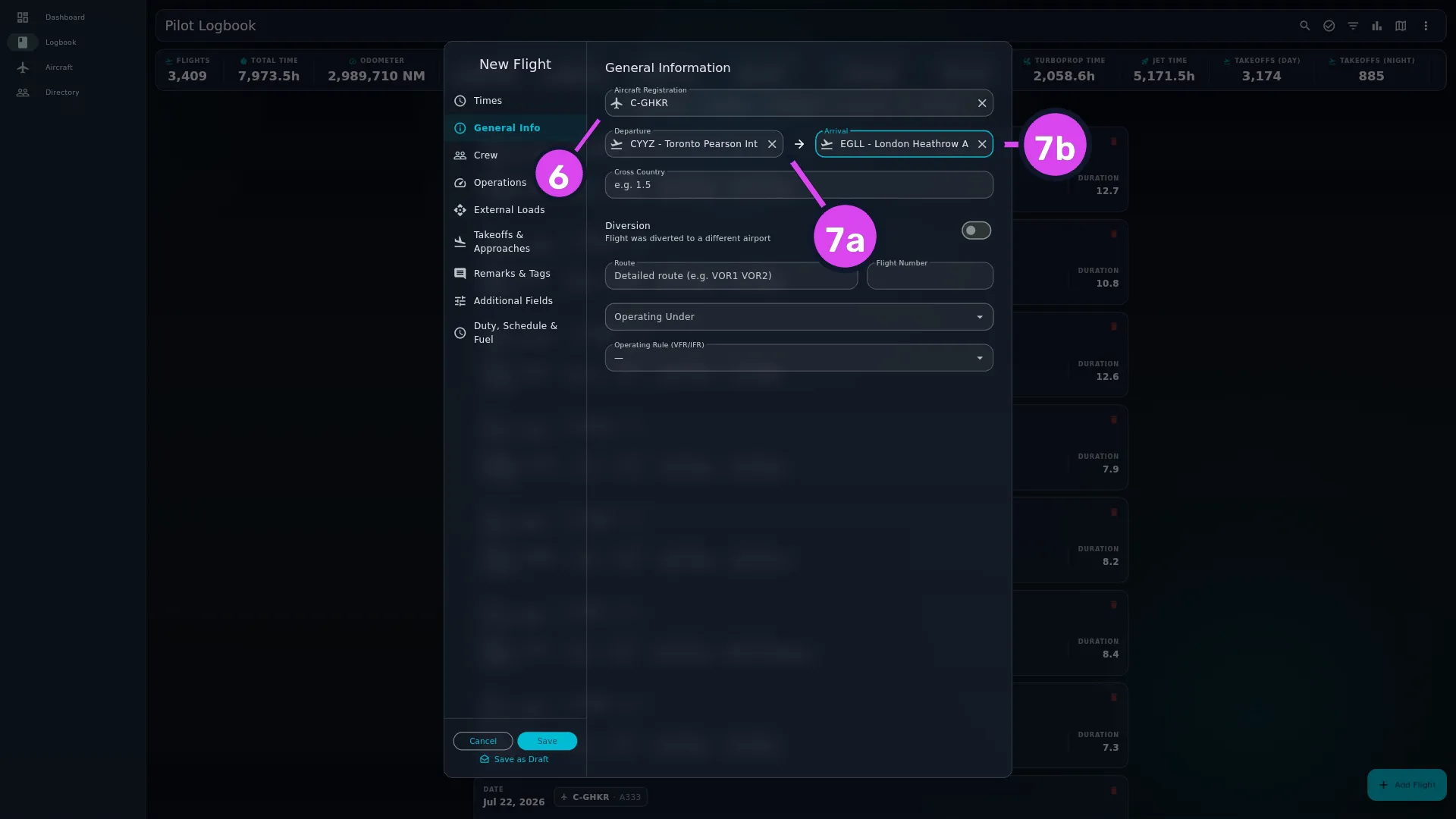
Open General Info. Type the aircraft’s registration into Aircraft
Registration and pick it from the list that appears. If it isn’t in the list,
the app creates it when you save (→ C4).
Fill in Departure and Arrival the same way, picking each airport from
the list. An airport the app doesn’t recognise is also created when you save.
Expand
Tap Save — in the app bar on a phone, under the sidebar on a desktop.
Nothing is kept until you do: leaving the form before then throws away what you
typed.
You don’t have to go in this order. It’s one form with one Save — no Next, no
Back, and nothing is checked section by section — so fill it in however suits you.
Save checks the whole flight at once.
How to tell it worked
If the flight added anything new to your logbook — an aircraft, an airport, a
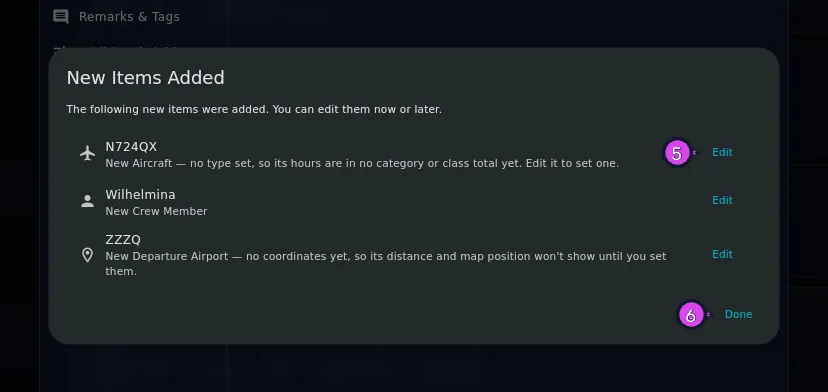
person — a New Items Added dialog appears first: The following new items
were added. You can edit them now or later. If it lists a new aircraft, tap
Edit beside it to fill in its details while you’re here
(→ C4). Otherwise tap Done.
5 Edit6 Done
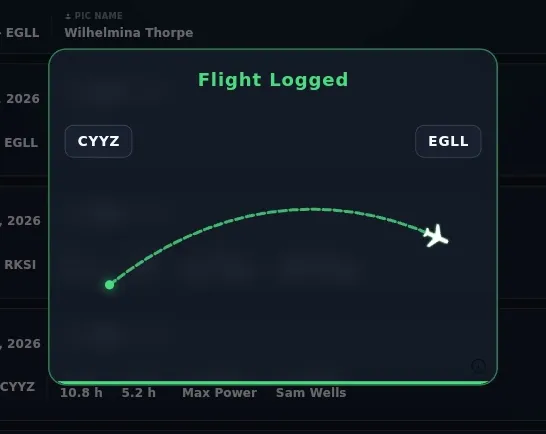
Next, a short animation plays, showing the departure and arrival codes of the
flight you saved.
Then you’re back on the logbook list, with your new flight at the top.
If something goes wrong
What you see
Why
What to do
A Required Items dialog — Complete the following to file this flight — or save it as a draft and finish it later.
One of the five required items is missing
Fill in whatever isn’t ticked and tap Save again, or tap Save as Draft and finish it later (→ C3). A registration or airport you typed but didn’t pick from the list still gets a tick — Save will create it
Flight Time is required. Enter Out & In times, Tach Start & End, or a manual value.
The app has no total time from any of its three sources
Your PIC, SIC and Dual Received hours add up to more than Total Time
It’s a prompt to check your numbers, not an error — see Gotchas below
A Pro screen instead of the form
You’ve reached the free tier’s 100-hour limit, and this is a new flight
Editing existing flights still works. To add more, see K2
A section this guide names isn’t on your form
It’s been hidden
Profile Settings → Entry Form turns it back on
System services not initialized. Please try again.
The app hadn’t finished starting when you tapped Save
Tap Save again
No database open
The logbook closed while the form was open
Open the profile again. The flight wasn’t saved
Error saving flight: …
The save failed
Try again. If it keeps happening, note the message and report it (→ A11)
The same form, two shapes
The layout changes at 600 px of window width. On a phone held upright you get one
shape; on a tablet or a desktop window, the other.
Phone, under 600 px
Desktop, 600 px and over
Shape
Full-screen page, one scrolling column
Centred dialog with a 250 px sidebar of sections
Sections
Collapsible cards, all collapsed when the form opens
One section shown at a time, chosen from the sidebar
Save
Text button in the app bar
Filled button under the sidebar
Leaving without saving
The back arrow
The Cancel button beside Save
The fields are the same on both. Two section names differ
(→ Reference below). On a phone, every card being folded up when the form
opens is normal — nothing has been lost.
Editing a flight you already logged
Tap the flight’s card in the logbook to open its detail view, then tap Edit.
You get the same form, titled Edit Flight, with everything filled in.
One difference: on an existing flight, the saved Flight Time is left as it is
when the form opens. It’s only recalculated if you change one of the times
(→ C2).
Getting your own hours onto the flight
Flight Time is the length of the leg. Your hours in a role — PIC, SIC, Dual
Received — are separate fields on Operations. Put yourself on the crew list
and the app fills them in for you:
Open Crew and tap Add Crew Member.
Tap Add Me (from Profile). Your own Directory entry fills the person
field.
Pick a Capacity chip.
Tap Add to Flight.
The matching hours field on Operations gets the flight’s total:
Capacity
Fills
PIC
PIC
SIC
SIC
P1US
P1 (US)
Relief
Relief
F/E
F/E
Student
Dual Received
Student PIC
Student PIC
Instructor
PIC and Dual Given
Examiner, Observer
nothing
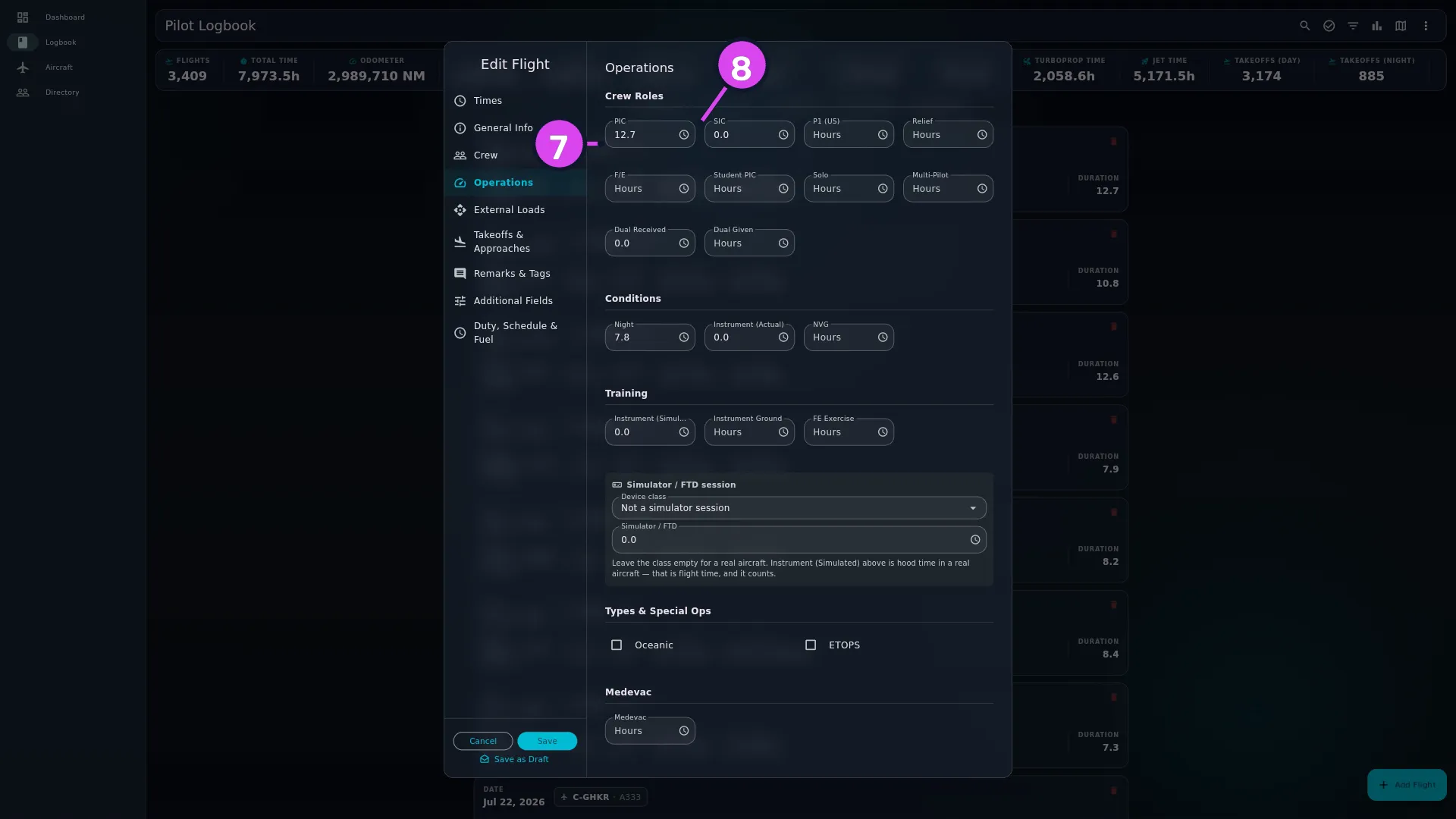
Expand7 PIC8 the copy-total icon — fills the field from Flight Time
For a role the chips don’t cover, use the small icon at the right of each hours
field on Operations — its tooltip reads Copy Total Time (X). One tap puts
the flight’s total into that field. The icon only appears once Flight Time
has a number in it.
Every PIC total in the app counts your Student PIC hours as PIC time:
the dashboard tile, Career Roles, and the totals for each aircraft, type and
organisation. A leg with hours in both fields is counted once. The flight
itself still shows the two fields as you entered them.
Adding other people to the crew doesn’t change your own hours. The app only
fills in hours from the crew entry that’s you.
Nine sections. Two of them are labelled differently on a phone and on a desktop,
so both names are given here. Only Times can’t be hidden.
Section (phone)
Section (desktop)
What it is for
Times
Times
The date, the four block times, tach, and the two totals
General Info
General Info
Aircraft, both airports, and how the leg was flown
Crew
Crew
Who was on board, and in what capacity
Operations
Operations
Every hours bucket — roles, conditions, training and specialist operations
External Loads
External Loads
Rotary-wing sling work
Takeoffs and Approaches
Takeoffs & Approaches
Takeoff, landing, hold and approach counts
Remarks & Tags
Remarks
Free text and tags
Additional Fields
Additional Fields
Your own custom fields
Duty, Schedule & Fuel
Duty, Schedule & Fuel
Duty period, scheduled times and fuel figures
On a desktop the nine sit in the sidebar with Cancel and Save beneath
them. On a phone they’re nine cards down one page, and the back arrow in the app
bar is the only way out without saving.
Times — headed Flight Times. Covered in full in
C2.
Field
What it is for
Date
The date of the flight. Selectable from 1900 to tomorrow
UTC / Zulu / Airport local
Which clock the four block times were written in
Out (Blocks Off), Off (Takeoff), On (Landing), In (Blocks On)
The four block times. Each takes a date and a time
PF Departure, PF Landing
You were the pilot flying for that part of the leg
Tach Start, Tach End
Tachometer readings. The difference between them is a fallback total
Flight Time
The leg’s block time, and the number every total in the app is built from
Air Time
Off to On. Recorded, and never used as the total
Capture from FMC
Reads the four times off a photo of the FMC page (→ C7)
General Info — headed General Information.
Field
What it is for
Aircraft Registration
The airframe. Search or type; an unknown registration gets created on save (→ C4)
Departure, Arrival
The two airports, searched by ICAO code or name
Cross Country
Cross-country hours for this leg. The one hours bucket that isn’t on Operations
Diversion
Flight was diverted to a different airport. Turning it on reveals Original Destination
Original Destination
Where the leg was meant to end
Route
The route flown, free text — Detailed route (e.g. VOR1 VOR2)
Flight Number
The commercial flight number
Operating Under
Which set of operating rules the flight was flown under
Crew — headed Flight Crew, Add crew members for this flight. Empty until
you add somebody: No crew added yet. Add Crew Member opens a dialog with
Add Me (from Profile), a Search People… field, ten Capacity chips —
PIC, SIC, P1US, Relief, F/E, Instructor, Student,
Student PIC, Examiner, Observer — and Add to Flight. Full
coverage in C4.
Your hours in each capacity. Dual Received is hinted Student and Dual GivenInstructor
Conditions
Night, Instrument (Actual), NVG
Hours flown in each condition
Training
Instrument (Simulated), Instrument Ground, FE Exercise
Hood or ground-trainer instrument time, and flight-engineer exercises. A note beneath the three fields explains what decides whether a session is flight time — see below
Types & Special Ops
Oceanic, ETOPS
Checkboxes. Ticking one reveals an hours field of the same name
Medevac
Medevac
Medevac hours
Aerial Fire Suppression
Water Bombing, Bird Dog, Fire Acres
Hours on each role, and the acreage worked
Aerial Application
Herbicide, Fungicide, Insecticide, Spray Acres, Pesticide / Agent Name
Hours by agent type, the acreage, and what was applied
Glider time, release height, and how it was launched
Logging a simulator or FTD session. Use the block headed Simulator / FTD
session, in the Training group. It has two controls, and a third appears once a
device class applies:
Control
What it does
Device class
FFS, FTD, ATD, FNPT or BITD — or Not a simulator session, the default. This is the switch. Choosing a class takes the session out of your total time, out of your landing and flight-time currency, out of the free-tier hours count, and puts it on the matching row of an FAA 8710-1
Simulator / FTD
The length of the session, in hours
Hours without a class count as flight time, and the form warns you. If you
type hours but leave the class on Not a simulator session, the block turns red:
These hours will count as flight time. Choose a class and the red warning is
replaced by a note, naming the class, of what will happen instead.
Once a class applies, a third control appears: Supervised. It applies whether
you chose the class here or the aircraft’s type already carries one. The choices
are Not recorded, Yes — a qualified supervisor was present, or No. Some
currency rules only credit a device session when a qualified supervisor was
present. No counts as the condition not being met; Not recorded still credits
the session — so they’re not the same answer.
If the aircraft is already a simulator in your Hangar, leave both alone. When
the aircraft’s type carries a device class, the session is already excluded,
and the block tells you so instead of asking again (→ E4). Only set a class here
if that particular session was flown in a different device.
Instrument (Simulated) isn’t affected by any of this. Hood time in a real
aircraft is flight time, and always counts.
External Loads — Specific configuration for rotary wing external load
operations.
Field
What it is for
External Load Time
Hours flown with a load on the hook
Number of Lifts
How many lifts were flown
Line Length (ft), Working Load Limit (lbs)
The long line and its rating
Line Material
Synthetic or Wire Rope
Attachment Type
Primary Hook, Remote Hook, Grapple or Net
Takeoffs and Approaches / Takeoffs & Approaches — every counter and the
approach list. Covered in full in
C5.
Remarks & Tags / Remarks.
Field
What it is for
Remarks / Comments
Four lines of free text, length-capped
Tags
Short labels — Add a tag (e.g. “Checkride”, “Training”). Tags you’ve used before are offered as suggestions
Additional Fields — Your custom fields — imported and hand-made. Empty until
you make one: No custom fields yet — create one below to track anything beyond
the built-in fields.New Custom Field creates one, and a field given a unit
shows as Label (unit). Custom fields are set up and managed in Area J
(→ J7).
Duty, Schedule & Fuel — three groups, all optional. One thing to know: the fuel
group is only saved when at least one fuel figure is filled in, so a Unit
chosen on its own isn’t kept.
Group
Fields
Duty & Rest
Report (Duty Start), Release (Duty End), Rest Before (hrs), Sectors, and the switches Augmented crew — Extended flight-duty-period limits apply — and Acclimatised — Adapted to the local time zone, which is on by default
Schedule
Scheduled Out, Scheduled In, Pushback, Taxi Out (min), Taxi In (min)
Fuel
Unit — L, kg, lb or USG — then Uplift, On Board (block), Burned, Remaining, Min Diversion. With no figure filled, nothing in this group is written; a flight that has figures but no unit is stored in L
Gotchas
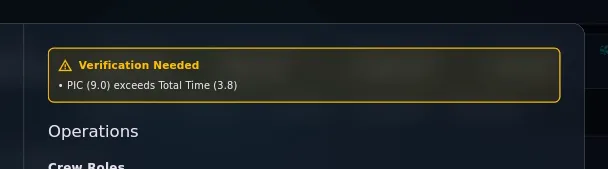
The amber “Verification Needed” box is not an error. It appears on
Operations when your PIC, SIC and Dual Received hours add up to more than the
flight’s total, and it names the overlap: PIC (1.0) + SIC (0.5) exceeds Total
Time (1.2). A leg split between roles that adds up exactly — 1.0 hours of PIC
and 0.2 of SIC on a 1.2-hour flight — doesn’t trigger it. You can’t dismiss the
box, and it doesn’t stop you saving. Use it as a reason to check your numbers; if
they’re right, leave them alone rather than changing correct data to make the box
go away.
Hiding a section hides the field, not the data. Turning a section off in
Profile Settings → Entry Form only removes the place to type. What your
flights already hold is still there, and still exported and counted. So if a
number you know is on a flight has nowhere to show on your form, its section is
switched off.
The Date is on Times. Most people look for it on General Info first. It’s
the first field in the Times section, above Block Times.
Cross Country is on General Info. It’s the one hours field that isn’t on
Operations with the rest. It works like the others; it’s only in an
unexpected place.
Save replaces lists; it doesn’t add to them. Crew, tags and approaches are
saved exactly as the form shows them when you tap Save. Delete an approach
and save, and it’s gone (→ C5).
Saving copies three things from the aircraft onto the flight: its type, its
operator and its owner. The operator and owner stay as they were on the day you
flew. Aircraft change hands, and a later sale or lease shouldn’t rewrite flights
you’ve already logged. The type works the other way round: an aircraft doesn’t
change type in real life, so if you change its type in the Hangar, every flight
already logged in it changes too — along with the class and category those
flights report (→ E3).
Worked example
A single leg on 11 May 2026: Calgary to Vancouver, off blocks at 18:05 Zulu, on
blocks at 19:35 Zulu, in C-GABC, flown by you as pilot in command, one daytime
landing.
Times
Field
Value
Date
11 May 2026
basis
UTC / Zulu
Out (Blocks Off)
2026-05-11 18:05
In (Blocks On)
2026-05-11 19:35
Flight Time
1.5 — filled in by the app, not typed
General Info
Field
Value
Aircraft Registration
C-GABC
Departure
CYYC
Arrival
CYVR
Crew — Add Crew Member → Add Me (from Profile) → Capacity PIC →
Add to Flight.
Operations — PIC now reads 1.5. You didn’t type anything here.
Takeoffs & Approaches — Day Landings 1.
Save. The animation shows CYYC → CYVR, and the card at the top of your
logbook reads 1.5 hours, PIC 1.5.
Now the same leg, same aircraft, same times — but you were the student. The only
change is the capacity chip: Student instead of PIC.
Operations — Dual Received reads 1.5. PIC is empty.
One chip is the only difference, and it changes what the flight counts as: the
first builds command time, the second builds training received. That’s the field
to get right.