
Turn on currency tracking
What this does
Takes the Currency Status card on your dashboard from a blank gate to a list of rules with their live status.
Before you start
- Read How currency is worked out here first. What follows doesn’t mean much without it.
- Set your date of birth before you trust any medical row (→ A9). Without it, the app uses the shortest validity period each medical rule allows, so a medical can read as expiring or expired months early (G5).
- Know which authority issued your licence. Switching one on switches on all of its rules; cutting them back afterwards is G7.
- The acknowledgement belongs to the logbook, not to this device. It follows the profile to every paired device, and so does turning it off.
Steps
- On the dashboard, find the card headed Currency Status — before setup it
reads Acknowledgement required — and tap Review and acknowledge, or
anywhere on the card.
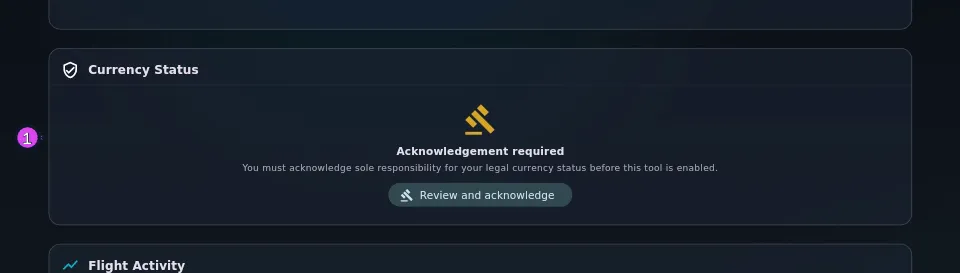
- In the dialog headed Currency Tracking — Pilot Acknowledgement, read the
text and tick the checkbox at the bottom. Acknowledge stays greyed out
until you do.
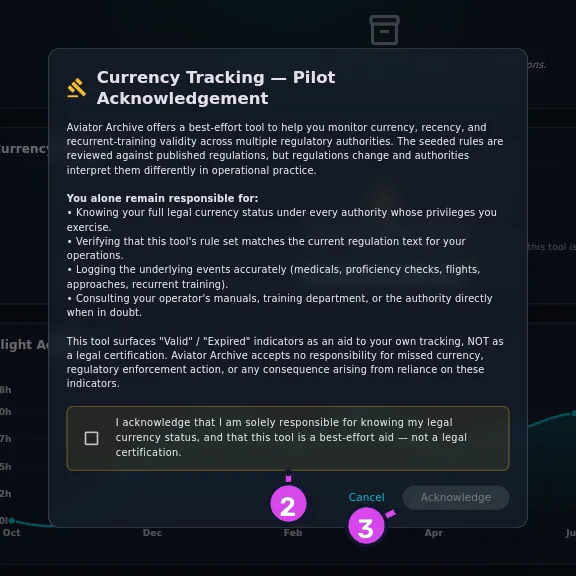
2 the checkbox that enables Acknowledge3 Acknowledge — still disabled - Tap Acknowledge.
- Compliance Settings opens by itself. A green banner at the top reads
Responsibility acknowledged, with the date you gave it.
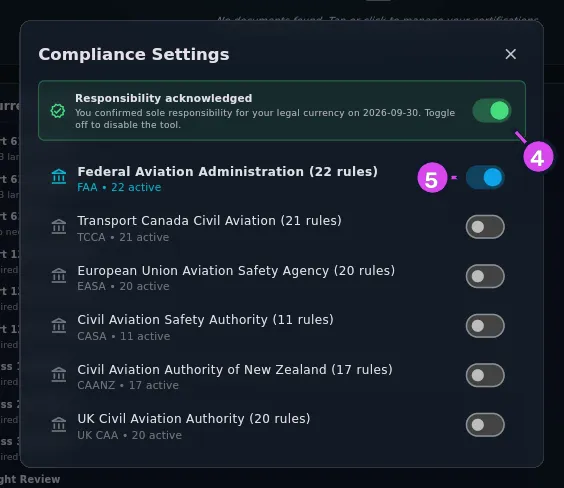
4 the banner switch — one tap reaches every paired device5 an authority switch — turns on all of its rules - Find the authority whose licence you hold — each tile shows its full name and rule count — and turn on the switch at the right of the tile.
- Close Compliance Settings and go back to the dashboard.
How to tell it worked
The Currency Status card has a green badge listing your active authority
acronyms, joined by •, and below it a list of rows with coloured icons. Tapping
the card now opens Compliance Settings directly, not the acknowledgement.
If something goes wrong
| What you see | Why | What to do |
|---|---|---|
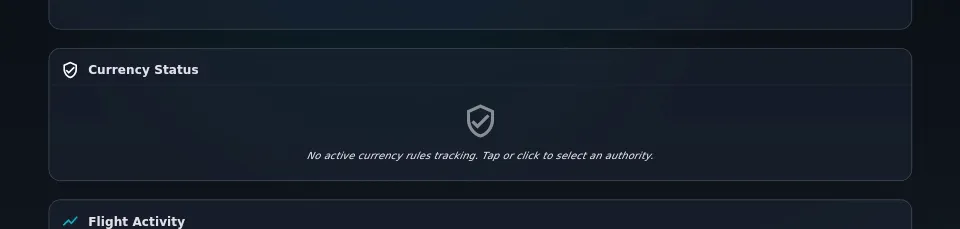
| No active currency rules tracking. Tap or click to select an authority. | The acknowledgement is given but no authority is on | Tap the card and turn one on, at step 5 |
| Every switch in Compliance Settings is greyed out | The acknowledgement hasn’t been given, or has been turned off | Use the switch on the banner at the top to review and acknowledge |
| Syncing currency rules… | The rules haven’t finished loading into this logbook | Wait, then reopen the dashboard. A new or newly restored logbook loads its rules once |
| Far more rows than you expected | Switching an authority on switches on all of its rules | Switch off the ones you don’t need (→ G7) |
| A rule you expected isn’t listed at all | Its operation is hidden, or its own switch is off | Work through the three-cause check in G7 |
| The card is back to Acknowledgement required and you never touched it | The acknowledgement was turned off on another of your devices | See below |
The acknowledgement dialog
The card’s gate reads, in full: You must acknowledge sole responsibility for your legal currency status before this tool is enabled. In the dialog, tapping outside does nothing. The only two ways out are Cancel and Acknowledge.
Turning it off is one tap, and it applies everywhere
The switch on the Responsibility acknowledged banner turns the whole tool off the moment you tap it, with no confirmation. The dashboard card goes back to the gate and every rule stops being checked. Because the setting travels with the logbook, the same happens on every paired device — turn it off on your phone and the card goes blank on your laptop.
Turning it back on isn’t the same tap in reverse. The switch opens the acknowledgement dialog again, and you read it and tick the box again.
Turning an authority off deletes nothing
No switch on this screen touches your documents or flights. All that stops is the checking. Switch the authority back on and the rows come back, with the same answers they’d have had.
One thing doesn’t come back by itself: rules you switched off one by one stay off after you turn their authority off and on again. Those choices are remembered separately, and you undo them yourself (→ G7).