
How backups work here
What this does
Shows you the Backup panel and explains the four words the rest of this area uses — bundle, destination, offsite, 3-2-1.
Then it gets you from a blank panel to a status card whose score you can read and change.
Before you start
- A profile is open. Backups are taken from inside a logbook, and a bundle holds that one logbook.
- Backup is free at every tier. Nothing in this area is a Pro feature.
- You don’t need a destination to read this guide. You need one before the Back up now button will do anything (→ H2).
Steps
- On the dashboard, tap your profile card at the top to open Profile
Settings. Scroll to ACCOUNT & DATA and tap Backups —
Destinations, schedule, restore. This is the only route that lands on backup
directly.
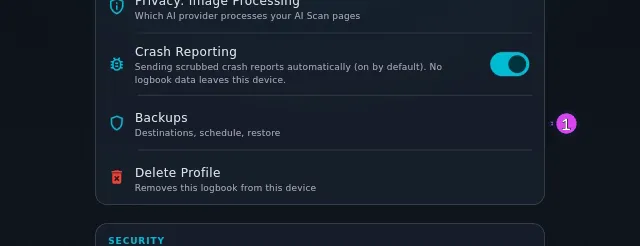
1 the Backups row - The panel opens, headed Backup — Your logbook, kept somewhere your phone
can’t lose it. At the top are Back up now, greyed out until a destination
exists, and Restore from backup, which never is.
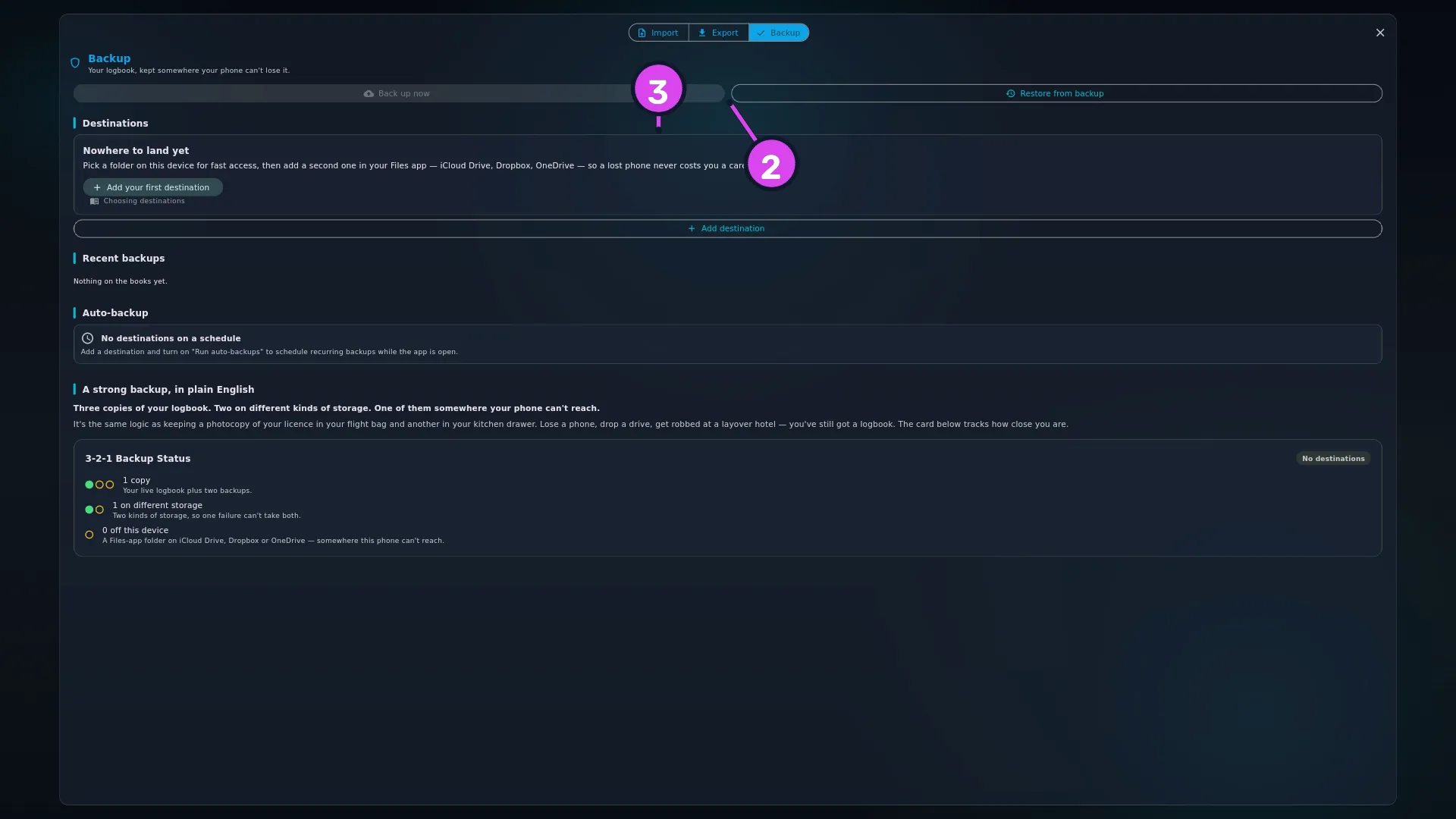
2 Back up now — greyed with no destination3 the Nowhere to land yet card - Look under Destinations. A destination is a saved place bundles get written to — a folder on this device, your Files app, Google Drive, or a WebDAV server — and it’s stored inside this profile, not on the device. On a new profile you’ll see one card, Nowhere to land yet, with a button reading Add your first destination. That’s the first thing to do in this area (→ H2).
- Once you have destinations, each one is a tile: a coloured dot, the display
name, and under it
· offsite · last backup 3h ago — or never run, or failed 3h ago with the reason in red beneath. Below the list, Recent backups shows the twenty most recent runs, successes and failures alike. Before your first, it reads Nothing on the books yet.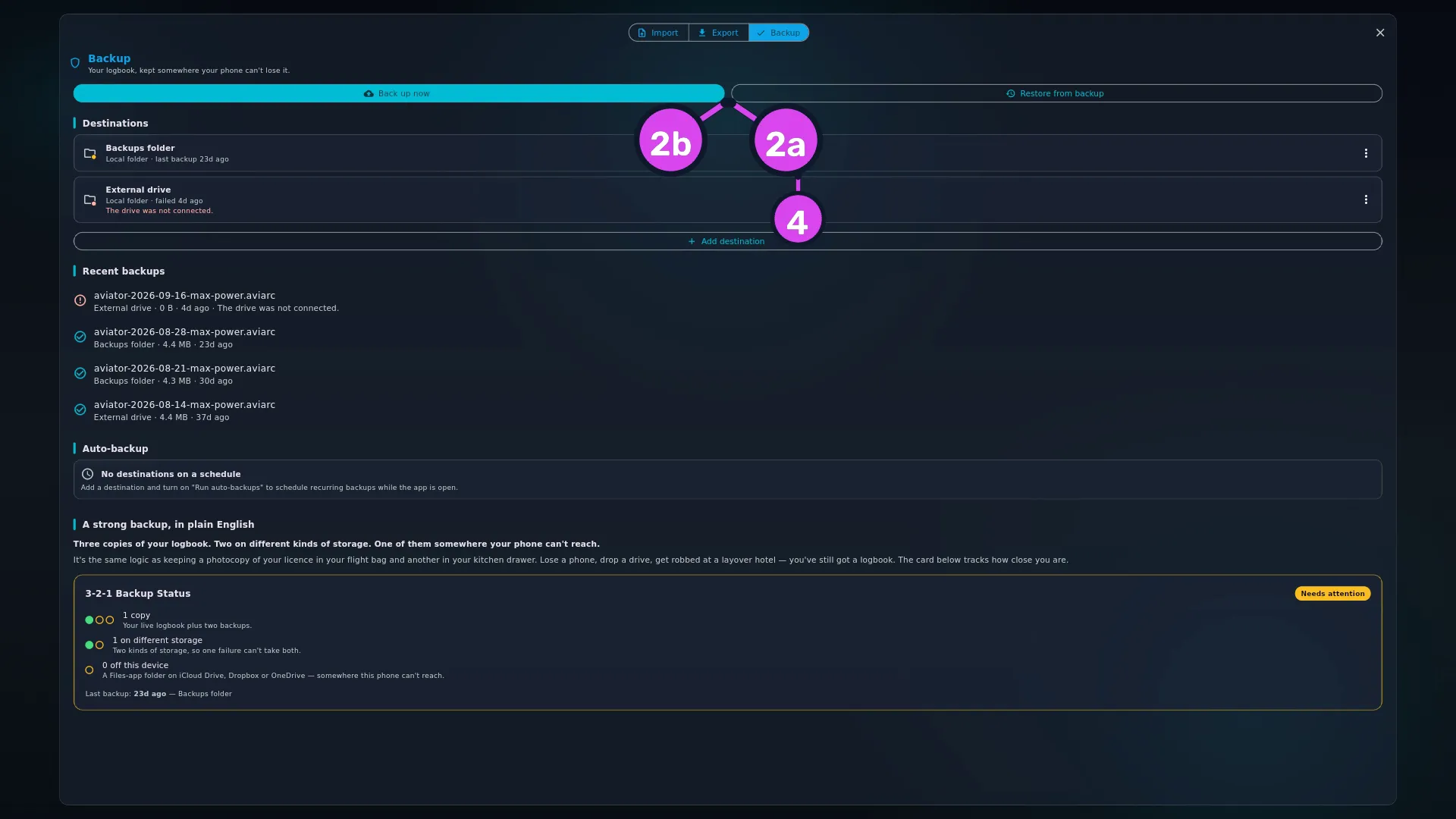
2a Back up now2b Restore from backup4 a destination tile: dot + name + last run - Scroll to the bottom, past Auto-backup, to A strong backup, in plain
English and the 3-2-1 Backup Status card under it. It has three rows:
N copies, N on different storage, N off this device.

5 the three rows: copies / storage / offsite6 the badge — reads all three rows at once - Check the badge at the top of the card: No destinations, Needs attention, or Healthy. It reads Healthy only when all three rows are met at once — three copies, two storage kinds, and one offsite: a destination you’ve ticked as being somewhere this device can’t reach. (A Google Drive destination counts as offsite on its own — see Gotchas.)
- Fix whichever row is short. The answer is nearly always “add a second
destination of a different kind” or “run the backups you have”. The
arithmetic is in the reference below.

(The same panel is also the Backup segment of the Import / Export / Backup card on the dashboard: open the card, then tap Backup.)
How to tell it worked
You’re on a panel headed Backup, you can name which of the three rows on the 3-2-1 Backup Status card is short, and you can say what would fix it.
Once any destination has completed a run, the card also carries two footers,
healthy or not: Last backup:
If something goes wrong
| What you see | Why | What to do |
|---|---|---|
| Back up now is greyed out | There are no destinations | Add one (→ H2). The button turns on as soon as one exists |
| The badge reads No destinations | Same reason. The card can’t score a setup with nowhere to write to | As above |
| A destination’s dot is amber and the card’s numbers dropped | That destination’s last success is more than 14 days old, so it stopped counting | Run it (→ H4), or put it on a schedule (→ H5) |
| A destination’s dot is red | Its last run failed. The reason is printed under its name | Fix the cause and run it again. A failed scheduled run may not show up in Recent backups (→ H5) |
| The card says three copies exist, and you know one folder is empty | The card reads the app’s own record of its runs, never the destination itself | Check the files are where you think they are. See the second gotcha below |
Reference: what a bundle is, and what’s in one
A bundle is one backup file. Its name is aviator_archive_YYYYMMDD_HHMM_<your profile name>, followed by .aviarc if it’s unencrypted or .aviarc.enc if it
is (→ H3). The profile name is lower-cased,
and anything that isn’t a letter or a digit becomes _. A bundle taken with
Back up all profiles ends …_all_profiles instead. Inside it are a manifest
— the summary the restore wizard shows you before it does anything — and a
compressed payload.
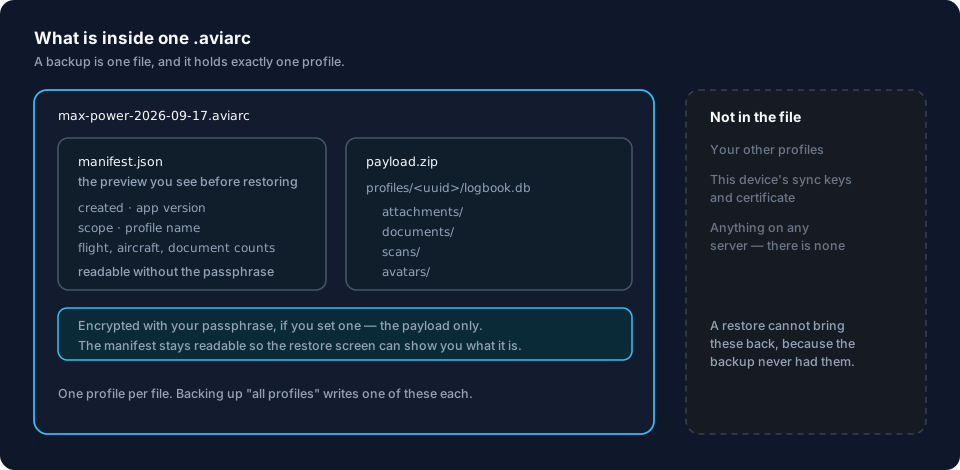
| In the bundle | Not in the bundle |
|---|---|
| The profile’s whole logbook — flights, aircraft, people, documents, currency settings, custom fields, import history | Any other profile on this device, unless you ticked Back up all profiles (→ H4) |
| Every photo attached to a flight | Photos and scans on the device that this profile doesn’t use. A file nothing refers to isn’t swept up |
| Every document scan and attachment | Anything on any server. There is no server |
| Avatars used by this profile | Your device’s sync keys and certificate, which live in the device keychain. That’s why a bundle in someone else’s hands can’t sync as you (→ I1). Your device’s biometric-unlock switch, also in the keychain. Interface scale belongs to the device, not the logbook: it goes into a Back up all profiles bundle, but no restore in the app ever reads it back |
Two things to know. The logbook inside a bundle is written out decrypted, even though the copy on your device is encrypted. That’s what lets the file be restored onto a different device, and it’s why an unencrypted bundle can be read by anybody holding it (→ H3). And a photo or scan that’s gone missing or can’t be read is skipped rather than failing the run: a backup with a hole in it beats no backup.
The logbook also carries details about this device — how far each sync had got, and its list of backup destinations — and the list of devices paired with the logbook. There are two ways to put a bundle back. A Merge adds the bundle’s contents to the logbook you already have, and ignores those details. A Replace throws your logbook away and puts the bundle’s in its place, details included, though a paired device in it only counts where it traces back to a pairing this device made (→ I8). Choosing between them is H6’s whole job.
Reference: how the 3-2-1 card counts
| Row | Counts | Note |
|---|---|---|
| N copies | your live logbook as 1, plus 1 for each healthy destination | The logbook on your device is always one of the three |
| N on different storage | 1, plus 1 for each distinct kind of healthy destination | Two local folders are still one kind. A folder plus a WebDAV server is two |
| N off this device | healthy destinations you ticked This destination is offsite, plus every healthy Google Drive destination whether you ticked it or not | Unticking the box on a Google Drive destination doesn’t take it out of this row |
Healthy means one thing: the destination’s last run succeeded and that success was within the last 14 days. A destination that’s never run counts for nothing. So does one that worked perfectly three weeks ago, and its dot turns amber to tell you.
Gotchas
The 14-day clock is why a good setup goes bad on its own. Two destinations you back up to by hand stop counting a fortnight after you last remembered. If you want the card to stay green without thinking about it, put at least one destination on a schedule — and read H5 for what your platform actually does with one.
The card checks its own records, not your files. It reads what the app wrote down each time it ran a backup, and it never looks in the folder. Delete every bundle from your Drive by hand and the card still reports three healthy copies until the 14 days run out. Check the files themselves before you rely on them.
The offsite tick is a claim, not a check. This destination is offsite is a checkbox, and the app takes your word for it. Tick it on a folder that syncs nowhere and the third row lights up while protecting nothing. The app’s own advice — point a local folder at your iCloud Drive or Dropbox folder — is sound, but it’s the tick that scores, not the path. Tick it only when the copy really leaves the building. Google Drive is the one exception, and it runs the other way: the app treats a Drive destination as offsite, and its tick box is locked on and greyed out from the moment you add it. It scores the third row, prints offsite on its tile, and counts as offsite for the unencrypted-backup check too (→ H2, H3, H4).
Old bundles don’t go away by themselves. Every run writes one more full copy of your logbook, and by default nothing is ever deleted. A daily schedule to a Drive folder writes a full copy every day, forever — unless you go to that destination’s ⋮ menu and either delete bundles yourself or turn on automatic pruning (→ H2). Until you do, clearing out old files is a job for your Files app, your Drive, or your server.
Worked example
One pilot, one laptop, one profile of about 2,800 flights.
Monday. They add a local folder on the laptop’s own disk and leave This destination is offsite unticked, because it isn’t. They run a backup, and the card reads:
2 copies · 2 on different storage · 0 off this device — badge Needs attention
Two copies: the live logbook plus one healthy destination. Two storage kinds by the same arithmetic. Nothing offsite, because nothing is ticked offsite.
Tuesday. They add a second destination, a Files-app save into iCloud Drive, which ticks This destination is offsite for them. They run it.
3 copies · 3 on different storage · 1 off this device — badge Healthy
Three weeks later, having run neither and with no schedule set up:
1 copy · 1 on different storage · 0 off this device — badge Needs attention
Last backup: 21d ago — iCloud Drive (Files) · Oldest copy: 21d ago — Local disk
Nothing was lost and no file moved. Both destinations passed 14 days without a successful run, so both stopped counting, and the card fell back to counting the live logbook alone. The Last backup and Oldest copy footers still report the two runs that did happen — they tell you how long ago, not is this still healthy, so they’re the first place to look when the badge turns amber. The two tiles above the card read last backup 21d ago with amber dots. One run to each puts the card back to Healthy the moment it finishes.