
Read one aircraft’s analytics
What this does
Opens the five views behind a Hangar card — where this tail has been, what you flew it as, and what it’s worth to your career.
It also tells you what each number is counting.
Before you start
- At least one aircraft is in the Hangar (→ E2). A tail with no flights still opens; each view shows its own empty state.
- Nothing here is Pro-only.
Steps
- Open Aircraft and tap a card on the Hangar tab. A full-screen view
opens. On a window 800 pixels wide or more, the five views are a list down the
left under the heading Analytics, above the tail’s registration and type.
Below 800 they’re a row of chips you scroll sideways, under a header reading
Analytics:
. 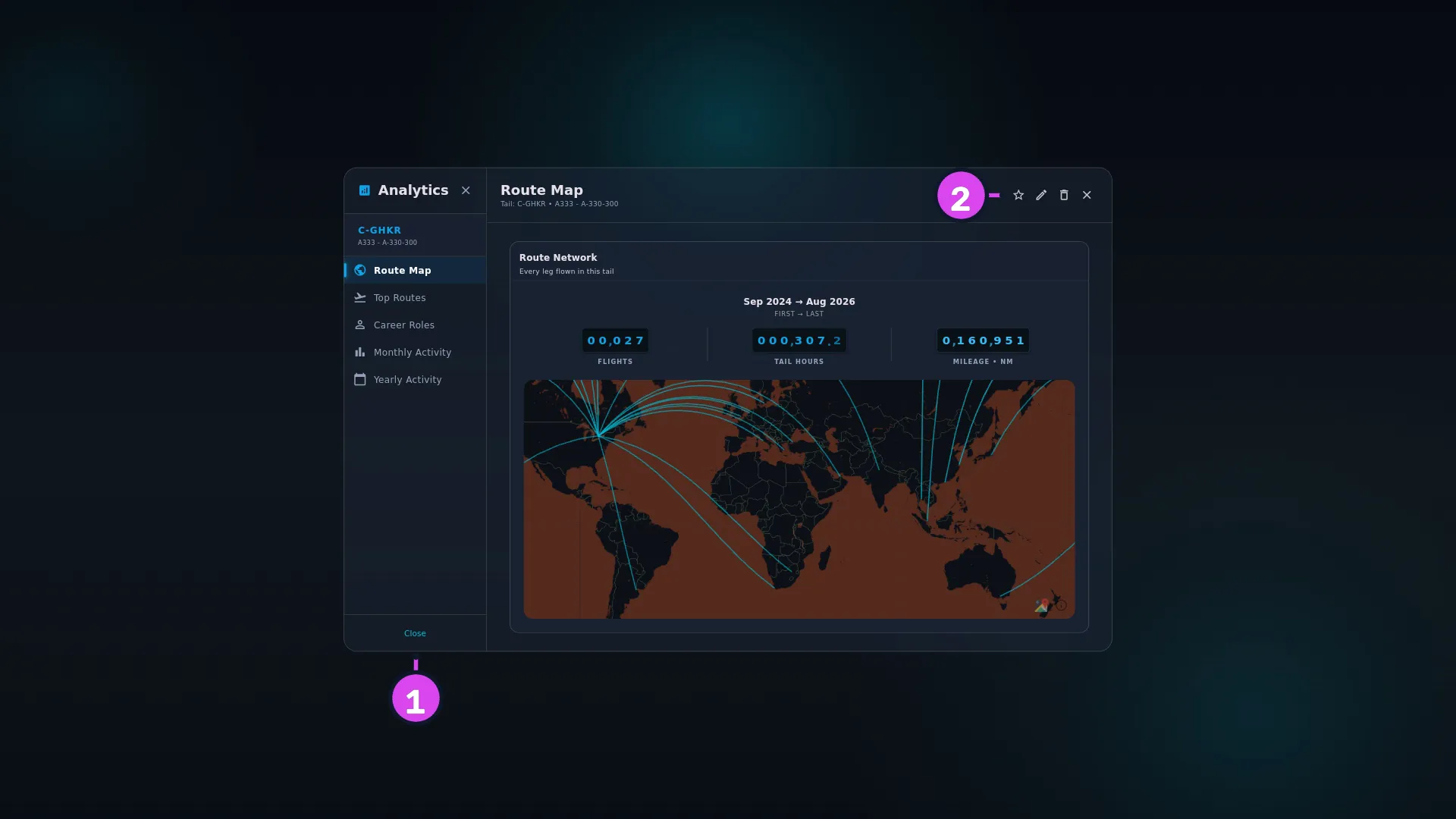
1 the sidebar2 the header actions - Use the header for the tail itself. The large line is the view you’re on, with
Tail: <registration> • <type>under it. To its right — or in the top bar on a phone — are Mark as favourite, Edit, Delete and Close. This is the only place to edit or delete a tail: the Hangar card has no ⋮ menu (→ E1).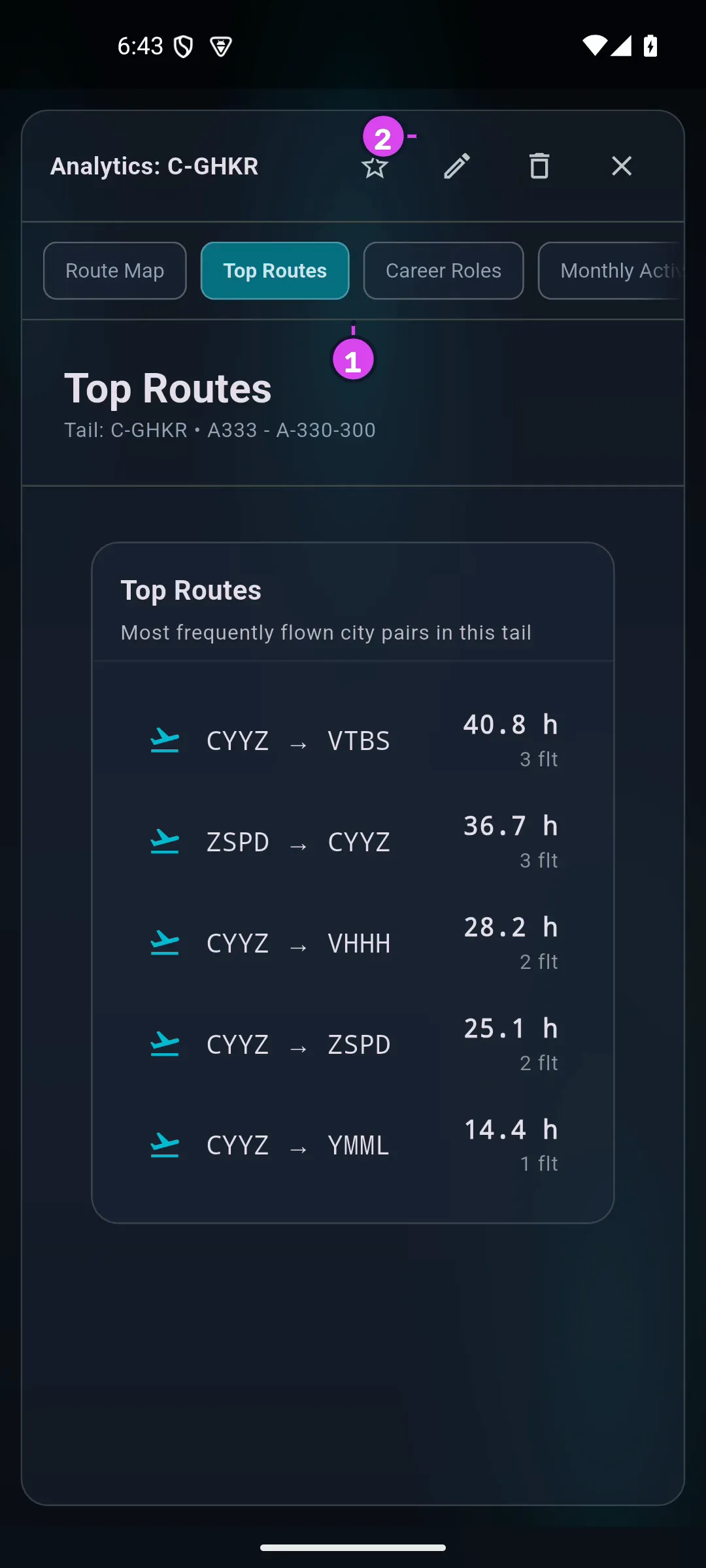
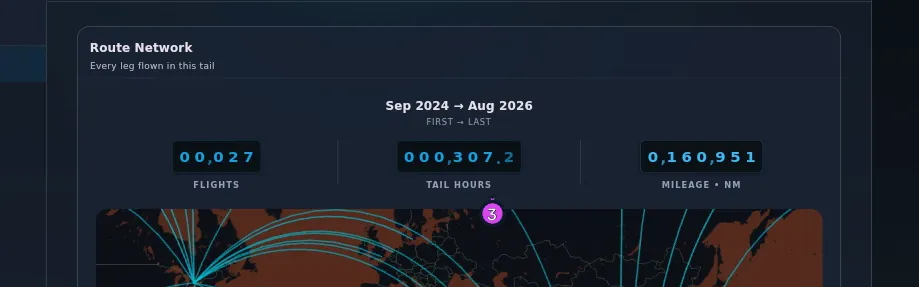
- Open Route Map or Career Roles to see the tail’s figures at the top: a
caption reading First → Last, with the months you first and last flew this
tail, over three counters — FLIGHTS, TAIL HOURS and MILEAGE, with
your unit in its label. On a narrow window they wrap to two columns.
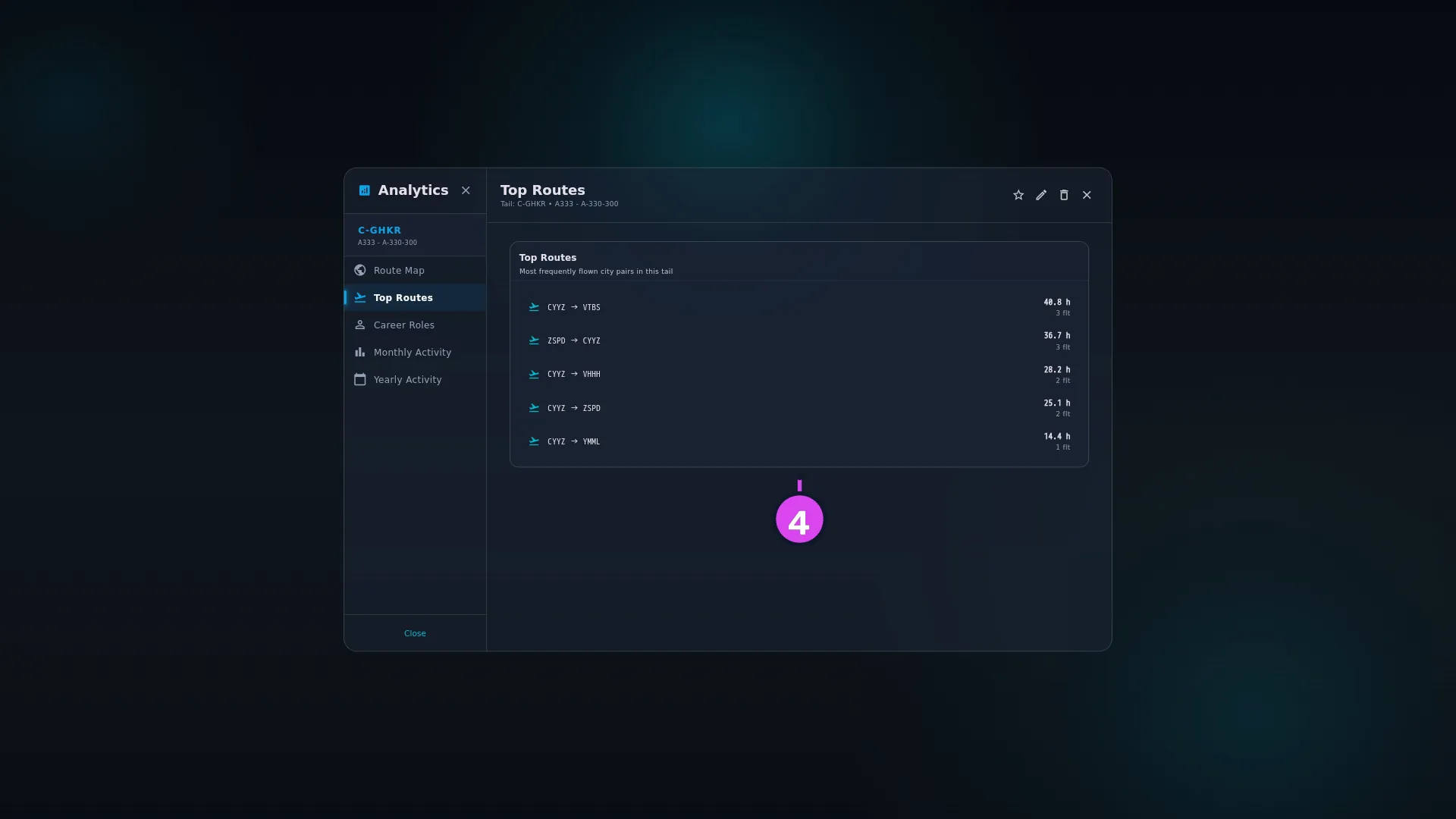
- Open Top Routes for this tail’s most-flown city pairs — up to five, each
with its hours and its flight count.
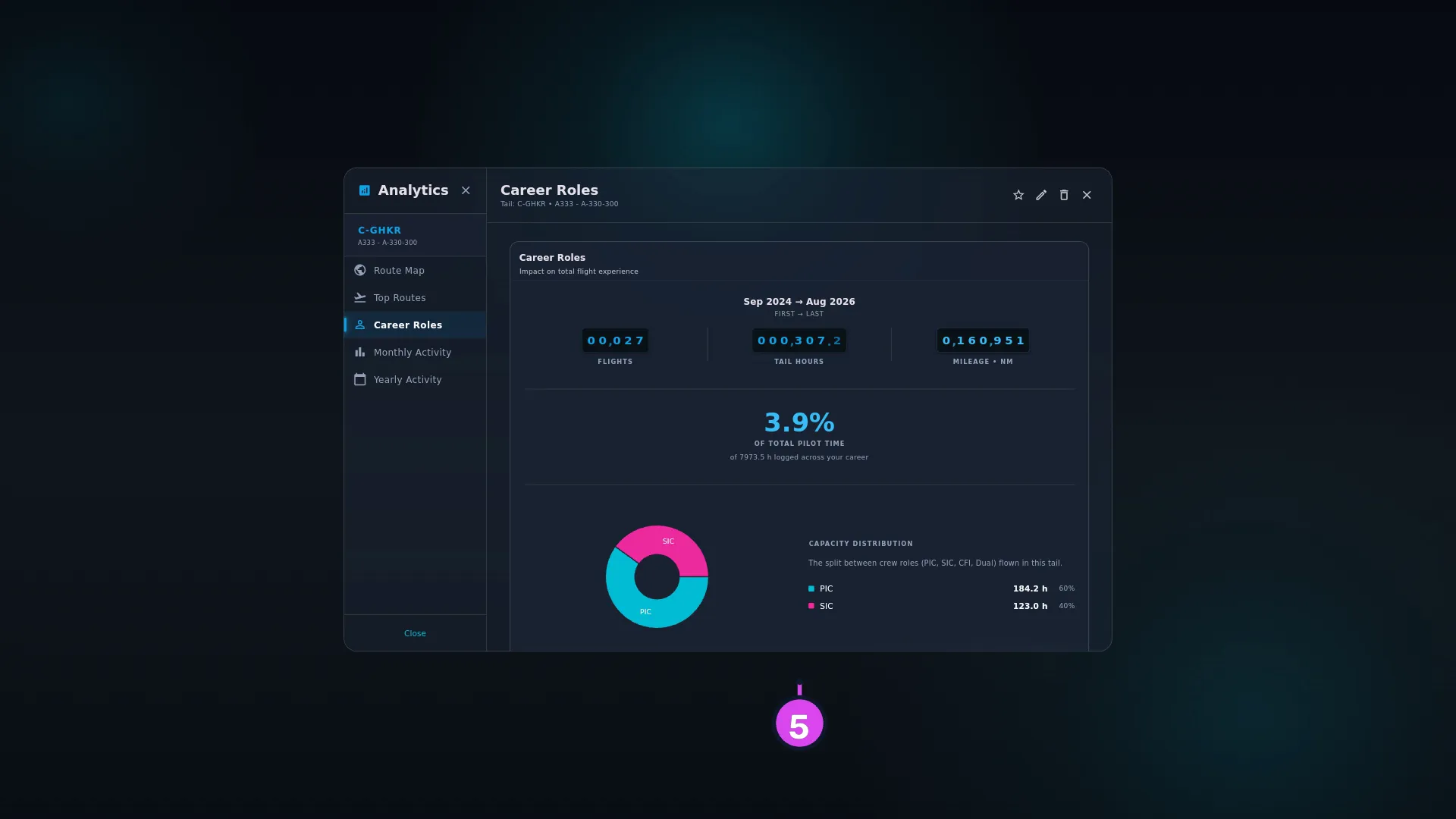
- Open Career Roles for what this one tail is worth to your whole logbook: a
percentage over OF TOTAL PILOT TIME, the career total spelled out beneath
it, and a CAPACITY DISTRIBUTION donut splitting the tail’s hours between
PIC, SIC, CFI and Dual, with hours and a share per role.
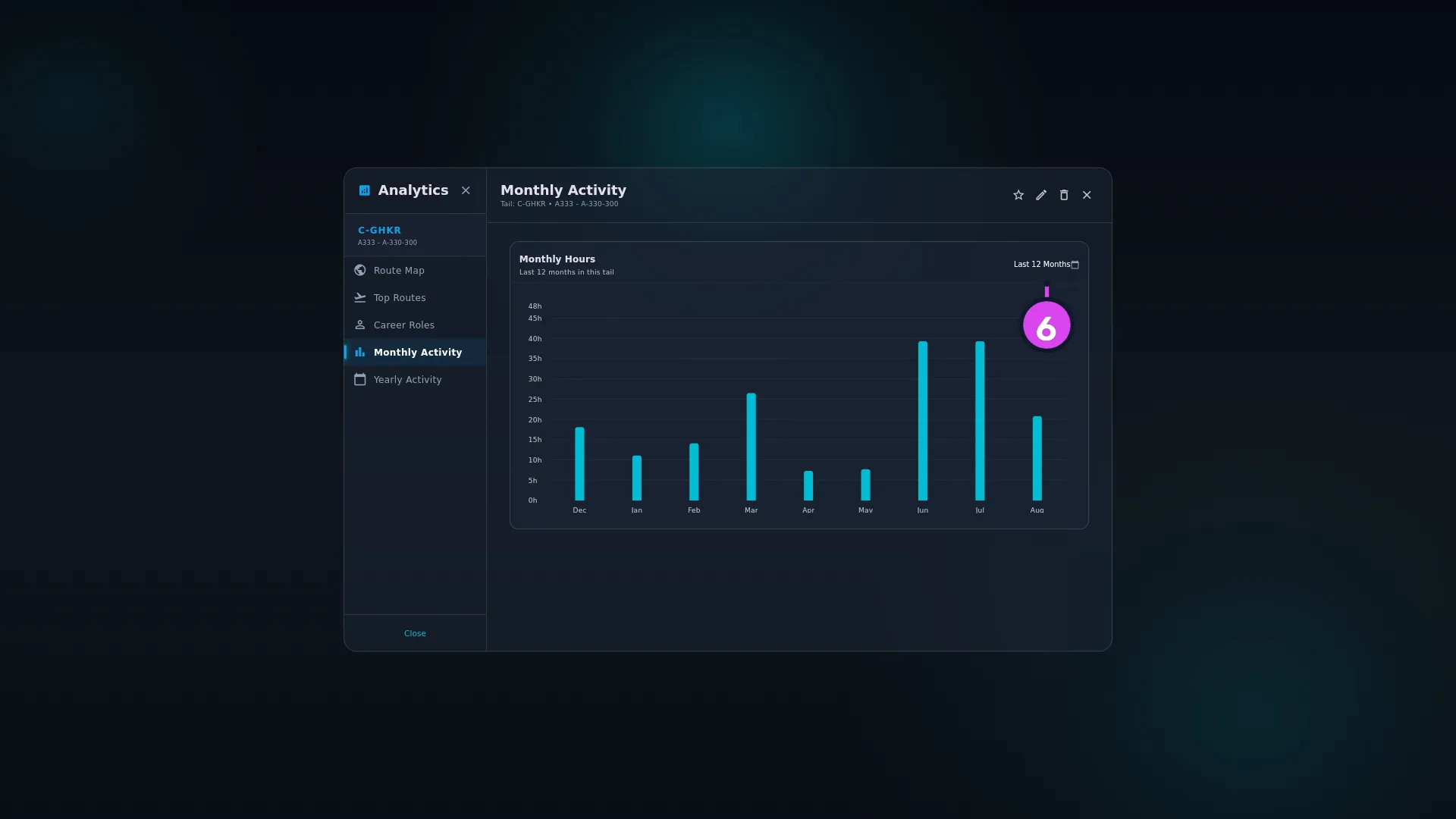
- Open Monthly Activity for Monthly Hours — the last twelve months in
this tail, or one year you pick from the selector in the card’s corner. Open
Yearly Activity for Yearly History, every year you’ve flown it.
6 the year selector
How to tell it worked
You can say, for this tail, when it entered and left your logbook, how many hours and flights and miles it carries, the routes you fly it on, and what fraction of your career it is.
If something goes wrong
| What you see | Why | What to do |
|---|---|---|
First → Last reads — while the counters show hours | The caption counts the same flights the charts do, so a tail whose only flights are drafts or simulator sessions has hours but no first or last month | Nothing is wrong. See The counters are the tail’s own totals below |
| No flights logged yet. under Top Routes | No flight on this tail has both a departure and an arrival airport. A route is a pair, so a leg with one airport isn’t a route | Fill in the missing airports (→ C4) |
| The map is empty, but Top Routes has rows | The airports on those legs have no coordinates — most often placeholders created by an import from a blank airport cell | Open the airport and give it coordinates, or change the flights to the real airport (→ E9) |
| No monthly data recorded with hours on the counters | You’re looking at a year you picked in the selector, and this tail didn’t fly in it | Set the selector back to Last 12 Months |
| Insufficient role data where the donut should be | The tail has hours but no role hours — PIC, SIC, Dual Given or Dual Received. Flight time and role time are different fields | Put yourself on the crew list of those flights and the role field fills itself (→ C1) |
| The donut’s hours add up to less than TAIL HOURS | It plots four roles. P1US, Relief and F/E hours are recorded and aren’t in it, and the percentages are shares of the four it draws | Use the logbook’s own Career Roles chart for the full split (→ D9) |
| Could not load the flight map. / Could not load top routes. / Could not load this chart. / Could not load career stats. / Could not load crew-role breakdown. | That one view couldn’t load its data. Each view fails on its own | Retry on the notice |
| Cannot Delete Aircraft, naming a number of flights | A tail with flights can’t be deleted — it would strand them | Move those flights to another aircraft or delete them first, or leave the tail alone and let it fall down the list |
| The view closed itself | You confirmed Delete Aircraft? and the tail has gone, so there was nothing left to show | Nothing. A deleted tail isn’t restorable from here |
What each view counts
Everything here is this tail only, for the whole time it’s been in your logbook. Deleted flights, drafts and — except on the counters, see below — simulator sessions are all left out, and none of the five views follows a filter you left on the Logbook screen. Hours follow your Time Format, and distance your distance unit (→ J3).
| View | Card | Counts |
|---|---|---|
| Route Map | Route Network — Every leg flown in this tail | One great-circle line per leg. A leg needs both airports, and both need coordinates |
| Top Routes | Top Routes | The five most-flown pairs, ranked by number of flights and then by hours. Direction matters: an outbound and its return are two rows |
| Career Roles | Career Roles — Impact on total flight experience | This tail’s hours as a share of your whole logbook’s hours, then the tail’s own hours split by the role you flew them in |
| Monthly Activity | Monthly Hours | Twelve months, or the calendar year you choose. The selector only offers years this tail actually flew |
| Yearly Activity | Yearly History — Historical hour growth | One bar per year of hours flown in that year. With many years it scrolls sideways and keeps its axis pinned |
The counters are the tail’s own totals, not the charts’
FLIGHTS, TAIL HOURS and MILEAGE are the Hangar’s own totals for this aircraft — the same numbers its card shows — while every chart beside them counts for itself. They usually agree, and they can differ in two cases:
- A draft is in the counters and nowhere else on the screen. The Hangar’s hours and flight count include a draft on this tail, because that count is also what stops you deleting a tail a flight still points at. Every chart here, and the First → Last caption, leave drafts out. So if the counter reads two flights and the map draws one line, look for a draft (→ C3).
- A simulator tail has hours and no routes. The counters total its sessions; the map, the routes, both charts and the First → Last caption all treat a device session as not flight time, so they’re empty (→ 04-simulators-and-training-devices.md).
One tail, or the whole model
This view is one airframe. Two others answer the neighbouring questions:
- The type detail screen — reached from the Aircraft Types tab — covers every tail of a model, and adds Top Registrations so you can see which tails the model’s hours came from (→ E3).
- Hangar Analytics, on the Hangar’s own header, is fleet-wide: Top Utilization, Fleet Activity, Hours by Type and Fleet Composition (→ E1).