
Add an aircraft
What this does
Puts one airframe — one physical aircraft, identified by its registration or its fleet number — into the Hangar, attached to the type it is.
Before you start
- A profile is open and you’re on Aircraft Hangar (→ E1).
- Setting an Operator can rewrite flights you’ve already logged. It fills in the operator on past flights that have none, under a strict condition. Read the last section of this guide before you set one on a busy tail.
- Changing the type of an aircraft that already has flights rewrites the type on those flights. That’s right for fixing a mistake, and wrong for a tail that was genuinely re-typed — the app has no way to record the second.
Steps
- On Aircraft Hangar, tap Add, then Add Aircraft to Hangar. The form has six tabs — Identity, Specs, Engine(s), Avionics & Type, Gear Config and Notes — and opens on Identity.
- Type the tail into Registration, or the ship number into Fleet / Ship
No. Only one of the two is required, so if you log by ship number you don’t
need to invent a tail number. Airline fleets often fill in both.
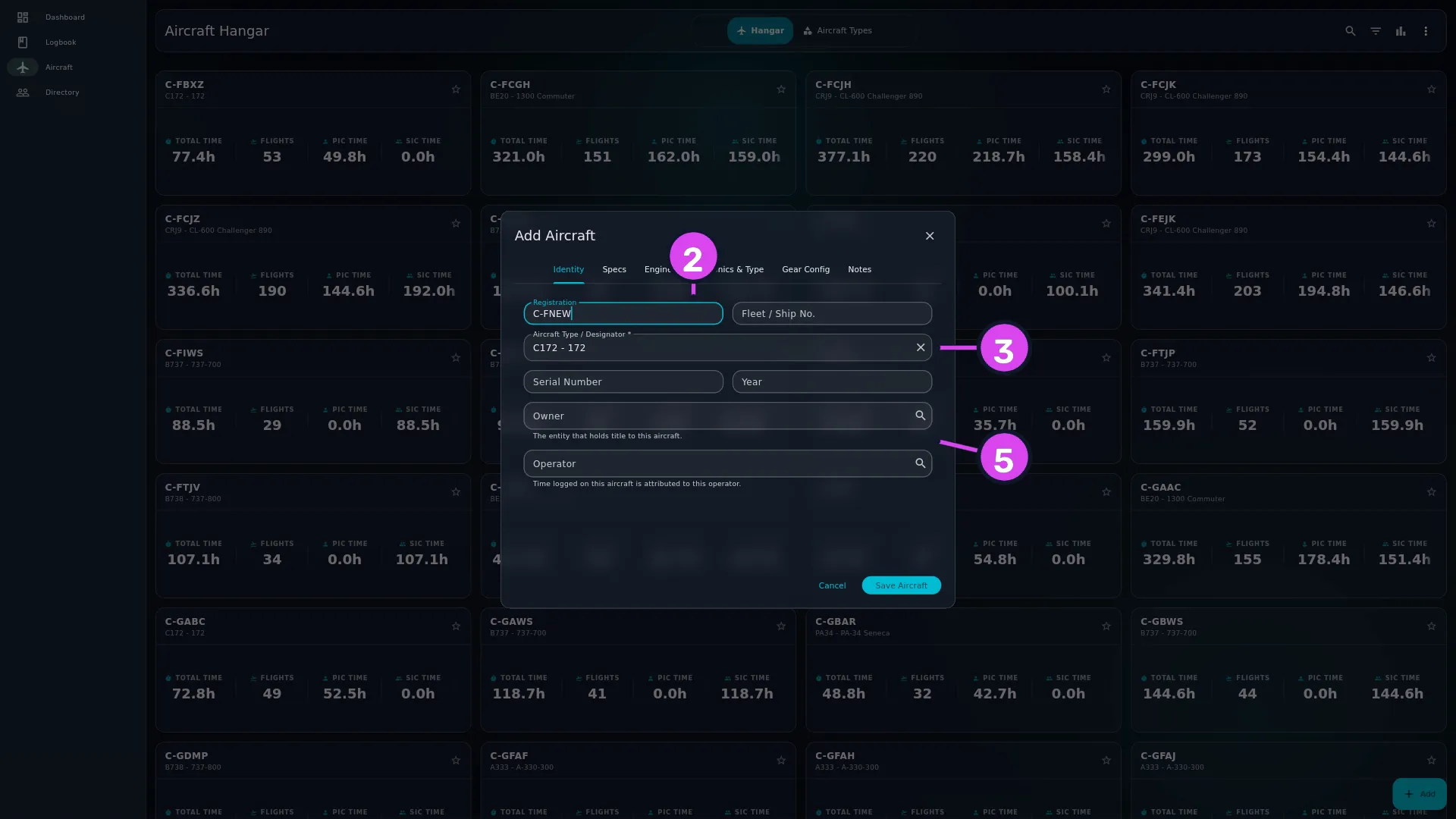
2 Registration3 the Aircraft Type / Designator field5 Owner/Operator - Tap Aircraft Type / Designator * and type a designator — the ICAO code
for a model,
C172orB738— or a model name. The hint reads Search by designator or model (e.g., C172, B738). Pick the entry matching the manufacturer and variant you fly. The Specs, Engine(s), Avionics & Type and Gear Config tabs fill in from it, and most of the form is done.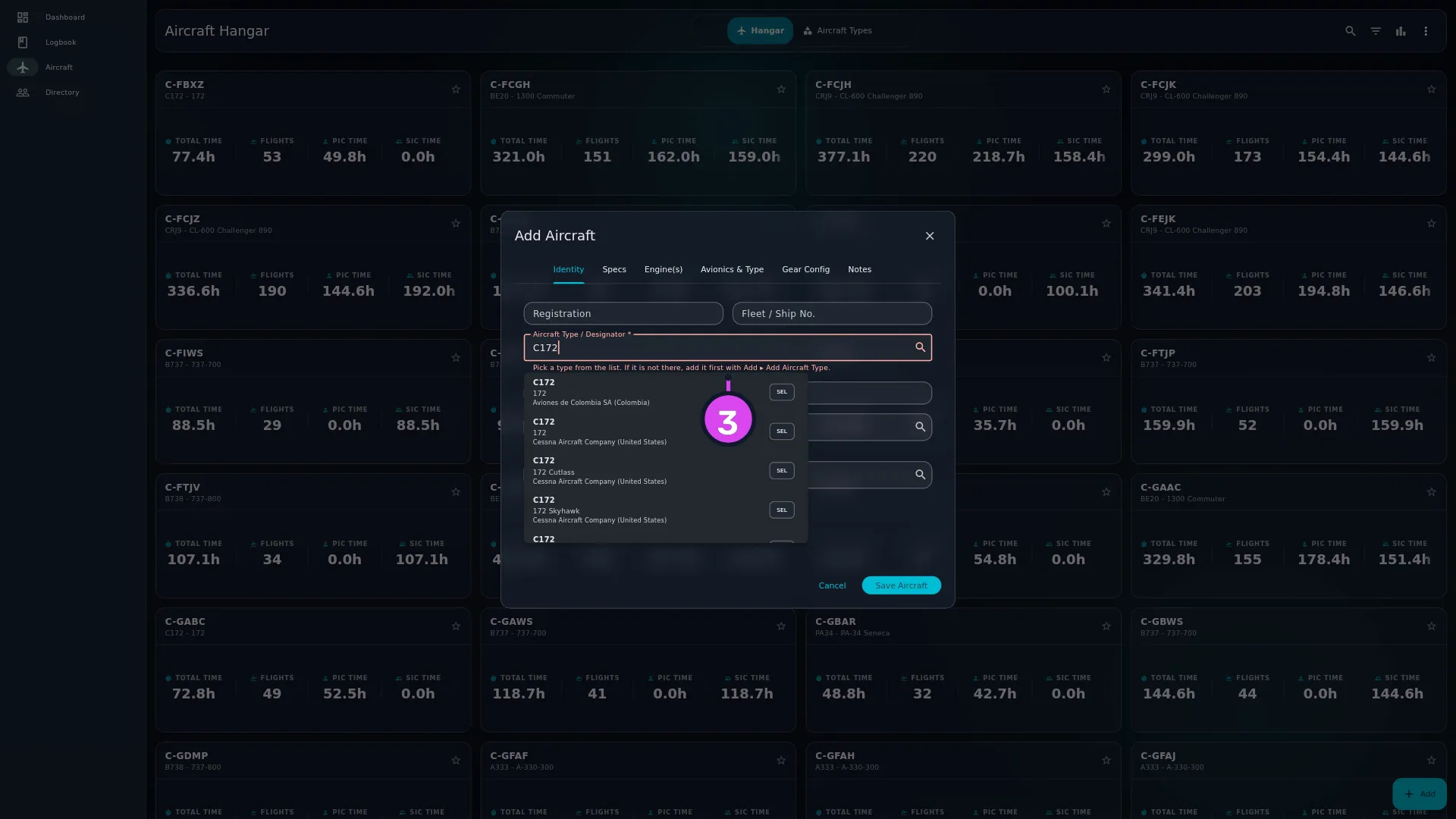
- Fill in Serial Number and Year if you have them. Both are optional.
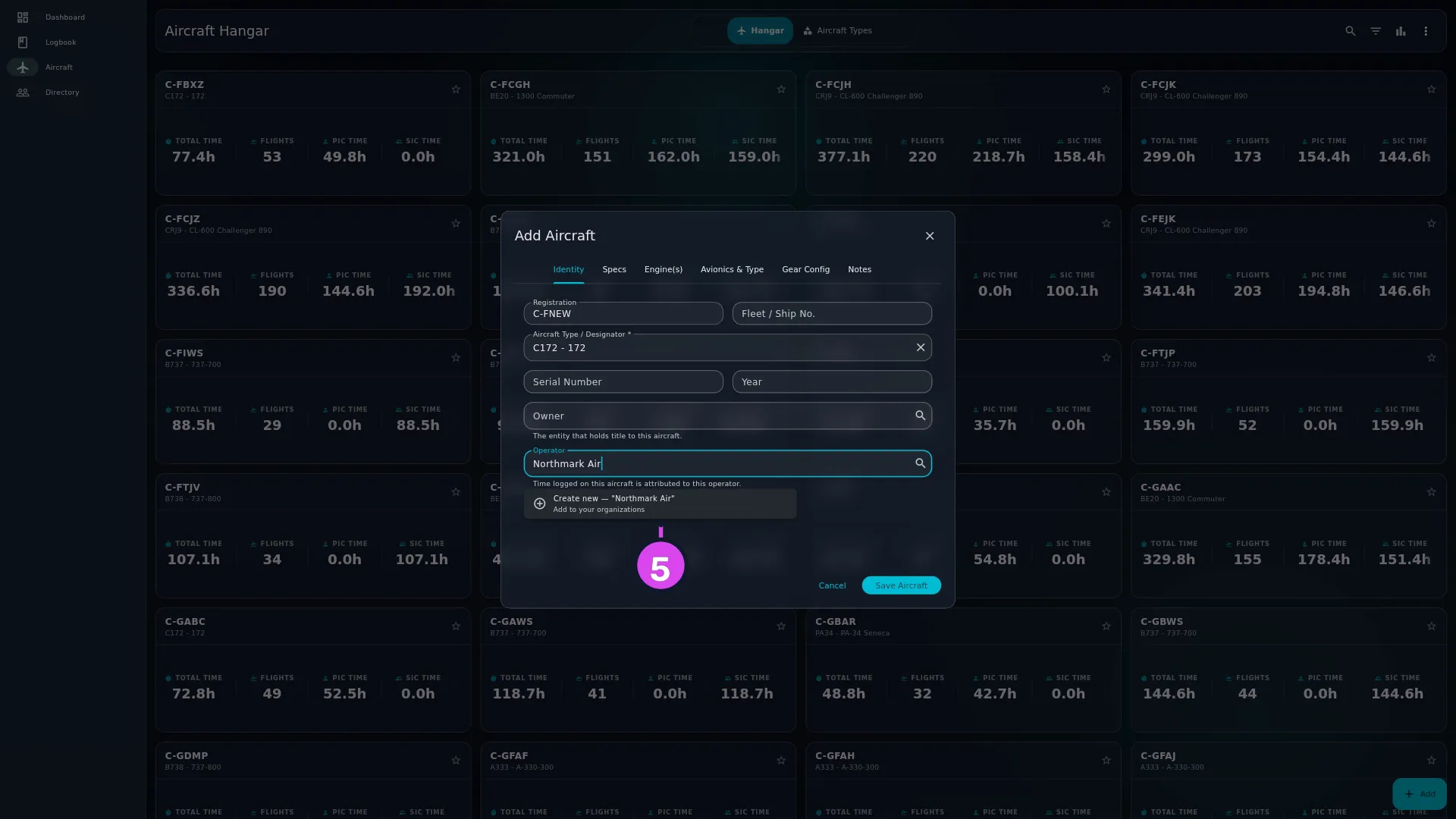
- Set Owner — The entity that holds title to this aircraft. — and
Operator — Time logged on this aircraft is attributed to this operator.
Both are pickers: they attach the aircraft to an organization, a company
record in your Directory (→ E8). If the company isn’t there yet, tap Create new — ”…” / Add to your
organizations, fill in the Name and Type in the New Owner or
New Operator dialog, and tap Create.
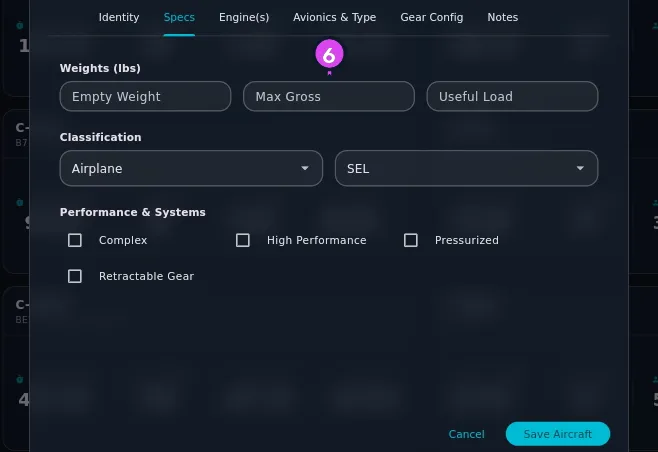
- Check the four tabs the type filled in, and change only what’s true of this
airframe rather than of the model. Fill in the weights by hand: they differ
tail by tail.
- Add anything you want to remember on the Notes tab.
- Tap Save Aircraft.
How to tell it worked
A message reads Aircraft Saved, the form closes, and the tail appears as a card on the Hangar tab. The flight-entry wizard now offers it by registration or fleet number (→ C1).
If something goes wrong
| What you see | Why | What to do |
|---|---|---|
| Enter a registration or fleet / ship no. | Both identifying fields are empty | Fill in one of them. Either is accepted |
| Pick an aircraft type from the list before saving. If the type is not in the catalogue, add it first with Add ▸ Add Aircraft Type. | Aircraft Type / Designator * doesn’t hold a type from the list — you typed text that never matched one, or you cleared the field | The form jumps back to Identity without saving. Pick a type from the list, or add the type first if it really isn’t in the catalogue |
| Invalid Year | The year is outside 1900 to next year | Correct it, or leave it empty |
| Empty >= Max | Empty Weight isn’t less than Max Gross | Check which number went in which box |
| Registration Exists | The registration is already on an aircraft of a different type | See below |
| Duplicate Aircraft — An aircraft with registration … already exists. | The registration is already on an aircraft of the same type | Tap Continue Editing and change the registration — you already have this tail. Discard Entry is only offered when you opened the form from a quarantined import entry |
| Error: … | The save failed | Check the Hangar before you try again. Saving the aircraft and updating your past flights are separate steps, so the tail may already be there |
The four tabs the type fills in
| Tab | What is on it |
|---|---|
| Specs | Weights (lbs) — Empty Weight, Max Gross, Useful Load; Classification — the Category and Class dropdowns; Performance & Systems — Complex, High Performance, Pressurized, Retractable Gear |
| Engine(s) | Engine Type, Number of Engines, Engine Make, Engine Model, then Radial Engine, Auto Engine, Turbocharged and Fuel Injected |
| Avionics & Type | TAA (Technically Advanced), EFIS (Glass Cockpit), Geo Referencing, HUD Configuration (→ E5), then Aerobatic, Experimental, Military, Warbird and Vintage |
| Gear Config | Tailwheel, Amphibious, Floats, Skis, Skids (Helicopter) |
A later edit to the type leaves the weights as you set them. The same goes for HUD Configuration, the one field in the Avionics group a type edit won’t overwrite (→ E3, E5). The app ships the ICAO Doc 8643 catalogue, so the type you want almost certainly exists already.
A registration you already have is a question, not a block
If the registration matches an aircraft of another type, the app asks: The registration … is already assigned to a … You are adding a … Is this a different aircraft with the same registration? The buttons are Cancel and Yes, Different Aircraft.
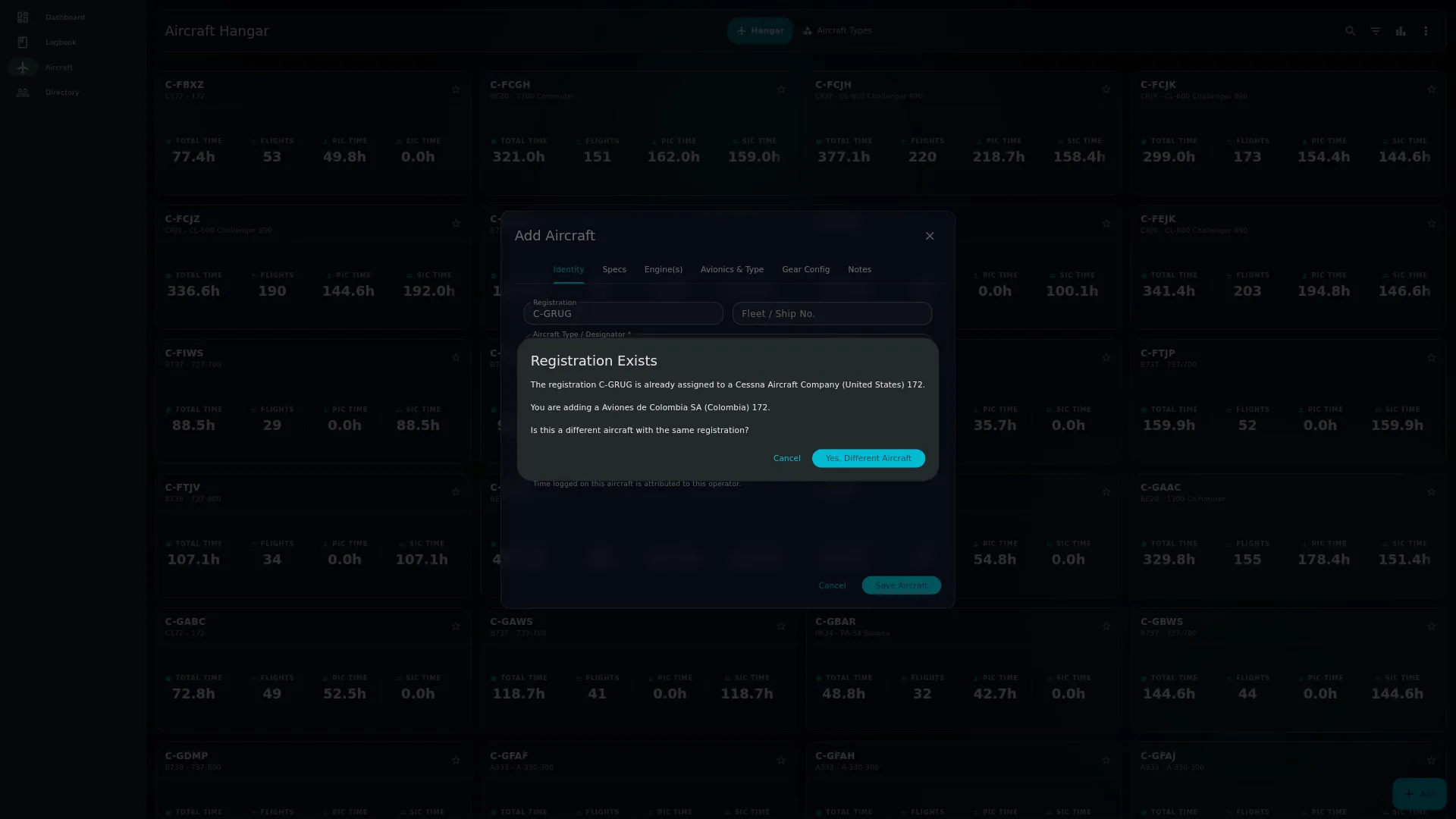
Yes, Different Aircraft creates a second tail with the same registration, and your hours are split between the two for good. Choose it only when a registration really has been reissued to a different aircraft. If you meant to correct the type of the aircraft you already have, tap Cancel and edit that one instead.
Editing and deleting a tail
Tap the aircraft’s Hangar card, then tap Edit in the detail view’s header — there’s no ⋮ menu on the card. The form is headed Edit Aircraft and the save button reads Update Aircraft, so you can tell you’re not creating a duplicate.
Deleting asks Delete Aircraft? / Are you sure you want to delete … / Delete, and reports Aircraft Deleted. The aircraft is hidden rather than erased, and the deletion reaches your other devices on the next sync.
Neither Delete button will remove a tail that has flights. The Delete in the detail view’s header and the Delete at the bottom left of the edit form both refuse, with the same dialog: Cannot Delete Aircraft / This aircraft (…) has N associated flight logs. / Understood.
What setting an Operator does to flights you already logged
Setting an operator never changes a flight that already has one. It only fills in blanks, and only where it can be sure: a past flight gets this operator only when the employment records in your Directory show exactly one employer on that flight’s date, and it’s this company. A flight outside every employment period you’ve recorded, or inside two that overlap, is left alone.
Only your own employment counts. The app looks at your own Directory record — the one badged YOU — and that record’s employment periods, nothing else. A colleague’s job over the same dates doesn’t make a flight’s date ambiguous. And if your profile has no record of your own yet, the app has no evidence of who you flew for, and fills in nothing.
So the order matters, and it’s the reverse of what most people expect: if you want operator totals on imported history, record your own employment dates first (→ E7), then set the operators. Do it the other way round and the old flights stay unattributed.
The free-text owner and operator kept on older aircraft aren’t what the company totals read — those read the linked organization. That’s why an unlinked aircraft carries the amber Needs linking chip (→ E1).