
Aircraft, airports and crew that aren’t in your logbook yet
What this does
Logs a flight in an aircraft, at an airport, or with a person the app has never seen before, and creates those records for you as part of the save.
Before you start
- The entry form is open on a flight (→ C1).
- Aircraft, airports and people are created when you save the flight, not when you type them. Leave the form without saving and nothing is created.
Steps
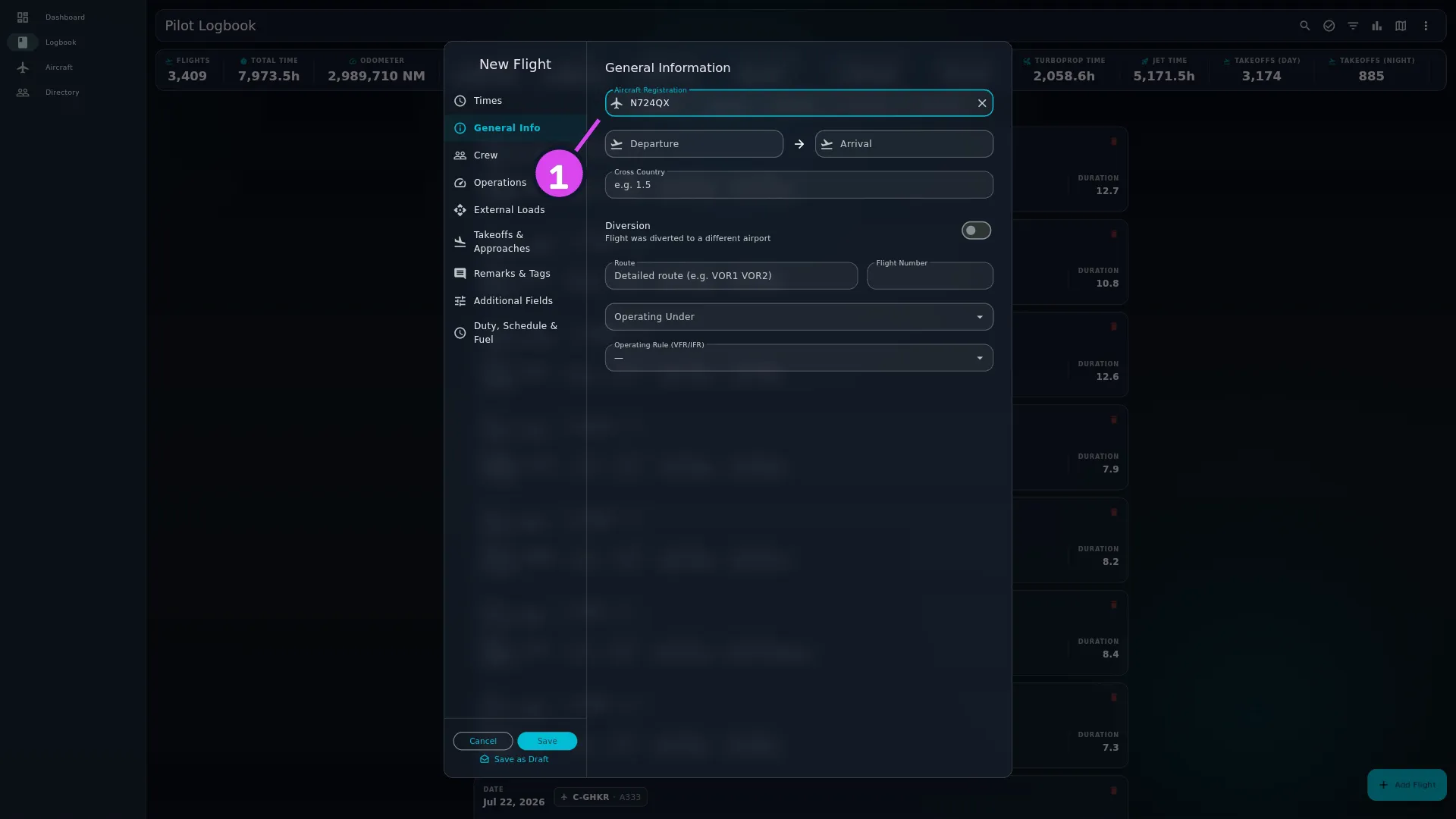
- On General Info, type the registration into Aircraft Registration. If
the list offers no match, leave what you typed in the field.
- Type a code into Departure or Arrival that the list has no match for,
and leave it as typed — there’s no suggestion to pick.
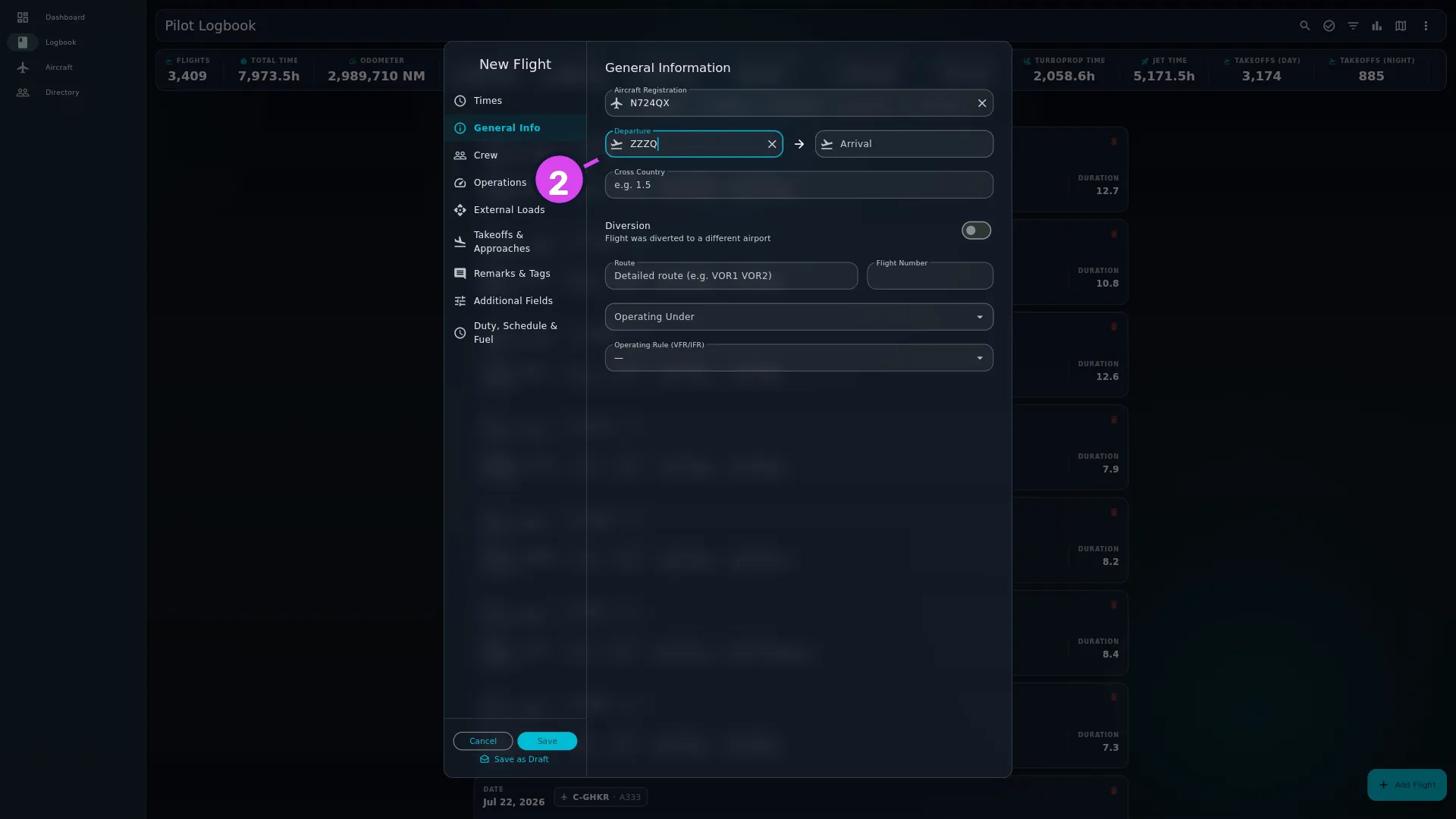
2 the Departure field — with no match offered - Open Crew and tap Add Crew Member. (If Crew isn’t on your form, turn it back on in Profile Settings → Entry Form.)
- Type the person’s name into Search People…. If the list offers no match,
leave the name as you typed it.
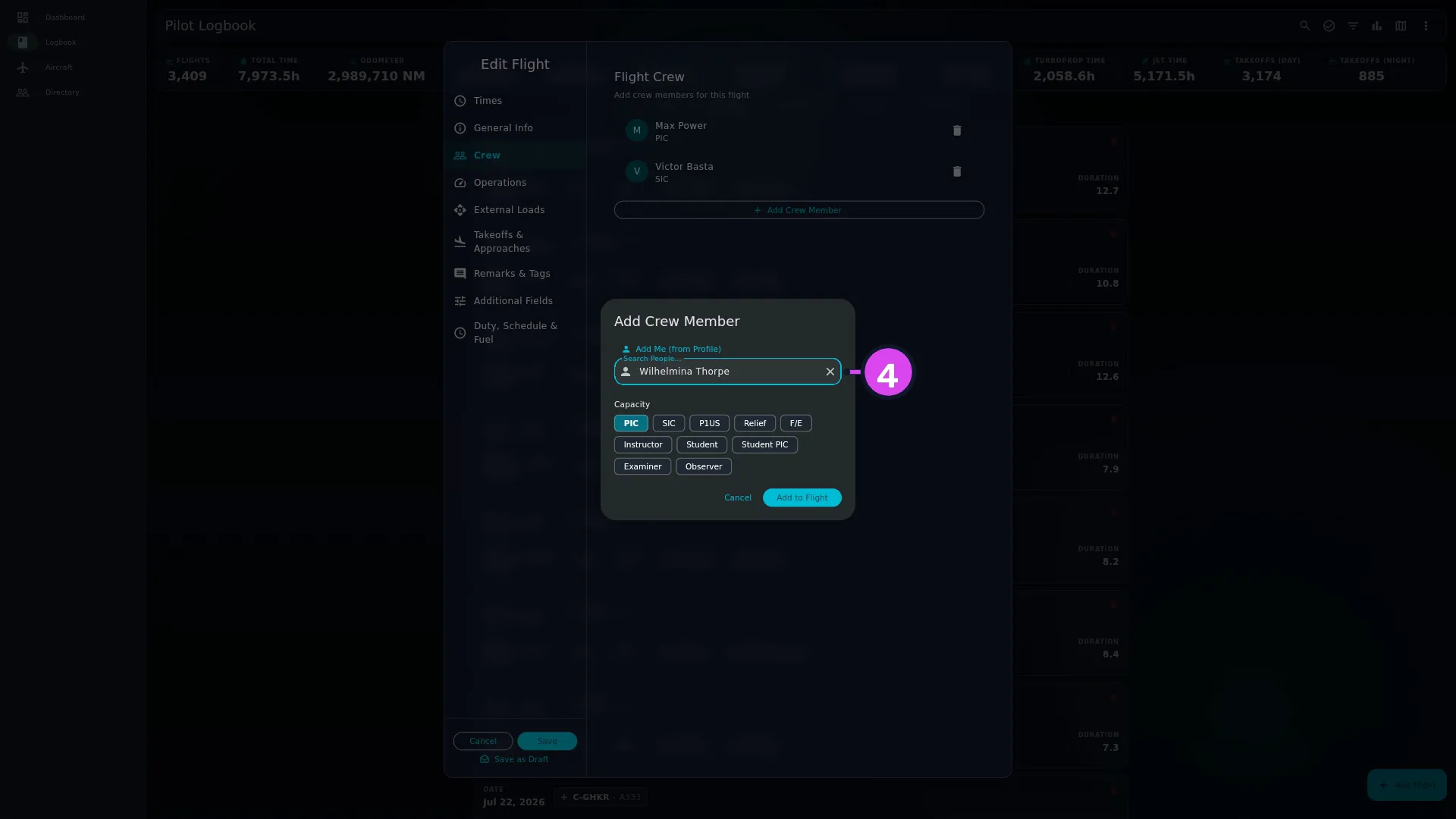
- Pick a Capacity chip — PIC, SIC, P1US, Relief, F/E,
Instructor, Student, Student PIC, Examiner or Observer.
PIC is selected for you by default.
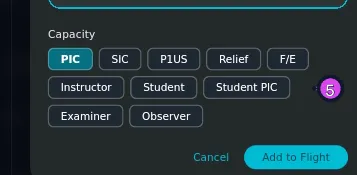
- Tap Add to Flight.
- Finish the flight and tap Save. A dialog titled New aircraft
<registration>asks for the new aircraft’s type: search Aircraft Type / Designator and tap Use this type, or tap Skip for now to create the aircraft without one and give it a type later (see below).
The airport doesn’t get a dialog of its own — the app looks it up or creates it at the same moment. The next thing you see is the New Items Added dialog.
How to tell it worked
Before the flight-saved animation, a New Items Added dialog appears: The following new items were added. You can edit them now or later. Each line names what was made and what kind of thing it is, and each has an Edit button:
- A new crew member reads New Crew Member.
- A new aircraft reads New Aircraft if you gave it a type at step 7, or New Aircraft — no type set, so its hours are in no category or class total yet. Edit it to set one. if you skipped it.
- A new airport reads New Departure Airport or New Arrival Airport — no coordinates yet, so its distance and map position won’t show until you set them.
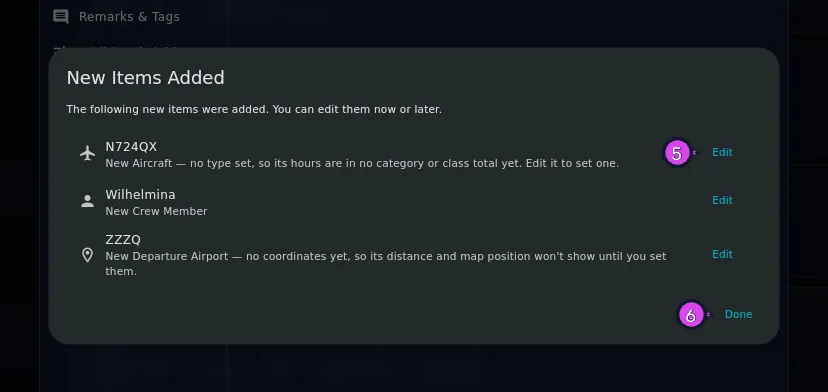
Tap Edit on the new aircraft or airport while it’s in front of you (see below), or Done to close. The aircraft is now in your Hangar, the airport is in your Directory under My Airports, and the person is in your Directory.
A person created this way is a Directory entry with only a name on it, and an aircraft whose type you skipped has no type at all. Both are worth finishing off (→ E2, E7).
If something goes wrong
| What you see | Why | What to do |
|---|---|---|
| Aircraft is required | Aircraft Registration was empty when you saved | Type or choose a registration |
| Departure airport is required / Arrival airport is required | The field was empty when you saved — nothing typed at all | Type or choose an airport |
| Add to Flight won’t respond | No person is chosen, and the crew dialog needs a name first | Type a name, or pick one from the list |
| Two people with the same name in your Directory | Typing a name always makes a new person; only picking from the list reuses one | See Typing a crew name never matches a person you already have below. Merging them afterwards is E10’s job |
| The new aircraft shows no type, class or category anywhere | You tapped Skip for now on the New aircraft <registration> dialog, or the type you wanted wasn’t in the search list | Give it a type (→ E2) |
| The registration you typed was already in the Hangar, deleted | A deleted aircraft is restored rather than duplicated, and is reported as though it were new | Nothing. The flights you logged against it before you deleted it are still attached |
Skipping the type prompt leaves the aircraft incomplete
Tap Skip for now on the New aircraft <registration> dialog and the
aircraft is created with a registration and no aircraft type at all — no
class, no category, no engine type, and nothing worked out from any of them. The
flight is in your totals, and the hours are real and correct, but it’s missing
from every breakdown by type, class or category until the aircraft gets a type.
So pick a type at that dialog when you know it. If you did skip it, the Edit button in the New Items Added dialog that follows is the easiest moment to fix it — you’re already looking at the aircraft and you know what it is. If you’ve already tapped Done, the aircraft is in the Hangar and you can edit it there whenever you like (→ E2).
Typing a crew name never matches a person you already have
The crew field is a search box, so typing John Smith into it looks a lot like choosing the John Smith who’s already in your Directory. It isn’t. Only picking a name from the dropdown attaches the existing person; typing the name creates a new one, every time.
The app won’t decide that two people who share a name are the same person,
because sometimes they aren’t. The cost is that a habit of typing can leave you
with two Directory entries for the same person. The New Items Added dialog
flags it when you save (New Crew Member — a person named “<name>” already
exists in your Directory. This is a separate record; if it’s the same person,
review both there.), but nothing warns you while you’re typing.
Always pick from the list when the person is already there. You can clean up duplicates afterwards (→ E10), but it’s more work than one tap.
A name is split at the first space into a first and a last name, the same way a profile name is (→ A3). John Smith becomes John / Smith. A single word gets an empty last name, which shows in the Directory and on anything that prints a full name.
Adding yourself
Add Me (from Profile) in the crew dialog fills the person field with your own Directory entry. Use it rather than typing your own name: it’s what links the crew entry to you, and it’s what makes your hours fill themselves in on Operations from the capacity you choose (→ C1).
An airport that isn’t in the database
Type a code into Departure or Arrival that the list has no match for — an out-of-service strip, a private field, or one your airport data doesn’t include — and leave it as typed. There’s no suggestion to pick; typing is enough, and nothing more is asked of you until you tap Save.
When you save, the app checks the code against every airport it already has, under any of its codes — ICAO, IATA, GPS or local. It’s the same lookup a logbook import uses (→ E9). So a code you half-remember, or one filed under a code type you weren’t expecting, still lands on the real airport, coordinates and all, instead of creating a duplicate. Only when nothing matches does the save create a new airport from the code itself, with no coordinates and the code standing in for a name.
There’s no dialog for the new airport, only its line in New Items Added: New Departure Airport — no coordinates yet, so its distance and map position won’t show until you set them. Tap Edit there to add coordinates and a real name on the spot, or leave it: the flight saves either way, and its times and hours aren’t affected. What’s missing is the leg’s distance, which stays blank rather than becoming a guess until the airport has coordinates.
An airport created this way appears in the Directory’s My Airports filter, the same as one you add there by hand (→ E9).