
Airports
What this does
Makes a catalogue of 84,442 airports usable — narrowed to the countries you fly in — and adds the strip that isn’t in it.
Before you start
- A profile is open and you’re on the Directory, Airports tab (→ E6).
- You rarely need to add an airport. Typing a code into a flight looks it up
against four kinds of code — ICAO, IATA, GPS and local — so
SFOfinds the right field without creating anything (→ C4).
Steps
- On the Directory, tap the Airports tab. This list is a shipped catalogue, not your history: it arrives complete and loads fifty airports at a time as you scroll. The country filter in step 3 is what makes it usable.
- To narrow the list, use the chip row above it: the type buckets All,
Large/Medium, Small/Other and Heliports, then Favorites,
Custom airports and Countries.
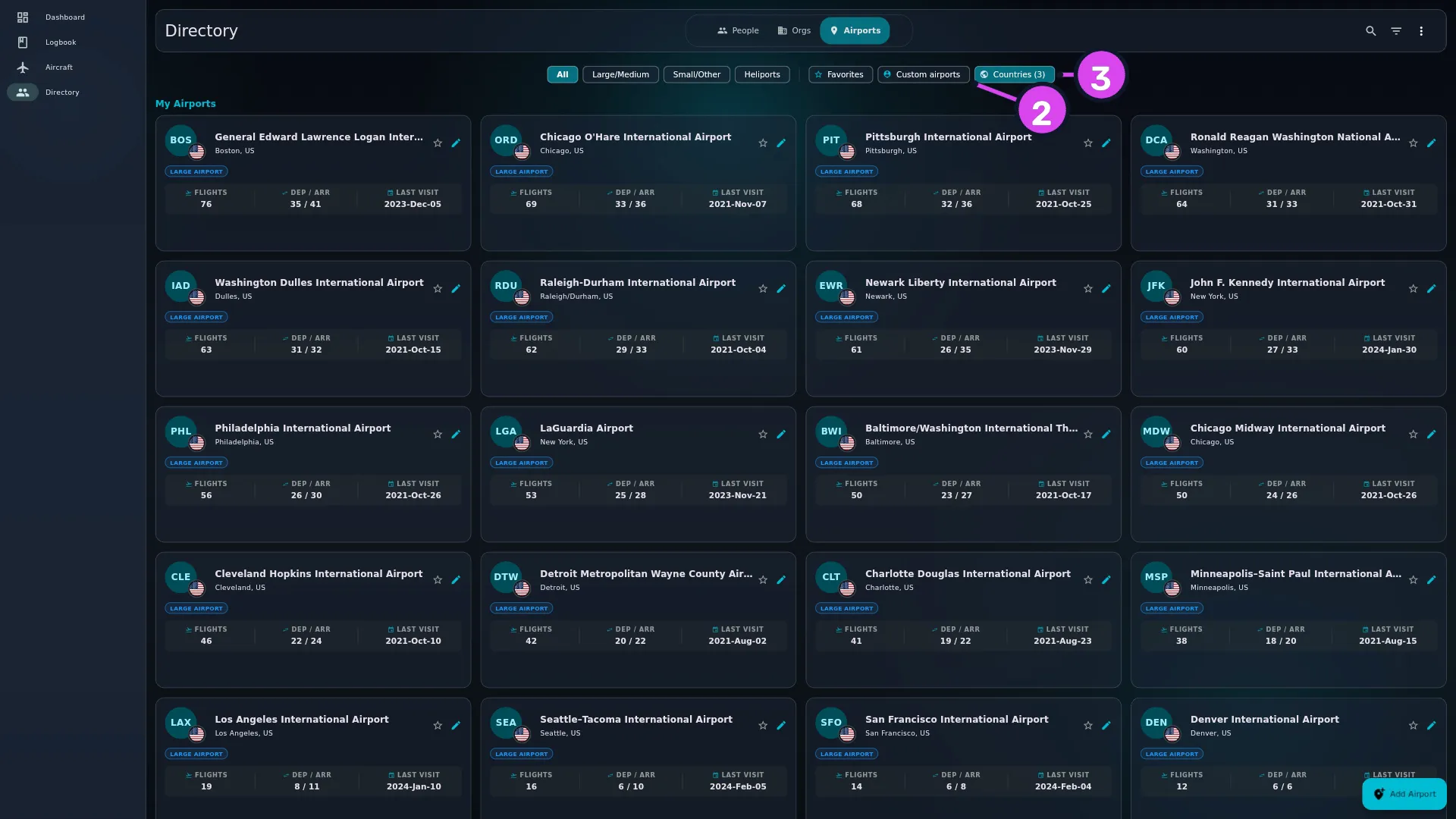
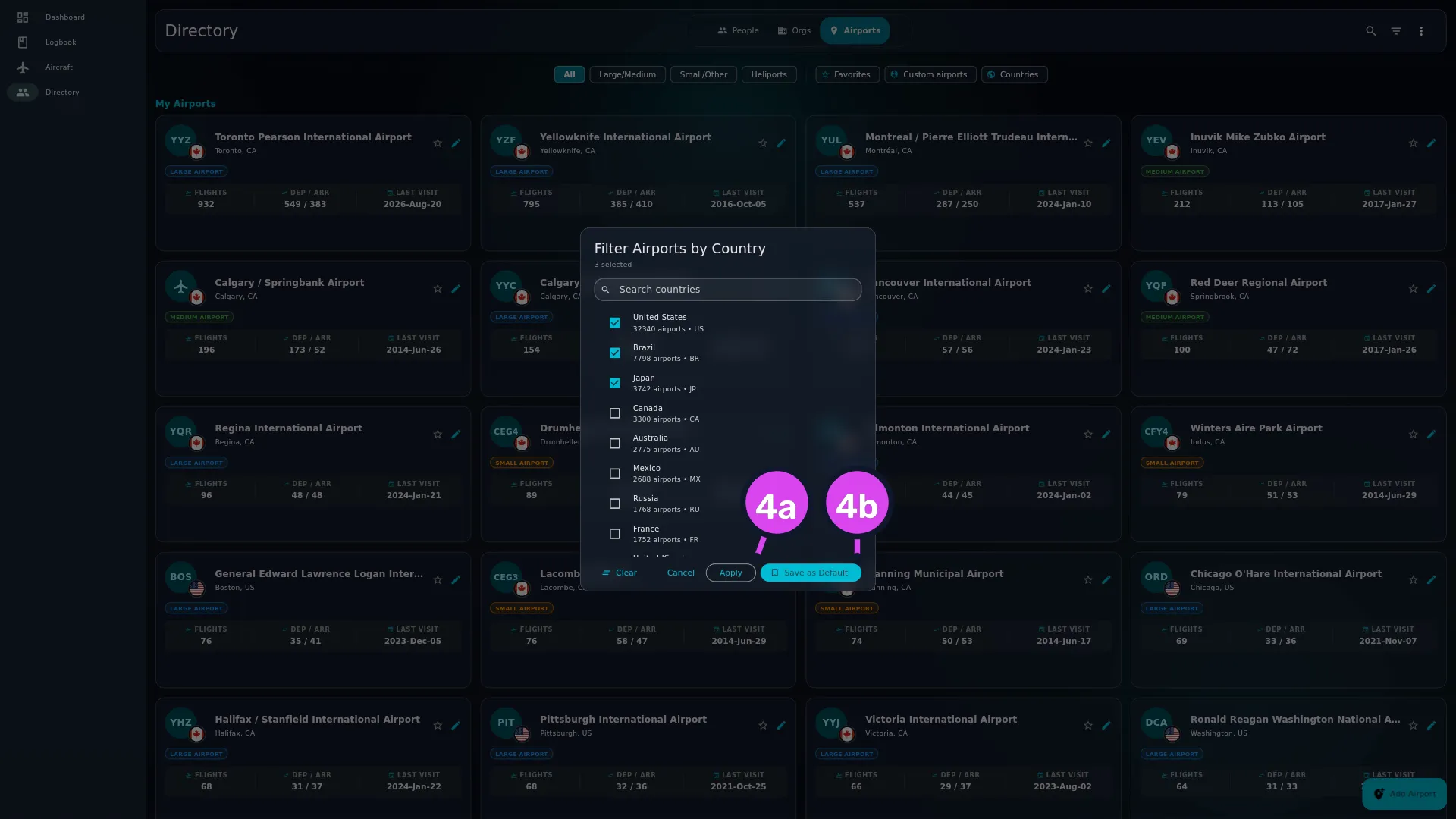
2 Custom airports3 Countries - Tap Countries — or More Actions ⋮ → Filter Airports by Country. A modal titled Filter Airports by Country opens. Its subtitle reads No countries selected — all airports shown. until you pick some, and then N selected.
- Tick the countries you fly in, using Search countries to find them. Then
tap Apply to narrow the list for this session only, or Save as
Default to keep the choice for every future session. Neither button says
which it does, so it’s worth remembering.
4a Apply — for this session only4b Save as Default — persists - Tap Filter & sort — the sheet is titled Filter Airports — to reorder the list by Most Visited, Recently Visited, Name A–Z or Favorites First. The note under the sorts reads Reorders the “My Airports” section. Once your flights have touched at least one airport, the list has two sections: My Airports, the airports your flights departed from or arrived at, and All Airports, the rest of the catalogue.
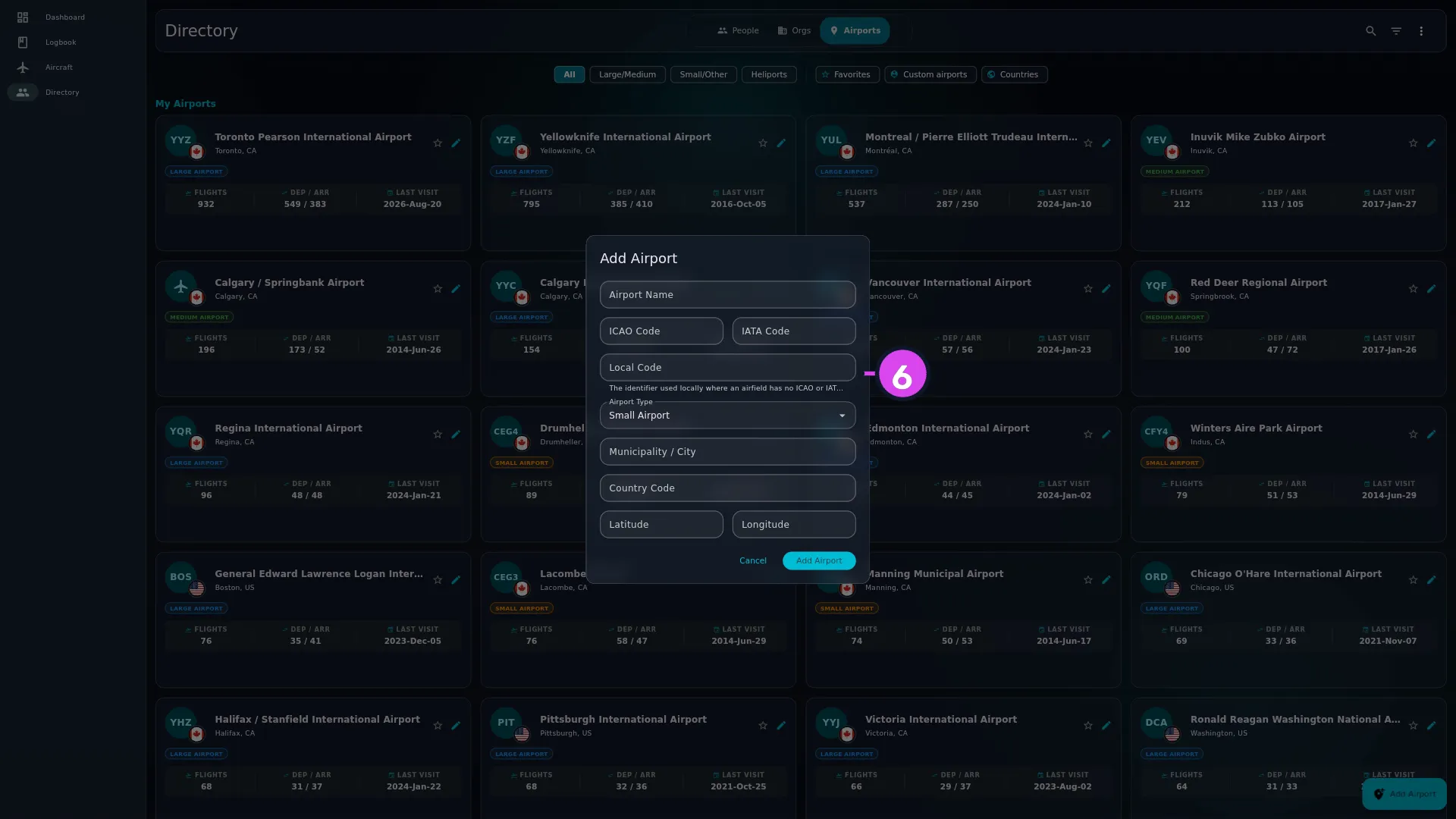
- To add a strip the catalogue doesn’t have, tap Add Airport. Type the
Airport Name first — it searches the catalogue as you type, and picking a
match fills in everything else. Otherwise fill in ICAO Code, IATA
Code, Local Code — the identifier used locally where an airfield has no
ICAO or IATA code — Airport Type, Municipality / City, Country
Code, Latitude (e.g. 37.619N) and Longitude (e.g. 122.375W), and
tap Save. Airport Type offers Large Airport, Medium Airport,
Small Airport, Heliport, Seaplane Base, Balloonport and
Closed; a new airport starts on Small Airport.
- To edit an airport, tap the pencil on its card — every card has one, including the airports that came with the app. The modal is headed Edit Airport and its button reads Update Airport.
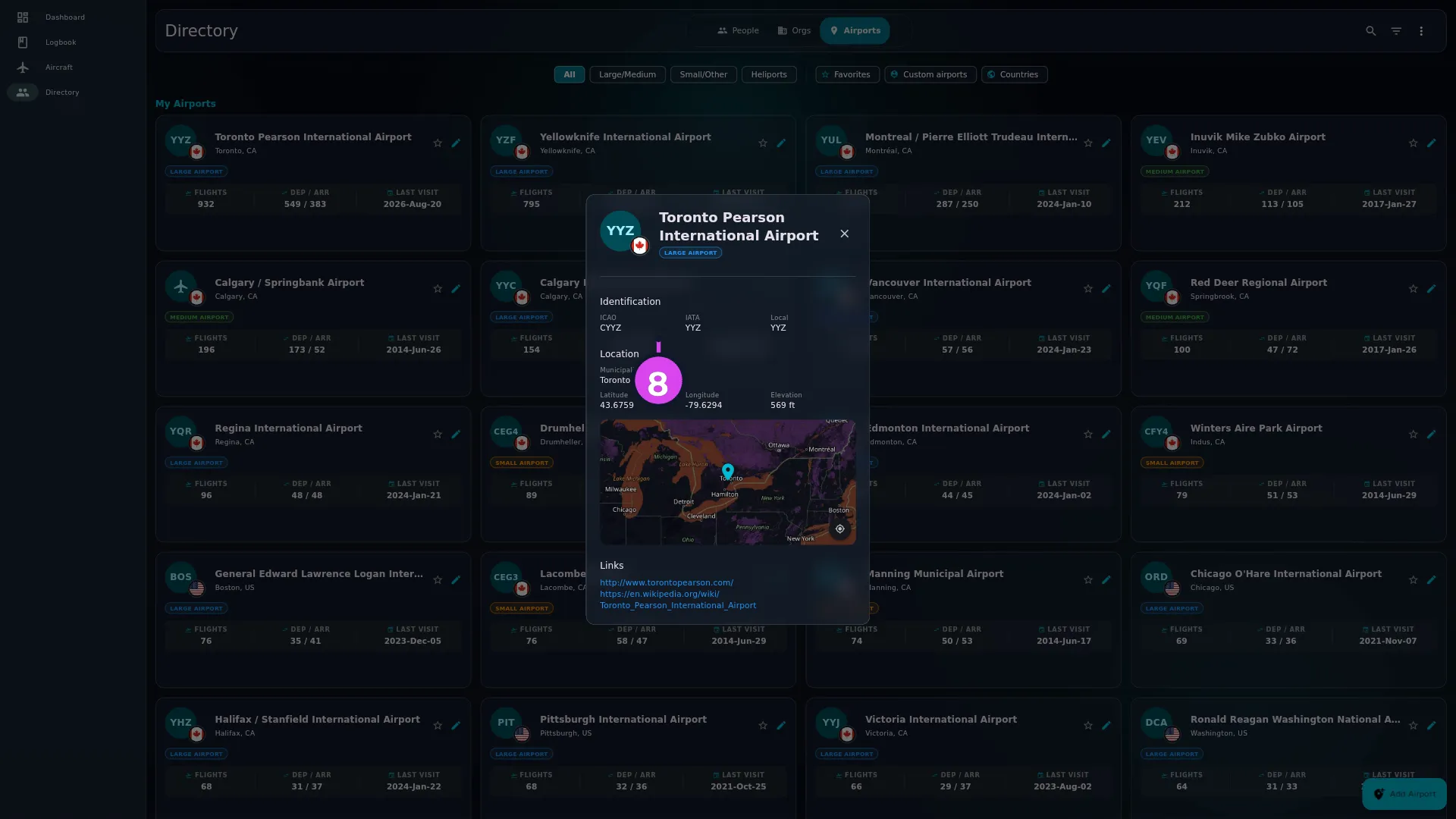
- Tap any card to read the airport: Identification (ICAO, IATA,
Local), Location (Municipality, Latitude, Longitude,
Elevation), a map where it has coordinates, and Links where the
catalogue has any. Values the catalogue doesn’t have show as -. There’s no
edit or delete here — those are icons on the list card.
How to tell it worked
The chip reads Countries (3) and the list holds only those countries. An airport you added yourself turns up under the Custom airports chip with a delete icon on its card, and typing its code into a flight finds it (→ C4).
If something goes wrong
| What you see | Why | What to do |
|---|---|---|
| Required under Airport Name | The name is empty, and it’s the only required field | Type a name. ICAO, IATA and country codes are optional; they’re only limited in length — four, three and two characters |
| Invalid latitude format / Invalid longitude format | The coordinate couldn’t be read | Use the form the hints show: 37.619N, 122.375W |
| The Custom airports chip empties the list even though you’ve flown for years | The chip means airports you created yourself, not airports you’ve flown to. It has nothing to do with the My Airports section | Untick it. My Airports — the section — is where you’ve flown, and it’s already at the top of the list |
| No airports found or No airports matching ”…” | A search, a country filter or a type bucket is hiding them | Clear the chips, or the banner reading Airport filters applied. Some airports may be hidden. |
| A card has no delete icon | It’s a seeded airport — one that came with the app — and those can’t be deleted | Nothing. If it duplicates one of yours, merge yours into it (→ E10) |
| Cannot Delete Airport | Flights reference it | Tap Understood — see below |
| Distances on old flights changed | You edited a coordinate, and every leg through the airport was recalculated | That’s normal. See below |
Two things here sound alike and are not related
The My Airports section, pinned above the rest of the list, is where you’ve flown: every airport named as a departure or an arrival on a live flight, ordered by the sort you chose. Previous Experience you carried forward, and drafts, are left out of it (→ B7).
The Custom airports chip in the row above answers a different question. It narrows the list to airports you created yourself — with the Add Airport modal, or an import of an airports-only CSV file. The shipped catalogue is left out, and so are the placeholder airports the app creates when a logbook import names a code it doesn’t have. On a logbook whose airports all came from the catalogue, the chip narrows the list to nothing. That looks broken, and isn’t.
So the section answers “where have I been”; the chip answers “which of these did I add”. Tick the chip while you’re looking at the section and you narrow your flown airports down to the few you also typed in yourself — usually none. The sort note in Filter & sort is about the section, never the chip.
The country filter’s other buttons
Clear only unticks everything. To drop a saved default, tap Clear and then Save as Default, which reports Default countries cleared. Cancel leaves everything as it was.
Coordinates are not only for the map
Editing an airport’s latitude or longitude recalculates the distance of every leg that departed from or arrived at it. The recalculation happens on this device only and isn’t sent to your other devices; each device does its own when the edit reaches it. Correct a coordinate when it’s wrong, and expect your distance totals to move when you do.
Deleting an airport
Airports that came with the app are seeded: they can’t be deleted, and they have no delete icon. For one of your own, the delete icon is on the list card. If flights reference it, the app refuses with Cannot Delete Airport and the button Understood.
The message says the airport is used by one or more flights in your logbook, and flights are all it checks. An airport recorded as somebody’s employment Base (ICAO) and used nowhere else deletes cleanly, because that field holds text rather than a link to the airport (→ E7). Deleting it there leaves the employment record showing the same code it always did.