
Find duplicates in the Hangar and Directory
What this does
Collapses two records that are the same thing into one, without losing the flights attached to either.
Before you start
- A profile is open.
- Merge is the action that keeps your flights. Delete refuses outright when flights — or, for organizations, any other record — are attached.
- Merge and Set aside happen the moment you tap them. Neither asks for confirmation; only Delete does. Nothing here can be undone in place.
Steps
- Open Aircraft Hangar, or the Directory on the tab you want scanned —
the Directory scans only whichever tab you’re on: People, Organizations or
Airports. Tap More Actions ⋮ and choose Find Duplicates.
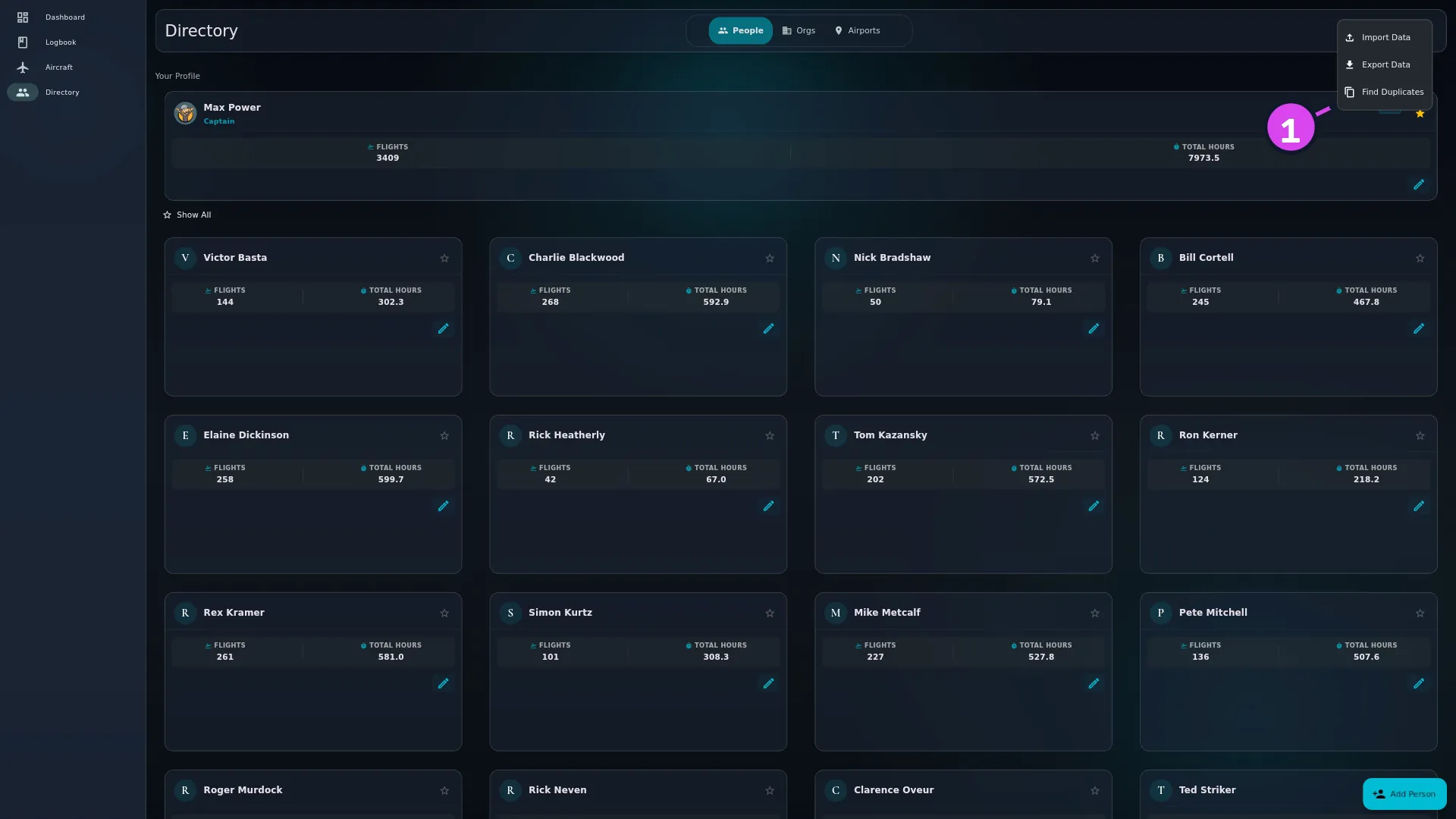
- Wait for the scan. If it finds nothing you get a green message — No duplicate aircraft found., No duplicate people found., No duplicate organizations found. or No duplicate airports found. — and you’re done.
- In the first conflict, choose which record to keep.
- If you aren’t sure the two are the same, tap Compare Details to see them side by side under RECORD TO KEEP — CURRENT RECORD (KEEP) where the keeper is your own record — and POTENTIAL DUPLICATE. Hide Details closes it again.
- Tap Merge. The record you kept fills its blank fields from the other one, the flights and other references move onto it, and the merge reaches your other devices.
- On the Airports tab, an airport that came with the app is chosen as the keeper for you and can’t be changed: Seeded airports are authoritative — they can only be kept. Merge this copy into one of them. On the Organizations tab, a manufacturer or airline that came with the app, badged BUNDLED, works the same way: Organizations that shipped with the app are authoritative — they can only be kept. Merge this copy into one of them. Merge your copy into it.
- Work through the remaining conflicts — from the sidebar, or by scrolling on a narrow window — then tap Close, or the ✕ where there’s no sidebar.
How to tell it worked
The screen reports All duplicates resolved! once the last conflict is dealt with. The record you kept is in the list, the one you merged away isn’t, and the flights, crew assignments, employment history or routes that referenced either of them are all on the survivor.
If something goes wrong
| What you see | Why | What to do |
|---|---|---|
| Deletion Blocked, listing items with flight counts | Delete is refusing to remove an aircraft, person or airport that flights depend on | Tap OK and use Merge instead |
| Deletion Blocked, listing items with reference counts like 2 aircraft, 5 flights | You’re on the Organizations tab, and something other than a flight still points at the company — an aircraft, a type, an employment record | Tap OK and use Merge instead |
| You cannot delete your own profile. It must be kept. | The conflict includes your own Directory record, badged YOU | Keep yourself and merge the other record into you |
| Seeded airports are authoritative — they can only be kept. Merge this copy into one of them. | You tried to keep your own copy over an airport that shipped with the app | Keep the seeded one. Your visits move across on the merge |
| Organizations that shipped with the app are authoritative — they can only be kept. Merge this copy into one of them. | You tried to keep your own copy over a bundled manufacturer or airline, badged BUNDLED | Keep the bundled one. Your aircraft, flights, types and employment records move across on the merge |
| Merge failed: … or Set aside failed: … | The change couldn’t be saved | Try once more. If it keeps failing, note which tab and record it was, and merge or edit the pair by hand instead |
| The scan misses a pair you can see | Each scan matches on one key — see below | Merge them by hand: edit one record to hold everything, then reassign and delete the other |
| The airport scan reports almost nothing | Groups made up only of airports that came with the app are skipped. 882 of them share a code with another, and they’re distinct real facilities | Nothing. Those are reference data, not errors |
The resolution screen
Where there’s room, the conflicts are listed in a Conflicts sidebar as Conflict 1, Conflict 2 and so on, with N items each, and a 1 of 4 position label beside the heading. On a narrow window there’s no sidebar: an app bar, and every conflict as a card in one scrolling list.
The four buttons
| Button | What it does |
|---|---|
| Skip | Dismiss for now — changes nothing is its tooltip. The conflict comes back on the next scan |
| Set aside | Moves the record to the Review queue for a decision later. Not an undo — see below. Not offered on the Organizations or Airports tabs |
| Delete | Removes the records you didn’t keep. Refuses when anything still references them |
| Merge | Folds the other record into the one you kept, moving its references with it. This is the one to use |
Tap Delete on a record that flights — or, for an organization, any other record — depend on, and the app stops with Deletion Blocked, listing each item and what’s in the way.
Merge is the only action that moves what points at a record. Merging aircraft moves the flights onto the tail you kept; merging people moves their crew assignments and their employment history; merging airports moves both the departures and the arrivals, then recalculates the distances of the legs it touched; merging organizations moves the aircraft they own or operate, the operator and owner saved on each flight, the aircraft types they manufacture, and everyone’s employment history with them.
What each scan matches on
| Tab | Two records are a possible pair when |
|---|---|
| Aircraft | The registration and the type are both the same, and the registration isn’t blank — a tail logged by fleet number alone is never paired |
| People | The first and last names match, ignoring case |
| Organizations | The name matches, once trimmed and reduced to lower case |
| Airports | They share any code — ICAO, IATA, GPS or local |
That’s why a pair you can see with your own eyes can be missed: N12345 on two
different types isn’t a match, and Smith and Smyth never will be. Aircraft
types aren’t scanned at all (→ E3).
And unlike the airport scan, the organizations scan doesn’t skip what came with
the app: two bundled manufacturers or airlines that happen to share a name are
still reported.
Set aside is not an undo
Set aside removes the record from the list and files a copy in the Review queue, under the lane Duplicates, chipped Manually flagged with the note Set aside from Find Duplicates for a keep / merge decision. From there you can merge it into another record or edit it back into the logbook (→ B5), but you can’t put it back where it was. The button isn’t offered on the Organizations or Airports tabs, because neither kind of record has a way back from the Review queue.
Delete is the ordinary delete
The confirmation reads Delete N Item(s)?, lists what it’s about to remove, then Cancel / Delete. It’s the same delete as everywhere else in the app: the record is hidden rather than erased, and the deletion reaches your other devices on the next sync. It can’t be undone from inside the app — a backup taken beforehand is the only way back.