
Aircraft types, and what editing one changes
What this does
Explains what an aircraft type is, and how to find, edit and delete one.
It also says exactly which fields a type edit can correct on the tails that were still following the type on them.
Before you start
- A profile is open and you’re on Aircraft Hangar (→ E1).
- A type edit can correct the tails on it, but only where it’s genuinely a correction. A field on a tail only changes when both are true: the edit actually changed that field on the type, and the tail was still following the type there rather than holding a value you set by hand. The reference table below lists every field this can touch.
- Deleting a type can’t be undone from here, and the app refuses while any aircraft or flight still points at the type. If all you want is a tidier list, narrow it with the filter instead.
Steps
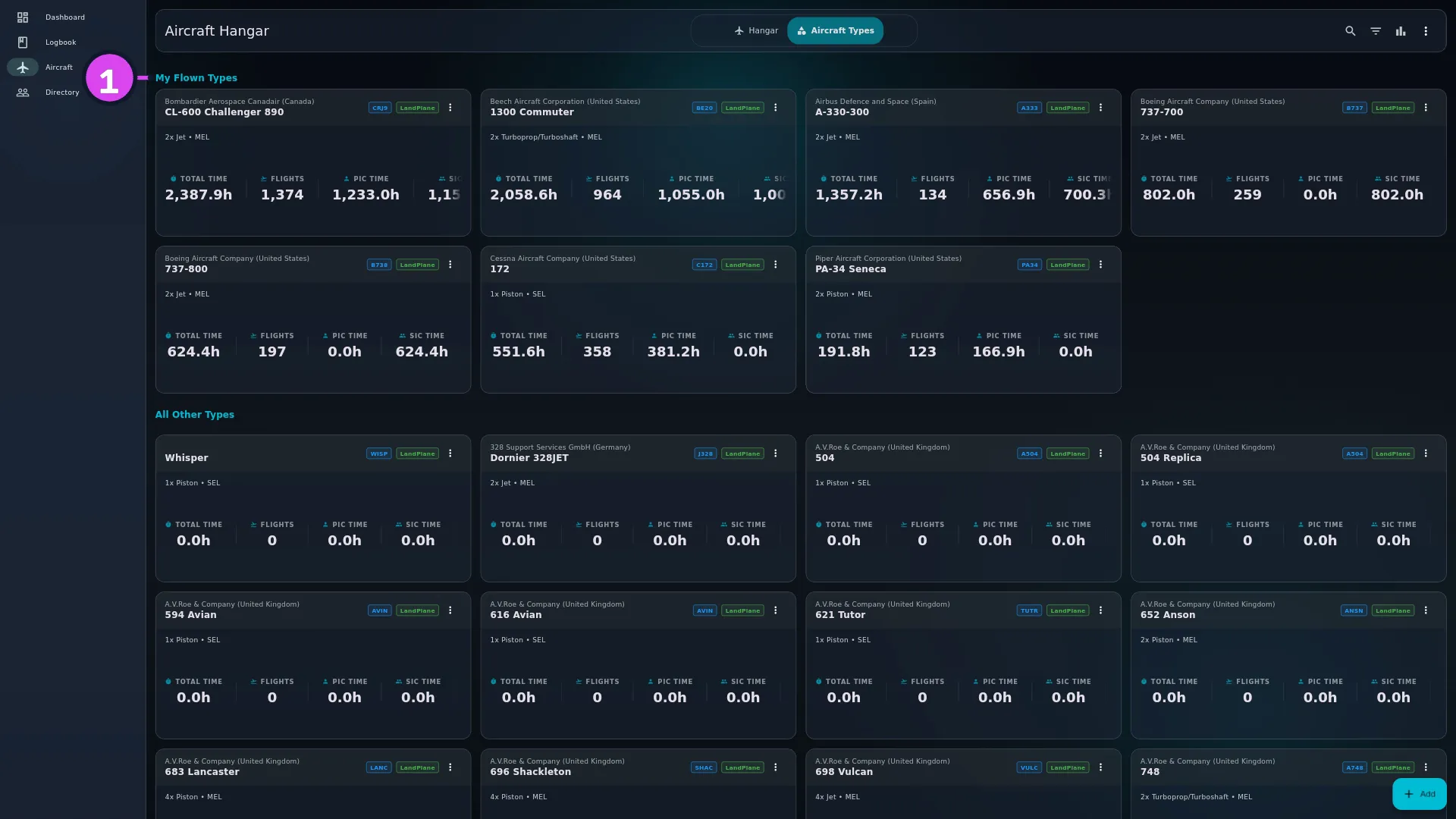
- Tap Aircraft in the navigation, then the Aircraft Types tab
(Types on a narrow window). A type is the model an airframe is; a
tail is one physical aircraft, and every tail in the Hangar points at a
type. Once you’ve flown at least one type, and with
no search running, the list has two sections: My Flown Types, the models
you’ve actually flown, and All Other Types, the rest of the catalogue.
Otherwise it’s one unlabelled list.
- Find the type with Search or Filter. Search before you create
anything: the app already ships the ICAO Doc 8643 catalogue — 10,020 entries
covering 2,640 designators. Designators aren’t unique:
P28Aalone has 72 entries, one per manufacturer and variant. (The Filter Aircraft Types sheet is described under Reference: the filter sheet below.) - Tap the card. The detail screen is headed Aircraft Type, subtitled
designator · model, with sections Overview, Yearly Activity, Hours by Role, Top Tails and Top Routes. The Top Tails card, titled Top Registrations — Specific tails of this type ranked by hours — is the fastest way to see which tails an edit here could touch.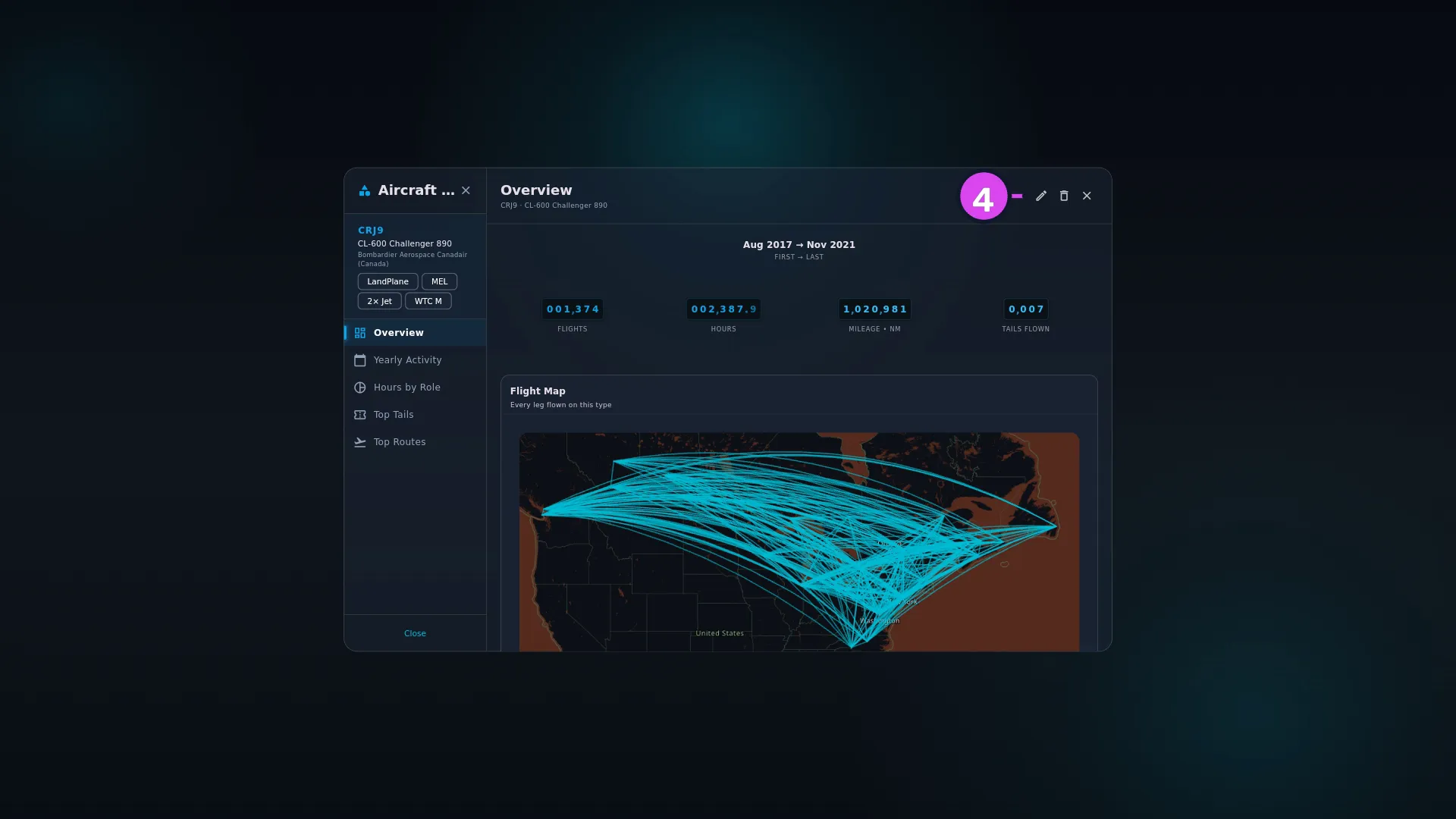
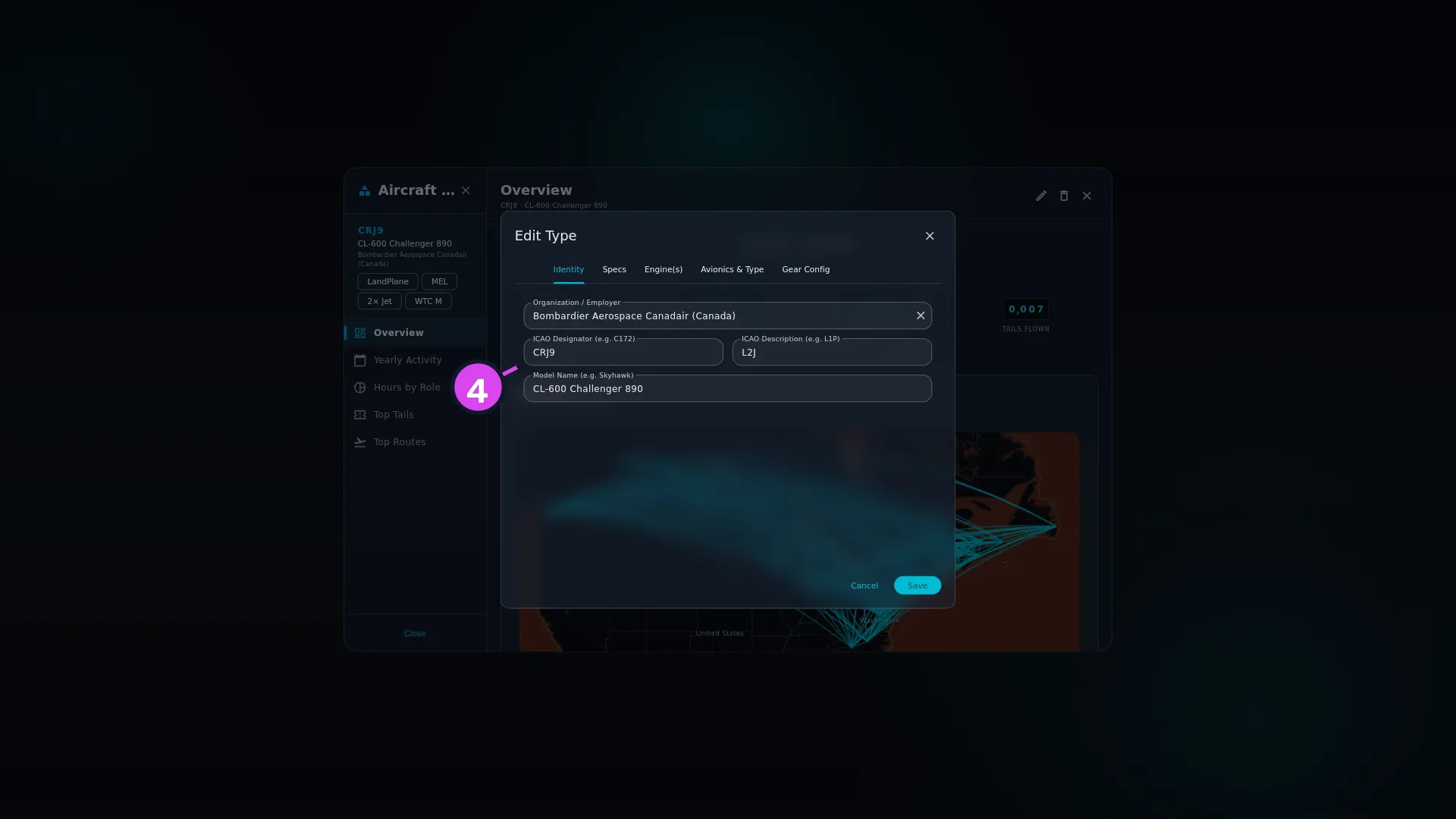
4 Edit - Tap Edit in the header. The form, titled Edit Type, has three
required fields on its Identity tab: ICAO Designator (e.g. C172),
ICAO Description (e.g. L1P) and Model Name (e.g. Skyhawk).
Organization / Employer on the same tab is the manufacturer.
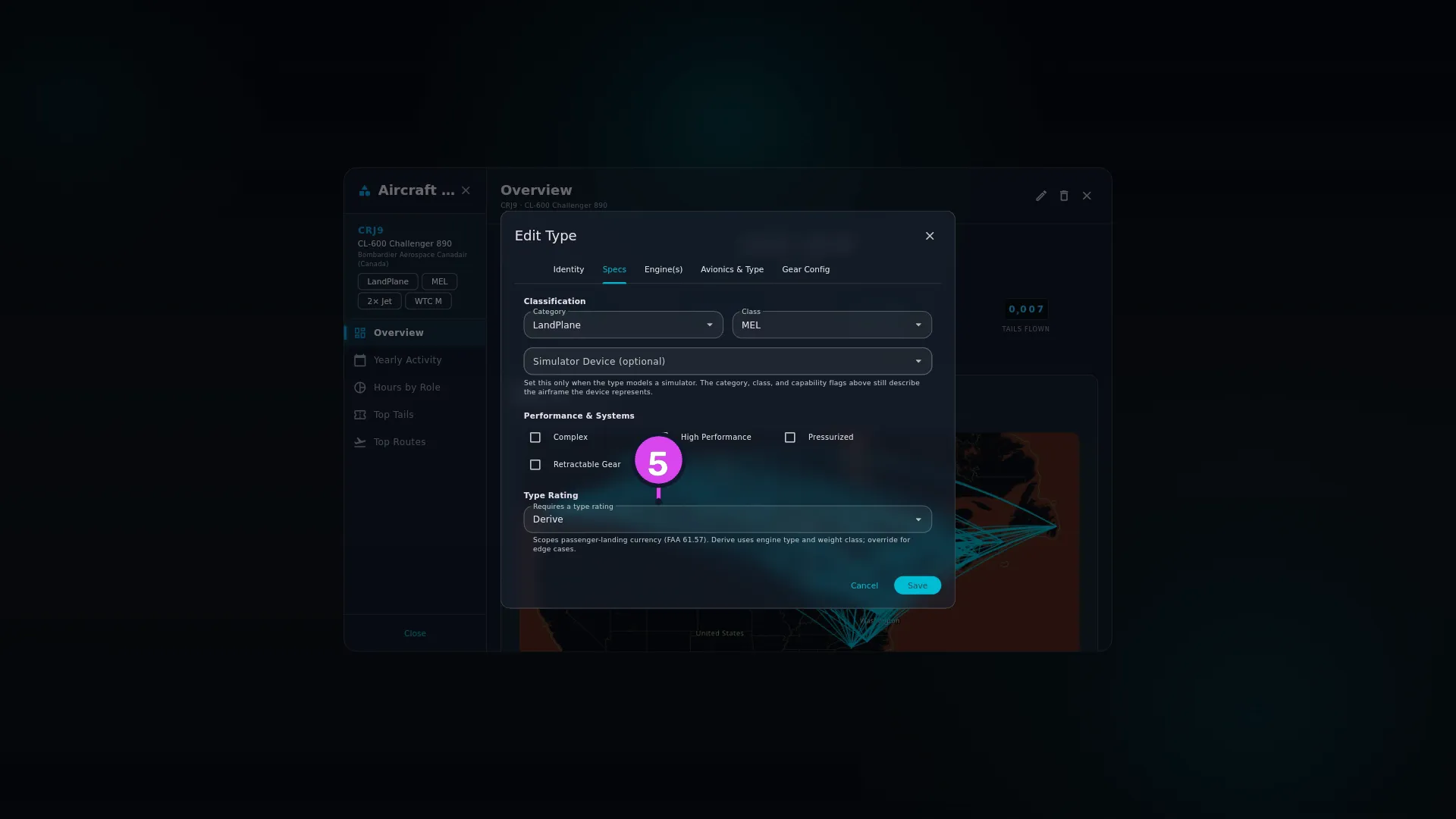
- On Specs, set Category and Class, the Performance & Systems
checkboxes, and Type Rating. Leave Type Rating on Derive unless you
know the derived answer is wrong (see below the steps).
5 the Type Rating dropdown — scopes 61.57 currency - Fill in Engine(s), Avionics & Type and Gear Config with what’s true of the model. Anything true of one tail alone belongs on the aircraft instead — set there, it stays put even if this type is corrected later (see Gotchas).
- Tap Save.
Type Rating is a dropdown reading Requires a type rating, with the options Derive, Required and Not required. Its helper says what it’s for: Scopes passenger-landing currency (FAA 61.57). Derive uses engine type and weight class; override for edge cases. Simulator Device (optional) is on the Specs tab too, and does a different job altogether (→ E4).
To create a type that really isn’t in the catalogue, tap Add on Aircraft Hangar and choose Add Aircraft Type. The same form opens, titled Add Aircraft Type.
How to tell it worked
The form closes and the type card shows the new details — the model name, and a
spec line like 2x Turbofan • MEL. The real check is on the tails: open one of
your tails of that type and look at its Specs, Engine(s), Avionics &
Type and Gear Config tabs. Any field that was following the type’s old
value, and that this edit changed, now holds the corrected value. A field you’d
set by hand on that tail is untouched. If that isn’t what you expected, read the
worked example at the end of this guide.
If something goes wrong
| What you see | Why | What to do |
|---|---|---|
| Required under one of the three Identity fields | Designator, description or model name is empty | Fill in all three. They’re the only required fields in the form |
| A saved type reads Airplane, SEL or Piston when you left those blank | A blank category, class and engine type are filled with those defaults on save | Open the type again and set them |
| Engine Type shows something like Turboprop/Turboshaft | A value from the shipped catalogue that isn’t one of the dropdown options. It’s added to the list so it isn’t lost | Leave it, or pick a listed option |
| A tail you’d marked Floats, Tailwheel or EFIS by hand lost the flag anyway | Its own value happened to match what the type held before this save, so the edit took it as “still following the type” | Set the flag again on that aircraft. From now on it differs from the type, so it’s left alone |
| The same designator appears twice in the list | You typed a designator by hand instead of picking one from the catalogue, and nothing prevents that | See Gotchas. Types can’t be merged — move the tails onto the one you’re keeping by editing each aircraft’s type |
| No types found. or No Aircraft Types defined. | A search or filter is running, or the list really is empty | Clear the filter from the banner reading Aircraft type filters are applied. Some types may be hidden. |
| A handful of tails show as pending changes on the next sync after a type edit | Normal when the edit corrected a field those tails were following. Only the tails actually corrected are sent | Nothing. Let the sync finish |
| Type Still In Use when you try to delete | See the next section | — |
Deleting a type
Tap Delete in the header, beside Edit.
If any aircraft or flight still points at the type, the app refuses with Type Still In Use: … cannot be deleted: N aircraft and/or M flights still reference it. / Move them onto the type you are keeping first — edit each aircraft and pick its type again. Deleting the type now would leave those records pointing at nothing. / To tidy the list instead, narrow it with Filter. Tap OK. There’s no merge for types, so the only way to bring that count down is to open each aircraft and each flight and point it at a different type by hand.
Otherwise you get Delete Aircraft Type? / Are you sure you want to delete … ? / Nothing in your logbook references it. The deletion will also reach your paired devices on the next sync. Tap Delete.
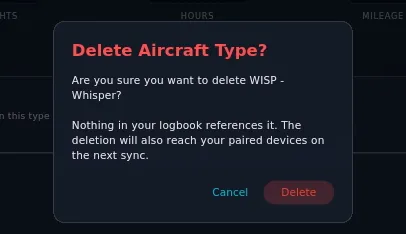
You’re back on the Aircraft Types list, and a message reads Aircraft type deleted. Like every delete in the app, the type is hidden rather than erased, and the deletion reaches your other devices on their next sync.
Reference: the filter sheet
Filter opens a sheet titled Filter Aircraft Types, with the sections SORT BY, CATEGORY, CLASS, ENGINE and MANUFACTURER. The sorts are Most Flown, Recently Flown, Most Flights, Manufacturer A–Z and Designator A–Z.
Reference: what a type edit touches
This guide calls a type edit correcting its tails the cascade. A field below only changes on a tail when both are true: this edit changed that field on the type, and the tail’s own value matched what the type held immediately before the save (or was blank, meaning it was following the type). A tail with nothing to correct isn’t touched at all — it isn’t marked as changed, and nothing is sent to your other devices.
| Group | Can cascade, under the rule above | Never touched |
|---|---|---|
| Specs | Category, Class, Complex, High Performance, Pressurized, Retractable Gear | Empty Weight, Max Gross, Useful Load |
| Engine | Engine Count, Engine Type, Engine Make, Engine Model, Radial Engine, Auto Engine, Turbocharged, Fuel Injected | — |
| Avionics | TAA, EFIS, Geo Referencing | HUD Configuration |
| Classification | Aerobatic, Experimental, Military, Warbird, Vintage | — |
| Gear | Tailwheel, Amphibious, Floats, Skis, Skids | — |
| Identity | — | Registration, Fleet / Ship No., Serial, Year, Owner, Operator, Notes, favourite |
The Avionics row is the one to remember. Three of the four fields in the Avionics section of the aircraft form can cascade; the fourth, HUD Configuration, never does (→ E5), because two tails of one type really do differ. Weights are left alone for the same reason. Everything else on those four tabs is treated as a property of the model, as long as the tail is still following it.
Reference: the three snapshots
A snapshot is a value copied onto a flight when it’s saved. Every flight carries three, copied from the aircraft, and they follow different rules.
| Snapshot | What later edits do to flights already logged | Why |
|---|---|---|
| Aircraft type | A change to a tail’s type is written onto the flights already logged on that tail | An airframe’s model doesn’t change in real life. If it’s wrong on the aircraft it was wrong on the flights, so the edit is a correction and has to reach them |
| Operator | Never changed. A flight with no operator recorded can be filled in later, under a strict condition (→ E2) | Operators really do change — wet leases, transfers — so rewriting them would falsify history |
| Owner | Never changed; filled in the same way | Aircraft get sold. Same reason |
The organization detail screen states the operator rule in these words: Flight totals are derived from the operator snapshot taken at each flight’s save time, so reassigning an aircraft to a different operator later will not rewrite history. (→ E8)
What that means when you plan an edit: to fix a wrong type on old flights, change the tail’s type and the flights follow. To fix a wrong operator on old flights, the tail isn’t the place, because each flight already holds its own answer.
One rule sits under all of it: a flight’s type is the type it was saved with; a flight saved without one uses whatever type its aircraft is on now. Every “which flights are on this type” question in the app — analytics, currency, exports — is answered that way.
Gotchas
The cascade skips tails you deleted. A deleted tail is never rewritten and never sent to your other devices. There’s nothing to avoid — this is the safe direction.
A rename or an unrelated fix cascades nothing. The cascade only changes a field when the new value differs from what the type held before the save. Fixing a typo in the model name, correcting the ICAO description, or changing the type rating touches none of the fields in the reference table, so no tail changes and nothing is sent on the next sync.
Two designators that look identical are two different types. The ICAO
Designator field is a plain text box: it doesn’t check the catalogue, look for
duplicates or warn you. Type C172 by hand and you’ve created a second C172. The
flight picker then offers you both, your hours split between them, and there’s
no merge for types — Find Duplicates doesn’t scan them
(→ E10). Always search the list and pick an existing
entry. Create a type only when the search really comes back empty.
Pick the entry, not the code. Because one designator covers many catalogue entries, choosing by code alone can attach your aircraft to a variant with the wrong weight class or engine — which the cascade can then write onto that tail. Read the manufacturer and model on the entry you pick, especially for designators shared by a business variant and an airliner.
What you set on a tail survives a type edit, whenever you set it. The app spots a hand-set value by comparing the tail’s value with what the type held immediately before the save — not by when you set it. Ticking Floats on a tail last year, or five minutes before you fix an unrelated typo on the type, works the same way: once the tail’s value differs from the type’s, it stays as you set it. The one exception is a hand-set value that happens to equal the type’s current value. The app can’t tell that apart from following the type, so the next correction to that field will change it.
Worked example
You fly three Cessna 172s on the same type, whose Engine Count has always
read 1 — wrong; this variant is a twin. N12345 and N67890 both show
Engine Count: 1 on their own Engine(s) tab, following the type. N54321
shows 4, set by hand some time ago for a reason that has nothing to do with
reality.
You open Aircraft Types, tap the card, tap Edit, go to Engine(s),
change Engine Count from 1 to 2, and tap Save.
What happens:
N12345andN67890matched the type’s previous value (1), so they were still following it. Both now read Engine Count: 2, and both are marked as changed and sent on the next sync.N54321held4, which didn’t match the type’s previous value (1). It’s treated as your own setting and isn’t touched — still4, not marked as changed, not sent anywhere.- Nothing else changed on any of the three aircraft, because no other field on the type changed.
Had you only fixed a typo in the model name, none of the three aircraft would have been touched at all.
And the order doesn’t matter: setting Engine Count to 4 on N54321 before
or after today’s correction gives the same result, because the app goes by the
value, not the timing.