
The Hangar
What this does
Explains the Aircraft screen: two lists behind one header, and how to get to a tail’s detail view, its edit form and its filters.
Before you start
- A profile is open. The Hangar belongs to the logbook, so each profile has its own.
Steps
- Tap Aircraft in the navigation. The screen that opens is headed Aircraft
Hangar (Hangar on a window narrower than 800 pixels), and it opens on the
Hangar tab: one card per airframe, or tail — one physical aircraft,
identified by its registration or its fleet number. It’s what you pick when you
log a flight.
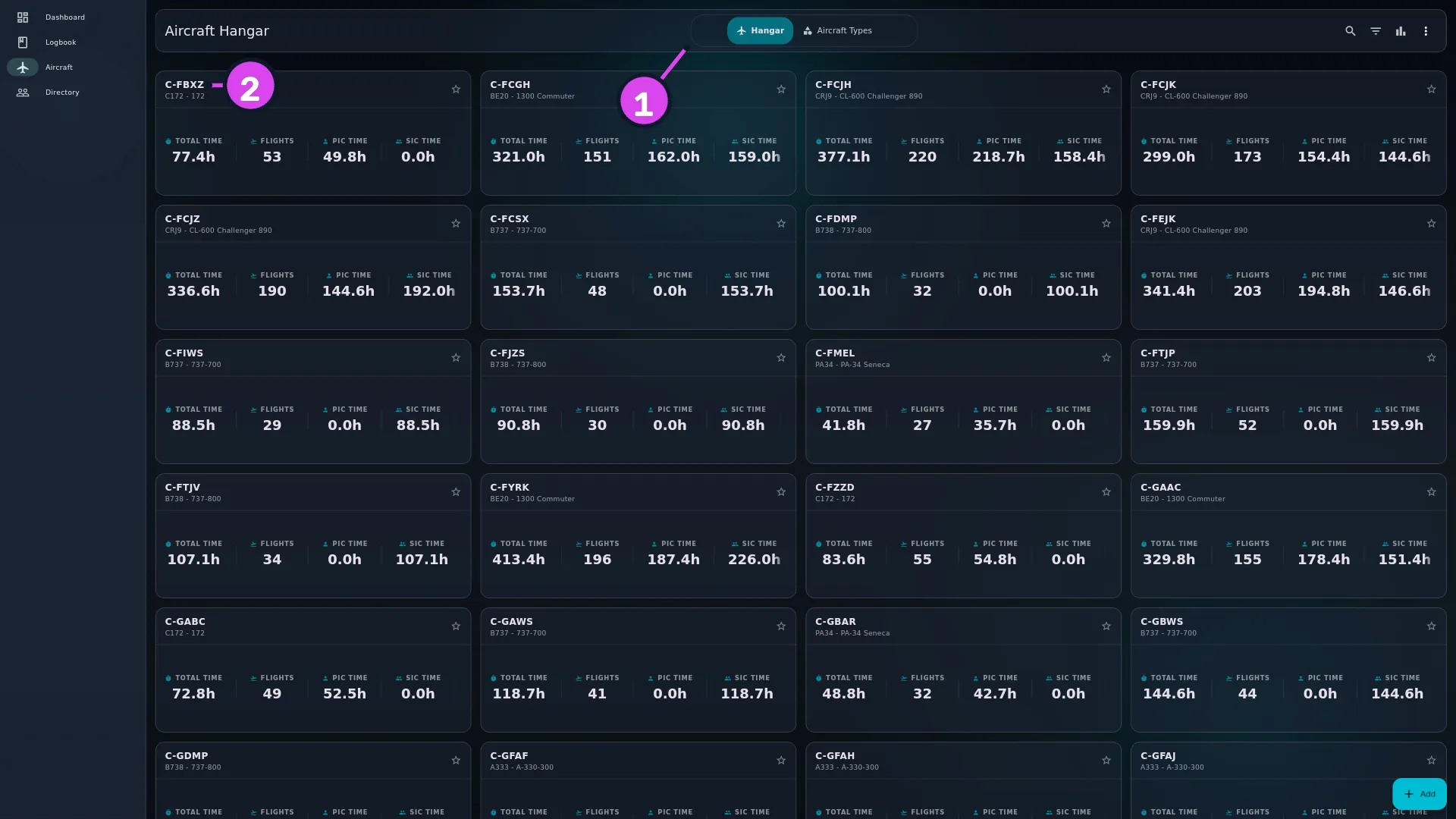
1 the tab pill2 a card's registration - Find the aircraft you want. Each card is headed by its registration — or
Ship
where the tail has no registration, and the registration with FIN beside it where it has both. - Tap the card. The aircraft’s analytics open — five views of that one tail (→ E11) — not an editor.
- Tap the second tab, Aircraft Types (Types on a window narrower than 800 pixels), to see types: the model an airframe is, shared by every tail of that model. Same screen, different list (→ E3).
- Tap Add, bottom right. Add Aircraft to Hangar puts one physical
aircraft in your list; Add Aircraft Type creates a model that many tails
can share.
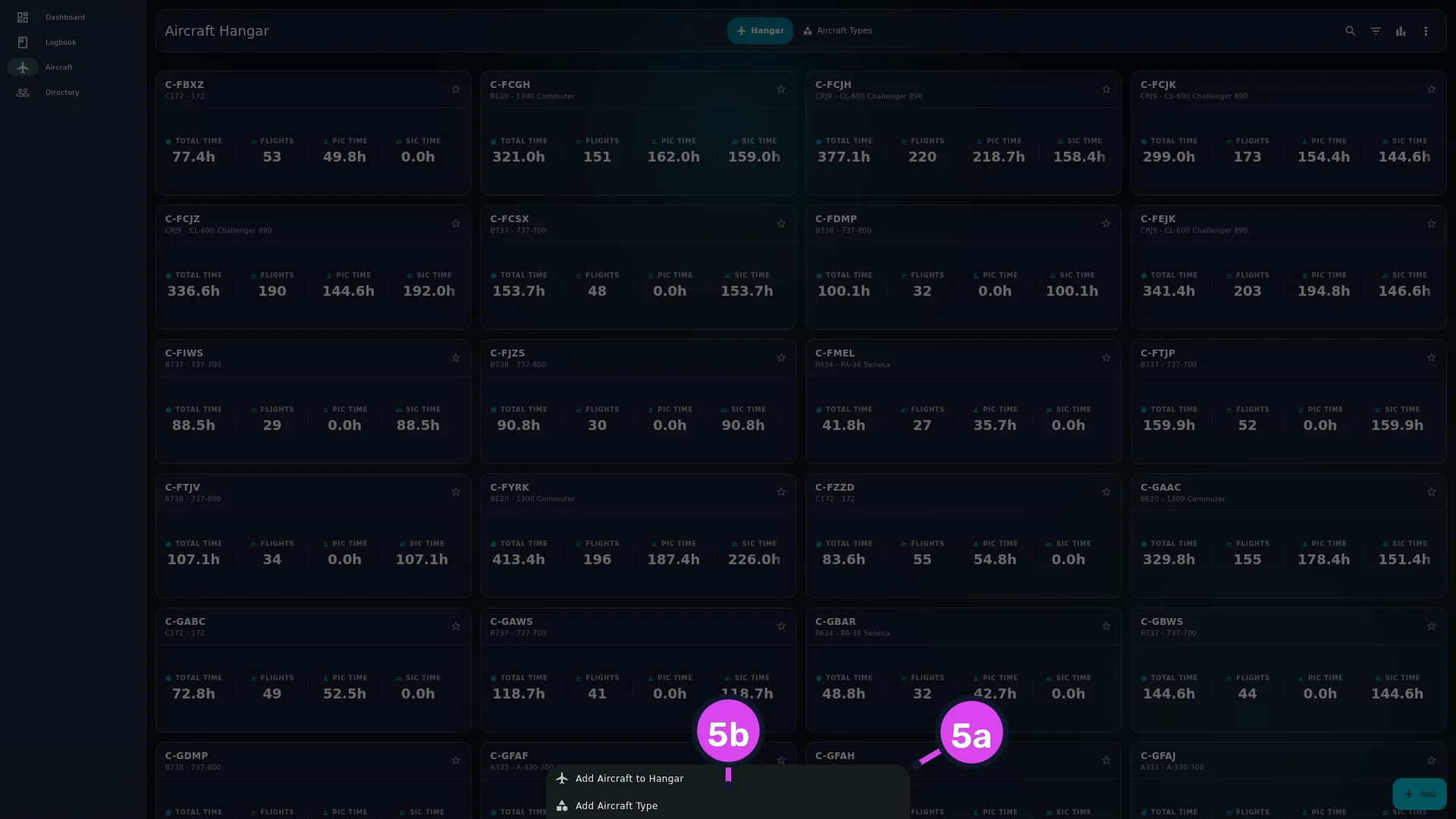
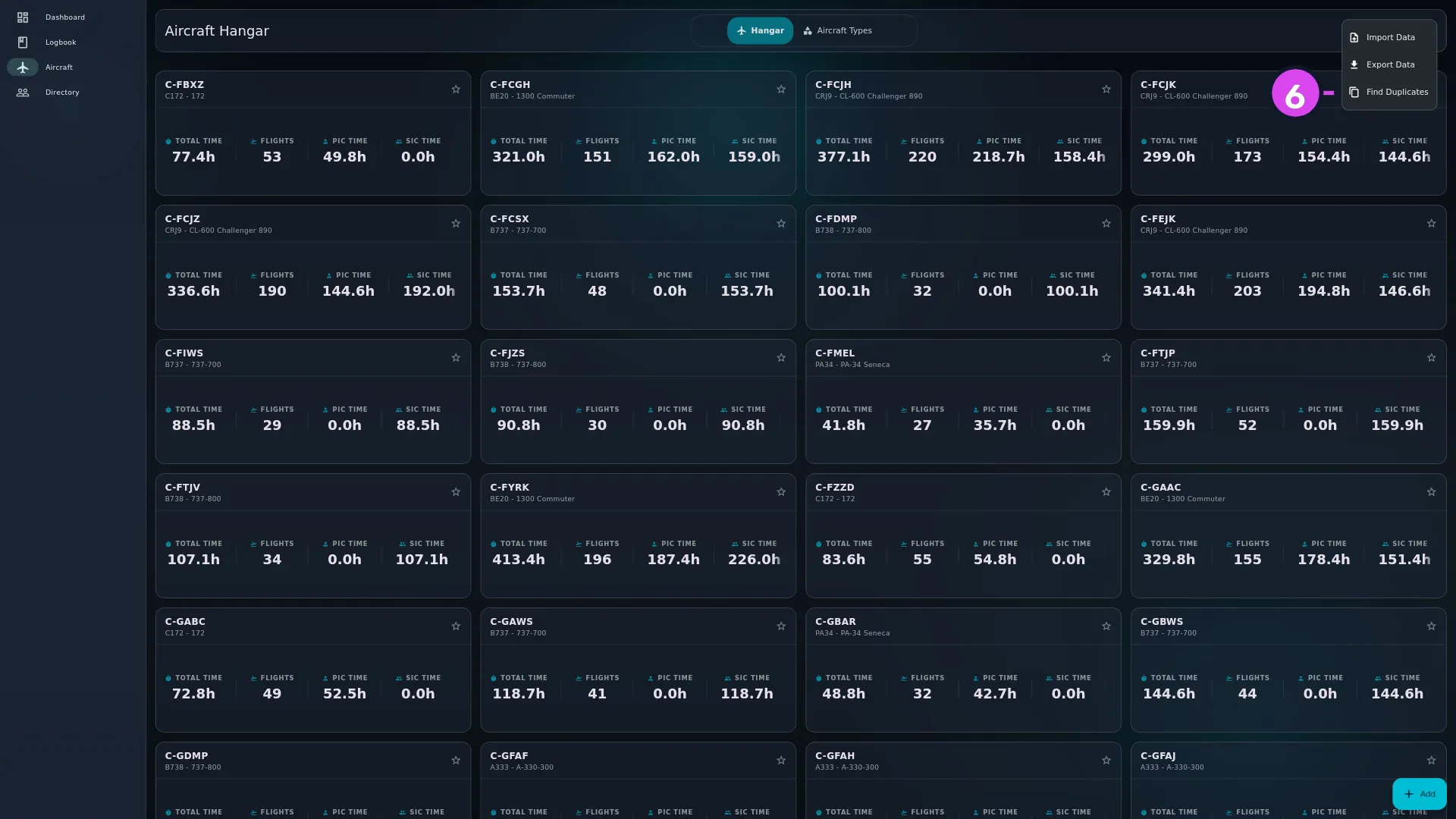
5a Add Aircraft to Hangar5b Add Aircraft Type - To work the list, use the rest of the header row: Search (hint Search
hangar…), Filter, and More Actions ⋮, which holds Import Data
(→ B2) and Find Duplicates (→ E10).
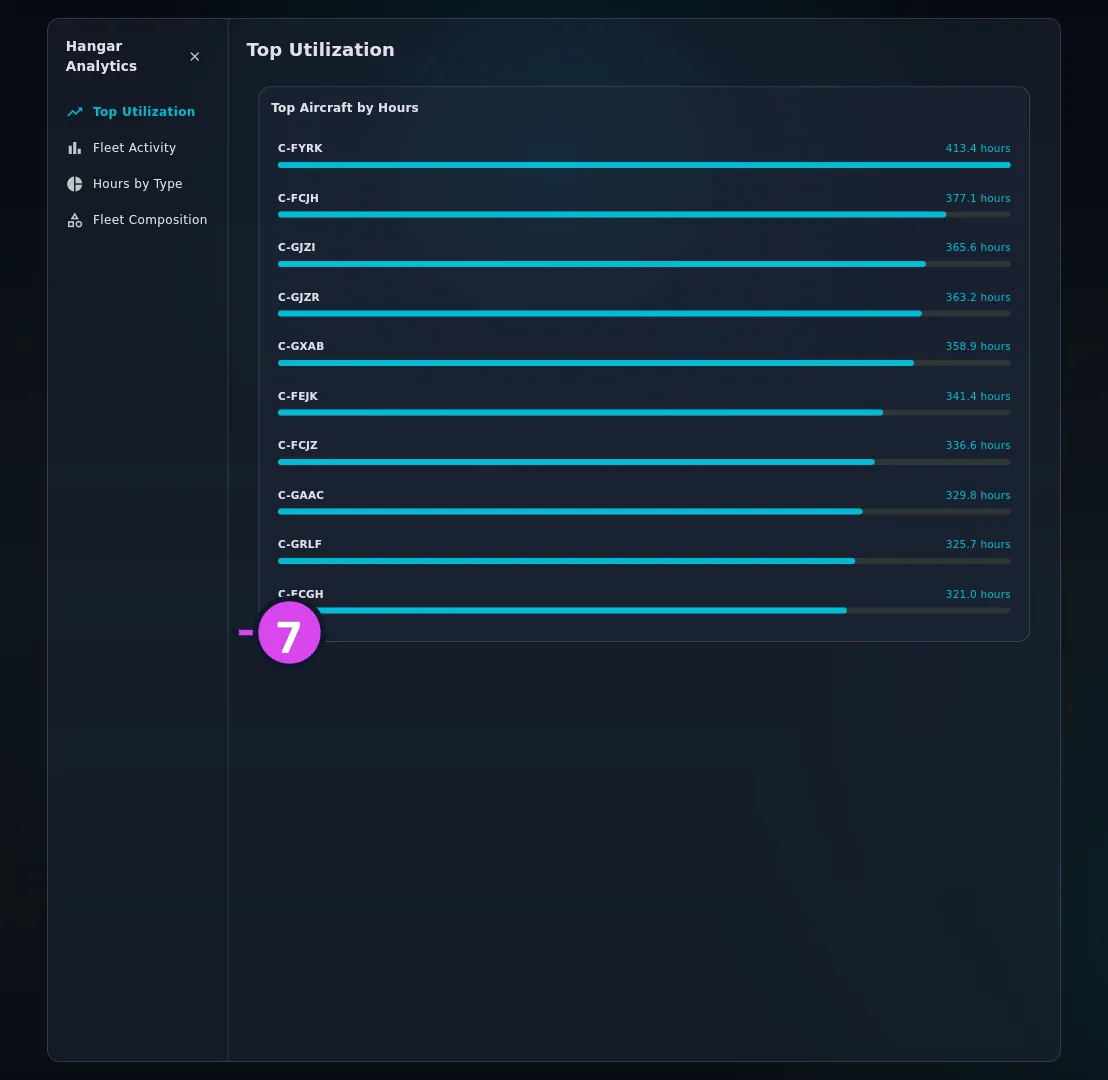
6 Find Duplicates - Tap Hangar Analytics for four fleet-wide views in one dialog: Top
Utilization, Fleet Activity, Hours by Type and Fleet
Composition.
7 the category selector
How to tell it worked
You’re on a screen headed Aircraft Hangar with the Hangar pill selected, and every tail you’ve flown is in the list. On a logbook with no aircraft in it the list reads Hangar Empty. That’s normal on a new logbook: aircraft arrive when you add them (→ E2), when you import a logbook (→ B2), or when a flight names a tail the logbook hasn’t seen before (→ C4).
If something goes wrong
| What you see | Why | What to do |
|---|---|---|
| No aircraft found | A search is running and nothing matches it | Clear the search field, or tap Close search |
| A card reads No metrics selected | The card layout has been emptied. It doesn’t mean the aircraft has no data — a new logbook starts with six statistics on the card | Open the Aircraft Card customiser — Pick and order the metrics shown on each aircraft card — and choose what to show |
| Tails or types you know you have are missing | There’s a filter on. A banner says so above the list; on the types tab it reads Aircraft type filters are applied. Some types may be hidden. | Clear it from the banner, or open Filter again |
| The header buttons have disappeared | The search field is open, and the whole action row hides while it is | Tap Close search |
| No types found in hangar. in the filter sheet | The filter only lists types you actually have aircraft on | Add an aircraft first (→ E2) |
| No aircraft are linked to an operator yet. Edit an aircraft to set its operator. | No airframe has an operator organization set | Do what it says (→ E2) |
| You can’t find Edit or Delete on a card | The Hangar card has no ⋮ menu. Both are icon buttons in the detail view’s header, and nowhere else | Tap the card, then use the header (→ E2) |
| Hours you carried forward have no aircraft here | They’re stored differently — see below | Nothing. They’re in your totals |
What’s on a card
Apart from the registration, a card shows whichever fields you’ve chosen for it (see Choosing what a Hangar card shows below). The only controls on the card itself are the star — tooltip Mark as favourite or Unfavourite — and the amber Needs linking chip where that appears.
Hours you carried forward are not in this list
Previous Experience — the opening balance you record for flying you did before this logbook (→ B7) — is stored against aircraft the app creates for itself, and the Hangar never shows them. Those hours are in your totals, but they’ll never be in this list. No aircraft is missing.
The amber “Needs linking” chip
A card with an amber Needs linking chip has an operator or owner typed in as text, rather than attached to an organization in your Directory. The tooltip says what that costs: This aircraft has a free-text operator or owner that isn’t linked to an organization yet. Tap to link it so its hours count toward your org-time rollup.
Until you link it, those hours are missing from that company’s totals (→ E8). Tap the chip to open the aircraft’s edit form on the Identity tab, where Owner and Operator are.
Choosing what a Hangar card shows
Every card shows the same set of fields, and you choose the set — but not from the Hangar. Go to the dashboard, tap your profile card to open Profile Settings, and under LAYOUTS tap Aircraft Card — Select and reorder aircraft metrics. The editor that opens is headed Aircraft Card / Pick and order the metrics shown on each aircraft card.
It works like the other layout editors: one pool of fields in use and one of fields available. Move fields between them, and drag the active ones into the order you want (→ J4).
There are two kinds of field:
- Identity fields — Registration, Fleet / Ship #, Serial #, Year, Owner, Operator, Engine Type, Engine Model, Category, Class and HUD, grouped under Identity in the customiser. They’re read straight off the aircraft and print as text.
- Flight statistics — total time, flights, PIC, landings and the rest. These are worked out from your flights, so an aircraft you haven’t flown shows nothing for them.
A new logbook starts with six statistics and no identity fields, which is why a Hangar full of aircraft can look oddly anonymous. Add Registration, and put the identity fields first, so a card names the aircraft before it totals it.
This layout doesn’t follow you to another device. The Aircraft Card layout is kept on this device, so a card you design on a desktop stays on that desktop and the phone keeps the default six. Three of the seven layout editors work this way and three travel with your logbook; which is which is in J4.