
How currency is worked out here
In one line
The app checks a shipped list of regulator rules against the documents you filed and the flights you logged, and tells you which of them you still meet.
Its answer for each one, valid or expiring or expired, is what it calls your currency.
Why it works this way
The regulations are public, stable enough to ship, and the same for everybody flying under them. So the app carries them: 111 rules, seeded into your logbook when it’s created. Each rule is one shipped requirement belonging to one authority — a regulator whose rule set you’ve switched on — and each carries its citation, its threshold and its lookback, the window it counts inside. Nothing is fetched, nothing is worked out on a server, and nothing about your flying leaves the device.
The price is that they’re the rules as written, read on a stated date. They aren’t your operator’s schedule or your chief pilot’s interpretation, and they can’t see the parts of a regulation that depend on facts the app has no field for. The app asks you to acknowledge exactly that before it will run at all, and it means it.
What this means for you
-
A rule reads one of two things: a document, or your flights. A Flight Review row is red because there’s no Flight Review record — you fix that in the Document Store. A Day Pax row is red because you’ve got two landings in ninety days and it wants three — you fix that by flying.
The card doesn’t say which kind of row you’re looking at, and the two look identical. One card, two red rows, two unrelated fixes: Flight Review at Expired is waiting for you to file a document (→ G2), and Part 61 Day Pax at 2 / 3 landings day (Needed) is waiting for you to go flying. Only the shape of the status line tells them apart (→ G8).
-
“Your flights” means flights with you on the crew list. Every rule that counts flights counts only the ones whose Crew list has your own Directory entry on it — what Add Me (from Profile) puts there (→ C1). A flight you logged without touching Crew is in your logbook and in your totals, but every counting rule ignores it. The Duty & Rest card counts the same way (→ G10).
This matters most after an import. A CSV puts you on the crew list only where one of its crew-name columns held your own name and matched your entry (→ B3). So a landing-recency row can read
0 / 3on a logbook with a thousand landings in it. Neither number is wrong: one is your history, the other is what the app can credit to you. -
The rules are read-only. You choose which authorities are on and which individual rules are on. You can’t write a rule, edit one, change its lookback or delete it — there’s no editor and no update button. If a rule’s window is wrong for the way you operate, your only option is to switch it off.
-
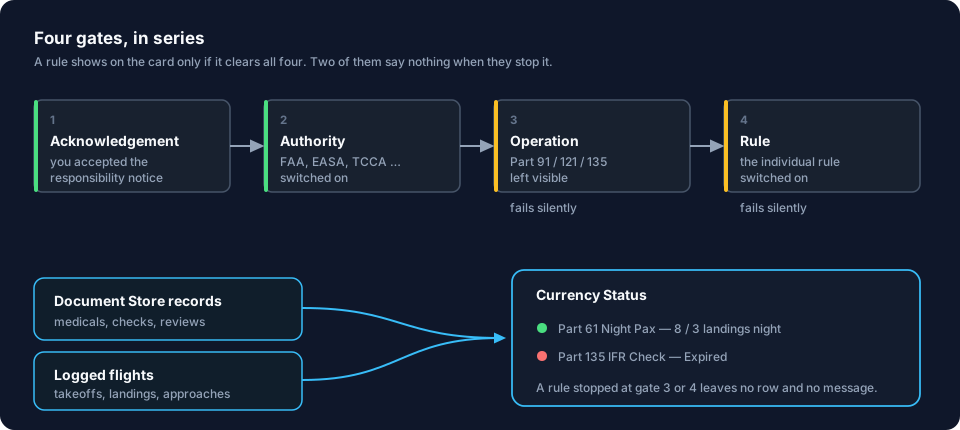
Four things have to be switched on before a rule appears, and two of them fail without saying anything.
Gate Where it lives What a closed gate looks like The acknowledgement The card itself The card reads Acknowledgement required The authority Compliance Settings No active currency rules tracking. Tap or click to select an authority. The operation the rule is scoped to — the part of the regulations a flight was flown under Compliance Settings, under OPERATION-SPECIFIC RECENCY The rule is missing from the card. No row, no message The rule’s own switch Compliance Settings, on the rule’s row The rule is missing from the card. No row, no message So a rule that isn’t on the card has three possible causes, and the card shows none of them. How to check is in G7.
-
A missing row is not a passed row. The card shows only what it was asked to check. Silence about a requirement is silence, not a pass.
-
The operation a rule is scoped to also decides which flights it counts — but only for commercial operations.
- A rule scoped to an authority’s baseline operation — FAA Part 91, EASA Part-NCO, UK CAA UK Part-NCO, TCCA CAR 605, CASA Part 91, CAANZ Part 91 — counts every qualifying flight in the window, whatever you logged it under, including flights where you left Operating Under empty. That kind of recency belongs to the pilot, not the operation, and Operating Under is an optional field most imported logbooks don’t have.
- A rule scoped to anything else — FAA Part 135, FAA Part 121 — counts only flights you tagged with that exact operation. An untagged flight doesn’t count toward it, and neither does a flight tagged with a different operation, in either direction.
Twelve of the 111 shipped rules are scoped to an operation at all (→ G7).
-
Green, amber, red and grey mean four specific things. Green: met. Amber: met, but expiring within thirty days. Red: not met. Grey, with a question mark: the app couldn’t check that rule at all, and the row says so in words beginning Not checked —. Grey is neither a pass nor a fail; it’s the app telling you it has no answer. The thirty days is fixed, not a setting.
A counting rule only has an expiry date while it’s currently met, so a rule that isn’t met goes red with no amber stage first. A row can go from green to red between two looks at the dashboard, with no warning in between.
-
Simulator time counts for some rules and not others, following what the regulations say:
Requirement Does a simulator session count? Takeoffs and landings No here, under any authority Hours of flight time No. Device time is not flight time under any of the six authorities Instrument approaches Yes — and under New Zealand’s rule, only one of the three may be flown in a trainer Sectors — a rule counting flights Yes Holding procedures Yes Instrument hours Yes, where the rule asks for instrument time in general; no, where it asks for instrument time in an aircraft For approaches, that’s the rule itself, not a shortcut. FAA
61.57(c)(2)lets you meet the whole six-approach requirement in any mix of an aircraft, a full flight simulator, a flight training device or an aviation training device — and since 2018 with no instructor present. The one condition is that the device represents the same category of aircraft, and the app applies it. New Zealand is the one authority that limits it, to one trainer approach in three, and the app applies that too.For landings, the app is stricter than FAA
61.57allows. Where any of this matters to you, the regulation decides, not the card. -
Canada’s device rules depend on three facts, each recorded in a different place. TCCA accepts a device for the six approaches only at Level B, C or D, or at a lower level under a qualified supervisor. CASS 725.124(15) also makes the 705 sector substitution depend on the level:
- a Level A full flight simulator buys a 90-minute exercise and a three-sector line check;
- a Level B, C or D buys three takeoffs and landings and a two-sector line check. “Three takeoffs and landings” means three of both, counted as the smaller of the two.
The app reads all three facts, and none of them is on the card itself:
Fact Belongs to Where you set it The device’s qualification level The type In the Hangar: Qualification Level (optional), on the Specs tab, once a Simulator Device is set (→ E4) Whether a supervisor was present The session On the flight: Supervised, in the entry wizard’s Operations step (→ C1) How many sectors a line check covered That record On the Line Check document: Sectors covered (→ G2) Leaving any of the three blank still credits the session — a fact you didn’t record is never treated as a failed one.
-
It’s a display, not a monitor. There’s no notification, no badge, no email and no reminder anywhere in the app. If you don’t open the dashboard, nothing will tell you a medical has lapsed.
The common mistake
Leaving Date of Birth blank, then reading a medical row as though the app knew how old you are.
Most medical validity depends on age, and the age tier is chosen from how old you were on the day of the exam. With no date of birth on file the app can’t choose a tier, so it uses the shortest period any tier of that rule grants and works out the expiry from that. These are the tiers as shipped, and what each one shows when the app doesn’t know your age:
| Medical | Tiers as shipped | Shown with no date of birth |
|---|---|---|
| FAA, CAANZ Class 1 | ≤39: 12 mo · 40+: 6 mo | 6 months |
| EASA, UK CAA Class 1 | ≤39: 12 mo · 40–59: 12 mo · 60+: 6 mo | 6 months |
| CASA Class 1 | ≤59: 12 mo · 60+: 6 mo | 6 months |
| TCCA Category 1 | ≤39: 12 mo · 40–59: 6 mo · 60+: 3 mo | 3 months |
| CASA Class 3 | ≤39: 48 mo · 40+: 24 mo | 24 months |
| CASA RAMPC | ≤64: 24 mo · 65+: 12 mo | 12 months |
| EASA Class 2 | ≤39: 60 mo · 40–49: 24 mo · 50+: 12 mo | 12 months |
So a thirty-year-old TCCA Category 1 holder with no date of birth sees the row go amber at two months and red at three, on a certificate with nine months left to run. Nothing on the card explains why.
Erring early is the safer direction, but it still costs something: a row you’ve learned not to believe is the row that will be right one day. The fix is to give the app the date, not to stop reading the rows.
How to tell: tap your own profile card → PILOT IDENTITY and look at the Date of Birth row. If it says Not set — enables age-tiered medical validity, every medical row you didn’t give an explicit Valid Until is showing the shortest tier, not yours. Setting the date is one field (→ A9), and the card recalculates from it. Typing the expiry printed on the certificate into Valid Until (Optional) fixes it too, one document at a time, because a date you typed overrides anything the app would have worked out (→ G2).
Neither date makes the card the authority on whether you may fly. The certificate in your hand and the regulation you fly under decide that. This card is a reading of your records against the rules as shipped, and no more.
Where to go next
- Getting the card running: Turn on currency tracking
- Cutting it down to the rules that apply to you, and finding one that’s missing: Choose your authorities and operations
- Reading what it says: Read the currency card
- Asking one rule what it actually wants: Understand a single rule
- Filing the documents the document-based rules read: Add a document and its scans