
Understand a single rule
What this does
Opens one rule so you can read what it’s actually asking for, where it comes from, and why your row is the colour it is.
Before you start
- The acknowledgement is given and the rule’s authority is visible in Compliance Settings (→ G6, G7).
- This screen is read-only apart from one switch. No part of a rule can be edited, here or anywhere else.
- This screen is a summary of the rule, not the whole of it. Some conditions the app applies aren’t shown, and some it shows aren’t applied. What the screen leaves out, below, says which.
Steps
- Open Compliance Settings, expand the rule’s authority, and tap the rule’s
row — anywhere except its switch. A screen titled with the rule’s name opens,
with a status pill at the top showing its live colour and state.
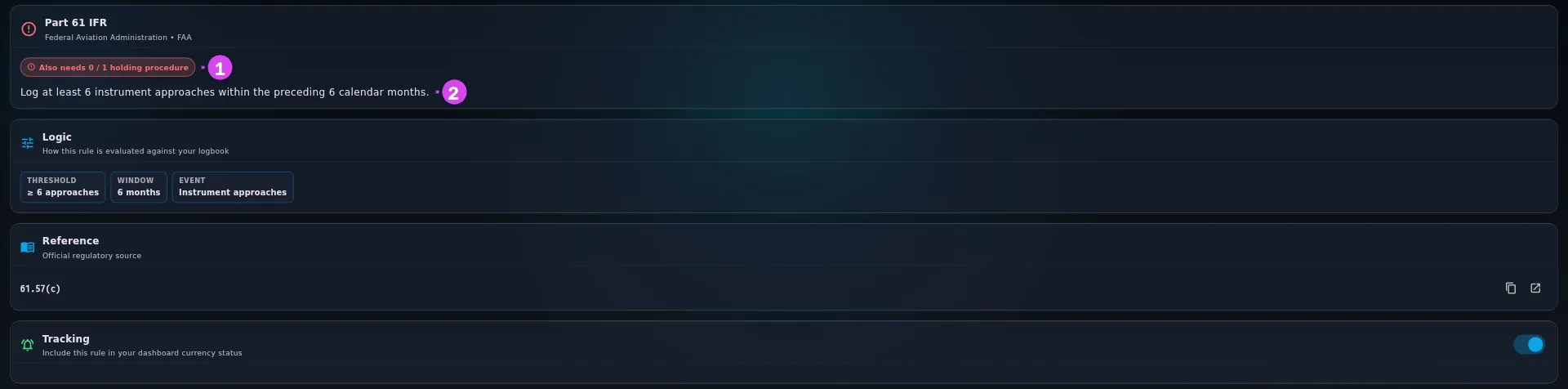
1 the status pill — its live colour and state2 the requirement — stated in plain English - Check the sentence under the pill. It says, in plain words, what the rule asks for (see The sentence under the pill, below).
- Scroll to the Logic card — How this rule is evaluated against your
logbook. Each chip is one condition the rule applies (see the table below).

3 the chips — one condition each4 the citation and copy button - On the Reference card — Official regulatory source — copy the citation with the button beside it, or tap Open in browser to go to the regulator’s own text.
- Use the Tracking switch to take the rule off your dashboard, or put it back.
| Chip | What it tells you |
|---|---|
| Threshold | How many, and of what — ≥ 3 landings. On a document rule it reads Must be current |
| Window | The period counted, or the validity period of the document. On an age-tiered rule it is a range — 6–12 months (by age) — spanning the shortest and longest tier |
| Event | What is counted, in the app’s own words: Day landings, Night landings, Instrument approaches, Flight time, Flights — or, on a document rule, Flight review or the event type it looks for |
| Role | The seat it must have been flown in. PIC under supervision and sole manipulator appear spelled out |
| Conditions | Night, where the rule is night-only |
| Operating part | The part a document must be filed under for this rule to read it. On a rule that counts flights instead of documents, the chip is shown but ignored |
| Event type | The document type this rule looks for |
| Class | The aircraft class the rule wants — SEP, or Same class / Same category & class for “whichever category and class you’ve been flying”. Not the medical class: that one shows under Operating part |
| Age tiers | The tier table itself, one line — ≤39: 12 mo · 40–59: 6 mo · 60+: 3 mo. Present only where the rule has more than one tier, which in the shipped set means medicals |
| Validity | How the rule rounds to the calendar: FirstDayNextMonth, FirstDay7thMonth or FirstDay13thMonth. All three put the expiry on the last day of a calendar month |
How to tell it worked
You’re on a screen titled with the rule’s name, with four cards — the status pill and its sentence, Logic, Reference and Tracking — and the citation matches the one on the row you tapped.
If something goes wrong
| What you see | Why | What to do |
|---|---|---|
| Open in browser is greyed, with No source link available for this rule | The rule shipped without a URL | Copy the citation and look it up. The citation is correct even when the link is missing |
| Could not open link | No app on this device is registered to open web links | Copy the citation and open it in a browser by hand |
| The Tracking switch subtitle reads Authority is disabled — enable it to track this rule | The rule’s authority is off | Turn the authority on (→ G7) |
| The pill reads Not yet evaluated | The rule hasn’t been checked yet | Open the dashboard once, then come back |
| The Window is a range and your dashboard row shows one specific period | The rule is age-tiered. The dashboard picked the tier for your age at the exam, and the Age tiers chip lists all of them | Nothing to fix. See below for the case where the app doesn’t know your age |
The sentence under the pill
The sentence is built from the rule’s own settings, which is why it reads a little mechanically. It comes in two shapes:
- For something you fly — this is Part 61 Day Pax — Log at least 3 takeoffs and landings as PIC in the same category and class of aircraft within the last 90 days. “The same category and class” means whichever category and class you’ve been flying.
- For something you file — Class 1 Medical under the FAA — Must hold a current medical — under Class 1 (valid preceding 6–12 calendar months, depending on your age at the exam). The range is there because the rule is age-tiered.
A rule that counts only the landings you flew adds a note under the sentence when it has held some of yours back: how many, and that they were on multi-crew flights where PF Landing was never ticked on the Times step. That note tells a zero meaning you’ve flown nothing apart from a zero meaning the app doesn’t know the landings were yours (→ G8).
The Logic card shows the tiers; the dashboard picks one of them
On an age-tiered rule the Window chip is a range and an Age tiers chip lists the table. An FAA Class 1 Medical reads Window 6–12 months (by age) with Age tiers ≤39: 12 mo · 40+: 6 mo; a TCCA Category 1 Medical reads 3–12 months (by age) with ≤39: 12 mo · 40–59: 6 mo · 60+: 3 mo. This screen is the whole table. Your dashboard row is one entry out of it, chosen by how old you were on the day of the exam.
Where the app has no Date of Birth for you it can’t choose, so it uses the shortest tier on that list — three months on a TCCA Category 1, whatever your age. The chip still shows the full range, and nothing on either screen says which tier got used. Setting the date is one field (→ A9), and typing the certificate’s own expiry into Valid Until (Optional) overrides the whole calculation (→ G5, G2).
Operating part has to match exactly
The Operating part chip shows exactly what a document has to be filed under for this rule to read it. If the chip says Part 61 and your Flight Review is filed under 91, the rule will never see your document, however green its card looks. This screen is the quickest way to spot that; the fix is in G2.
What the screen leaves out
Some rules carry a condition from the regulation that the app can’t check, and some apply fewer conditions than the chips suggest. Neither is shown anywhere. Four are worth knowing, because they change a real answer:
- FAA Class 1 — the app applies the six-month tier to every holder aged 40 or over. The regulation only shortens it to six months for single-pilot commercial passenger operations, so a 40-or-over pilot flying anything else keeps twelve months by the regulation and is shown six here. Stricter, then — but still not your real limit.
- TCCA Category 1 — the same caveat, twice over. The app applies six months at 40 and three months at 60 to every holder. CAR 404.04(6) scopes those halvings to single-pilot commercial passenger operations, so a holder of any age flying multi-pilot may keep the longer window by the regulation and is shown the shorter one here.
- CASA Type Rating PC — the app doesn’t check the aircraft type on your record, and doesn’t check who issued it. Every Pilot Proficiency Check you hold is read by this rule, one issued by another authority and one flown in a different type included, and the most recent of them sets the row’s colour. CASA’s and CAANZ’s Dangerous Goods rules behave the same way: either authority’s record is read by both rows. So on those three, a green row says a matching record exists somewhere in your Document Store — not that it’s the record that regulator would accept.
- TCCA 705 Type Recency — Sectors, and IFR Currency (6-mo) — the device level, the session’s supervision and the accompanying line check’s sector count all decide whether a simulator credits these rules (→ G5), and none of the three appears on this screen as a chip. The Threshold, Window and Event chips are the same as on any other counting rule, and say nothing about the device conditions underneath them.
The first three you have to work out yourself, from the regulation for the operation you actually fly. The fourth is different: the app does work it out correctly from what you recorded (→ G5) — this screen has nowhere to show it.
A worked row: Part 61 IFR
Tap Part 61 IFR under the FAA and the sentence reads Log at least 6 instrument approaches within the preceding 6 calendar months. The chips say Threshold ≥ 6 approaches, Window 6 months, Event Instrument approaches.
Two things the chips don’t say, and both decide the colour of the row. The rule
also wants one holding procedure: without it, the row is red with the status
line 0 / 1 holding procedure (Needed), even with all six approaches logged. And
the approaches may be flown in a simulator — unlike rules that count landings,
this one doesn’t exclude them (→ G5).