
Add a document and its scans
What this does
Files one certificate — a medical, a proficiency check, a line check, a rating — with its scans, in a way a currency rule can find.
A rule is one of the regulators’ requirements the app ships and checks your logbook against, and currency is the answer it gives for each one: valid, expiring, or expired (→ G5).
Before you start
- You’re in the Document Store screen (→ G1).
- Have the certificate in front of you. You’ll need its date, the authority that issued it, and the part or class printed on it.
- Have the scans on this device already. The picker takes
jpg,jpeg,png,heic,heif,webp,gifandpdf. It doesn’t take video. - Three fields decide whether the app ever tracks this document: Event Type, Certification Authority, and the subcategory below them. The date doesn’t. Filing a Flight Review, a PPC or a Line Check? Check Choosing the subcategory, below, first.
Steps
- Tap Add Certification, at the bottom of the Document Store screen. A sheet headed Add Certification opens.
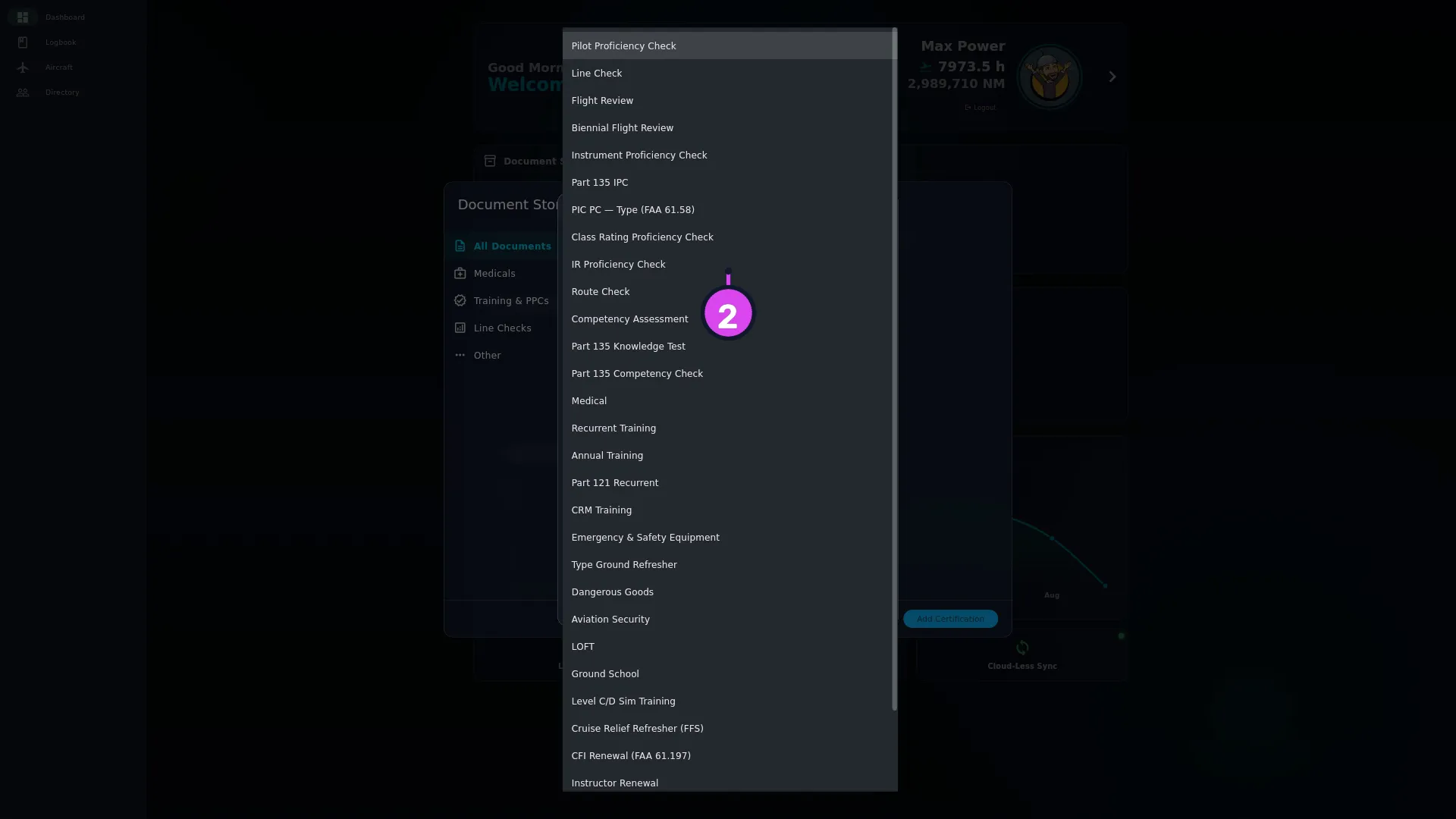
- Choose Event Type. There are thirty, from Pilot Proficiency Check and
Flight Review through Medical and Dangerous Goods to Examiner
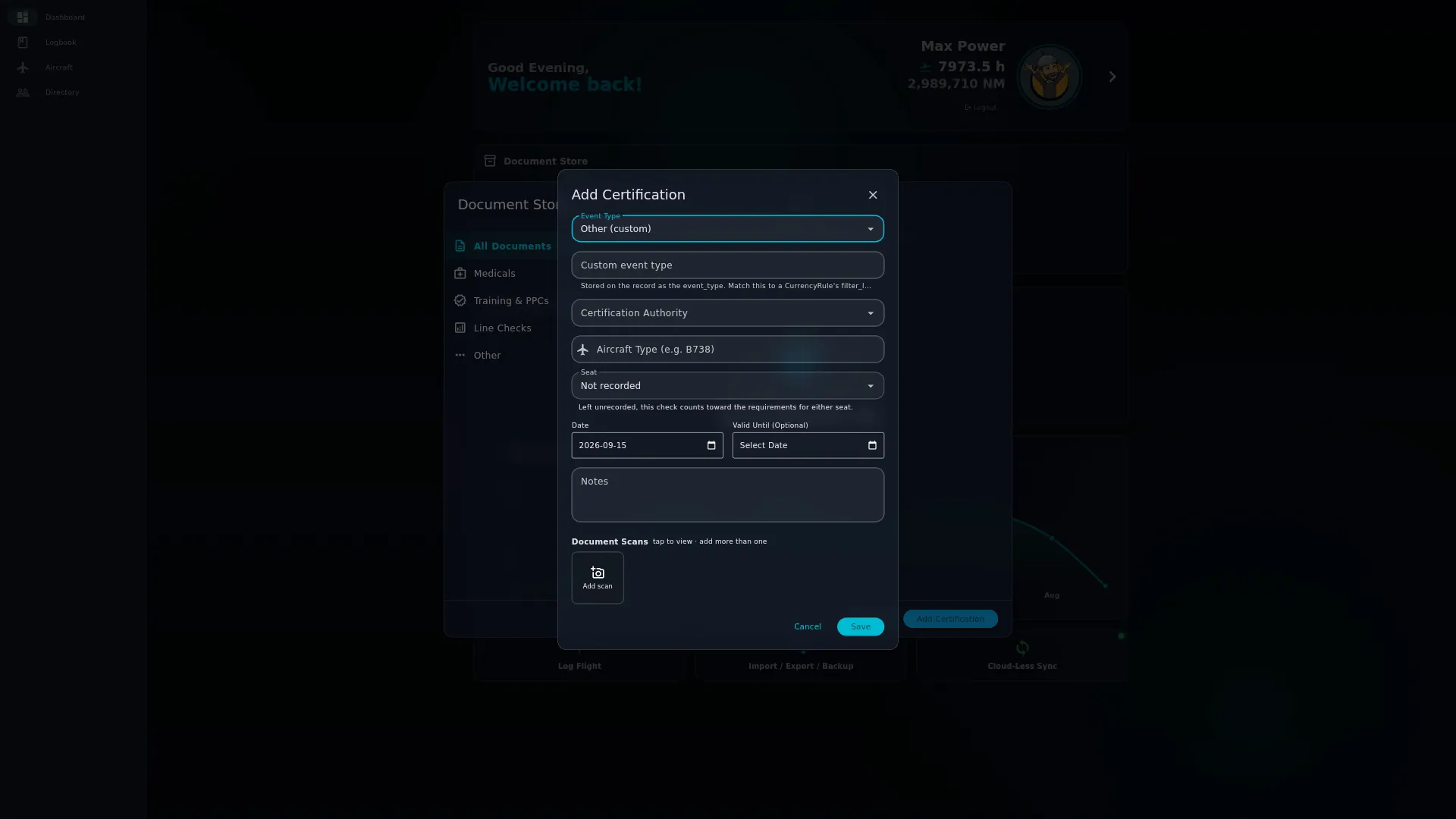
Competency. For anything not listed, pick Other (custom) at the bottom,
and type the name into the Custom event type field that appears.
- Choose Certification Authority. It’s shown as the acronym and country —
FAA (US),EASA (EU),UK CAA (GB),TCCA (CA),CASA (AU),CAANZ (NZ).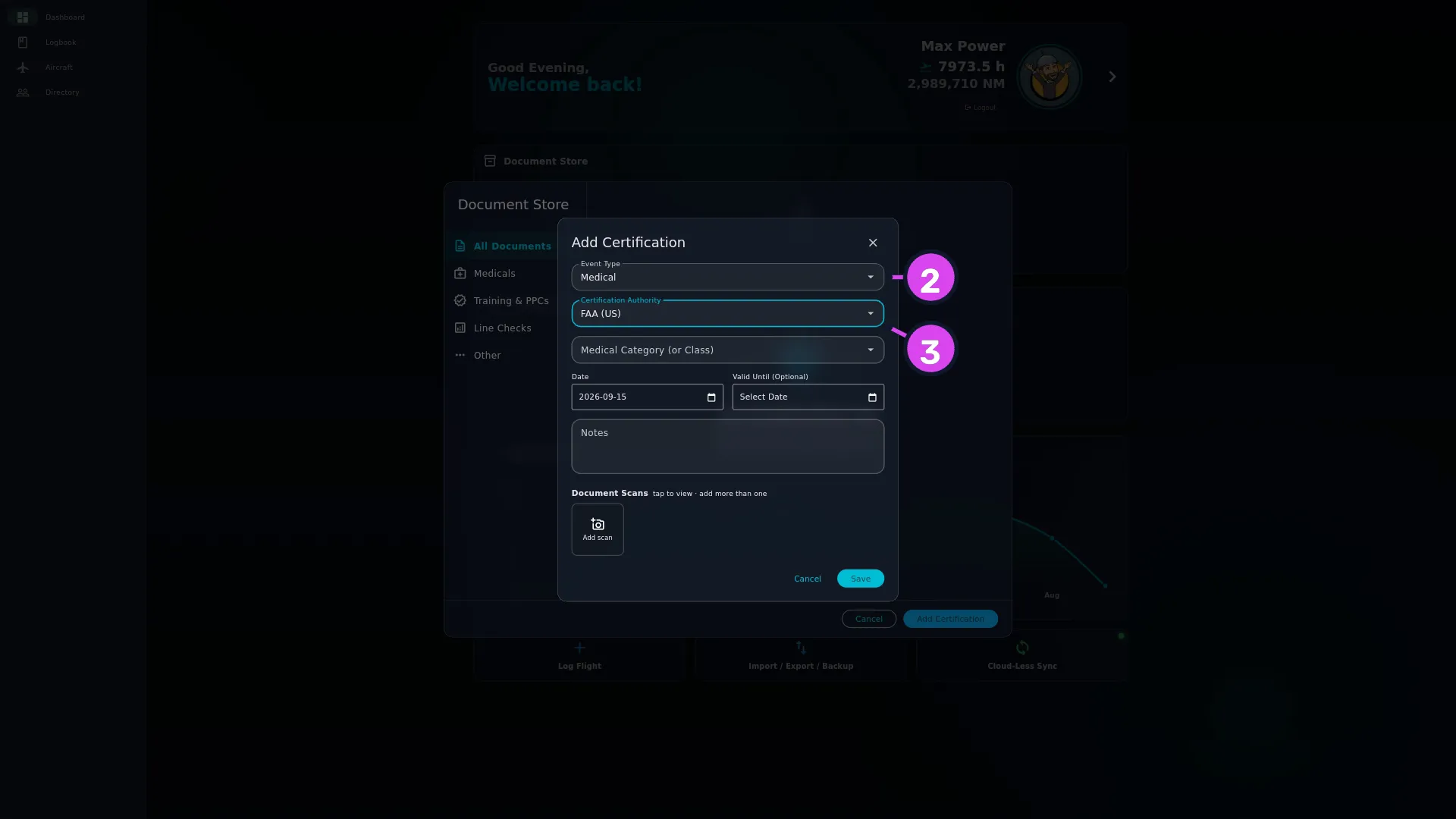
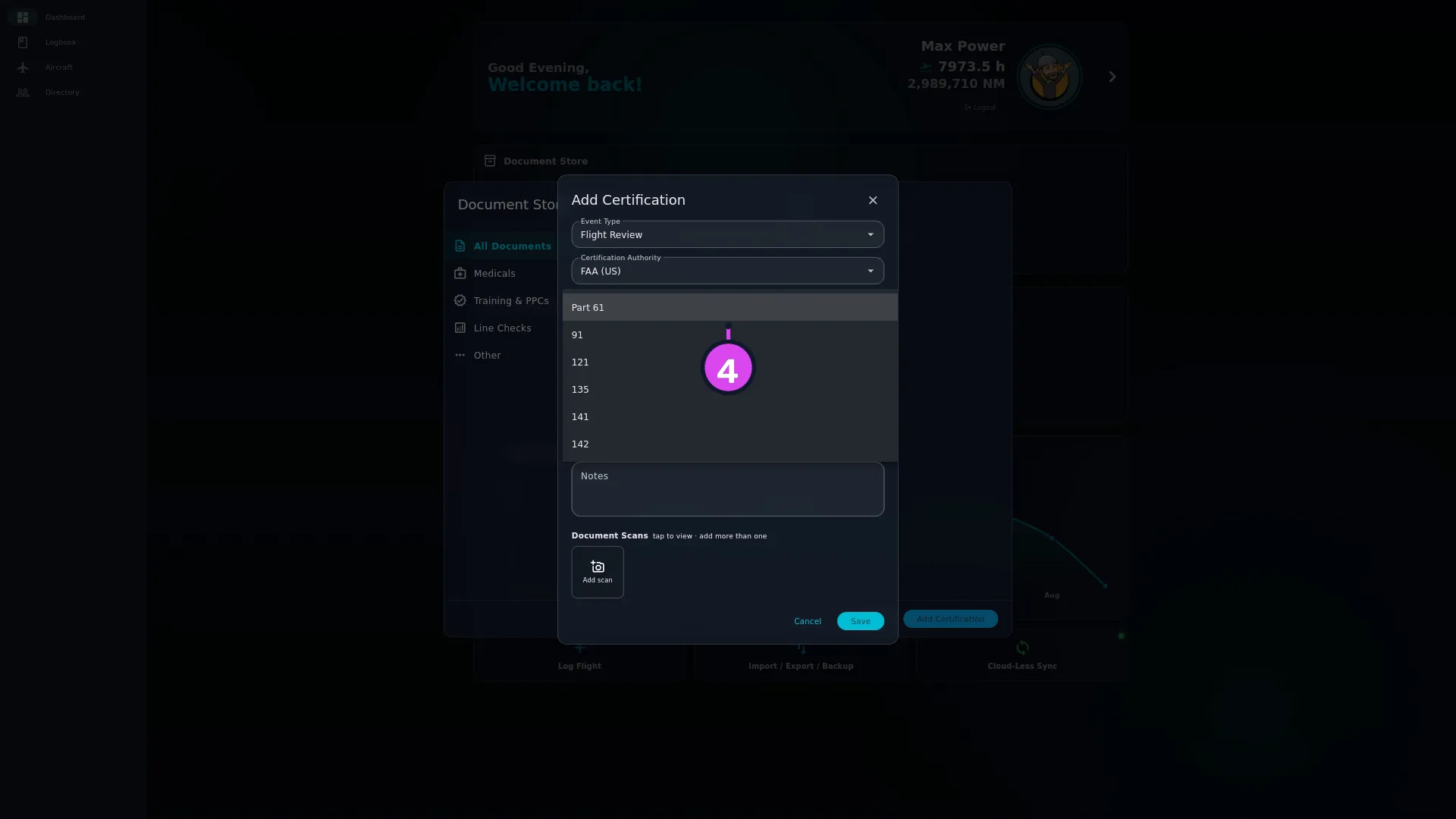
2 Event Type3 Certification Authority - Choose from the dropdown that appears under it: Medical Category (or
Class) for a Medical, Subcategory (Part) for everything else. Its
options depend on the authority you picked.
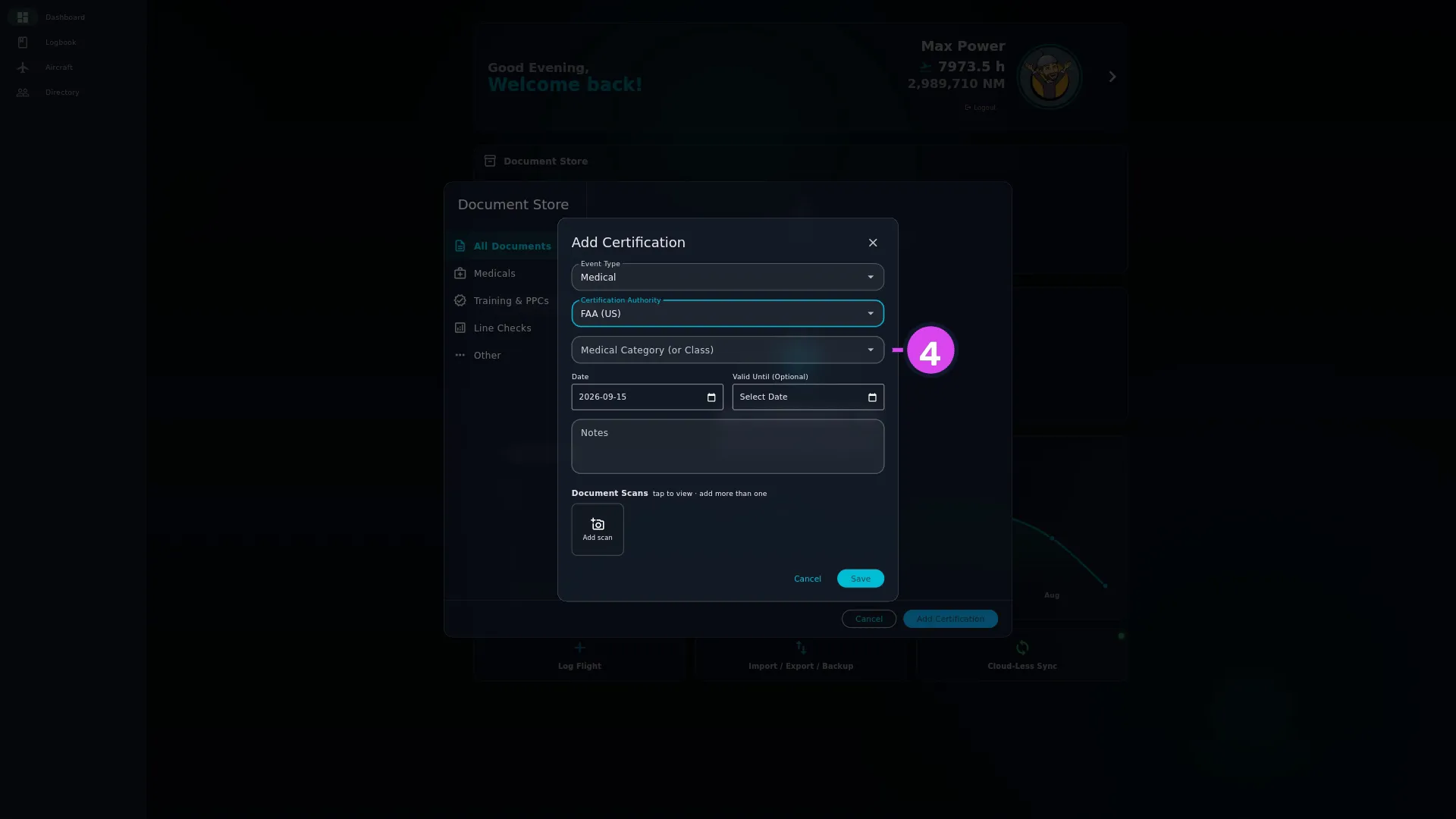
- If they apply, fill in Aircraft Type (e.g. B738), Seat and — for a
Line Check or Route Check only — Sectors covered. All three are
optional (see The optional fields, below).
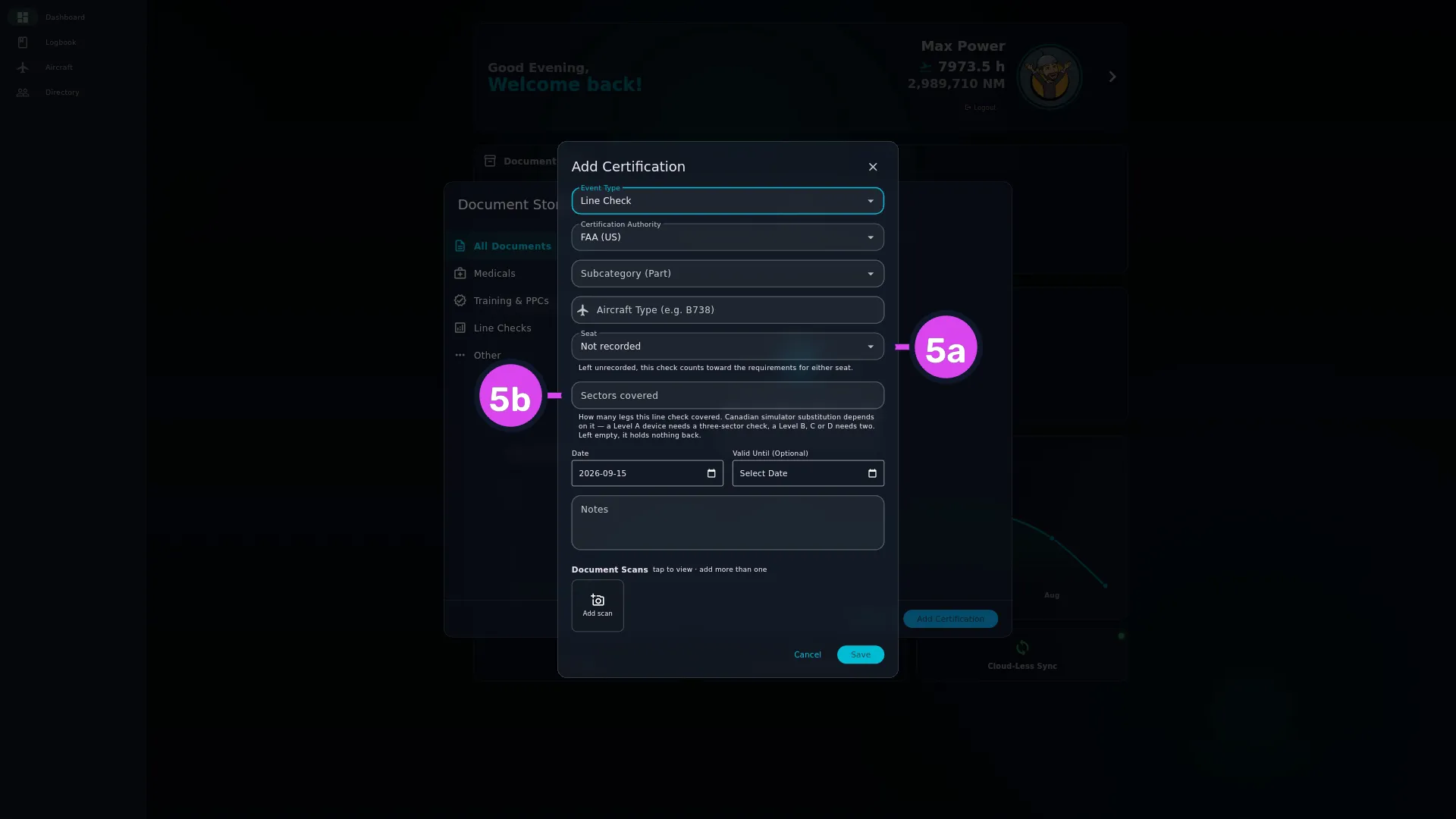
5a Seat — blank credits either seat5b Sectors covered — blank reads as unrecorded - Set Date — the day of the exam or check; it starts on today — and Valid
Until (Optional) if the certificate prints an expiry. Add Notes if you
want.
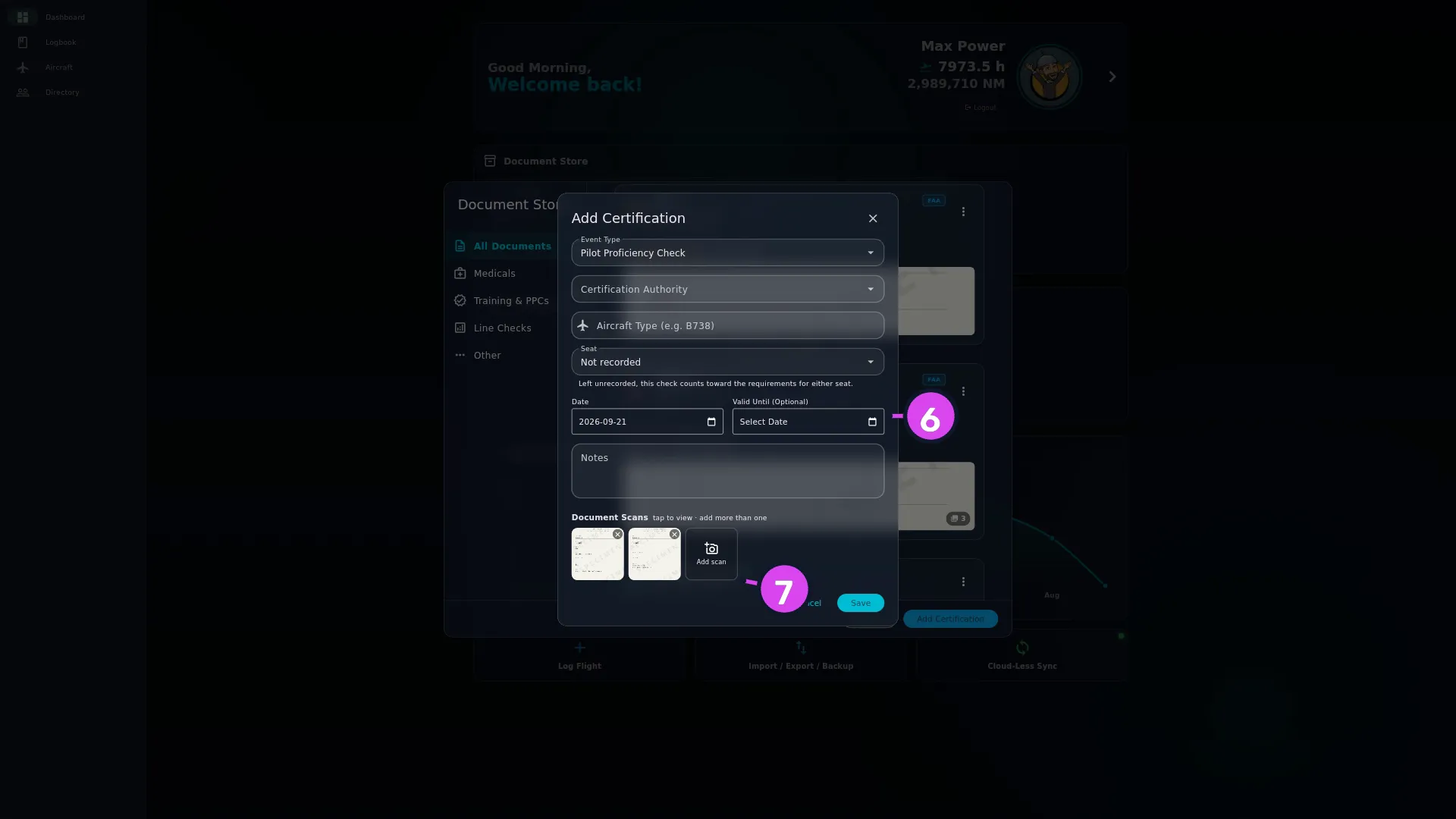
6 Valid Until — no currency row without it7 Add scan - Under Document Scans, tap the Add scan tile and pick one or more files. The front and back of a card, or every page of a certificate, go on the same record.
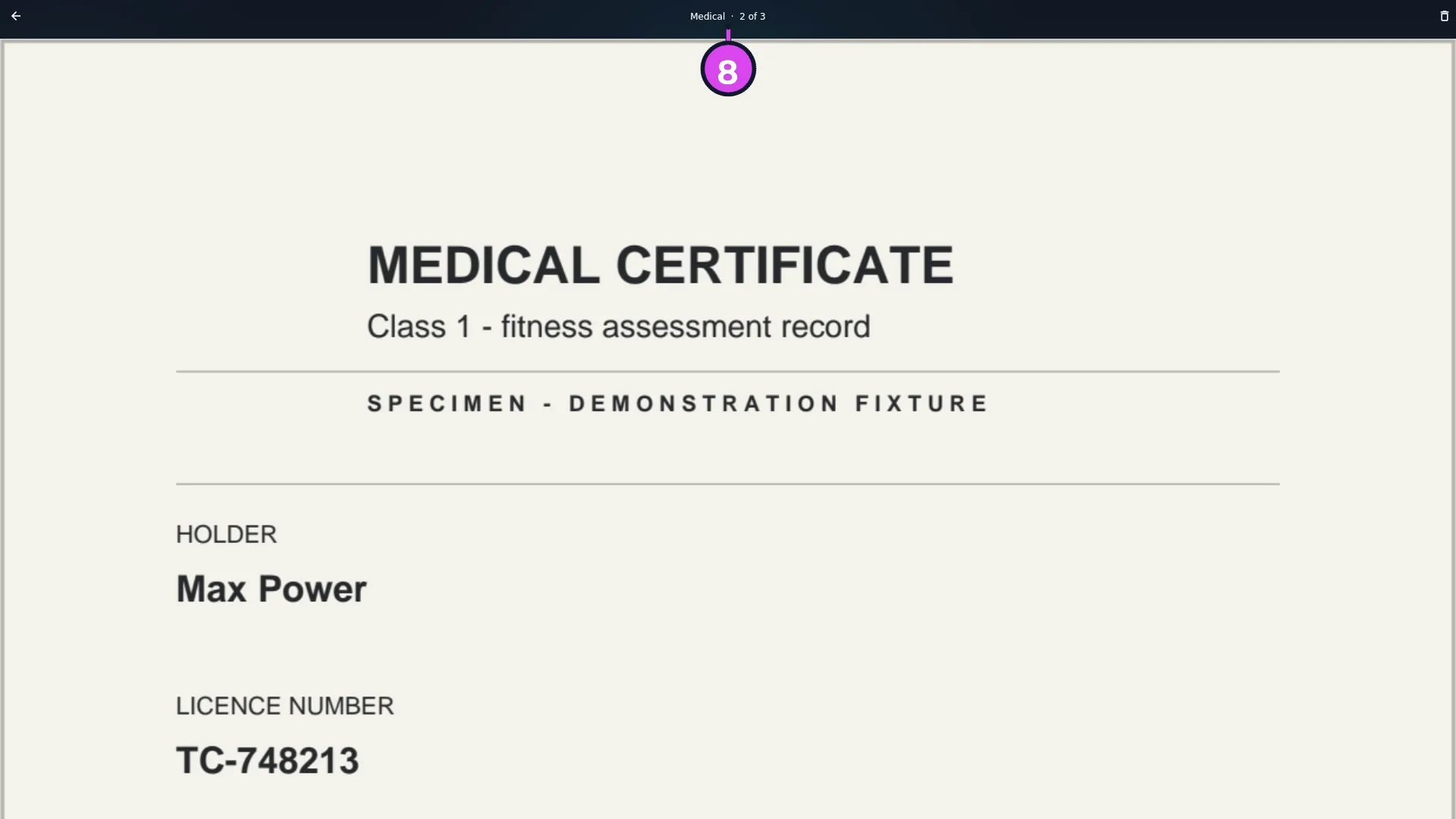
- Tap a thumbnail to check what you attached. The viewer opens, titled with the
event type.
- Tap Save.
How to tell it worked
The sheet closes and a new card appears in the Document Store list, with your
event type, the authority badge, the Date: you set and a coloured status line.
If a rule is tracking it, the status line carries a date. On the dashboard, the
matching row on the Currency Status card should have moved
(→ G8).
If something goes wrong
| What you see | Why | What to do |
|---|---|---|
| Please select an authority | Certification Authority is empty | Pick one. The subcategory dropdown stays blank until you do |
| Please select an option under the subcategory | The class or part is empty | Pick one. It’s required once an authority is chosen |
| Could not open the file chooser. | The app hasn’t been given access to your files | Allow it in your device’s settings, then tap Add scan again |
| Couldn’t add N of M files. | Some of the files aren’t an accepted type | Check the extensions against the list above. The files that were accepted are already attached |
| Could not save: … | The record, or one of its scans, couldn’t be saved | Check the Document Store list before you try again. The record and its scans are saved separately — if the card is already there, the problem was attaching a scan, and saving again would file the record twice |
| A line under the subcategory reading No currency rule tracks this combination. The document will be saved and listed by the Valid Until date you enter, but it will not make any rule current. | No shipped rule reads that event type, authority and subcategory together | If you picked the wrong subcategory, change it — check the table below. If it’s really what your certificate says, save it and fill in Valid Until |
| The card saves green but the currency row doesn’t move | The subcategory isn’t the one the rule wants, or no rule covers this combination at all | See the two sections below |
| A first officer’s check reads current against a captain’s requirement, or the other way round | Seat was left at Not recorded, which satisfies a rule for either seat | Set Seat to PIC or SIC on the record, if the check was for one seat |
| A thumbnail shows a broken-image icon | The file is attached but can’t be read | Remove it and attach the file again |
The optional fields
- Aircraft Type (e.g. B738) suggests from the app’s full ICAO type list, not only the types in your hangar. It isn’t shown at all when the event type is Medical.
- Seat: set it to PIC — pilot in command or SIC — second in command if the check was for one seat. Otherwise leave it at Not recorded, which satisfies a rule for either seat.
- Sectors covered is how many legs the check flew. Left blank, it counts as not recorded rather than as zero, so it holds nothing back (→ G5).
In the viewer, the title also shows N of M when the record has more than one scan. A PDF opens at page one and you page through from there.
Choosing the subcategory so a rule can find it
The subcategory has to match the rule’s own, character for character. The dropdown also offers values no shipped rule reads. Pick one and the sheet warns you: No currency rule tracks this combination. The document will be saved and listed by the Valid Until date you enter, but it will not make any rule current. You can still choose them, because a certificate that says 141 says 141.
The FAA case is the one that catches people out. A Flight Review filed under
91 satisfies nothing, because 61.56 wants Part 61 — and 91 is
right under it in the list.
These are the combinations that work:
| Document | Authority | Choose | Rule it satisfies |
|---|---|---|---|
| Flight Review | FAA | Part 61 | 61.56 |
| CFI Renewal | FAA | Part 61 | 61.197 |
| Line Check | FAA | 135 | 135.299 |
| Part 135 Knowledge / Competency | FAA | 135 | 135.293(a) / (b) |
| PPC | FAA | 121 | 121.441 |
| Part 121 Recurrent | FAA | 121 | 121.433(c) |
| Medical | FAA | Class 1 / 2 / 3 | 61.23(d)(1)–(3) |
| PPC | TCCA | 703 / 704 / 705 | 703.88 / 704.108 / 705.106 |
| Line Check | TCCA | 705 | 705.106 |
| Annual Training | TCCA | 703 / 704 / 705 | 703.98 / 704.115 / 705.124 |
| Recurrent Training, IPC, Instructor Renewal | TCCA | Part IV | 401.05(2)(a) / 401.05(3) / 401.66 |
| Medical | TCCA | Category 1 / Category 3 | 404.04(6) |
| Class Rating PC | EASA or UK CAA | SEP | FCL.740.A(b)(1)(i) |
| ESET, CRM, Type Ground Refresher, Dangerous Goods | EASA or UK CAA | CAT | ORO.FC.230(d)/(e)/(f), SPA.DG.105(a) |
| Medical | EASA or UK CAA | Class 1 / Class 2 / LAPL | MED.A.045(a)(1), (a)(3), (a)(4) |
| Route Check, Competency Assessment | CAANZ | 121 or 135 | 121.607(1) / (3), 135.607(1) / (3) |
| Recurrent Training | CAANZ | 121 — there is no 135 rule | 121.563 |
| Instructor Renewal | CAANZ | Cat A/E or Cat B/C | 61.307(e) / (d) |
| Medical | CAANZ | Class 1 / Class 2 | 67.61(a)(1)/(2) |
| Medical | CASA | Class 1 / 2 / 3 / RAMPC | 67.205, 61.405 |
| Anything else | CASA | Any part — no CASA rule outside medicals reads it | — |
Some event types have no part in their rule at all, so any subcategory works: Part 135 IPC, PIC PC — Type (FAA 61.58), a PPC under EASA or UK CAA, a Line Check under EASA or UK CAA, IR Proficiency Check, Biennial Flight Review, Instrument Proficiency Check under CAANZ, FI Revalidation under EASA or UK CAA, Cruise Relief Refresher (FFS), Examiner Competency, Level C/D Sim Training, Aviation Security, CASA’s Dangerous Goods and Flight Review, and CAANZ’s Dangerous Goods.
Some rules don’t check the authority either, so they’ll read a document issued by another regulator:
- A PPC from any authority satisfies CASA’s Type Rating PC. That rule doesn’t check the aircraft type either, even though it’s the type-rating rule.
- CASA’s and CAANZ’s Dangerous Goods rules each read the other’s record.
- EASA’s and the UK CAA’s ESET, CRM, Type Ground Refresher, Dangerous Goods and Cruise Relief Refresher (FFS) rules each read the other’s record. That one is on purpose: they’re operator training, and one course serves both licences.
The licence checks don’t cross over. An EASA Class Rating PC, IR Proficiency Check or FI Revalidation keeps only the EASA rating green, and a UK one only the UK rating, because the two licences are revalidated separately.
So if you hold documents from more than one regulator, a green row on one of those shared rules doesn’t by itself prove you hold that regulator’s certificate. Check which record the Document Store card credits before you rely on it (→ G1).
Three medical categories no rule reads
FAA BasicMed, TCCA Category 4 and CAANZ DL9 are in the Medical Category (or Class) dropdown, but no shipped rule reads any of them. The sheet warns you when you pick one. No rule will ever work out an expiry for that record, and no rule row will ever turn green because of it.
Instead, the record goes on the catch-all list: a document no active rule reads
gets its own row at the bottom of the Currency Status card, labelled with its
event type and subcategory — Medical — BasicMed — and going by the date on the
record (→ G8). That only happens if you fill in
Valid Until. Leave it blank and there’s no date to show and nothing to work one
out from, so the record sits in the Document Store and appears on no currency row
at all. For these three categories, Valid Until is your only tracking.
A medical from an authority you aren’t tracking works the same way. Medicals are matched per authority, so an EASA Class 1 held by a pilot who has only the FAA switched on is read by no FAA rule. It shows on the catch-all list by its own Valid Until — again, only if that’s filled in.
About Valid Until
Set it, and the app uses the date you typed, on the document card and in the currency row. Leave it blank, and the app works out an expiry from the rule’s own validity period — if a rule reads the record at all:
- For medicals, that period depends on how old you were on the day of the exam. With no date of birth on file, the app uses the shortest tier the rule has (→ A9, G5).
- Where no rule reads the record, blank means no expiry is tracked anywhere.
In every case, typing the date printed on the certificate is the reliable option.
Removing a scan
Removing a thumbnail only takes effect when you tap Save. So Cancel is the safe way out of this sheet: it leaves the record exactly as it was, including any scans you removed on screen. Picking the same file twice attaches it once.
Scans travel to your paired devices with the record. On the other device the record arrives first and the image follows, so a thumbnail reading Syncing… is the file still on its way, not an error (→ G1, I5).