
Column mapping
What this does
Links each column in your file to the field it belongs in, and saves that arrangement under a name so the next file with the same headers maps itself.
Before you start
- You’re on the Map step of an import (→ B2). The app has already guessed a mapping for every column it recognised.
- If you’re going to use a preset, choose it before you correct anything. Picking one replaces your hand-made corrections (→ Gotchas).
- Saving a mapping needs a profile open. Without one the save icon is greyed out, and its tooltip reads No active profile — saving is disabled.
Steps
- Scroll down the list. There’s one card per column in your file, and the legend
at the bottom counts them: N / total mapped. A low number is often right —
most logbook exports carry columns this app has no use for.
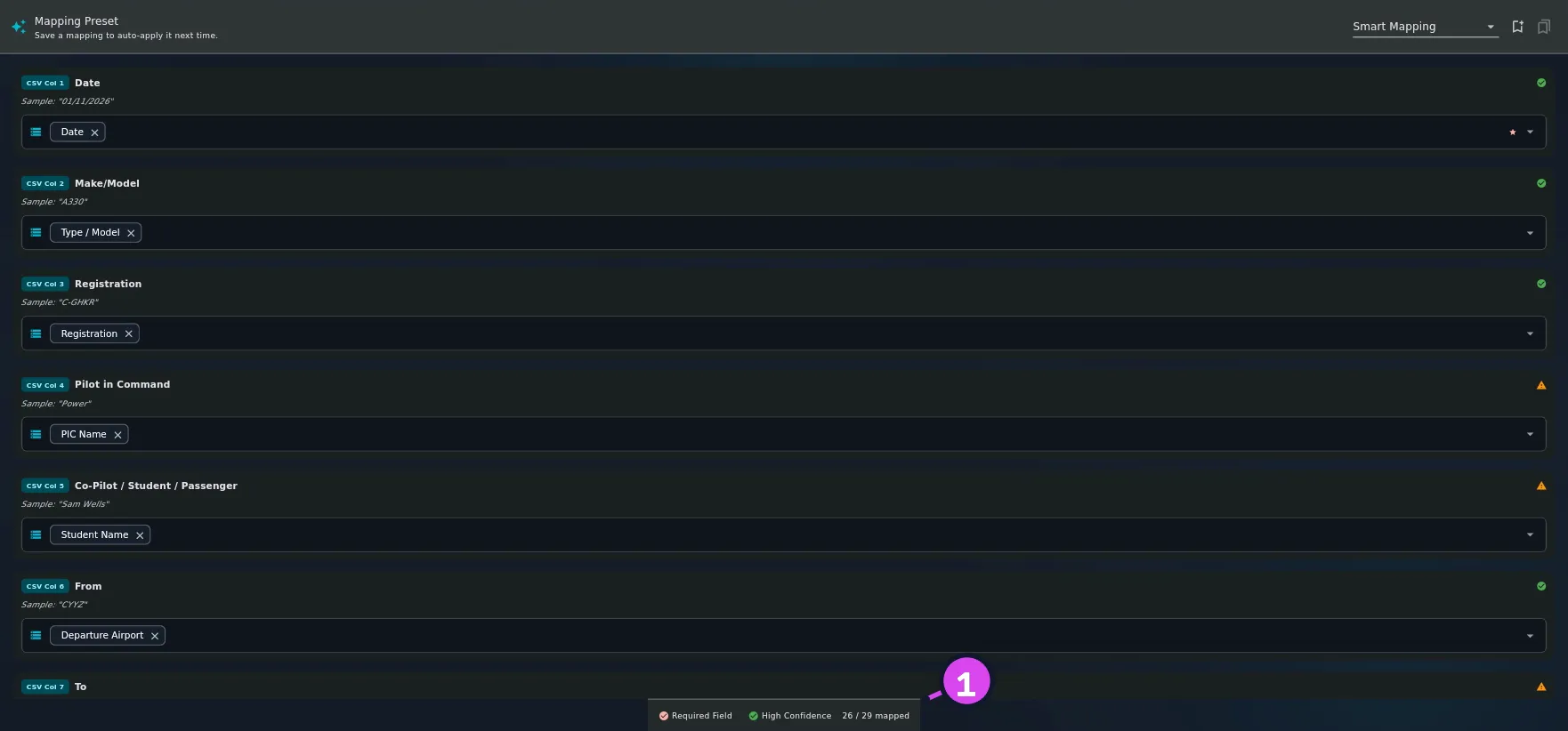
1 the legend counting mapped columns - Check the icon on the right of each card: it shows how sure the app is of its
guess. A green tick is High confidence, orange is Medium confidence,
grey is Low confidence — treat a grey icon as a request to check that
card. (Everything else on a card is listed under Reference below.)

6 a chip's × — dropping only that field2 the tick — meaning high confidence - Leave a column you don’t need as (Unmapped). It’s ignored on import, which
isn’t an error, and its value is still kept in the Original import copy of
the row (→ B6).

- Tap a card to change it. The sheet Map to Database Field(s) opens, headed
Pick one or more — compound columns can fan out. Type into Search
fields… to find a field by name; the star marks a required one.
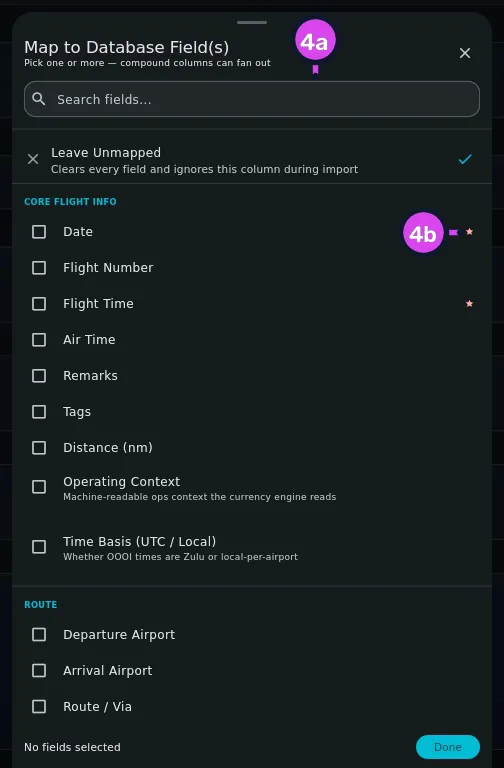
4a the search box4b the star marking a required field - Tick every field the column feeds, then tap Done. One column can feed
several — a column headed “Single-Engine Day Dual” belongs in Flight Time
and Dual Received — and the footer counts them: 2 fields selected.
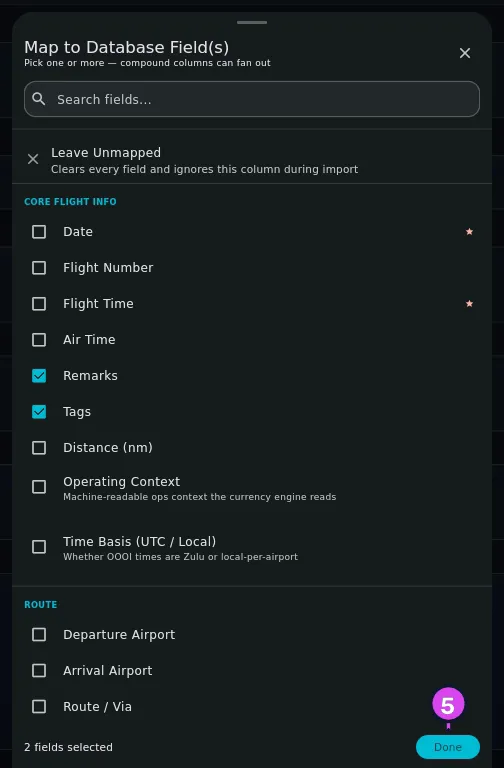
5 Done — closes the sheet - To drop one field and keep the rest, tap the × on that chip on the card. To ignore the column altogether, open the sheet and tap Leave Unmapped.
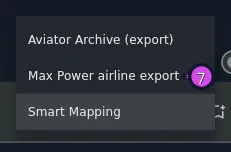
- To apply a saved or built-in arrangement, open the Mapping Preset dropdown
at the top — Choose preset… — and choose one. What it offers is listed
under Reference below; read Gotchas first if you’ve already edited the
mapping.
- To keep the arrangement you’ve built, tap the bookmark icon (Save current
mapping…), name it in Mapping name, and tap Save. The confirmation
reads Saved "
". Future imports of this layout will auto-apply it. 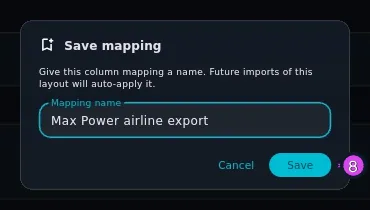
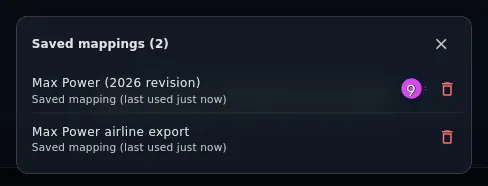
8 Save - To look over or delete what you’ve saved, tap the second bookmark icon
(Manage saved mappings). The sheet Saved mappings (N) lists them, each
with a delete button. You apply one from the dropdown, not from here.
How to tell it worked
Every column you care about shows its field chips rather than (Unmapped), the starred fields are mapped, and the legend’s count matches the number of cards with chips on them. After saving, the confirmation names your mapping — and the next time you import a file with the same headers, the dropdown’s subtitle reads N saved mappings · auto-detected from your headers.
If something goes wrong
| What you see | Why | What to do |
|---|---|---|
| Map at least one column before saving the mapping. | Nothing is mapped yet | Map a column first. An empty mapping isn’t worth a name |
| No active profile — saving is disabled | Saved mappings belong to a profile | Open a profile before you start the import |
| Update or save new? | You edited a mapping that had already been saved | Update replaces it, Save as new keeps both |
| Could not find " | The saved mapping was deleted after you applied it | Tap Save as new |
| Your hand-made mapping is gone after you chose a preset | The preset replaced every column it doesn’t map itself | Tap Undo on the snackbar, or re-map by hand |
| No data loaded | The file step produced no rows | Go Back and check the file (→ B2) |
Reference: what’s on a card
The badge CSV Col N, your file’s own header text, a Sample: ”…” line taken from the first row, the fields the column is mapped to as chips, and the confidence icon (step 2). A time column also carries a chip saying how its values will be read (→ Gotchas).
Reference: what the preset dropdown holds
Up to four kinds of entry:
- Aviator Archive (export) — for re-importing this app’s own export.
- LogTen Pro — only shows up when the file carries LogTen’s own column names.
- Smart Mapping — not a stored preset, but a description of what the app’s own guess found.
- Every mapping you’ve saved yourself.
Reference: the field groups
The sheet groups about 110 fields. Use the search box rather than the list — typing “night” or “dual” beats scrolling through any of these.
| Group | Holds |
|---|---|
| Core Flight Info | Date, flight number, flight time, air time, remarks, tags, distance, operating context, time basis |
| Route | Departure airport, arrival airport, route or via, original destination |
| Aircraft | Registration, fleet or ship number, operator, type, and the operator and owner as logged |
| Crew Times | PIC, SIC, PICUS, relief, flight engineer, student PIC, solo, dual received, dual given, examiner |
| Condition Times | Night, NVG, instrument actual, instrument simulated, instrument ground trainer, cross-country, multi-pilot, Simulator / FTD, Simulator Device Class |
| Specialty Operations Times | Oceanic, ETOPS, external load, water bombing, bird dog, herbicide, fungicide, insecticide, medevac, sailplane |
| Specialty Operations Metrics | Fire acres, spray acres, pesticide name, winch launch, tow launch, initial launch elevation |
| Operations | Day and night take-offs and landings, carrier and offshore landings, passengers, the six approach columns, holds, go-arounds, operating rule, operating under |
| Flight Flags | Pilot flying on departure, pilot flying on landing, diversion |
| External Loads | Lifts, line length, line material, attachment type, working load limit |
| Block & Tach | Out, off, on and in times, tach start, tach end |
| Crew | Crew names by role — PIC, SIC, relief, instructor, student, F/E, P1US, examiner, observer |
| Duty & Rest | Duty start and end, rest before, sectors, augmented crew, acclimated |
| Schedule | Scheduled out and in, pushback, taxi out, taxi in |
| Fuel | Fuel unit, uplift, on board, burned, remaining, minimum diversion fuel |
Two of those placements catch people out. Simulator / FTD is in Condition Times, not a group of its own, so a column of simulator hours is mapped alongside night and instrument time. And there’s no Hobbs field anywhere — Block & Tach takes tach readings and the four block times, so a Hobbs column from another logbook has to go to one of those, or to flight time.
Map Simulator Device Class if your file has one — it’s worth looking for. It’s the field under Simulator / FTD in the same group, and it’s what keeps imported sessions out of your flight-time totals; hours on their own never do. It takes FFS, FTD, ATD, FNPT or BITD, and reads the spelled-out names too (Full Flight Simulator, Level 6 FTD). A column saying only Yes or Sim is read as FTD, the more restrictive guess. A value it doesn’t recognise is left empty rather than guessed at, so that row imports as an ordinary flight — fix those afterwards by selecting them in the logbook and using bulk edit.
Reference: what a logbook import actually requires
| Field | Required? |
|---|---|
| Date | Always. A row without a readable date can’t be imported at all |
| Registration | Required unless the row carries a fleet or ship number instead |
| Flight Time | Required except on simulator rows — a row naming a device class, or carrying simulator hours, doesn’t need it — and a row missing it can still be committed by hand from the Review inbox (→ B5) |
| Departure Airport, Arrival Airport | Not required. A row with no route imports |
Gotchas
A preset can wipe what you mapped by hand — with a warning first. Choosing one from the dropdown rebuilds every column from the preset and empties every column the preset doesn’t name, including ones you corrected yourself. When that would lose something, Replace current mappings? names up to five of the columns at risk before anything happens, and a snackbar with Undo follows whether you confirmed or not. Preset first, corrections second is still the order that works best.
The chip on a time column tells you how its values will be read. It reads HH:MM, Decimal, Int hrs, Int min or Mixed. HH:MM and Decimal are only readouts. Int hrs, Int min and Mixed can be tapped to choose Hours or Minutes for the whole column — and a red Mixed chip means different rows would otherwise be read by different rules (→ B4). The chip follows the mapping as it stands: map a column to a time field by hand and it gets a chip, map it away from one and the chip goes.
Two fields sound like “operator” and mean different things. Operator /
Airline ties fleet and ship numbers to a carrier, so the app knows whose 737
fleet number 4021 is. Flight Operator (logged) is the organisation recorded
on the flight itself. A bare Operator header is mapped to the first
automatically, so if your column is really “who I flew for that day”, change it
to the second.
Auto-detection matches on the set of headers, not their order. A saved mapping is re-applied when 85% of the headers overlap, so a file with a couple of columns renamed or moved still matches. The flip side is that two different exports with mostly similar headers can match each other — so check the mapping whenever a preset applies itself.
Separate Year, Month and Day columns aren’t on this screen. They’re
folded into a single Date column before the Map step opens, so don’t go
looking for those three cards (→ B4).
Worked example
A Canadian-style logbook page exported to CSV, with these headers:
Year, Month, Date, A/C Reg, Type, SE Day Dual, SE Night Dual,
ME Day Co-Pilot
Four things happen here that you might not expect.
The first three columns aren’t on the Map step. Year, Month and Date
were folded into one Date column, added at the end of the list, so look for
it there rather than where the file had it
(→ B4).
SE Day Dual fans out to two fields. Those hours are both total flight time
and dual received, so the card carries chips for Flight Time and Dual
Received. Map it to only one and you lose the other.
SE Night Dual fans out to three. The same two, plus Night. The word
“night” in the header adds the third. The app usually finds this for itself, and
the confidence icon tells you how sure it was.
ME Day Co-Pilot fans out to Flight Time and SIC. There’s no field called
“co-pilot”, so search the field sheet for “SIC” rather than for the header’s own
wording. The category (ME) is what adds Flight Time, the same way it does on
the two columns above.
Then tap the bookmark icon and save the arrangement as Canadian CAP 469. The next page of the same logbook, exported with the same headers, arrives at the Map step already mapped, with the dropdown subtitle noting it was auto-detected.