
Choose your authorities and operations
What this does
Cuts the Currency Status card down to the rules that apply to the flying you do, and gives you a way to find out why a rule you expected isn’t there.
Before you start
- The acknowledgement must be given, or every switch on this screen is greyed out (→ G6).
- Read How currency is worked out here if you haven’t. This guide is the gates from that page, with the switches attached. Three words come up throughout. An authority is a regulator whose rule set you’ve switched on. A rule is one shipped requirement belonging to one authority — you can switch it off, and that’s all. An operation is the part of the regulations a flight was flown under; the app also calls it an operating context.
- Nothing on this screen deletes anything. Every switch changes what is checked, not what is stored.
Steps
- Open Compliance Settings: tap the Currency Status card on the dashboard, or tap your own profile card → PILOT IDENTITY → Operating Authorities, whose subtitle lists your active acronyms or reads None selected.
- Tap an authority’s tile to expand it. At the top is the reference panel:
Logbook regulation: with a citation, View official regulation, View
logbook guidance where there is one, and Reviewed: with a date.
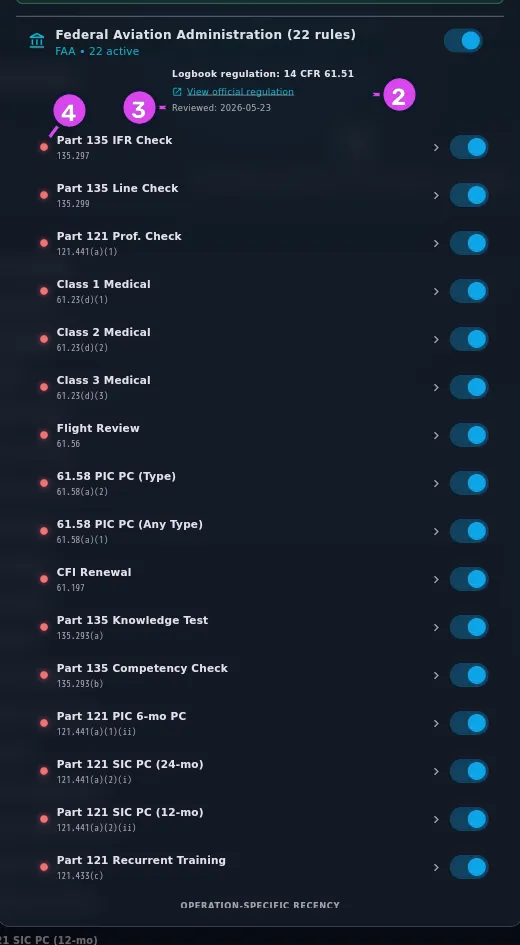
2 the reference panel — carrying the Reviewed date3 the caption grouping the rules below by operation4 a rule row's dot — its live status colour - Scroll past the reference panel to the rules. The ones that apply whatever you fly come first. Everything under the caption OPERATION-SPECIFIC RECENCY is grouped by operation.
- Tap a rule’s row — anywhere except its switch — to open that rule in full (→ G9). The coloured dot at the left of the row is its live status, the same colour it has on the dashboard; the switch at the right takes the rule off your card.
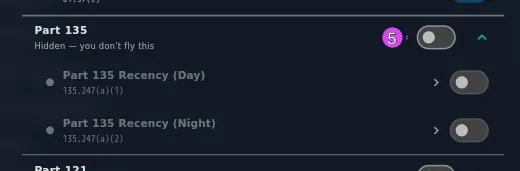
- Use an operation group’s switch to turn the whole group on or off. The group’s subtitle tells you what the app has decided for it:
| Subtitle | What it means |
|---|---|
| Baseline · always applies | The general-aviation minimum for that authority — FAA Part 91, EASA Part-NCO, UK CAA UK Part-NCO, TCCA CAR 605, CASA Part 91, CAANZ Part 91. On unless you turn it off. A rule scoped to a baseline counts every flight, tagged or not |
| Shown on dashboard | You’ve logged at least one flight under this operation, so the app turned it on for you. A rule scoped here counts only flights tagged with this operation |
| Hidden — you don’t fly this | No flight in your logbook is tagged with this operation. Its rules are dimmed, and don’t reach your card |
How to tell it worked
The authority tile’s subtitle shows a lower active count than its rule count, and back on the dashboard the Currency Status card no longer lists the rules you switched off. A group you turned on by hand shows its rules undimmed, with live coloured dots.
If something goes wrong
| What you see | Why | What to do |
|---|---|---|
| A rule you expected is nowhere on the dashboard | One of three gates is closed | Work through the check below, in order |
| All of an authority’s rows vanished at once | Its authority switch went off | Turn it back on. Rules you switched off one by one stay off |
| A rule’s switch won’t move | Its authority is off, or its operation reads Hidden — you don’t fly this | Turn the authority on, or turn the operation on. The rule switch is the innermost of the three |
| View official regulation does nothing | The link couldn’t be opened on this device | Look up the citation on the panel yourself. This panel says nothing when the link fails; the message Could not open link only appears on the rule’s own screen (→ G9) |
| An operation you do fly reads Hidden — you don’t fly this | No flight has that operation in its Operating Under field. Carry-forward entries and drafts don’t count | Turn the group on by hand. It stays on: your switch overrides what the app worked out |
| An operation group you turned on by hand, whose rules all sit red and won’t move | Turning the group on shows those rules; it doesn’t tag your flights. A Part 135 or Part 121 rule counts only flights whose Operating Under says so | Set Operating Under on the flights concerned (→ C1). Flights already logged without it stay uncounted until you edit them |
| An operation you no longer fly keeps coming back | A logged flight is tagged with it, so the app keeps turning it on | Turn the group off by hand. Your switch wins in this direction too |
The three-cause check for a missing rule
Nothing on the dashboard hints at any of these, so work through them in this order:
- Is its authority on? Open Compliance Settings and look at the tile’s switch. If the card shows no rows at all, this is the answer.
- Does its operation read Hidden — you don’t fly this? Expand the authority and look under OPERATION-SPECIFIC RECENCY. A rule scoped to an operation you’ve never logged isn’t on your card, with no row and no message.
- Is the rule’s own switch off? Expand the authority and find the row. A rule switched off is missing in exactly the same way.
If all three are open and the rule is still missing, it isn’t a rule this app ships. The shipped set is 111 rules across six authorities, and you can’t add to it.
What’s on an authority tile
The tile’s title is the regulator’s full name and its rule count. Its subtitle is the acronym and how many of those rules are active. The authority’s own switch is at the top right — the outermost of the three switches on this screen.
Reference: the operations, per authority
The baseline for each authority is in bold. These are also the choices in the Operating Under field when you log a flight (→ C1).
| Authority | Operations |
|---|---|
| FAA | Part 91, Part 135, Part 121 |
| EASA | Part-NCO, Part-NCC, Part-SPO, Part-CAT |
| UK CAA | UK Part-NCO, UK Part-NCC, UK Part-SPO, UK Part-CAT |
| TCCA | CAR 605 (General), CAR 604 (Private Operator), CAR 702 (Aerial Work), CAR 703 (Air Taxi), CAR 704 (Commuter), CAR 705 (Airline) |
| CASA | Part 91, Part 121, Part 133, Part 135, Part 138 |
| CAANZ | Part 91, Part 115 (Adventure Aviation), Part 121, Part 125, Part 135, Part 137 |
| Belonging to no authority | Military, Public Use, Other |
Those last three are always offered when you log a flight, and feed no rule at all. A sector flown as Military is recorded and appears in your totals, but counts toward no currency requirement.
Of the 111 shipped rules, twelve are scoped to an operation:
- Part 61 Day Pax, Part 61 Night Pax and Part 61 IFR under FAA Part 91. Part 91 is the baseline, so these count every flight.
- Part 135 Recency (Day) and Part 135 Recency (Night) under Part 135, and Part 121 Type 90-Day under Part 121. These count only what you tagged.
- The three Cruise Relief rules under EASA Part-CAT, and the same three under UK Part-CAT. They form one Cruise Relief Recency row, green if any of the three is met: the usual 3 take-offs, approaches and landings, 3 sectors on type as Relief crew, or a Cruise Relief Refresher (FFS) record, each within 90 days. They count only flights you tagged Part-CAT.
Every other rule applies whatever you fly under. That’s why most of what you see sits above the OPERATION-SPECIFIC RECENCY caption, and why a TCCA, CASA or CAANZ pilot finds little or nothing beneath it.
Gotchas
Switching an authority on for the first time switches on all of its rules. An FAA-only Part 91 pilot who does that gets Part 121 and Part 135 checks they’ll never file, sitting red on the dashboard forever. Switch them off one by one. It doesn’t work in reverse: switching the authority off and on again doesn’t bring back the rules you switched off. Those choices are remembered per rule, and you undo them one at a time.
Your switches go to your other devices. Authorities, rules and operations you switch on or off here reach your paired devices with the next sync. If you flip the same switch on two devices before they sync, the later change wins.
The rules can’t be changed, only switched off. There’s no add, no edit, no delete and no update. If a rule’s window doesn’t match how you’re required to operate, switch that rule off and track it yourself, rather than trust a number you know is wrong.
The Reviewed: date answers “how up to date is this?” It’s the day that authority’s citations and links were last checked against the source. A regulation that changed after that date isn’t reflected here — and that’s the limit the acknowledgement you gave is about.
Turning the acknowledgement off is one tap, and it reaches every device. The switch on the Responsibility acknowledged banner at the top of this screen turns it off with no confirmation. It blanks the dashboard card here and on every paired device, and greys out everything below it. Turning it back on means reading the dialog and ticking the box again (→ G6).
This screen changes what you can log later. The Operating Under dropdown in the flight-entry wizard only offers the operations of the authorities you have switched on here (→ C1). Switch an authority off and its operations stop being offered on new flights. And since logged operations are what turn operation groups on, that loops back to this screen — so switch authorities off with care.
An operation decides whether a rule is shown — and, for commercial operations, which flights it counts.
A rule scoped to an authority’s baseline operation — in bold in the table above — counts every qualifying flight in its window, whatever you logged the flight under, including flights where Operating Under was left empty. Part 61 Day Pax is scoped to Part 91, so three landings flown under Part 121, or under nothing at all, satisfy it. That kind of recency belongs to the pilot, not the operation, and Operating Under is an optional field most imported logbooks don’t have.
A rule scoped to any other operation counts only flights with that exact operation. Part 135 Recency (Day) counts Part 135 legs and nothing else: a Part 91 leg doesn’t satisfy it, a Part 121 leg doesn’t, and a leg with Operating Under left empty doesn’t either — the app won’t assume an untagged flight was a commercial one. Part 121 Type 90-Day works the same way. Nothing is credited across operations, in either direction: whether one part’s recency counts toward another is an exemption question, and the app won’t answer it for you.
Two practical results. First, tagging matters: fly Part 135 and leave Operating Under empty, and the Part 135 rows stay red however much you fly. The fix is the field, not more flying (→ C1). Second, the other filters still apply on top: the seat you flew in, and the aircraft’s category, class and type.
None of this makes a green row proof that you’re legal under the part you’re required to meet. That’s a question for the regulation, not for this card.