
The logbook list
What this does
Explains the screen your flights live on: what every control does, what a flight card is made of, and which flights each number on the screen is counting.
That last one is the question this whole area exists to answer.
Before you start
- Flights exist. An empty logbook shows a logbook glyph, No flights yet, and one button, Import Flights From Data Source (→ B2).
- Deleting a flight from this screen can’t be undone inside the app, and the deletion reaches your paired devices on the next sync.
- On the free tier, Add Flight opens the upgrade screen instead of the entry form once the hours you logged in the app pass 100. Imported hours and Previous Experience don’t count toward that 100 (→ K2).
Steps
- Tap Logbook in the navigation bar. The title reads Pilot Logbook on a
wide window and Logbook on a narrow one — it’s the same screen on every
platform.
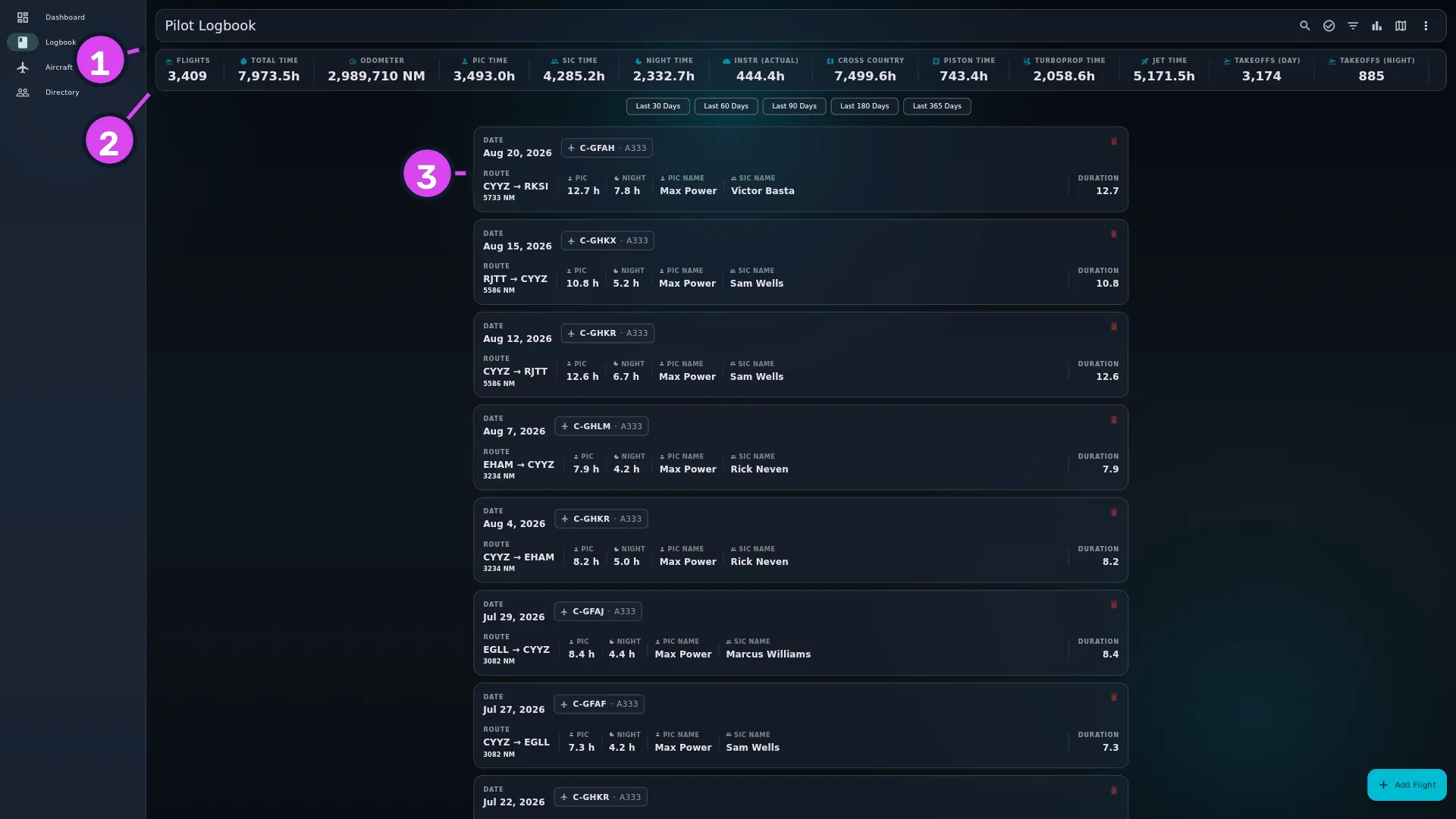
1 toolbar2 stats bar3 a card - Check the stats bar across the top. A new logbook has three tiles — Flights, Total Time and Odometer — and you choose what goes there (→ D2). It updates whenever you apply a filter.
- Look over a card. DATE, ROUTE and DURATION are always there; the
strip of small figures between route and duration is yours to set
(→ D3). The parts are listed under
Reference: a flight card below.
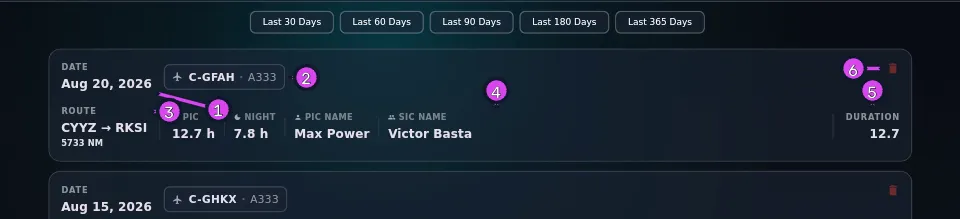
1 DATE2 the aircraft badge: registration and type3 ROUTE + distance4 the metrics strip — yours to configure5 DURATION6 the red bin — deletes the flight - Look for the two badges that can sit on a card’s top edge. The amber DRAFT pill marks an unfinished entry — tooltip Draft — tap to complete and file this flight (→ C3). The photo badge, tooltip Has photos, marks a flight with pictures (→ C6).
- Tap a card to open that flight read-only (→ D7). At 800 px and wider it opens as a centred dialog; narrower, as a full-screen page.
- Press and hold any card to start selecting several. Each card gets a checkbox and a bar appears reading N Selected (→ C8). The toolbar’s Enter Multi-Select button does the same.
- To delete one flight, tap the small red bin at the card’s edge and confirm: Delete Flight? / Are you sure you want to delete this flight? / Cancel / Delete.
- Pull the list down to refresh it. Do this when the list looks out of date after work on another screen.
- Scroll to the bottom for older flights. The list loads 50 at a time, and a That’s everything footer appears once there are no more.
How to tell it worked
You’re on Pilot Logbook (or Logbook) with a stats bar at the top, a row of chips under it, and one card per flight below that — or one line per flight, if you’ve chosen a dense view (→ D11). Tapping a card opens the flight read-only, and there’s no amber banner while no filter is on. On a logbook with nothing in it yet, you get the empty state instead:
If something goes wrong
| What you see | Why | What to do |
|---|---|---|
| No flights yet with the logbook glyph, and the Import Flights From Data Source button | The logbook has no flights at all | Log one (→ C1) or import (→ B2) |
| No flights yet with the logbook glyph and no button | A filter is on and nothing matches it. The screen only checks for a search term when it picks its message, so a filter that matches nothing gets the empty logbook wording | Clear the filter (→ D4). Look for the amber banner before you believe the logbook is empty |
| No flights found with the jet glyph | A search term is on and nothing matches it | Clear the search (→ D5) |
| Error loading flights: … | The logbook couldn’t be read | Pull down to refresh. If it keeps happening, restart the app |
| The Flights stats tile shows a different number from Apply Filters (N Flights) | The stats tile never counts drafts; the filter count does, because it’s counting the cards you’re about to see | Nothing is wrong. See the reference table below |
| The BROUGHT FORWARD card — the one card standing in for the hours you flew before this logbook (→ B7) — has vanished | Any filter at all hides it. Its hours stay in the stats bar | Tap Clear All on the amber banner (→ D4) |
| Add Flight opens a purchase screen | You’ve reached the free tier’s 100-hour cap | See what the cap is and what lifts it (→ K2) |
| Scrolling to the bottom adds nothing and shows no footer | The next 50 didn’t load | Pull down to refresh, then scroll again |
| Scrolling to the bottom shows That’s everything | Every flight that matches your filter is already on the list | Nothing to fix. That’s the end of the list |
Reference: a flight card
- DATE on the left. Beside it, the aircraft badge: the registration, a
·, then the type designator. An aircraft with no registration shows Ship n instead, and an aircraft’s own fleet number shows as a separate FIN pill after the badge. On a card too narrow for both, the badge drops to its own line under the date. - ROUTE in the middle, with the distance under it in your distance unit when the flight has one.
- DURATION on the right.
- Between route and duration, the fields you picked in D3.
Reference: the toolbar
Named by their tooltips, left to right.
| Control | Tooltip | What it opens |
|---|---|---|
| Magnifying glass | Search | A search field in place of the title (→ D5) |
| Tick in a circle | Enter Multi-Select / Exit Multi-Select | Selection mode, for editing or deleting several flights (→ C8) |
| Three stacked lines | Filter Logbook | The filter sheet (→ D4) |
| Bar chart | Analytics | Sixteen charts (→ D9) |
| Map | Career Map | The map. Wide windows only — on a narrow window this button isn’t there (→ D10) |
| ⋮ | More Actions | Export Data (→ F1), Import Data (→ B2), Previous Experience (→ B7), Find Duplicates (→ D8), and Career Map on a narrow window |
When you’re selecting several flights, the N Selected bar has three buttons: a cross (tooltip Clear Selection), a pencil that edits the whole selection at once and has no tooltip, and a bin (tooltip Delete Selected).
Wide and narrow windows. The title switches to Logbook when the toolbar is under 600 px wide. The toolbar sits inside 64 px of margin and padding, so on a window that happens at roughly 660 px, not 600. The screen rearranges itself; it doesn’t become a different screen.
Reference: what each surface counts
Four surfaces on this screen count four different sets of flights, and the charts count a fifth. Nothing on screen tells you.
| Surface | Deleted flights | Drafts | Brought forward | Simulator sessions | Obeys your filter |
|---|---|---|---|---|---|
| The list of cards | out | in — the amber DRAFT card | out — shown by its own BROUGHT FORWARD card | in | yes |
| Stats bar, the Flights tile | out | out | out | in | yes |
| Stats bar, every other tile | out | out | in — its hours, and the landings and takeoffs entered with them | out | yes |
| Apply Filters (N Flights) on the filter sheet | out | in | out | in | yes |
| Analytics charts | out | out | 5 charts of 16 include it | 2 charts of 16 include it | no — never |
| The Career Map | out | out | out | out | yes |
Three sentences cover most of it:
- A draft is on the list, in the filter count, and in nothing else. The filter count is counting the cards you’re about to see, so it includes the draft. The Flights tile counts logged flights, and a draft isn’t one yet (→ C3).
- Carry-forward hours are in every hours total and in no flight count. They’re hours, not flights, and the app treats them that way everywhere.
- Simulator sessions count as flights but aren’t flight time. They’re in Flights, in the list and in the filter count, and out of Total Time, every other hours tile, and the Career Map.
Gotchas
Deleting a flight deletes it everywhere. On the next sync, every paired device removes its copy too. There’s no undo and no bin inside the app. The only way back is a backup taken before the deletion (→ H6), so if you’re unsure, open the flight and check it first (→ D7).
Nothing on a card hints at the long-press. Press and hold a card, or use Enter Multi-Select in the toolbar. If nobody tells you about the long-press, you’ll use the toolbar button forever — which works, but is slower.
A list that stops without the footer hasn’t finished. When every flight is loaded you get That’s everything. If the list stops growing and there’s no footer, the next batch didn’t load: pull down to refresh before you decide a flight is missing. If you’re hunting for one particular flight, search for it rather than scrolling (→ D5).
The BROUGHT FORWARD card follows the filter; its hours don’t. Apply any filter — a smart range, one tail, a quick-filter chip — and the card disappears while Total Time still includes its hours. That’s by far the most common reason the card and the bar seem to disagree.
Worked example
One draft. Your logbook holds 12 filed flights and one entry you saved as a draft last night. You open the filter sheet, tick nothing, and the button reads Apply Filters (13 Flights) — it counts the draft, because it’s counting the cards you’re about to see. You tap it and count thirteen cards. The stats bar’s Flights tile still reads 12: a draft isn’t a logged flight until you open it and file it.
Previous Experience. You enter 4,200 hours of Previous Experience for a career before this logbook (→ B7), on top of 300 hours logged in the app across 150 flights. Total Time reads 4,500. Flights reads 150 — the carry-forward balance is hours, and the app never makes up flights for them. On the list you get one BROUGHT FORWARD card at its as-of date — between the flights newer than that date and the ones older, not pinned to either end — and no other new cards. Filter to Last 90 Days and the card goes, while the stats bar still includes its hours.