
The flight detail view
What this does
Opens one flight and shows you everything recorded on it, grouped by category, with the way through to editing or deleting it.
Before you start
- The detail view is read-only. To change anything you tap Edit, which opens the same entry form you logged the flight in (→ C1).
- A field with no value isn’t shown, and a category with nothing in it doesn’t appear at all. That’s normal, and it’s the usual answer to “where did my field go”.
Steps
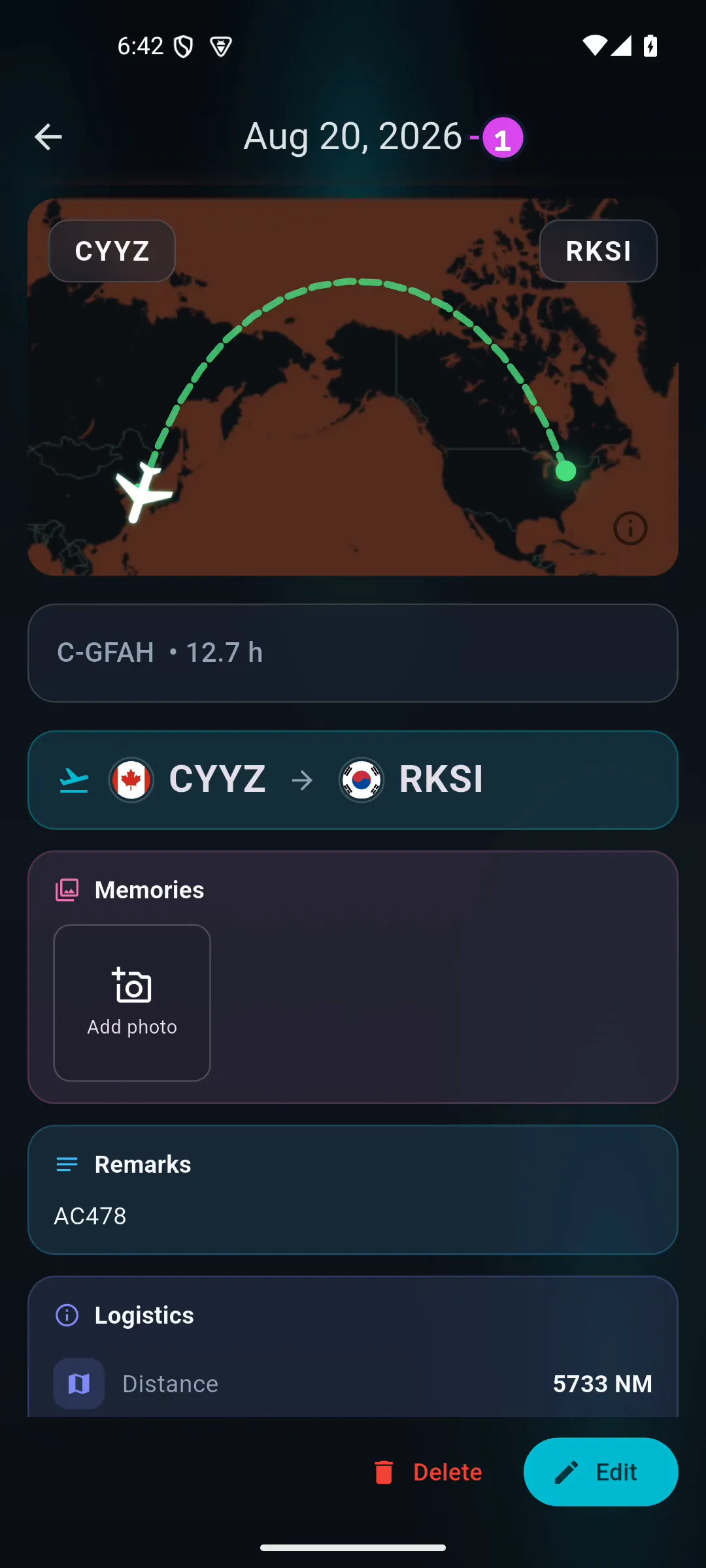
- On the logbook screen, tap a flight card. On a wide window it opens as a
centred dialog with a ✕; on a phone, as a full-screen page with the
flight’s date in the app bar.
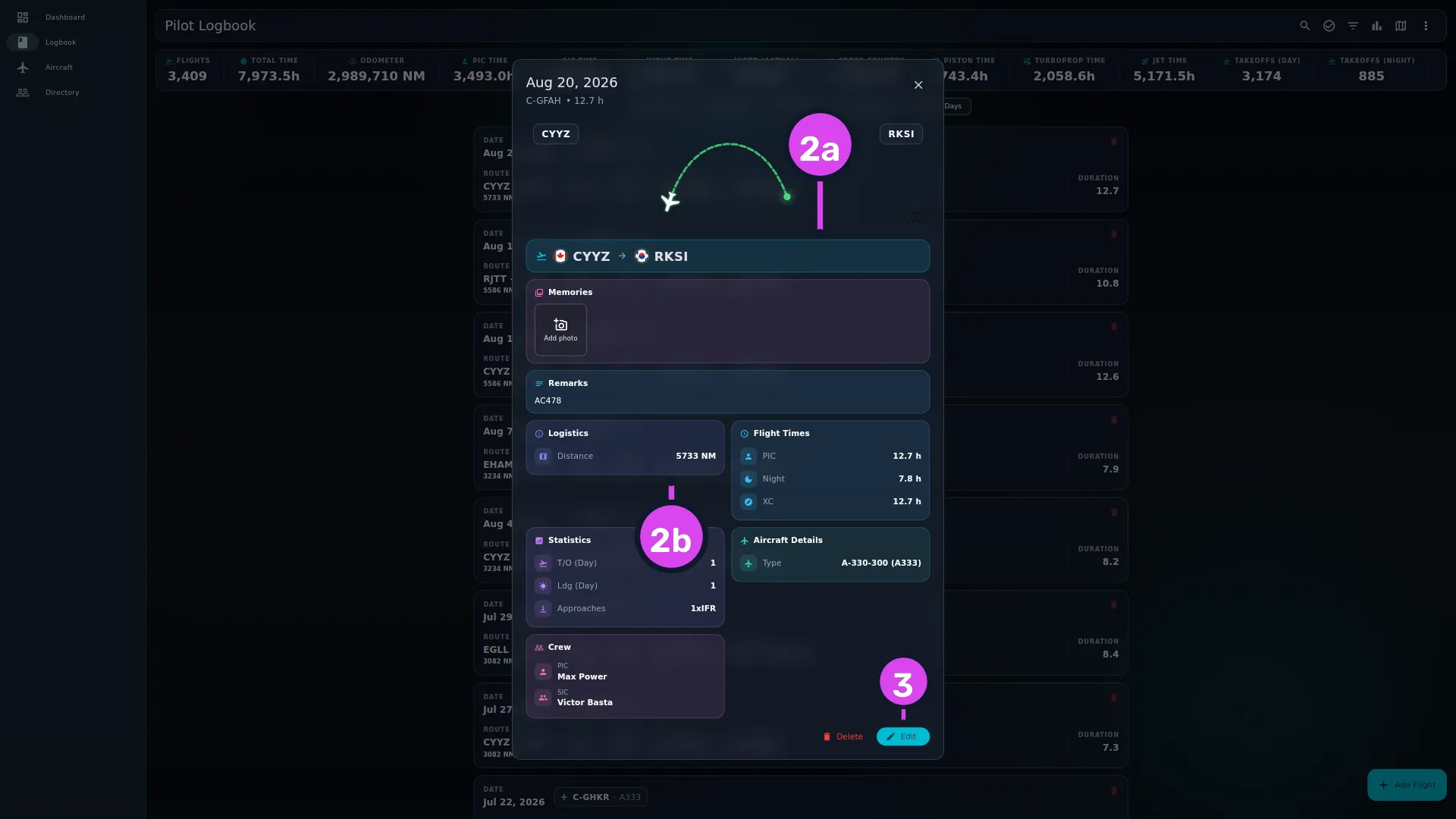
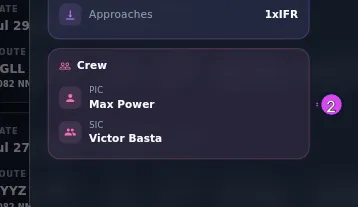
2a route card2b a category card3 Edit - Scroll down through the flight: the route card, then one coloured card per
category, such as Crew. The full order is under What’s on the page
below.
- To act on the flight, use the row at the bottom: Source, Delete or Edit. Edit closes the view and opens the flight in the entry form.
- Close with ✕, or with the back gesture on a phone.
How to tell it worked
You see the flight’s date, its registration and its total time at the top, the route card under that, and one card for each category that has anything in it. Nothing on this screen accepts typing.
If something goes wrong
| What you see | Why | What to do |
|---|---|---|
| A field you filled in isn’t here | It has no value on this flight, or it’s hidden in the Detail View layout | Check the value in Edit, and check the layout in Profile Settings → LAYOUTS → Detail View (→ J6) |
| A whole category card is missing | Nothing in that category has a value on this flight | Nothing to do. The card comes back when a field in it is filled |
| There’s no map banner | One or both airports have no coordinates | Fix the airport (→ E9) if it should have them |
| No Source button | The flight was logged in the app, not imported | Expected |
| Op Under and Op Rule show the same thing | Op Under is your regulatory Part number and Op Rule is VFR/IFR/Mixed. They’re separate fields, but a flight logged before Op Rule existed (or not edited since) can show the same value in both | Set Op Rule in Edit if it should be different |
| Deleting here removed it from another device too | A deletion syncs to your other devices | That’s expected. There’s no undo inside the app (→ H6) |
What’s on the page
From top to bottom:
- the map banner, drawn when both airports have coordinates
- the route card, DEP → ARR, with via … under it when a route was recorded
- the photo gallery (→ C6)
- Remarks, when there are any
- one coloured card per category — Logistics, Flight Times, Statistics, Aircraft Details, Aircraft Flags (as chips), Crew, Duty & Fuel, Specialized Ops
- Additional Fields, holding your custom fields (→ J7)
And the action row at the bottom:
- Source — only on a flight that came from an import. It opens the original entry from the import file that this flight was made from (→ B6).
- Delete — asks Delete Flight? / Are you sure you want to delete this flight? / Cancel / Delete.
- Edit — closes the view and opens the flight in the entry form.
Window sizes. On a window 800 px or wider, the flight opens as a centred dialog. Narrower, it opens as a full-screen page. Below 600 px that page has an app bar titled with the flight’s date; between 600 and 800 px it’s the dialog’s own layout — date in the header, ✕ beside it — drawn on a full page.
Three fields you can’t turn off
The Detail View editor offers Total Time, Route and Registration as fields you can hide, and turning them off changes nothing you can see. The header and the route card always draw them. Hide them if you like the editor tidy, but expect them to stay on screen.
The same fields, set up twice
The eight categories here are the same eight that feed the flight card (→ D3), but each screen has its own settings. The card’s are stored on this device only; the detail view’s follow you to your other devices (→ J4).