
Search
What this does
Finds flights by typing — a tail number, an airport code, a type, a crew member or an approach.
Before you start
- Search works together with the filter sheet (→ D4): a flight has to match both to be shown.
- It matches seven things, listed below, and remarks aren’t among them.
Steps
- On the logbook screen, tap the magnifying glass — tooltip Search. The
title is replaced by a field hinted Search flights….

1 the field3 the ✕ — clears the term as well as closing - Type. The list narrows as you go, and capitals make no difference.

- Tap ✕ to close the field. That clears the search as well as closing the box.
How to tell it worked
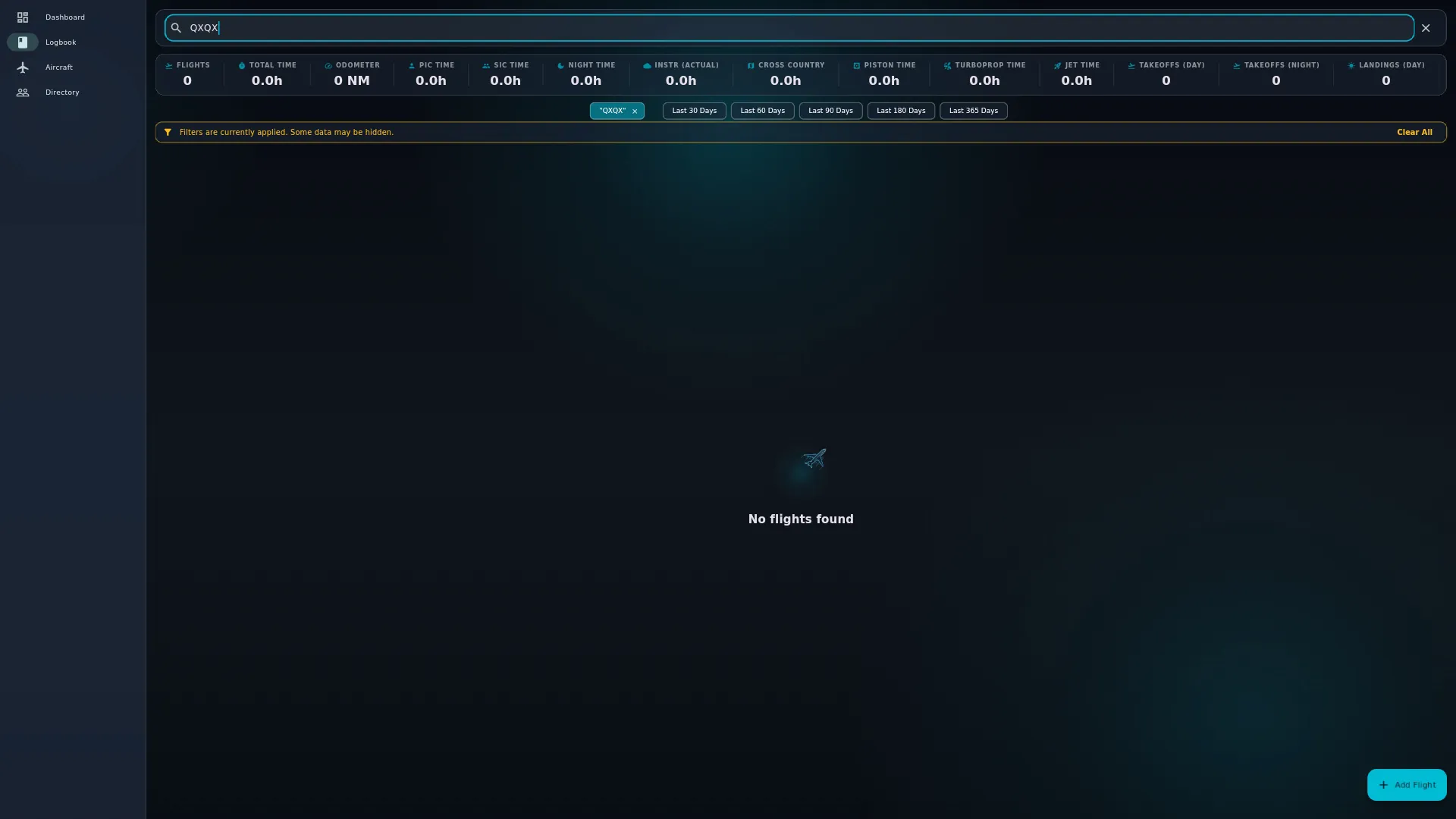
The list shows only matching flights, and the stats bar shows totals for them. When nothing matches, you get the jet glyph and No flights found — a different message from No flights yet, the one an empty logbook shows.
If something goes wrong
| What you see | Why | What to do |
|---|---|---|
| No flights found for a word you can see on a card | The word is in something search doesn’t look at — see below | Search for the tail, the airport code or the type instead |
| The list is short and the search box looks empty | A search is still on from an earlier session | Tap the ✕ on its chip above the list, or open Search and close it with ✕ |
| A flight you’re expecting isn’t there | A filter is on as well, and search and filters combine | Look for the amber banner and tap Clear All (→ D4) |
What a search is matched against
Exactly seven things, and nothing else:
- the route as recorded on the flight
- the aircraft registration
- the aircraft type designator
- the departure airport’s ICAO or IATA code
- the arrival airport’s ICAO or IATA code
- a crew member’s first name, last name or full name
- an approach type
Remarks aren’t searched. Neither is the flight number, a tag, or an airport’s name. So typing engine failure finds nothing even though the words are in your notes, and typing Heathrow finds nothing while EGLL and LHR both work. A flight you can’t find this way hasn’t gone anywhere. For tags, use the TAGS section of the filter sheet (→ D4).
A search stays on after a restart
Close the app with a search in the box and it’s saved. Next time you open the app, the list is still narrowed by it. The search box itself is empty until you tap the magnifying glass again, but a chip with your search term sits in the row above the list, and the amber banner is on. To clear it and get the full list back, tap the ✕ on that chip, or open Search and close it with ✕.