
See more flights at once: the dense views
What this does
Switches the logbook list from a card per flight to one line per flight, so several times as many flights fit on the screen without scrolling.
Before you start
- A profile is open, with flights in it.
- The choice is kept on this device only. Your phone can stay on cards while your desktop shows one line per flight. Set it on each device you want it on.
- The fields on each line are the ones you chose for the flight card. To change them, see D3 — there’s no separate editor for the dense views.
Steps
- On the dashboard, tap your own profile card at the top to open Profile Settings, then scroll down to LAYOUTS.
- Under Logbook View, tap Columns or Rows. The line under the title
changes to describe the view you picked — One line per flight, columns lined
up under a header for Columns, One line per flight, each scrolls on its
own for Rows — and ends this device only.
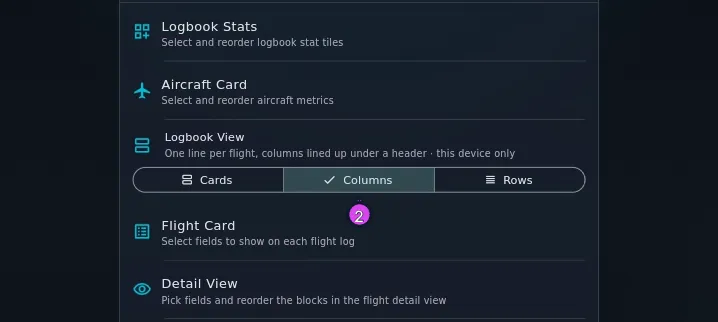
2 the Logbook View selector - Go back to the logbook. Each flight now takes one line, with the date on the
left. In Columns, a row of labels across the top of the list names each
column, and it stays put while the flights scroll under it.
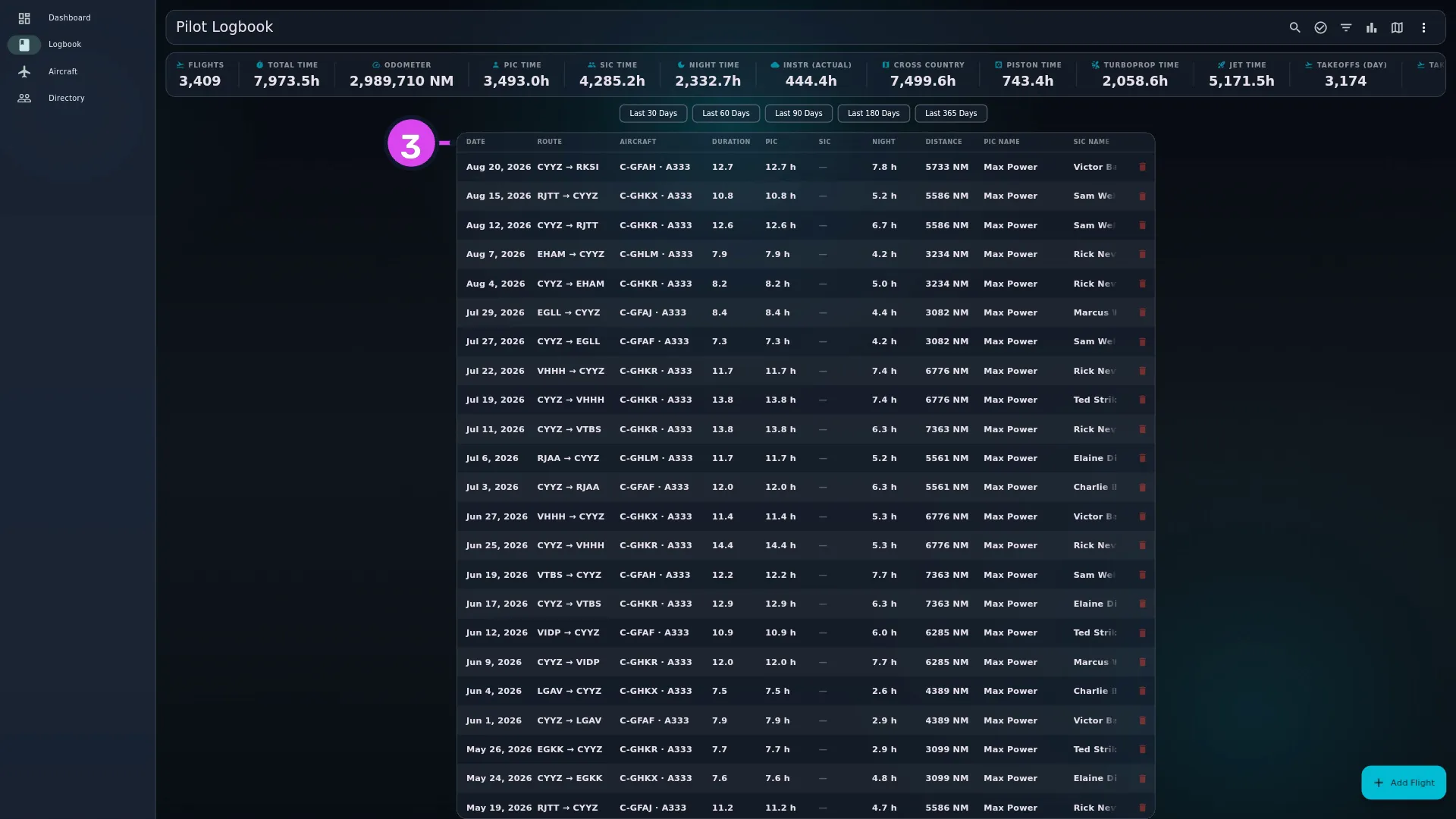
3 the header row — stays put while the flights scroll - To see the fields further along a line, scroll it sideways: drag it, swipe it,
use a trackpad, or hold Shift and turn the mouse wheel. The date doesn’t
move. In Columns, every line and the header row move together; in
Rows, only the line you scroll moves.
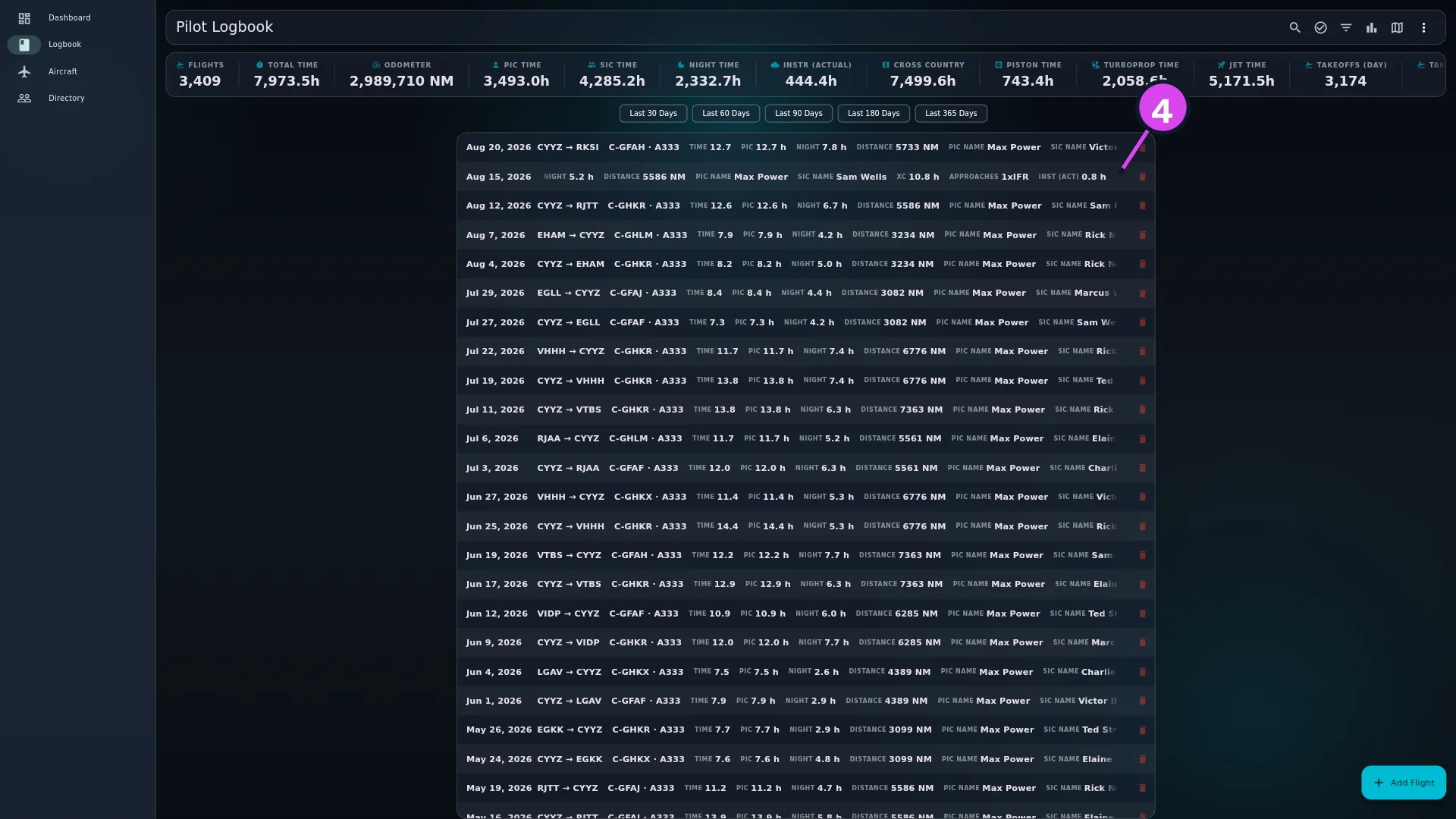
4 the scrolled line — each line moves on its own - Tap a line to open the flight, or press and hold one to start selecting flights, exactly as you would a card.
To go back to cards, tap Cards under Logbook View.
How to tell it worked
The list sits on one panel with alternately shaded lines, one flight per line, and many more flights on screen than before. Every line starts with the date, then the route, the aircraft and the flight time.
If something goes wrong
| What you see | Why | What to do |
|---|---|---|
| A field you want isn’t on the line | The lines show your flight card’s fields, and only those | Add it to the flight card (→ D3). It appears in all three views |
| The mouse wheel scrolls the list up and down, not the line sideways | Without Shift, the wheel belongs to the list | Hold Shift and turn the wheel, or drag the line. In Columns, turning the wheel over the header row also scrolls sideways, and the header has a scrollbar you can drag |
| In Columns, a cell shows a dash | That flight has no value for that column | Nothing is wrong. The dash keeps the columns straight |
| In Columns, a value ends in … | Every column has a fixed width, and a long value is cut short | Open the flight to read it in full, or switch to Rows, where each value takes the space it needs |
| Your other device still shows cards | The view is kept on each device separately | Set it on that device too |
| The BROUGHT FORWARD card is still a full card | Your carried-forward hours stay a card in every view (→ B7) | Nothing. It’s one card, at its as-of date |
| The view changed after a restore, or didn’t | A Merge restore sets the view only if this device has never chosen one; a Replace restore brings the backup’s choice (→ H6) | Choose the view again under Logbook View |
Columns or Rows
Both put one flight on a line, with the same fields in the same order. They differ in how a line scrolls and what it does with an empty field.
| Columns | Rows | |
|---|---|---|
| Labels | One header row at the top of the list | Each value carries its own label, such as TIME before the flight time |
| Scrolling sideways | Every line and the header together, so you can read a column straight down the page | Each line on its own |
| A field with no value | A dash | Left out, as on a card |
| A yes/no field | ✓ — or ✗ where the flight records a no, such as Supervised | The field’s name |
| Width | Fixed per column; long values are cut short with … | As wide as the value |
Pick Columns to compare one field across many flights. Pick Rows when your flights fill in different fields and you’d rather not scroll past empty cells.
What’s on a line
From left to right:
- A checkbox, only while you’re selecting flights.
- The date. It never scrolls. A draft has DRAFT under its date and an amber edge on the left, where a card has an amber border (→ C3).
- The route, as departure → arrival airport codes.
- The aircraft: its registration (or ship number), then its type.
- The flight time.
- Your flight card’s fields, in your order. Distance appears here only if it’s one of those fields — on a card it sits under the route instead.
- At the far end, a photo marker if the flight has photos (Has photos), and the delete button (Delete flight), which asks before it deletes anything, as on a card.
Worth knowing
Leaving the logbook resets the sideways scroll. In Columns, come back to the logbook from another screen and every line starts at the left edge again.
The wheel is the list’s, not the line’s. On a desktop, turning the mouse wheel always scrolls through your flights. That’s what makes it possible to scroll a long logbook while the pointer rests on a line. Scrolling sideways needs Shift, a drag, a trackpad, or the header row.
Dense views change what you see, not what’s counted. The stats bar, filters, search and quick filters work exactly as they do with cards (→ D1).