
The Career Map
What this does
Draws every flight in your logbook across a world map, and replays them in the order you flew them.
Before you start
- Clear your filter first. The map draws the filtered logbook, and a filter or a search narrows it without saying so — the title reads Career Map either way (→ D4).
- This is free. There’s no Pro check on the Career Map.
Steps
- On the logbook screen, tap the map button — tooltip Career Map. On a narrow window it isn’t in the toolbar (the breakpoint is the toolbar’s, → D1); use ⋮ (More Actions) → Career Map instead.
- Wait while Plotting your routes… is on screen. The map then zooms to fit
your whole career.
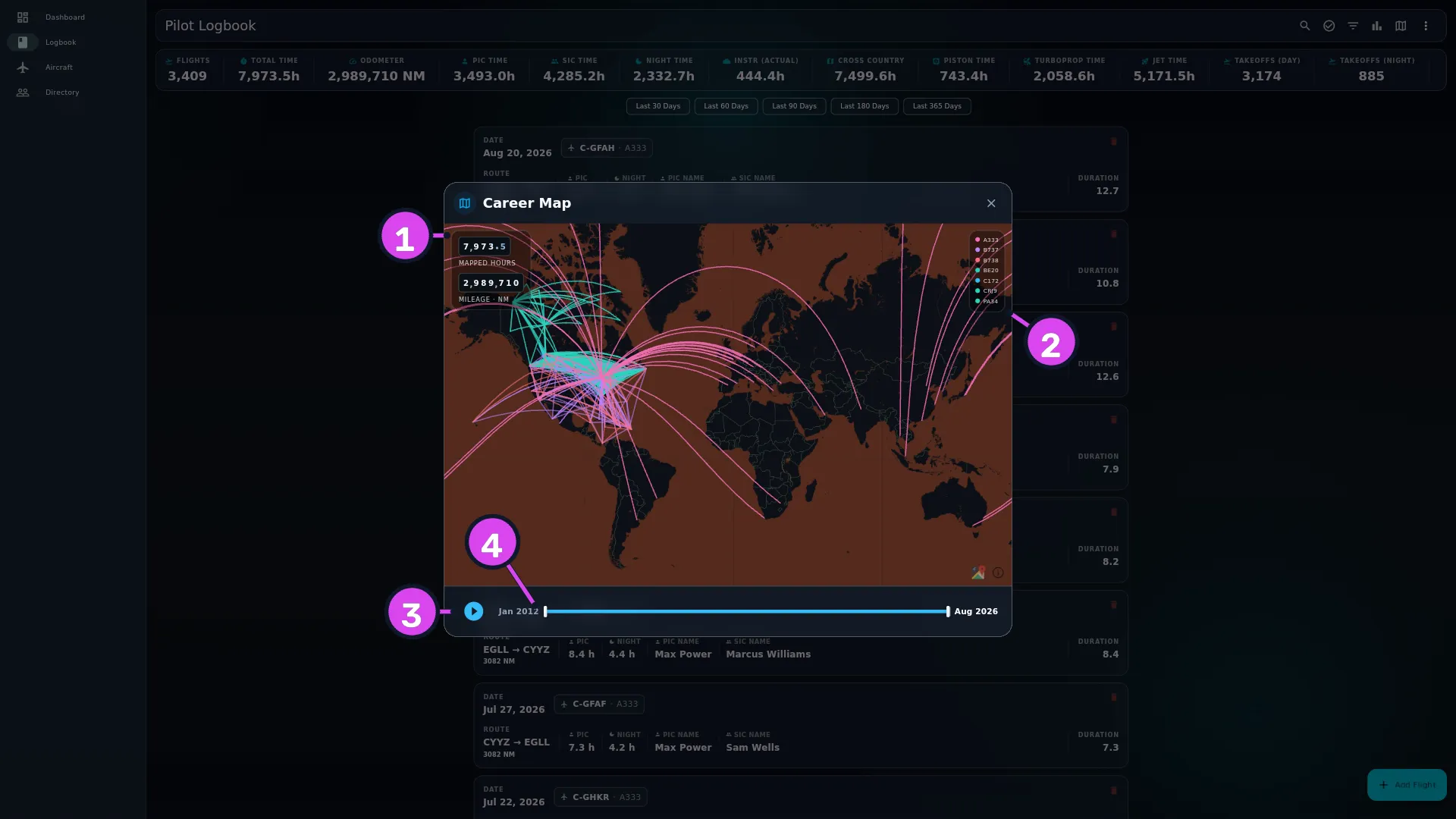
1 the readout: hours and mileage in view2 the legend — coloured by aircraft type3 play — replays the flights in order4 the range slider — limits the map to a period - Check the floating readout: MAPPED HOURS, and MILEAGE · followed by your distance unit — NM, km or mi. If any flights couldn’t be placed on the map, a line under MILEAGE says how many.
- Press the play button under the map to replay your flying in order, starting
from wherever the left-hand handle is. Press it again to pause.
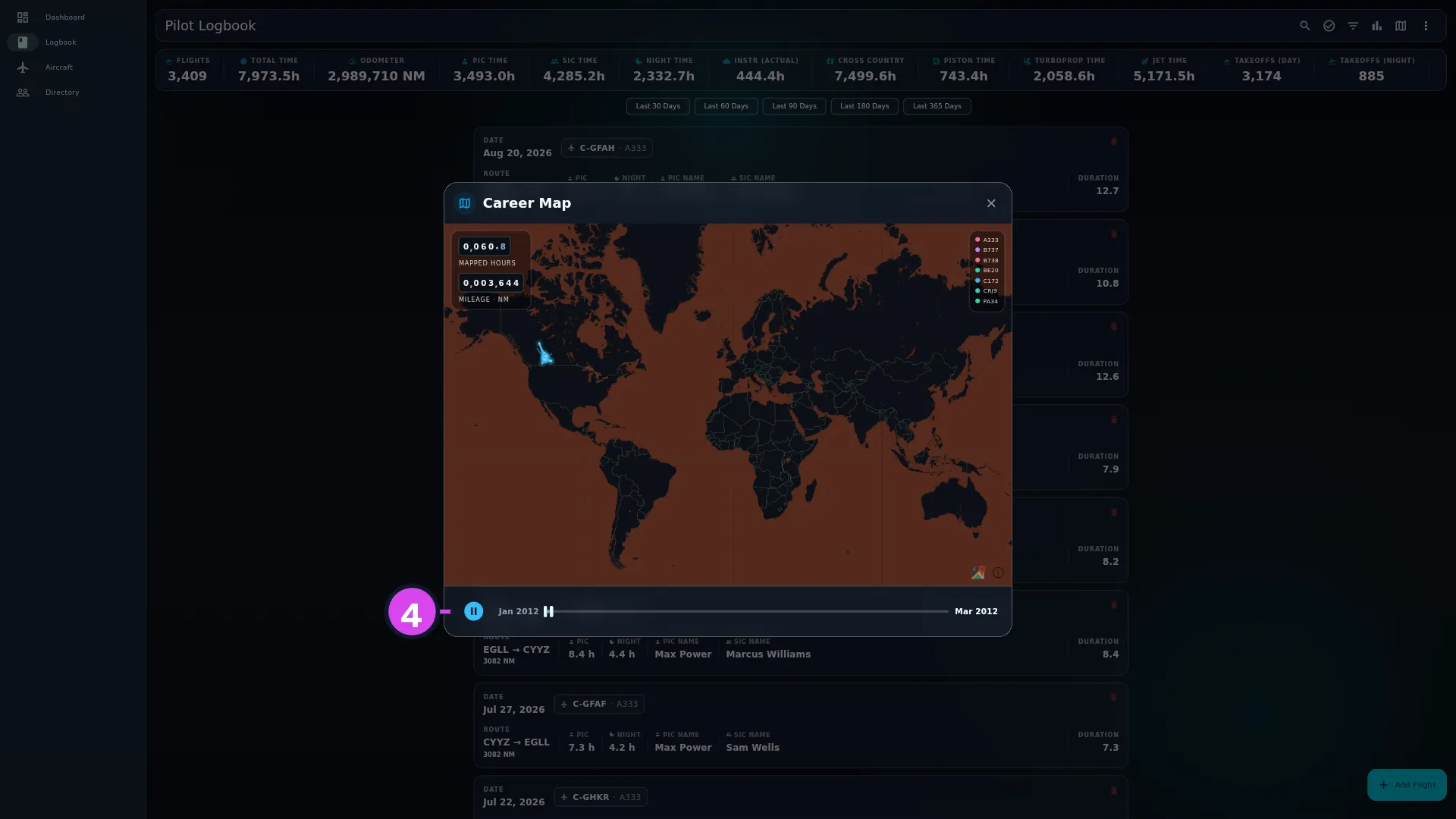
- Drag either handle of the range slider to limit the map to a period. The month at each end of the slider shows where the handles are. Dragging a handle stops playback.
- Close with the ✕, or by tapping outside the dialog.
How to tell it worked
You see a world map with your routes drawn across it, a colour legend naming each aircraft type, a readout showing mapped hours and mileage, and a timeline along the bottom whose end labels are the first and last months in view. When there’s nothing to draw, you get an empty state instead:
If something goes wrong
| What you see | Why | What to do |
|---|---|---|
| ”No flight data available” | The logbook, as filtered, has no flights | Clear the filter (→ D4) |
| “No flights with location data” | Nothing in view has two airports with coordinates | Check the airports on your flights (→ E9) |
| Fewer routes than you have flights | A flight is only drawn when both its airports have coordinates. The line under MILEAGE says how many were left out | Fix those airports (→ E9), then reopen the map |
| Nothing happens when you tap the map | There’s nothing to tap. No markers, no labels, no links | Expected |
| Error: … | The flights couldn’t be read | Close the map and open it again |
What the map is, and isn’t
The map is built into the app and works with no connection. That’s why it stops zooming at world or continent scale and has no airport markers, labels or tap targets. It’s a picture of where you’ve flown, not a route-planning or navigation chart, and nothing on it should be used as one.
Routes are coloured by aircraft type, and the legend beside the readout names every colour in use — scroll it if you’ve flown more types than fit. There are only seven colours, so on a long career two types can share one. When that happens, read the legend by name, not by colour.
The map updates while it’s open. Log, edit or delete a flight, or change the filter, and the routes, dates and both counters redraw. Pausing and pressing play again carries on from wherever the left-hand handle is, rather than starting your whole career over.
Why MAPPED HOURS isn’t your total time
MAPPED HOURS and MILEAGE only ever cover what’s on the map: both climb during playback and change when you move a slider handle. Two things separate them from your real total. Flights whose airports have no coordinates aren’t drawn, and their hours aren’t counted — the line under MILEAGE tells you how many. And the figures only cover the range the slider is showing, so anything short of your full career is a part of it. Simulator sessions are left out here, the same as from every other hours total. Take your career hours from the stats bar (→ D2) or from an export (→ F1).