
Restore from a backup
What this does
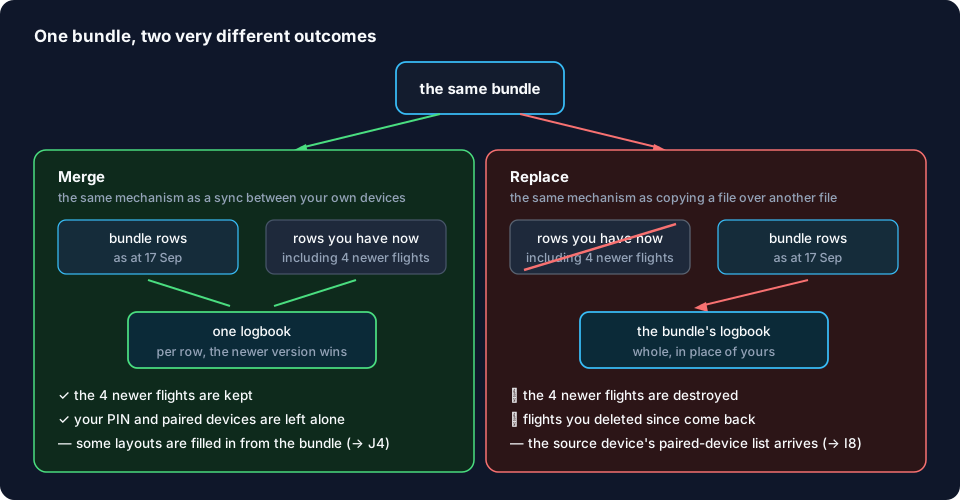
Brings a backup file — a bundle — back into the logbook it came from. There are two ways to do it, Merge and Replace, and they have very different results.
Before you start
Choose Merge or Replace before you open the wizard. Both are called “restore” and both go through the same three screens, but they do opposite things to the flights you logged this morning.
| Merge | Replace | |
|---|---|---|
| What it does | Adds the bundle’s contents to the logbook you already have, keeping whichever version of each entry is newer | Throws away the logbook you have and puts the bundle’s copy in its place |
| Choose it when | You want data from the bundle added — a logbook that lost entries, a device that fell behind, a bundle from the device you sync with | The logbook on this device is wrong, damaged, or no longer wanted, and the bundle is the version you trust |
| Flights you logged after the bundle was taken | Kept | Destroyed. Nothing in the app puts them back — see Undoing a Replace below |
| Flights you deleted after the bundle was taken | Stay deleted | Come back |
| Your settings, layouts and theme on this device | Mostly kept — the exact split is in the reference below | Become the bundle’s |
| Your paired sync devices on this device | Kept | The bundle’s list arrives, but only counts where it traces back to a pairing this device made (→ I8) |
| Your PIN | Stays as it is | Becomes the PIN the logbook had when the bundle was made (→ A5) |
| It works like | Syncing two of your devices | Copying one file over another |
Merge is selected when the wizard opens, and the app’s description of it ends with the word Safe. It’s safe for your existing data — that’s all it promises. It can’t turn the clock back: if what you want is “put the logbook back the way it was on the 3rd”, Merge is the wrong choice, and it will look as though it did nothing at all.
You’ll also need:
- The profile the bundle came from, open. A bundle from a different logbook gets neither mode: the Mode step says This backup is a different logbook and offers Combine instead, which is for two logbooks made by mistake (→ H8). To put a logbook onto a device that doesn’t have it yet, see H7.
- The passphrase, if the bundle is encrypted. It must be exact, and nothing can reset it (→ H3).
- The file to hand, or the destination that holds it. Files app destinations can’t be browsed (→ step 4).
Steps
-
If you’re going to Replace, back up first (→ H4). A backup of the logbook as it is now is the only way back from a Replace that works on every device — and on a phone or tablet, it’s the only one at all. If you’re going to Merge, you can skip this step.
-
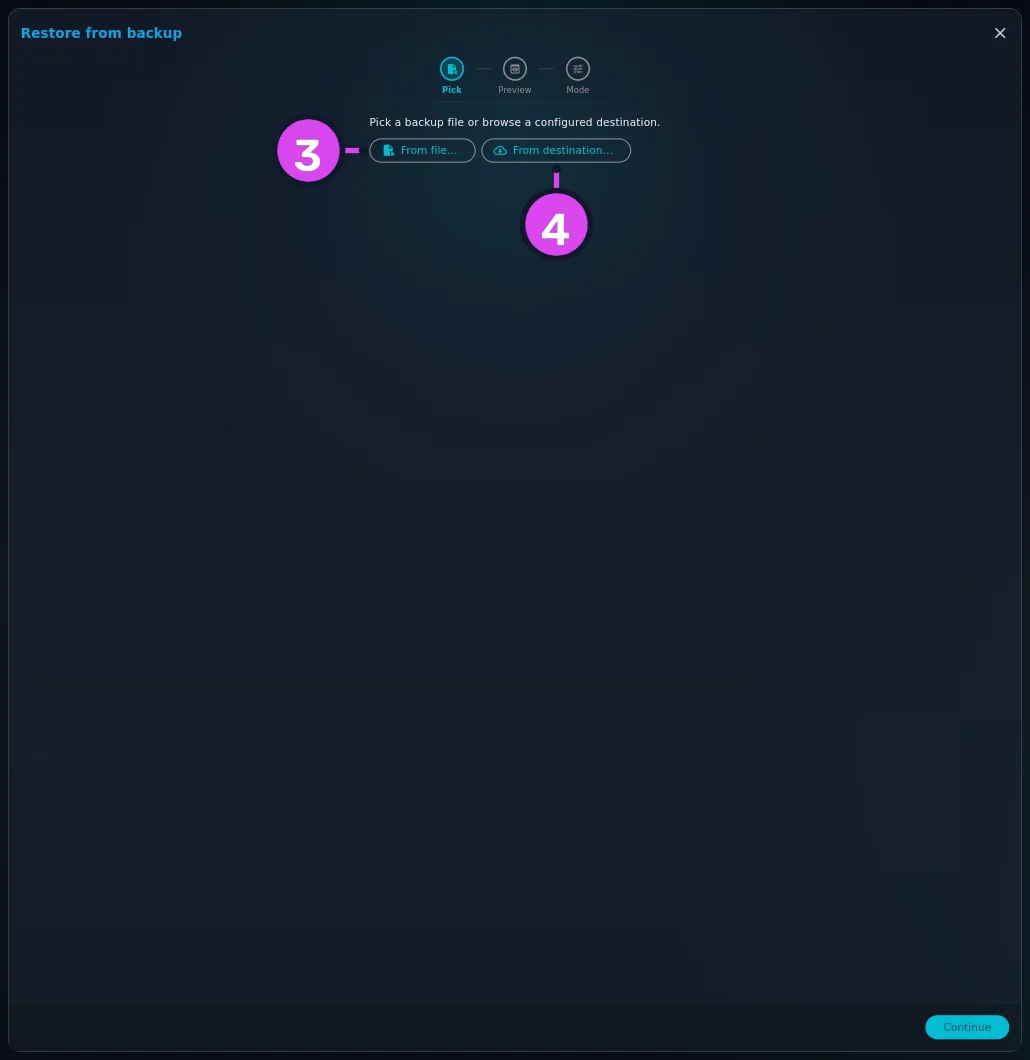
On the Backup panel, tap Restore from backup. A wizard opens, headed Restore from backup, with three stages across the top — Pick · Preview · Mode — and the prompt Pick a backup file or browse a configured destination.
-
Tap From file… and choose the bundle. The file picker is headed Pick backup bundle and accepts
.aviarcand.aviarc.encfiles, labelled Backup bundles. Once you’ve picked one, the wizard reads Selected:and the button becomes Pick a different file…. -
Or, to choose from backups a destination already holds, tap From destination…. The Restore from a destination sheet lists your destinations; expand one to see its bundles, each shown as
/ · . A Files app destination always lists nothing here — use From file… for those.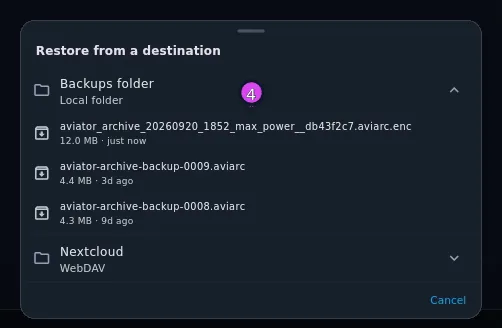
-
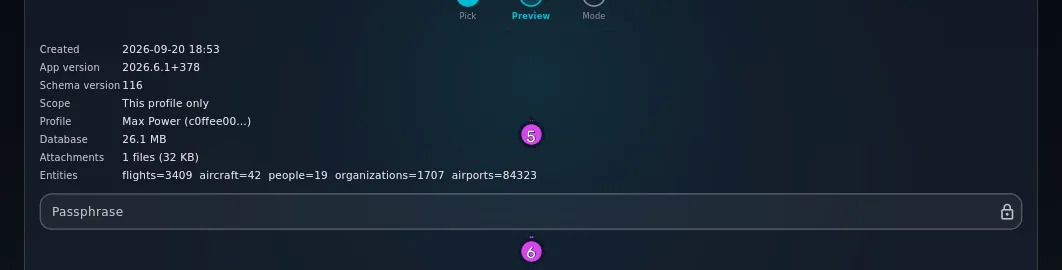
Tap Continue to reach Preview, and check this is the bundle you want. Nothing has changed yet. It shows Created, App version, Schema version, Scope, Profile, Database, Attachments and Entities — the number of flights, aircraft, people, organizations and airports in the bundle. Scope reads This profile only or All profiles: whether the bundle holds only this logbook, or every logbook the source device had.
-
If the bundle is encrypted, type the Passphrase. The padlock at the end of the field opens when it’s accepted. If the bundle holds more than one profile, a Profile dropdown appears, listing each with its flight count — pick one. Until you do, the preview shows no profile details and Continue stays greyed out.
-
Tap Continue to reach Mode, and choose Merge or Replace. Merge is already selected. Read both descriptions:
Merge — Combine bundle data with current data. HLC last-write-wins preserves local edits made after the bundle was taken. Safe.
Replace, on Linux/macOS/Windows — Deletes the active profile and puts the bundle in its place — anything logged since the backup was taken is gone. The database being replaced is kept beside the profile as a dated .bak file; recovering from it is a file copy, not a button.
Replace, on Android/iOS — Deletes the active profile and puts the bundle in its place — anything logged since the backup was taken is gone. The database being replaced is kept beside the profile as a dated .bak file, but nothing on this device can open or copy it out. A fresh backup taken before you Replace is the protection that actually works here.
(“HLC last-write-wins” means the more recently changed version of each entry is kept.)

-
Check which option is selected, then tap Run restore. A Merge starts straight away. A Replace first opens Replace the logbook on this device?, the last screen before anything is deleted. It names the profile and the date the bundle was taken, shows the flight count On this device now and Replaced with, lists what the bundle brings with it, and says where the old logbook will be kept. Type REPLACE into the field — the red Replace button stays greyed out until the word matches exactly — and tap it. Cancel backs out with nothing changed.

8 type REPLACE — nothing is deleted until you do
How to tell it worked
A message appears at the bottom of the screen. It’s different for each mode:
| Mode | Message |
|---|---|
| Merge | Restore complete — N rows merged, M attachments added |
| Replace, on Linux/macOS/Windows | Restore complete — profile replaced, M attachments restored. Previous database kept as |
| Replace, on Android/iOS | Restore complete — profile replaced, M attachments restored. The previous database was kept on this device but can’t be opened or copied from here — take a fresh backup before your next Replace if you want a way back. |
Then open your logbook and check. After a Merge, look for the flights you logged most recently — they should still be there. After a Replace, the logbook should look as it did on the day the bundle was taken.
If part of a Merge fails, you won’t see the message above. The wizard stays open and shows Restore incomplete — N rows merged, but 2 tables could not be read from the bundle (…), naming what couldn’t be read — see the table below.
If something goes wrong
| What you see | Why | What to do |
|---|---|---|
| The Mode step says This backup is a different logbook, with no Merge or Replace | The bundle came from a different logbook | If you meant to restore that logbook, leave this profile, open the right one, and start again; if it isn’t on this device at all, you want H7. If you made two logbooks by mistake, see H8 |
| This bundle was made with a newer database version. Update the app and try again. | The bundle came from a newer version of the app than this one | Update the app on this device. An older version can’t read a newer logbook, and there’s no way around it |
| Bundle payload hash does not match manifest — file is corrupt or has been tampered with. | The file is damaged, or was changed after it was made. (A damaged encrypted bundle shows Could not decrypt: incorrect passphrase instead) | Use another bundle. This is usually an incomplete download or copy, so fetch it from the destination again |
| Not an Aviator Archive backup bundle: missing manifest.json | The file you chose isn’t a bundle | Pick a .aviarc or .aviarc.enc file |
| Could not decrypt: incorrect passphrase | Wrong passphrase | Try the others you use. Nothing can reset it (→ H3) |
| This bundle contains N profiles. Pick one to restore. | The bundle holds several profiles and none was chosen | Go Back to Preview and choose one from the Profile dropdown |
| No backup destinations configured. Add one in the Backup segment of Import / Export / Backup first. | You tapped From destination… and this profile has no destinations | Use From file…, or add a destination (→ H2) |
| Could not download bundle: … | The destination couldn’t send the file | Check the server or drive, or download the file yourself and use From file… |
| Bundle missing profile DB. | The bundle is incomplete | Use another bundle |
| Restore incomplete — N rows merged, but 2 tables could not be read from the bundle (…). Nothing was deleted and a merge is safe to repeat… | Part of the bundle couldn’t be read during a Merge. Everything else was merged, and the wizard stays open | Run the restore again — repeating a Merge is safe. If it keeps naming the same parts, the bundle is damaged there |
| Restore failed unexpectedly. Try again, or use a different backup file if it keeps failing. | Something went wrong that the app didn’t expect. The details go to the app log, not the screen | Try again. If it keeps failing with the same file, use another bundle. A failed Replace puts your logbook back as it was; a failed Merge may already have added some of the bundle |
| A device that used to sync now sends nothing, asks for a PIN, or a sync never finishes | Expected after a Replace | See Sync after restoring a backup (→ I8) |
Undoing a Replace
A Replace doesn’t delete the logbook it replaces. It moves it aside as a dated
.bak file beside the profile, and keeps it even when the restore succeeds — the
last three are kept, and older ones are deleted. But nothing in the app can read a
.bak back in, and whether you can reach it at all depends on the device:
- Linux, macOS and Windows. You can recover by hand. Close the app, find the
.baknext to the profile, and copy it over the current logbook file. That’s what the app means by recovering from it is a file copy, not a button, and the confirmation dialog and result message both name the file. - Android and iOS. The folder is private to the app — no file manager, Files app or cable can reach it — so the file is written but you can’t get to it. The app says so on the Mode step, in the confirmation dialog and in the result message, and doesn’t name the file.
That’s why step 1 is a backup. A backup you take through the app, before the restore, is the way back that works everywhere.
Reference: Merge and Replace, side by side
| Merge | Replace | |
|---|---|---|
| What it does | Reads the bundle and merges it into your logbook, the same way sync between your devices does | Closes the profile, moves your logbook file aside, puts the bundle’s copy in its place, and reopens |
| Two versions of the same entry | The more recently changed one wins, entry by entry | The bundle’s version, always |
| Data logged since the bundle | Kept | Destroyed |
| Entries deleted since the bundle | Stay deleted, because the deletion is the newer change. It works both ways: something deleted on the source device after you last edited it here arrives as a deletion — so merging a bundle that’s newer than your own changes can remove entries | Come back |
| Entries in the bundle with no edit timestamp | Skipped — a merge needs the timestamp to decide which version is newer | Copied, like everything else |
| Photos, scans and documents | Copied, unless the file is already on this device | Copied over the top. Files here that aren’t in the bundle are left alone |
| If part of it fails | The rest carries on, and the result names what failed. Nothing is deleted, and it’s safe to run again | Everything is put back as it was, and it reports failure |
| Needs the bundle’s own profile open | Yes | Yes |
Reference: which settings a Merge changes
Some settings merge like flights do, some are only filled in if you’ve never set them on this device, and some a Merge never touches. They all look alike in the settings screens, so here’s which is which:
- Newer edit wins — the setting merges like a flight: the bundle’s version arrives if it was changed last, and yours stays if you changed it after the bundle was taken.
- Fills in only if unset here — the bundle’s version is used only if this device has never had one of its own. Set it here even once, and every Merge after that leaves it alone.
- Stays as it is here — a Merge never changes it. These describe this device, not your logbook.
| Setting | Merge | Replace |
|---|---|---|
| Logbook stats bar | Newer edit wins | Comes from the bundle |
| Detail view — hidden fields, category order, field order | Newer edit wins | Comes from the bundle |
| Entry form fields | Newer edit wins | Comes from the bundle |
| Filters and sort — logbook, airports, people, organizations, aircraft, types | Newer edit wins | Comes from the bundle |
| Flight card layout | Fills in only if unset here | Comes from the bundle |
| Logbook view — Cards, Columns or Rows | Fills in only if unset here | Comes from the bundle |
| Aircraft card layout | Fills in only if unset here | Comes from the bundle |
| Quick filters | Fills in only if unset here | Comes from the bundle |
| Theme and livery, light or dark | Fills in only if unset here | Comes from the bundle |
| Time format | Fills in only if unset here | Comes from the bundle |
| Distance unit | Fills in only if unset here | Comes from the bundle |
| Animation duration | Fills in only if unset here | Comes from the bundle |
| Default airport countries | Fills in only if unset here | Comes from the bundle |
| Interface scale | Stays as it is here — it isn’t in any bundle | Stays as it is here — it belongs to the device, not the logbook |
| Your backup destinations | Stays as it is here | Become the source device’s, with Run auto-backups and Send it unencrypted anyway switched off on every one of them |
| How far each sync had got | Stays as it is here | Becomes the source device’s (→ I8) |
| Your paired sync devices | Stays as it is here | The bundle’s list arrives, but only counts where it traces back to a pairing this device made (→ I8) |
| Your record of imports you could undo | Stays as it is here | Comes from the bundle |
In practice: on a device where you’ve already chosen a theme, card layouts and the rest of the nine “fills in” settings, a Merge leaves all of them alone. After a Replace, expect everything to look like the device the bundle came from.
What a Replace brings back that you may not want
A Replace copies the whole logbook file, and that file includes details about the device that made it. Two of them matter.
How far each sync had got. This device now believes it has already sent the source device’s partners everything the source device had, so a device that used to sync now sends nothing. The file’s list of paired devices comes too, but this device only accepts the ones that trace back to a pairing it made itself, so a device it was never paired with asks for a PIN once. Both are covered in Sync after restoring a backup (→ I8).
Its backup destinations. The Backup panel will list the other device’s destinations. Their folders may not exist here, and their passwords aren’t on this device — try to run an inherited WebDAV destination by hand and it fails with No saved WebDAV password for destination … — re-add it from the Backup segment of Import / Export / Backup. None of them will run on their own: Run auto-backups and Send it unencrypted anyway are switched off on every destination the bundle brings, because the passphrase and permission those need belong to the other device. Remove the ones you don’t want and add your own again (→ H2, H5).
Gotchas
Read the Mode step every time. Merge is preselected, and if you tap Replace by mistake, the confirmation dialog stands in the way. But that dialog only asks you to type a word, and a word typed on reflex stops being a check. Look at which option is selected, and read the dialog — every time, not only the first.
A Files-app destination shows nothing in the destination browser. Expanding one shows No backups found at this destination. Nothing is broken and your bundles aren’t lost — that kind of destination doesn’t record where you saved the file, so there’s nothing to list. Find the file yourself and use From file….
An older app can’t read a newer bundle. This bundle was made with a newer database version. Update the app and try again. won’t go away until the app is updated. Remember it when restoring onto an old spare device that hasn’t been updated in a while.
A PIN you don’t recognise after a Replace. A Replace brings the logbook back exactly as it was, PIN included. If you Replace from an old bundle and the profile then asks for a PIN you don’t remember, it’s asking for the one that logbook had when the bundle was made (→ A5, A7). A Merge never changes your PIN — and it can’t attach a recovery account from a bundle either.
Worked example
A bundle taken on the 3rd. On the 4th and 5th the pilot logged four flights, and also corrected the registration on an aircraft that the bundle still has spelled the old way. On the 6th they run the restore — once each way, on two copies of the same device, from the same file.
Merge. The message reads Restore complete — 2847 rows merged, 31 attachments added.
- The four flights from the 4th and 5th are still there. They aren’t in the bundle at all, and nothing in a bundle from the 3rd is newer than they are.
- The aircraft keeps the corrected registration. The newer edit won.
- Anything deleted here since the 3rd stays deleted.
- The theme, livery and flight card layout are exactly as this pilot left them. This device already had its own values, so the bundle’s weren’t used.
- The stats bar and detail-view layout were merged, and the bundle’s versions are three days old: anything the pilot rearranged on the 4th or 5th stays, and anything untouched since the 3rd comes from the bundle.
Replace, on a laptop. Tapping Run restore first opens Replace the
logbook on this device?, naming this profile, its current flight count against
the bundle’s, and the 3rd as the date taken. Typing REPLACE and pressing the
red Replace button starts it. The message then reads Restore complete —
profile replaced, 412 attachments restored. Previous database kept as
logbook_
- The four flights are gone from the logbook — not hidden, and not recoverable
inside the app. The
.baknamed in the dialog and the message is still on disk beside the profile: a copy of the logbook as it was immediately before the restore. - The aircraft is back to the old spelling, because the whole logbook is the one from the 3rd.
- The theme, livery, both card layouts and every filter are as they were on the 3rd.
- The Destinations list is now the one from the device that made the bundle, with Run auto-backups and Send it unencrypted anyway off on every inherited destination, and so is its record of how far each sync had got (→ I8).
The same Replace, on a phone. Every step and every number is the same, and the
.bak is written in the same place. Only the wording changes: the dialog doesn’t
offer the .bak as a way back, and the message reads Restore complete — profile
replaced, 412 attachments restored. The previous database was kept on this device
but can’t be opened or copied from here — take a fresh backup before your next
Replace if you want a way back. No file is named, because on a phone there’s
nothing you could open it with.
Same file, same wizard, same first tap on Run restore — and two completely different results.