
Encryption and passphrases
What this does
Settles one question, once: can somebody who finds one of your backup files read your logbook? The answer is yes, unless you gave that backup a passphrase.
Before you start
- A lost passphrase is a lost logbook. There’s no key escrow, no recovery account, nothing on any server, and no reset.
- This isn’t the profile PIN. They’re separate things with separate purposes, and a backup passphrase is sometimes the way back into a logbook whose PIN has gone (→ A7).
- Decide where the passphrase is going to live before you type it. Not on the device you’re backing up — see Where a passphrase has to survive to, below.
- The app asks for a passphrase in three different places, and they don’t talk to each other. Each covers something different — see The three places you’ll be asked, below.
Steps
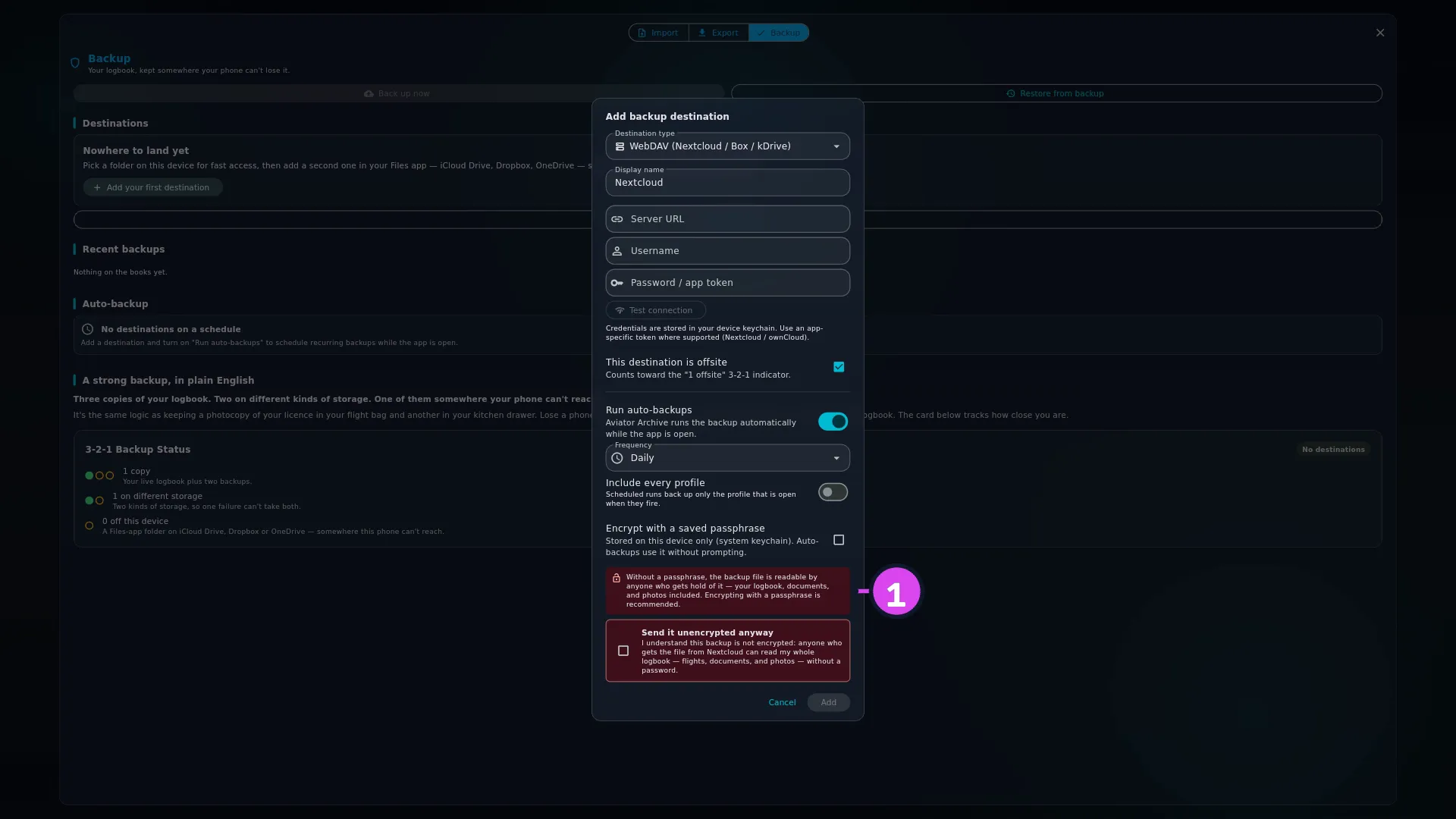
- Open the dialog you’re about to back up from, and look at the notice at the
bottom. With no passphrase it’s red-tinted, has an open padlock, and says:
Without a passphrase, the backup file is readable by anyone who gets hold of
it — your logbook, documents, and photos included. Encrypting with a
passphrase is recommended.
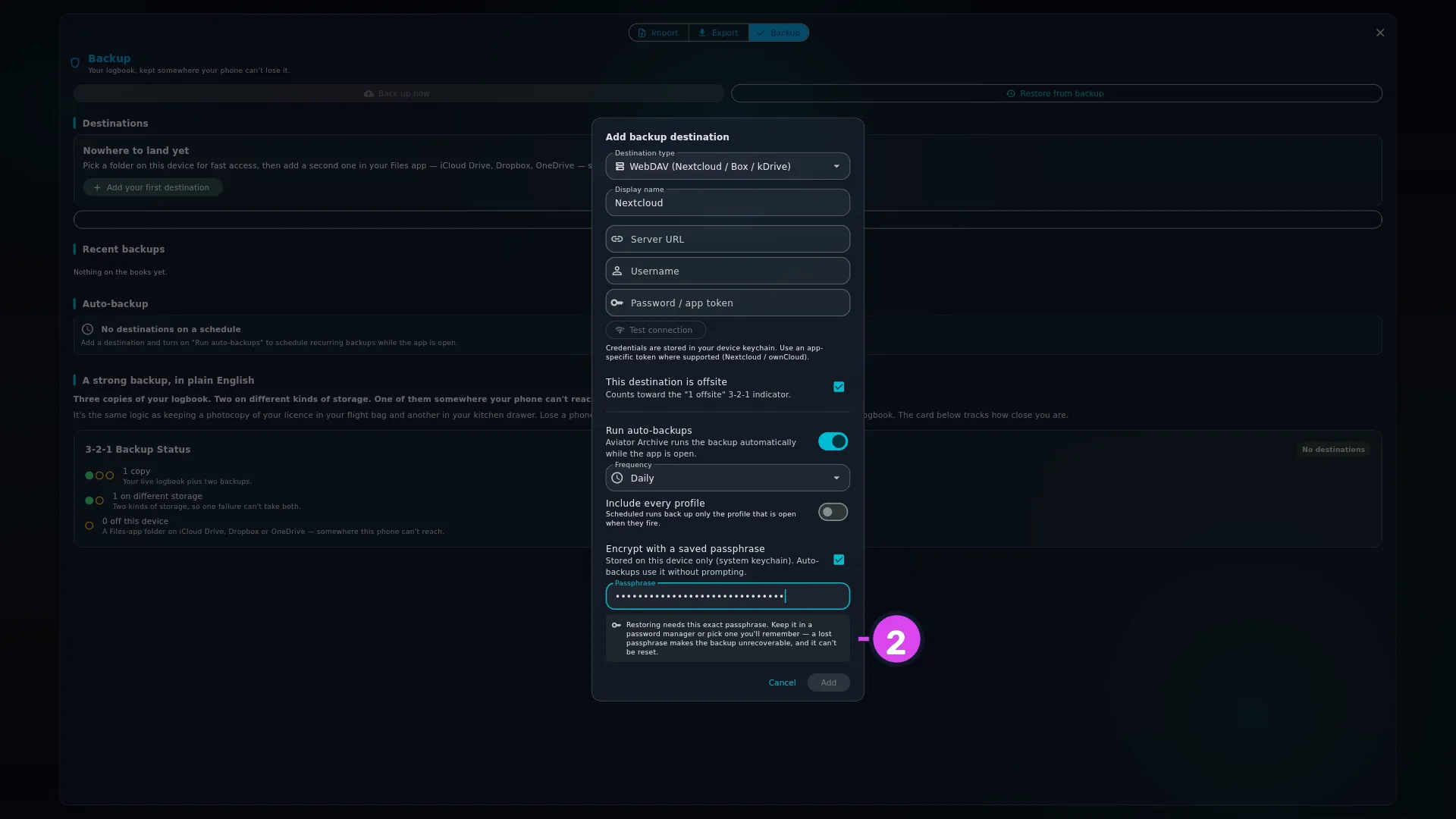
- Turn on that dialog’s encryption switch and type the passphrase. The notice
changes to a key icon and reads: Restoring needs this exact passphrase. Keep
it in a password manager or pick one you’ll remember — a lost passphrase makes
the backup unrecoverable, and it can’t be reset.
- If you’re leaving a scheduled bundle unencrypted on a destination you ticked
as offsite, tick Send it unencrypted anyway. The app won’t go on until you
do: I understand this backup is not encrypted: anyone who gets the file from
can read my whole logbook — flights, documents, and photos — without a password. You’re asked once per destination, not once per backup.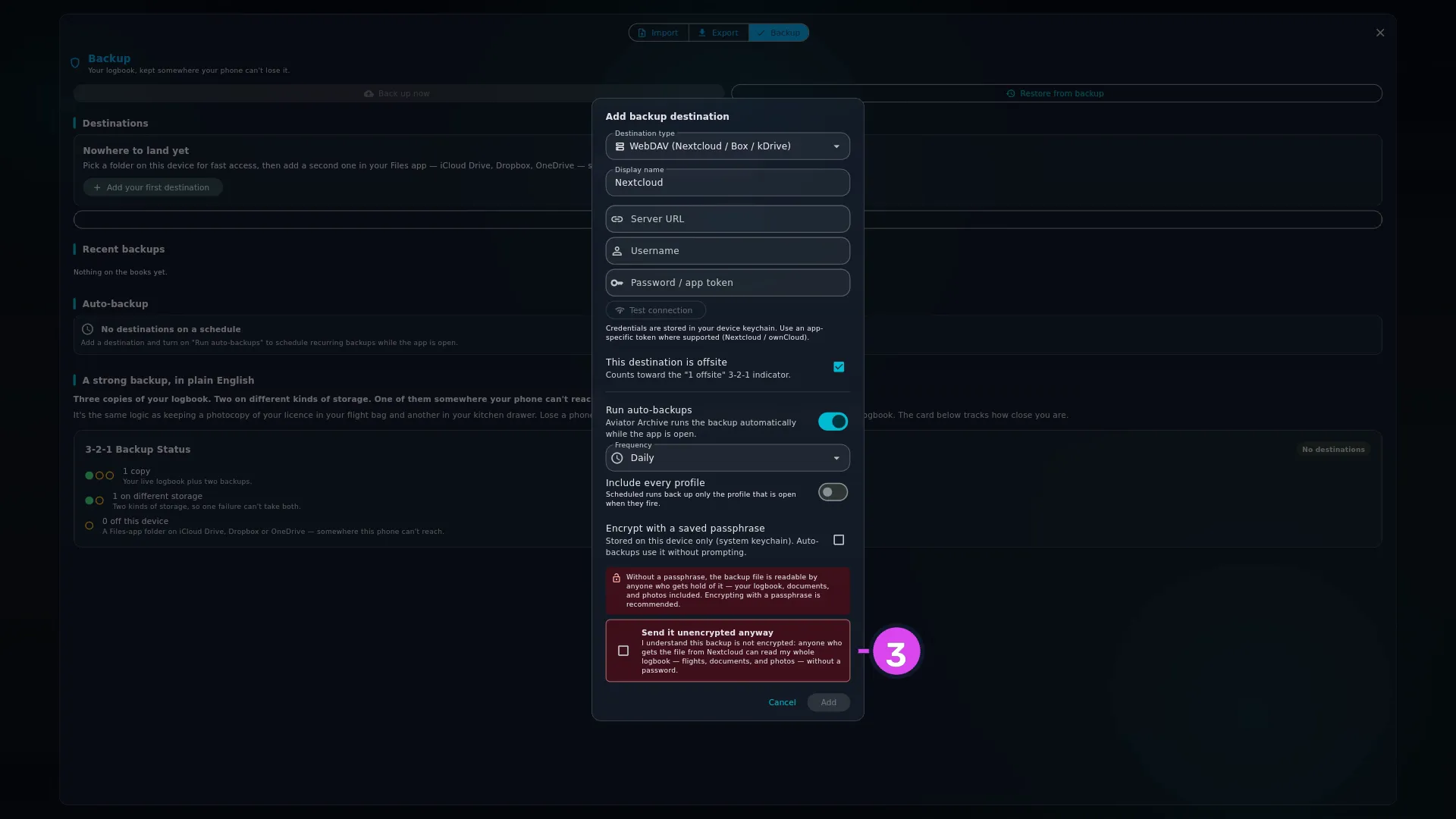
- Record the passphrase somewhere that isn’t this device, before you need it.
When you restore, the wizard asks for it in a field of its own, and the
padlock at the end of that field opens when the passphrase is accepted.

How to tell it worked
The file extension is the whole tell. An encrypted bundle is named
.aviarc.enc; an unencrypted one is .aviarc. You can see it in Recent
backups on the Backup panel, and in any file listing on any device, without
opening anything. If the filename ends .aviarc, whoever’s holding that file can
read it.
If something goes wrong
| What you see | Why | What to do |
|---|---|---|
| Enter a passphrase or turn off encryption. | The encrypt switch is on and the field is empty | Type one, or turn the switch off knowingly |
| Add stays greyed out on the destination dialog | Encrypt with a saved passphrase is ticked with an empty Passphrase, or the plaintext-offsite box needs ticking | Fill the field, or tick the box |
| This backup would leave the device unencrypted, and this destination is offsite. Run “Back up now” once to confirm you understand that, or give the destination a passphrase. | A scheduled run was refused because nobody was there to agree to it | Do what it says: one manual Back up now to that destination records your agreement. Or remove and re-add the destination with a saved passphrase — see that row in H4 |
| Could not decrypt: incorrect passphrase | The passphrase is wrong. This message means only that — a damaged file shows the next row instead | Try the others you use. There’s no reset and no hint. If you’re certain of the passphrase, fetch the file again |
| Bundle payload hash does not match manifest — file is corrupt or has been tampered with. | The file changed after it was written. This check runs after decryption succeeds — so on an encrypted bundle, seeing this sentence rather than incorrect passphrase proves the passphrase you typed was right. Retyping it won’t help | Use a different bundle. A partial download or a damaged drive is the usual cause |
The three places you’ll be asked
| Where | Control | Covers |
|---|---|---|
| The Add backup destination dialog | Encrypt with a saved passphrase — Stored on this device only (system keychain). Auto-backups use it without prompting. | Scheduled runs to that destination, and only those (→ H5) |
| The Back up to | Encrypt with a passphrase — AES-GCM-256 + PBKDF2. Recommended for cloud-bound bundles. | This one manual run, and only this one (→ H4) |
| The restore wizard’s Preview step | Passphrase | Reading an encrypted bundle back (→ H6) |
What protects the file
AES-GCM-256, with the key derived from your passphrase by PBKDF2-HMAC- SHA256 at 600,000 iterations, and a fresh random salt and initialisation vector for every bundle. That’s the sentence to hand an employer, or a security questionnaire.
Why an unencrypted bundle is so readable
The logbook on your device is encrypted. The copy inside a bundle is written out decrypted, because that’s what lets the file be restored onto a different device, which has a different key. So the only protection on a bundle is the passphrase you gave it.
An unencrypted .aviarc still carries a checksum, so the wizard can tell you the
file is damaged. That proves the file is intact, not who made it. Only
.aviarc.enc gives you that.
The button that still asks for your saved passphrase
A destination with Encrypt with a saved passphrase turned on encrypts every
scheduled run with the passphrase saved in this device’s keychain. Press
Back up now on that destination and the dialog doesn’t fill the saved
passphrase in — you type it again — but it doesn’t quietly switch to unencrypted
either. Encrypt with a passphrase starts on, its subtitle says This
destination has a saved passphrase for its scheduled backups. Re-enter it below
to encrypt this one too, and the Passphrase field’s helper text says the
saved one isn’t read back. Leave the field empty with the switch on and Run
backup refuses with Enter a passphrase or turn off encryption, rather than
writing an unencrypted .aviarc into a folder of .aviarc.enc files. You can
still turn the switch off yourself; the dialog doesn’t start that way.
Where a passphrase has to survive to
A password manager entry is the right first move, but it isn’t the whole answer. The failure you’re protecting against isn’t “I forgot it last Tuesday” — it’s “the laptop that held everything died four years later”. So put the passphrase somewhere that survives losing the device you’re backing up:
- A password manager that syncs, and whose own recovery you’ve tested.
- Written down, somewhere you’d still have after a house move — with your licence and medical, in a safe, with a family member.
- Not in a note on the phone whose logbook this is. If the phone is the thing you lost, so is the passphrase.
Use a passphrase you can type on a phone keyboard at an airport. You’ll do that exactly once, on the worst day of the year.