
Protect a profile with a PIN
What this does
Puts a 4- to 6-digit PIN on a logbook so it can’t be opened without one — on this device, and on any other device sharing that logbook.
Before you start
- Decide how you’d get back in if you forgot the PIN. A PIN with a Google or Apple account attached can be reset. A PIN with no account attached cannot be reset by anyone, including us — the logbook is encrypted and there is no copy of it anywhere else. Sign in first if you can.
- The PIN belongs to the profile, not to the device. Each logbook on a device can have its own PIN, or none.
Steps
- On the dashboard, tap your own profile card at the top. Profile Settings
opens — there’s no Settings tab to look for.
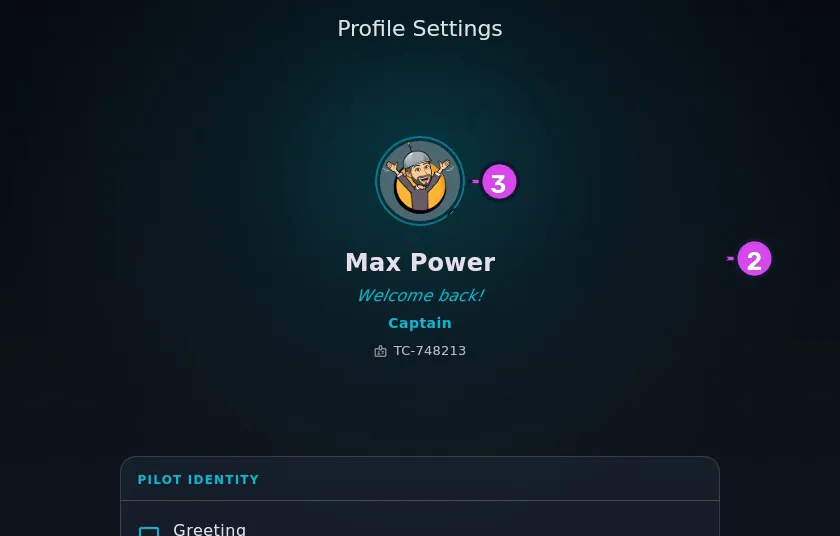
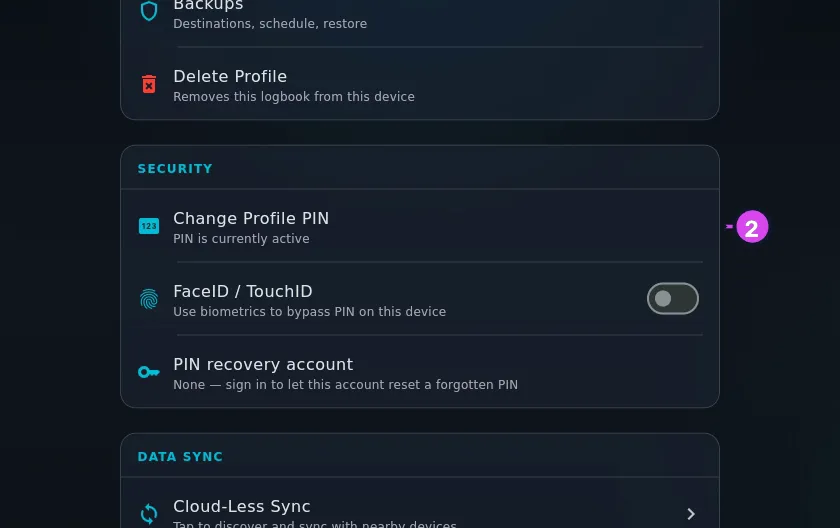
2 the block3 the avatar - Scroll down to SECURITY and tap Set Profile PIN. (If the profile
already has a PIN, the row reads Change Profile PIN, with PIN is currently
active underneath.)
- Type the PIN into New PIN, and again into Confirm PIN. Use four to six
digits.
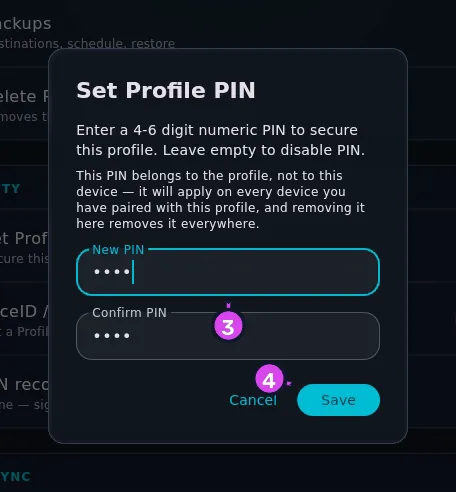
- Tap Save.
On a brand new profile, this dialog opens by itself the first time the profile opens, so you can skip steps 1 and 2.
To remove a PIN: open the same dialog, leave New PIN empty and tap Save. The dialog says so — Leave empty to disable PIN. There’s no separate remove button.
How to tell it worked
The dialog closes without a message. Back in SECURITY, the row now reads Change Profile PIN / PIN is currently active. To be sure, leave the profile (→ A8) and open it again: you’ll be asked for the PIN.
If something goes wrong
| What you see | Why | What to do |
|---|---|---|
| PINs do not match | The two fields are different. (This is checked before the length) | Type both again |
| PIN must be 4 to 6 digits | Fewer than four digits | Make it longer. The field stops you at six |
| A screen headed WARNING: This PIN cannot be reset | No recovery account is attached to this profile — see below | Read it, then choose |
| The dialog closed and nothing changed | You tapped Cancel, or closed the dialog | Open it again and tap Save |
The “cannot be reset” warning
Before saving, you may see a red-flagged screen titled WARNING: This PIN cannot be reset:
You are setting a PIN without being logged into a Google or Apple account. If you forget this PIN, your profile and logbook data will be permanently locked and cannot be recovered.
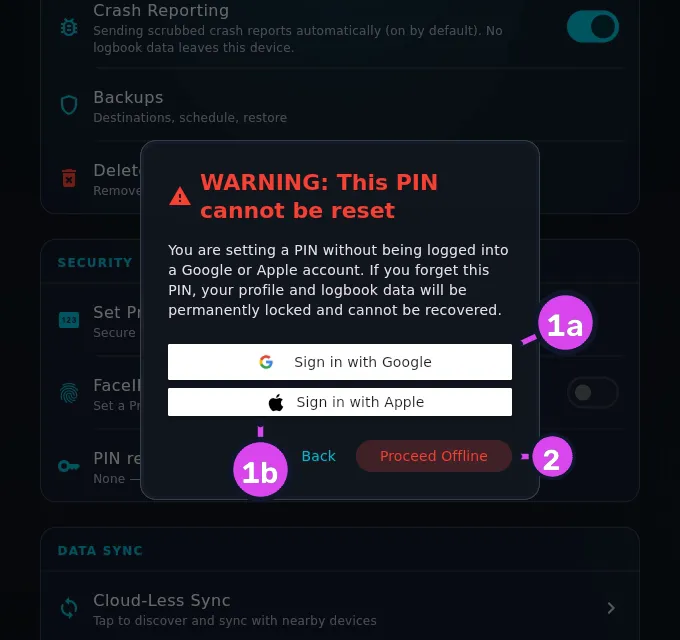
It appears when this profile has no recovery account attached. It has nothing to do with your internet connection: being online won’t make it go away, and being offline doesn’t cause it. (Older versions of the app headed it WARNING: Offline PIN. It’s the same warning.)
You have three choices:
- Sign in with Google or Sign in with Apple — attaches a recovery account and carries on. This is the one to choose. The account is only used for recovery and purchases; your logbook stays on your device.
- Proceed Offline — saves the PIN with no way back in if you forget it. That’s a fair choice if you make it knowingly, and it means exactly what it says: no account, no reset. Restoring a backup won’t help either, because the PIN is stored inside the logbook. You can attach an account later from Profile Settings → Security → PIN recovery account, but only from inside the profile — so only while you still know the PIN.
- Back — returns you to the PIN fields without saving.
If you’re already signed in on this device and the profile has no owner yet, you won’t see the warning at all: the profile is attached to the account you’re signed in with.
What happens to the PIN on your other devices
The PIN travels with the logbook. Set one on a synced device, and your other devices sharing that logbook pick it up on their next sync. Change it, and it changes everywhere. Remove it, and it’s removed everywhere.
The dialog tells you this under the PIN fields: This PIN belongs to the profile, not to this device — it will apply on every device you have paired with this profile, and removing it here removes it everywhere. Keep it in mind before you save — the surprise usually turns up on the device that isn’t in your hand.