
Back up now
What this does
Takes one backup, on purpose, right now, and tells you the filename and size of the file it produced.
Before you start
- A destination exists (→ H2). Without one, Back up now is greyed out.
- Decide whether this bundle should be encrypted, and have the passphrase ready (→ H3).
- On a Files app destination, your device’s save dialog opens during the run, so be ready to choose a folder. Dismissing that dialog counts as a failed backup.
Steps
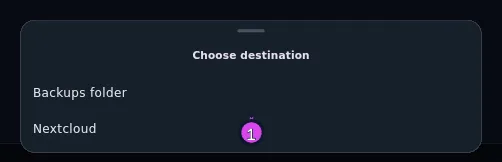
- On the Backup panel, tap Back up now. With more than one destination, a
bottom sheet headed Choose destination appears — tap the one you want.
With exactly one, there’s no sheet. You can also run a single destination
from its own tile: ⋮ → Back up now.
- The dialog Back up to
opens with two switches: Back up all profiles — Includes every profile’s data, restorable one profile at a time. Larger file; recommended for offsite backups. — and Encrypt with a passphrase — AES-GCM-256 + PBKDF2. Recommended for cloud-bound bundles. Both start off, unless this destination has a saved passphrase: then Encrypt with a passphrase starts on, and its subtitle says so. 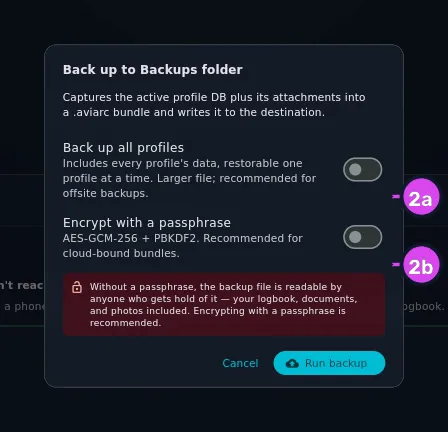
2a Back up all profiles2b Encrypt with a passphrase - Set the switches. Back up all profiles adds every other logbook on this
device to the same file — larger, and the better file to keep offsite — and
the paragraph above the switches changes to match. Encrypt with a
passphrase shows a Passphrase field and produces a
.aviarc.encinstead of a.aviarc.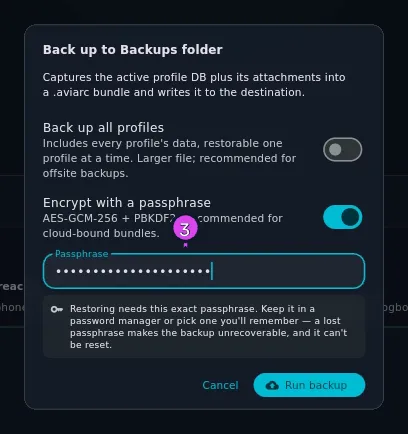
- Tap Run backup. The button reads Backing up… while it works. On a Files-app destination, your device’s save dialog appears now.
- The dialog’s title changes to Backup complete, with Saved to
and three rows: File, Size and Duration. Tap Close. 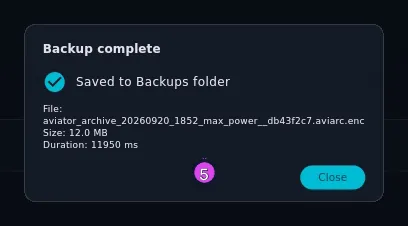
- Back on the panel, look at the top of Recent backups: a tick in your
theme’s accent colour, the filename, then
· . A failed run has a red warning icon instead.· 
How to tell it worked
Backup complete, a filename ending .aviarc or .aviarc.enc, a size that
looks like a logbook rather than nothing, and a ticked row at the top of Recent
backups. The destination’s tile changes from a grey dot and never run to an
accent-coloured dot and last backup 0m ago, and the 3-2-1 Backup Status
card at the bottom of the panel recounts itself
(→ H1).
Duration: N ms is how long the run took. It’s there for diagnosis; you don’t need to act on it.
Nothing here overwrites or removes an earlier bundle. Every run adds one more file, and clearing out the old ones is up to you: in your Files app, Drive or server, or from the destination’s ⋮ menu (→ H2).
If something goes wrong
| What you see | Why | What to do |
|---|---|---|
| Backup failed, with Try again beside Close | The run didn’t finish, and the reason is on the panel | Try again takes you back to the same options rather than retrying blindly, so you can change a switch first |
| A red row in Recent backups reading (failed) where the filename should be | The same run, recorded. The error text is added to the end | Read the error and fix the cause. The row stays as a record |
| Save cancelled | A Files-app save dialog was dismissed | Run it again and complete the save |
| Could not write to folder: … | A local folder is gone, read-only, or on removable media that’s unplugged | Plug the drive in, or add a destination pointing somewhere that exists |
| Sign-in required for Google Drive upload | The Google sign-in for that destination has lapsed | Remove the destination and add it again, signing in (→ H2) |
| No saved WebDAV password for destination … — re-add it from the Backup segment of Import / Export / Backup. | The server password isn’t on this device — most often because a Replace restore brought another device’s destinations across | Remove that destination and add it again. The “Backup segment” the message names is this panel |
| WebDAV PUT failed: 507 Insufficient Storage | The server refused the file | Free space on the server, or delete old bundles there |
| This backup would leave the device unencrypted, and this destination is offsite. Run “Back up now” once to confirm you understand that, or give the destination a passphrase. | A scheduled run was refused because you hadn’t agreed to unencrypted offsite backups | This manual run is how you agree: tick Send it unencrypted anyway in the dialog and run it (→ H3). A Google Drive destination always shows this box on an unencrypted run, because its offsite tick is locked on (→ H1, H2) |
| Enter a passphrase or turn off encryption. | The encrypt switch is on and the field is empty. If the destination has a saved passphrase, the switch starts on and the field starts empty — this run still needs you to type it | Fill it, or turn the switch off |
What “Back up all profiles” is and isn’t
It’s the right file to keep offsite: one bundle holding every logbook on the device, so a single file covers a second pilot’s profile as well as yours.
It is not a one-click way to put a device back together. A restore still works on one profile at a time — the wizard makes you pick a profile from the bundle, and you run it again for the next one (→ H6, H7). The bundle also carries the device’s own settings (interface scale, crash-reporting consent), encrypted and uploaded like everything else, but no restore in the app reads them back (→ H1). So re-creating each profile by hand is still part of setting up a new device. The extra size buys you the other profiles’ logbooks; it doesn’t buy you a faster rebuild.