
Add a backup destination
What this does
Creates the first place a backup can land. Until one exists, Back up now is greyed out, and nothing else in this area can happen.
Before you start
- A profile is open, and you know where the Backup panel is (→ H1).
- Where a destination points can’t be changed afterwards. The folder, the WebDAV server or the signed-in account is fixed once you tap Add. Changing it means removing the destination and adding a new one. Most other settings can be edited — see Changing or removing a destination later, below.
- Decide whether this destination should be encrypted (→ H3), and whether it should be on a schedule (→ H5). Both live in the lower half of the same dialog.
Steps
- On the Backup panel, tap Add destination — the button underneath the Destinations list — or Add your first destination on the empty card. The dialog Add backup destination opens.
- Open Destination type and pick one of the four. Your device may offer
fewer: Local folder isn’t offered on Android, and Google Drive isn’t
offered on Linux or Windows. That’s expected, not a fault.
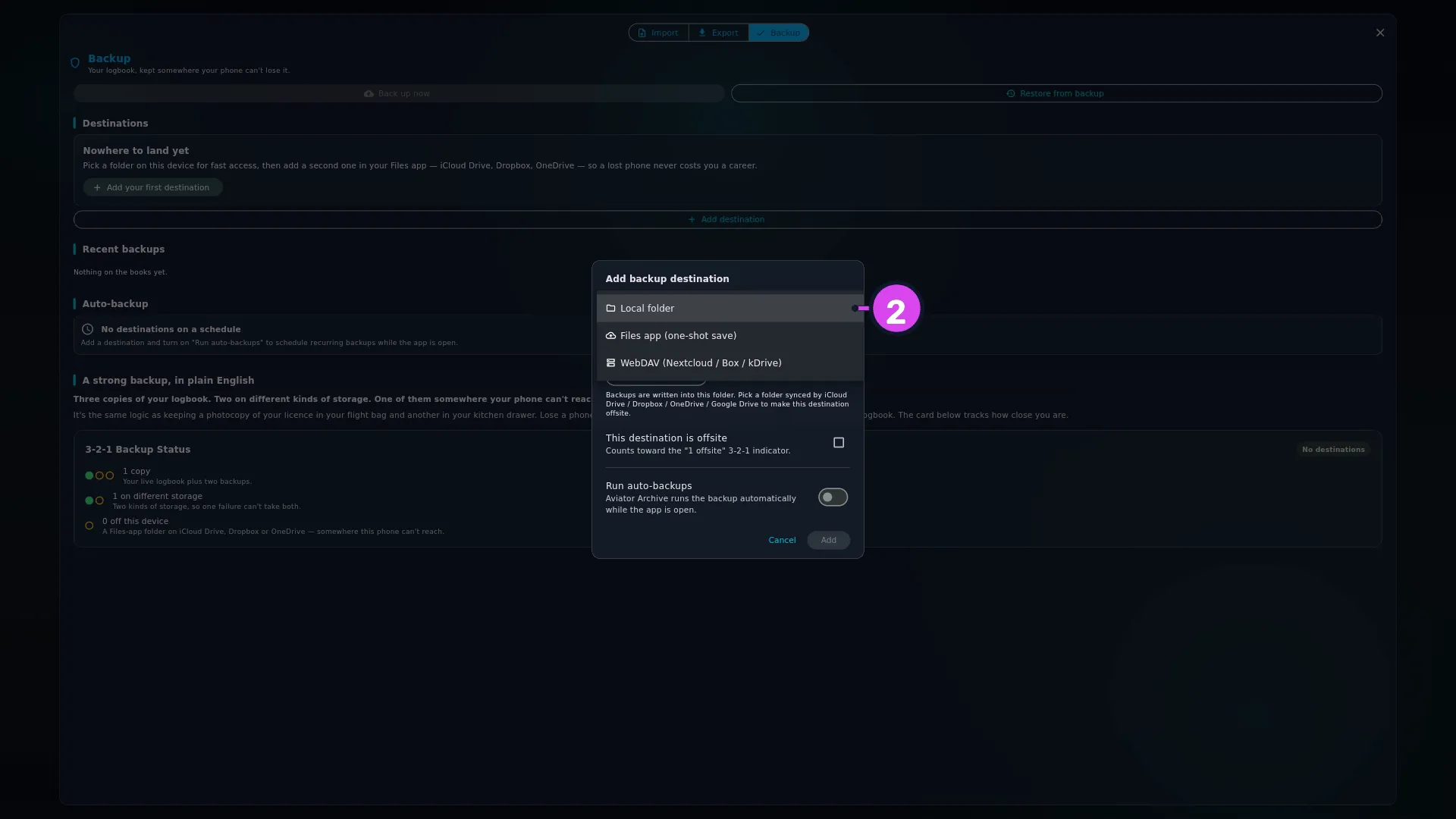
| Type | What it is | Available on |
|---|---|---|
| Local folder | A folder on this device’s own storage. Point it at a folder your computer already syncs — iCloud Drive, Dropbox, OneDrive — and the sync service carries it offsite for you | Everything except Android |
| Files app (one-shot save) | Your device’s own save dialog, once per backup. The path is not stored — you re-pick on every backup. | Everything |
| Google Drive | A private folder called Aviator Archive backups, created for you. drive.file scope only — the app cannot see or modify files it did not create. | Android, iOS, macOS |
| WebDAV (Nextcloud / Box / kDrive) | Your own server, by URL and password | Everything |
- Fill in the block for the type you chose. For Local folder, tap Choose folder… and pick one. For WebDAV, fill Server URL, Username and Password / app token — Credentials are stored in your device keychain. Use an app-specific token where supported (Nextcloud / ownCloud). For Google Drive, tap Sign in with Google. Files app asks for nothing here.
- Type a Display name. Add stays disabled without it. It’s what every other screen calls this destination, so name it after where the files actually go: iCloud Drive (Files), External drive, Nextcloud.
- Check This destination is offsite — Counts toward the “1 offsite” 3-2-1 indicator. It comes ticked for every type except Local folder. Change it if the app’s guess is wrong (see The offsite tick, below, for when it won’t let you, and when it won’t untick itself).
- WebDAV only: tap Test connection before you tap Add. Connection OK
— server accepts WebDAV. means you’re done. If it reads Connected via
. We will use this URL. — naming a path such as remote.php/dav/files/you/ — the app has found the real DAV path and rewritten the Server URL field for you. Leave it as it now stands. - Google Drive only: the button reads Signed in as
once sign-in has worked. Add stays disabled until it does. - Tap Add. The dialog closes and the new destination’s tile appears under
Destinations.

How to tell it worked
The tile has a grey dot and the subtitle
If something goes wrong
| What you see | Why | What to do |
|---|---|---|
| Add is greyed out and nothing says why | Something required is empty: the display name, the folder, a WebDAV field, Google sign-in, or a passphrase for a ticked encrypt box | Work down the dialog. The problem is the field that’s still blank |
Refusing plain http:// to a public server — the backup and your password would both cross the internet in the clear. Use https://, or a server on your own network. | The WebDAV URL is http:// to a public address | Use https://. This is refused outright, and refused again at upload time — even for a destination saved before this check existed |
| No TLS on this connection. Fine for a server on your own network — anything that can see the traffic between this device and it can read the backup and your password. | http:// to an address on your own network | Allowed. Read it and decide — or encrypt the bundle (→ H3) |
| Authentication rejected (HTTP 401). Check username + password / app token. | The WebDAV username or password is wrong | Type them again. On Nextcloud and ownCloud, use an app-specific token, not your login password |
| Found a DAV endpoint at | Your URL wasn’t the DAV path. The app found the real one, but the server refused the password there | Same fix as above. The URL isn’t the problem — the password is |
| Path not found. Is the trailing folder correct? | The folder in the URL doesn’t exist on the server | Create it on the server, or correct the path |
| Server returned 405 — this URL probably is not a WebDAV endpoint. | The URL is the server’s web page, not its DAV path | Use the DAV URL your server shows in its settings, in the shape of the field’s own hint |
| Could not reach server: … | This device can’t reach the server | Check the address, and that this device can see the server at all |
| This folder is on a USB drive or memory card. Backups here will fail until this install is allowed to reach removable media. | A Linux Snap install has no permission for removable media | Pick a folder on the internal disk, or grant the Snap that permission |
Changing or removing a destination later
Every destination’s ⋮ menu has four items: Back up now, Edit…, Manage backups… and Remove destination. A Files app destination has no Manage backups…, because it can’t list what it has saved (see below).
Edit… opens Edit "
Manage backups… opens Manage backups —
The same dialog has Automatically delete older backups, off to begin with — Off — bundles accumulate here until deleted above. Turn it on and choose how many to keep with Keep the newest (ten, until you change it). From your next successful backup onward, anything older than that at this destination is deleted for you. Turning the switch on doesn’t delete anything by itself.
The offsite tick
It has a mind of its own in two ways. First, nothing ever unticks it for you. Pick any of the other three types and it’s ticked; switch back to Local folder afterwards and the tick stays. On Android it’s ticked from the moment the dialog opens, because Files app is already selected before you’ve touched anything. Look at it before you tap Add. Second, for Google Drive the box is locked on and greyed out, with the subtitle Always on for Google Drive — it is a different machine in a different building. Counts toward the “1 offsite” 3-2-1 indicator. The Drive tile, the 3-2-1 card’s third row and the unencrypted-offsite check all agree with it (→ H1, H4).
The one type that can’t be browsed later
Files app (one-shot save) never remembers where you put the file: every backup opens your device’s save dialog and you choose again. When you come to restore, the wizard’s destination browser lists nothing under it, so a bundle saved this way can only be found with From file… (→ H6). It’s a good way to get a copy into iCloud Drive or Dropbox from a phone, and a poor choice for a schedule (→ H5).
A local folder inside a synced folder isn’t automatically “offsite”
The dialog’s own advice is to point a local folder at something iCloud Drive, Dropbox, OneDrive or Google Drive already syncs, and it’s good advice: the sync service then carries your bundles off the device for you. But the 3-2-1 card’s third row counts the tick, not the path. If you take that advice, tick This destination is offsite yourself.