
Automatic backups
What this does
Puts a destination on a schedule, so that backups happen without you remembering.
The schedule runs within the limits your platform actually allows, which aren’t the same on an iPhone as on an Android phone as on a laptop.
Before you start
- There’s no auto-backup screen. The schedule lives in the lower half of the Add backup destination dialog, so turning a schedule on for the first time means creating a destination (→ H2). The Auto-backup card on the Backup panel only reports; it has no controls.
- On an iPhone or iPad, a schedule never runs while the app is closed. It runs only when you next open the app and the interval has passed. Keep taking a manual backup (→ H4) before anything that matters. The per-platform detail is in What actually runs when the app is closed, below.
- A Files app destination can’t be put on a schedule. It saves by opening your device’s save dialog, and nobody’s there to answer it. Use a folder, WebDAV or Google Drive destination for the schedule.
- Decide the passphrase question first (→ H3). An unattended run can’t ask you anything, so the dialog makes you decide up front.
Steps
- Open the Backup panel and look at the Auto-backup card. Before you start
it reads No destinations on a schedule, with a hint that says what your
platform does: on Android, Add a destination and turn on “Run
auto-backups” to schedule recurring backups in the background; everywhere
else, …while the app is open.

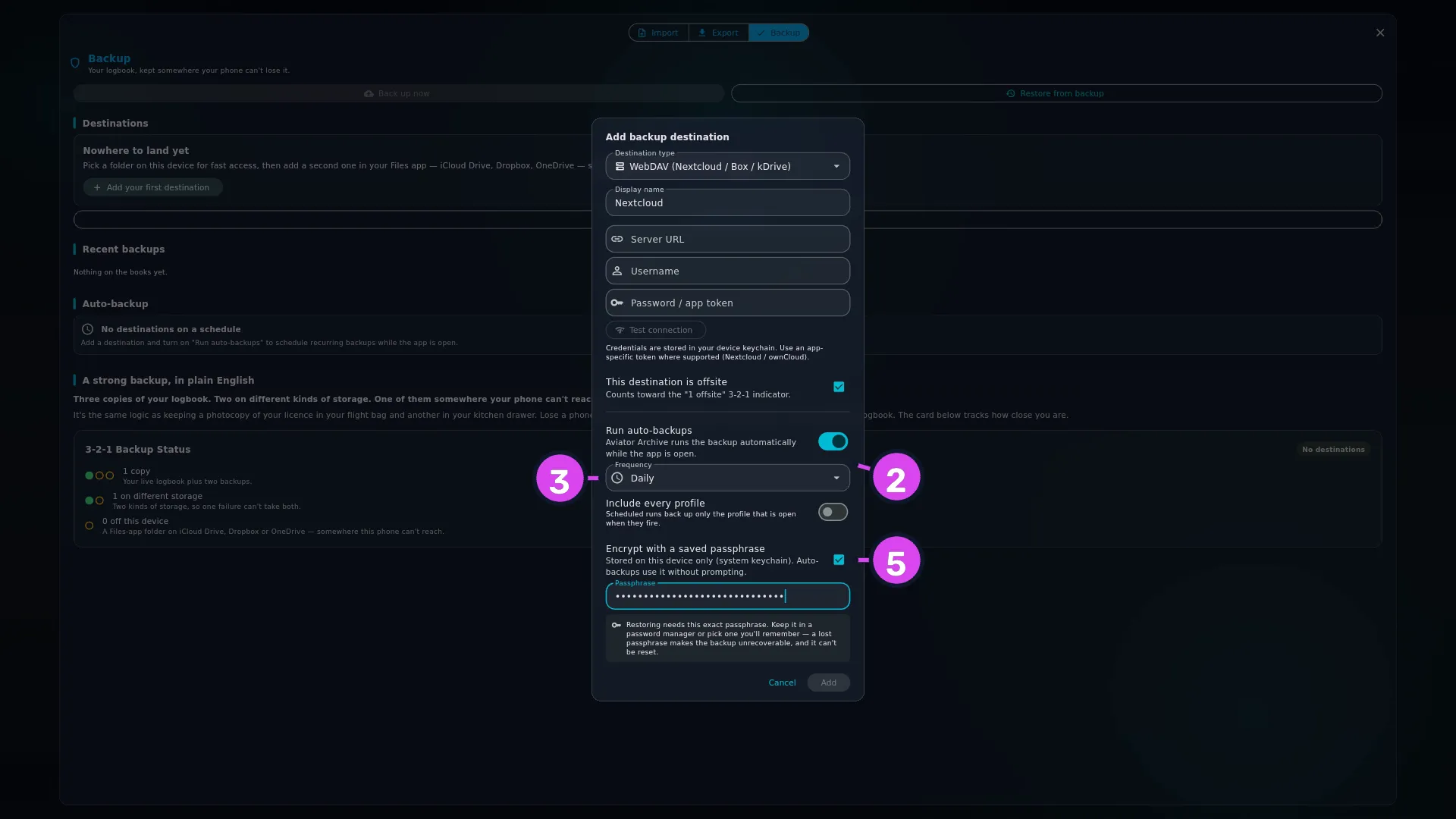
- Tap Add destination and fill in the upper half of the dialog as in
H2. Below the divider, turn on Run
auto-backups. Its subtitle again says in the background on Android and
while the app is open everywhere else.
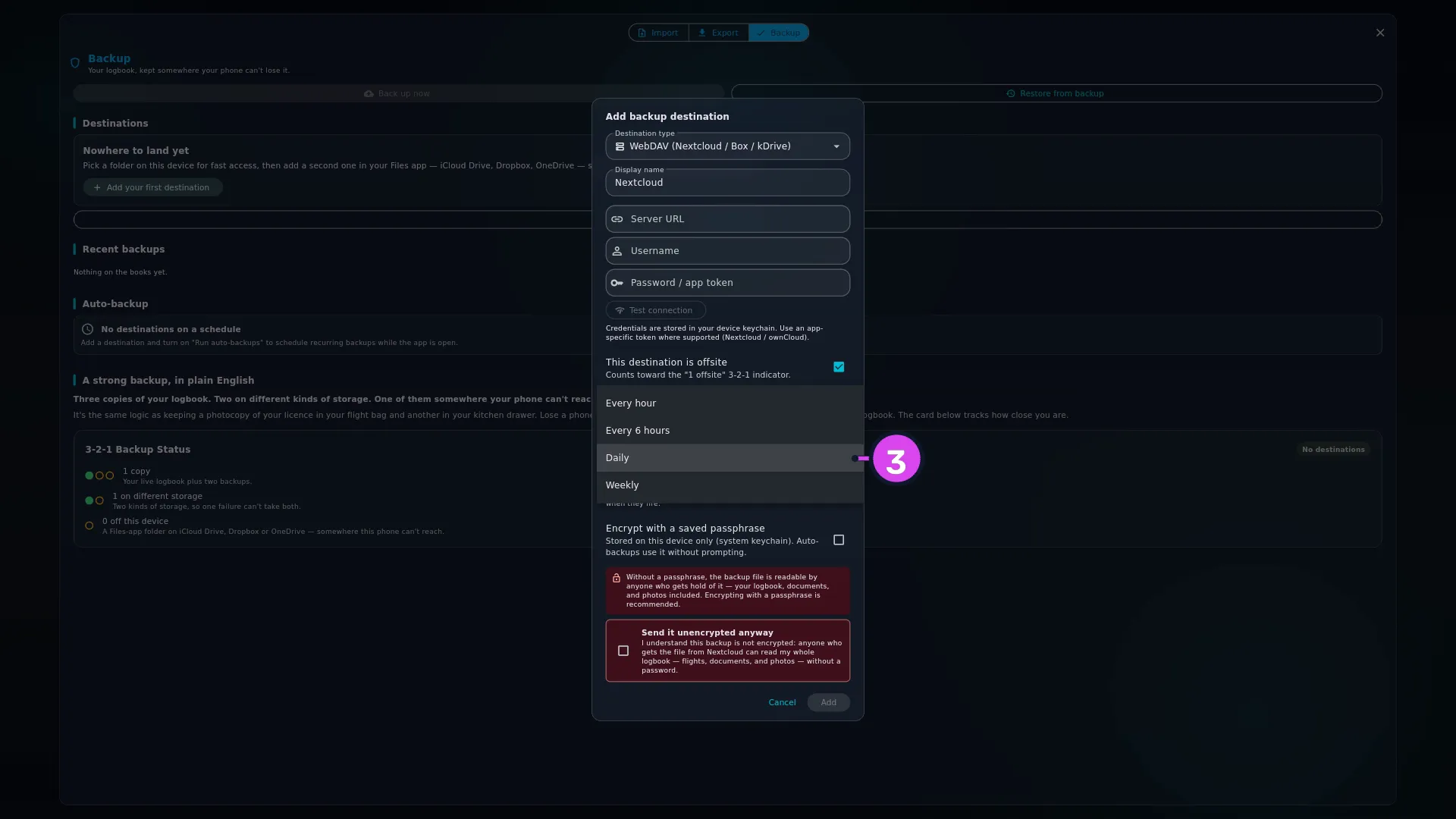
- Open Frequency and pick one: Every hour, Every 6 hours, Daily
or Weekly.
- Choose whether Include every profile is on. Off, which is how it starts, the schedule only ever backs up the profile you’re in now — Scheduled runs back up only the profile that is open when they fire. On, every run from this destination backs up every profile on the device — Each scheduled run backs up every profile on this device. Bundles are larger and take longer. It’s the scheduled version of Back up all profiles (→ H4).
- Turn on Encrypt with a saved passphrase — Stored on this device only (system keychain). Auto-backups use it without prompting. — and type the Passphrase. If you leave it off and the destination is ticked offsite, you’ll have to tick Send it unencrypted anyway before Add will work, because nobody will be there at 03:00 to ask.
- Tap Add. The Auto-backup card now reads 1 destination on a schedule,
with the destination named, a dot for its health, and its interval at the
right — shown as every 1h, every 6h, every 1d or weekly.

- Come back in a day or two and check the destination’s own tile under
Destinations, not the card. A dot in your theme’s accent colour and last
backup 6h ago is the proof. A red dot shows the failure reason under the
name, and an amber one means the last success is over 14 days old
(→ H1).

How to tell it worked
The Auto-backup card names the destination and its frequency, and within one interval the destination’s tile shows a recent successful run. Until a run has actually happened, the tile still reads never run — and that’s the thing to believe, not the card.
If something goes wrong
| What you see | Why | What to do |
|---|---|---|
| The Auto-backup card shows a caution reading This device refused to schedule background backups, so these run only while the app is open… | The system refused to set up the background task (Android only) | Runs now only happen while the app is open. Reopening the app tries again, and a manual backup (→ H4) always works meanwhile. On a phone, check the app isn’t under a battery restriction |
| A red dot on the tile, and nothing new in Recent backups | A scheduled run refused because you hadn’t agreed to an unencrypted offsite backup is shown on the destination’s tile only, never in the list. A run that got as far as building or uploading a bundle does leave a red row | Read the error under the destination’s name. After a schedule, check the tile, not the list |
| A scheduled run failed before the backup itself even started — reading the saved passphrase from the keychain, or the destination’s settings | Handled like any other failure: a (failed) row appears in Recent backups, and the tile turns red with the reason | Read the error. If it names a stale passphrase, Edit… the destination and set it again. If that doesn’t clear it, remove and re-add the destination |
| The tile reads Saving to the Files app opens the system save dialog, so this destination cannot run on a schedule… | A Files app destination ended up on a schedule — set up in an older version of the app, or inherited from another device by a Replace restore (→ H6) | Use Back up now for it by hand, or remove it and add a folder, WebDAV or Google Drive destination for the schedule |
| A destination keeps failing | A failed destination retries at its normal interval, like a healthy one — not sooner, and not every time you open the app | Fix the cause — plug the drive in, renew the token, tick the unencrypted-offsite box — or remove the destination until you can. A manual Back up now (→ H4) doesn’t wait for the interval |
| A Weekly destination seems to wake the app every day | On phones and tablets, the whole schedule runs as one system task at your shortest interval, capped at once a day. The extra wake-ups find nothing due and do nothing | Nothing to do. The battery cost is negligible and no extra bundles are written |
| Add is greyed out with everything filled in | The encrypt box is ticked with an empty passphrase, or the plaintext-offsite box needs ticking | Fill the field, or tick the box |
What actually runs when the app is closed
The card’s footer names what your platform does — on Android, Auto- backups run in the background, even when the app is closed; on iPhone, iPad and desktop, Auto-backups run while the app is open. True background execution is on the roadmap. Per platform:
| Platform | With the app open | With the app closed |
|---|---|---|
| Android | Runs when an interval has passed | Runs. Real background running, at your shortest interval, no more often than every 15 minutes, and only when the device has a connection and isn’t low on battery |
| iPhone / iPad | Runs when an interval has passed | Never runs. The app doesn’t set up a background task on iOS at all, so an iOS schedule means “the next time you open the app, if the interval has passed” |
| Windows / macOS / Linux | Runs when an interval has passed, and catches up on anything already due when the app starts | Doesn’t run. The app has to be running |
So on an iPhone, treat the schedule as a convenience and keep taking a manual backup before anything that matters — a new phone, a trip, a reinstall. On Android, and on a desktop you’ve left open, the schedule is real.
Editing a schedule
A destination’s ⋮ menu has an Edit… item that opens Edit "
Changing the passphrase doesn’t reach backwards. A bundle already at the destination keeps whatever passphrase — or none — it was written with. Changing or removing the saved passphrase only decides what the next scheduled run writes; an older bundle still needs its own original passphrase to restore.
Moving a schedule to a different destination
Edit… can’t change the folder a local destination points at, the URL and login a WebDAV destination uses, or the account a Google Drive destination is signed into. To move a schedule to a different folder, server or account, remove the destination and add it again:
- Write down everything about the destination as it stands: the display name, the folder or server URL and username, whether it’s offsite, its frequency, whether it covers every profile, and its passphrase.
- On its tile, tap ⋮ → Remove destination. Confirm Remove
destination? — Remove "
"? Backup history for this destination is preserved. - Tap Add destination and enter it all again, pointed at the new folder, server or account.
What survives: the bundles already at the old destination, which are files and aren’t touched, and that destination’s rows in Recent backups. What doesn’t: its place in the 3-2-1 Backup Status card, until the new one has had its first successful run — a destination that’s never run counts for nothing (→ H1). Take one manual backup straight after adding it and the card catches up at once.
The Auto-backup card doesn’t know about Include every profile
Its warning about profiles no schedule covers can still name a profile after you’ve turned Include every profile on for the destination that now covers it. Trust the switch, not the card’s wording.
A Files app destination has no schedule switch
Pick Files app (one-shot save) in the dialog and the schedule section reads Cannot run on a schedule, pointing you at Back up now for that destination, and at adding a folder, WebDAV or Google Drive destination for the schedule instead. A Files app destination that was already on a schedule fails with an explanation on its tile when a run comes due; it doesn’t open a save dialog on its own, or hang.