
Import a profile from a backup
What this does
Puts a logbook onto a device that hasn’t got it — a new phone, a replacement laptop, a reinstall — and keeps it as the same logbook.
That means it can still sync with the device it came from.
Before you start
- If both devices are working and in the same room, this isn’t the first choice. Sending the profile over the air or by QR code is faster and needs no file (→ I2, I3). A backup is for when the old device is gone, broken, sold or wiped.
- Do this from the profile selector, with no profile open. With a profile open you get the other wizard, which refuses a bundle belonging to a different logbook (→ H6).
- Get the bundle file onto this device first. The wizard reads it from disk, so bring it over however suits the device: AirDrop, a USB stick, your Files app, the Drive folder it was saved into, or the WebDAV server. Put it somewhere the file picker can see.
- Know the PIN the logbook had on the old device. The PIN travels inside the logbook (→ A5), so the imported profile will ask for the old device’s PIN — not a new one, and not none.
- An encrypted bundle needs its exact passphrase (→ H3).
Steps
- On the profile selector, tap the round + button, bottom right.
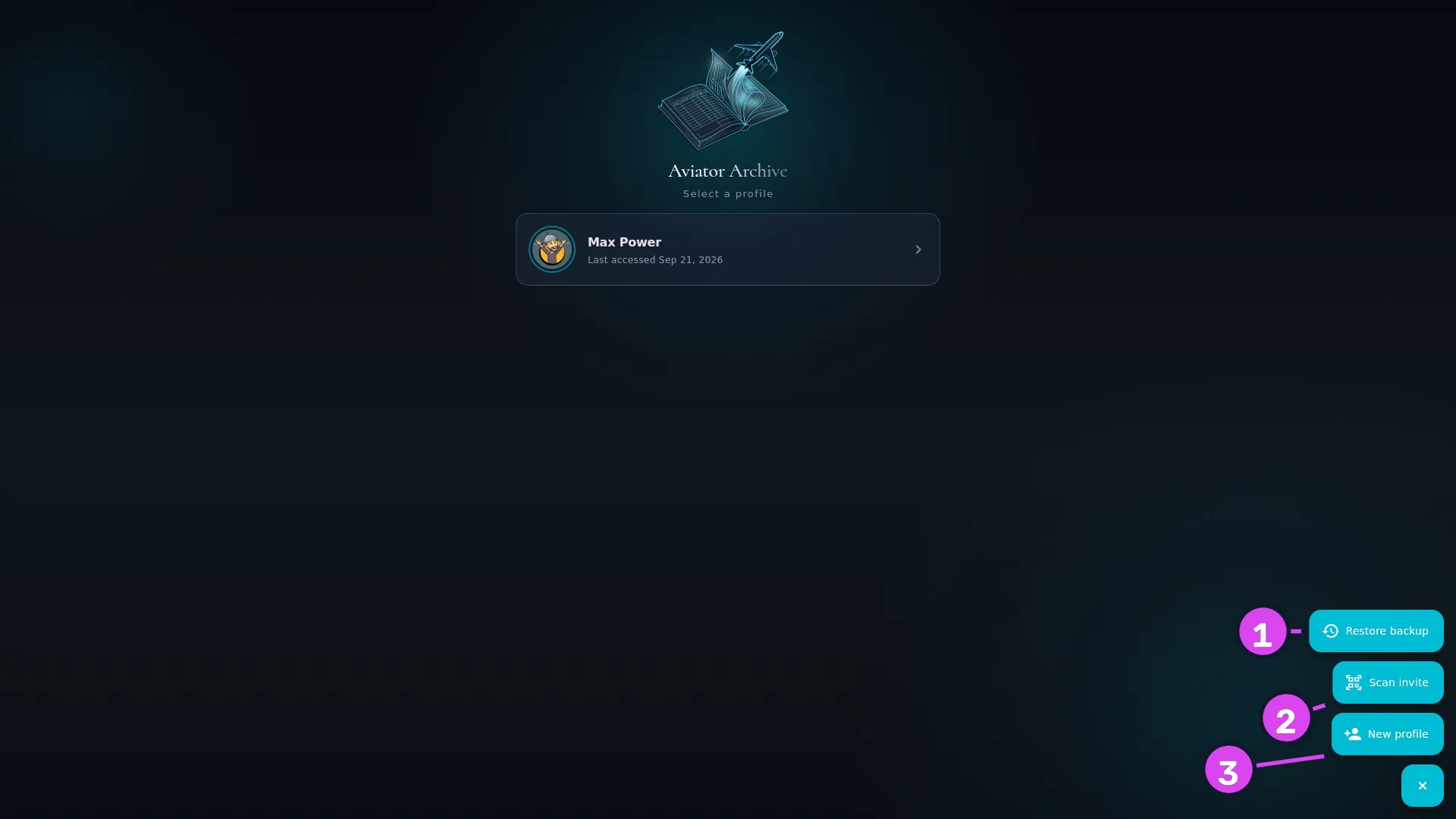
1 Restore backup2 Scan invite — joins this device to a logbook3 New profile - Tap Restore backup. A wizard opens headed Import profile from backup.
- Check the stages across the top: there are two, Pick and Preview, and the final button reads Import profile. There’s no Mode step here, and that’s correct — with no profile open there’s nothing to merge into or replace, so the logbook always arrives as a new entry on the selector.
- Tap From file… and choose the bundle. (From destination… can’t work
here — destinations are stored inside a profile, and none is open.) The picker
accepts
.aviarcand.aviarc.enc. The step then reads Selected:. Tap Continue. - Check the Preview, and type the Passphrase if the bundle is encrypted. If the bundle was taken with Back up all profiles, the preview says This bundle contains N profiles. Pick the one to restore. and offers a Profile dropdown listing each logbook with its flight count — pick one. Until you do, no profile details appear and Import profile stays disabled.
- Tap Import profile.
- The wizard closes and the profile appears in the list on the selector.
How to tell it worked
A message reads Profile imported — M attachments restored, and a card with that logbook’s name is in the list under Select a profile. Open it and check the flight count and your most recent flight against the old device, or against the bundle’s preview. It’ll ask for the PIN the logbook had when the bundle was taken.
If something goes wrong
| What you see | Why | What to do |
|---|---|---|
| A profile with this id is already on this device. Open it and use Restore from inside the profile to replace or merge. | This logbook is already here, and the wizard won’t make a second copy of it | Do what it says: open the profile and use H6, choosing Merge or Replace |
| No backup destinations configured. Add one in the Backup segment of Import / Export / Backup first. | You tapped From destination…. Destinations are stored inside a profile, and none is open | Use From file…. Nothing is wrong with your destinations |
| This bundle contains N profiles. Pick one to restore. | A bundle with several profiles, and none chosen | Go Back and choose from the Profile dropdown |
| Could not decrypt: incorrect passphrase | Wrong passphrase | Try the others you use. Nothing anywhere can reset it |
| This bundle was made with a newer database version. Update the app and try again. | The bundle came from a newer version of the app than this device has | Update the app here first |
| Bundle payload hash does not match manifest — file is corrupt or has been tampered with. | The file is damaged or was changed. This check runs after decryption succeeds, so on an encrypted bundle it proves the passphrase you typed was right — the file itself is the problem | Fetch it again from wherever it’s stored |
| Not an Aviator Archive backup bundle: missing manifest.json | Not a bundle | Pick a .aviarc or .aviarc.enc file |
| The profile imported, and the first sync with the device it came from asks for a PIN, or sends nothing | Expected. This device hasn’t been paired with the logbook yet, and the imported logbook arrived carrying the old device’s record of how far each sync had got | Read Sync after restoring a backup (→ I8) |
Two logbooks from one bundle
A Back up all profiles bundle holds every logbook the old device had, and the wizard imports one at a time. To bring a second one over, run the whole wizard again and pick the other profile from the dropdown.
Why this is the same logbook, and a new profile wouldn’t be
The bundle carries the profile’s identity — a permanent marker written into a logbook when it’s created — and the import keeps it. That’s why a logbook restored onto a new phone can pair and sync with the old one. Type the same name into New profile on the new phone instead, and you get a separate logbook that will never find the old one, with nothing on screen to tell you so. The whole idea is in One logbook, every device.
What to do next
- Open the profile and check it against the old device.
- Set or confirm the PIN (→ A5).
- Give this device its own backup destinations. Any listed after the import belong to the old device, and their passwords aren’t on this one (→ H2).
- Pair it with your other devices, if you still have them (→ Area I, and I8 for a device restored from a backup).