
Export CSV, TSV or Excel
What this does
Writes your flights out as a file that a spreadsheet, another logbook app, or Aviator Archive itself can read back.
The file is one header row and one row per flight, 116 columns wide.
Before you start
- A profile is open and has flights in it.
- These three formats are free, and they stay free. So does the all-entities ZIP. That’s the promise you agreed to on the legal gate before the app would open — your logbook is yours, and CSV and Excel export are free forever (→ A1). The free 100-hour limit caps what a logbook records, not what leaves it. Only PDF and FAA 8710-1 Section III are Pro.
- Drafts aren’t exported. Finish any you want in the file first (→ C3).
- Your Previous Experience opening balance isn’t in these files — see below.
Steps
-
Open the export panel: Logbook → ⋮ (More Actions) → Export Data (it opens all six formats, whatever its name). Under Output Format, open File format and choose one of the three.
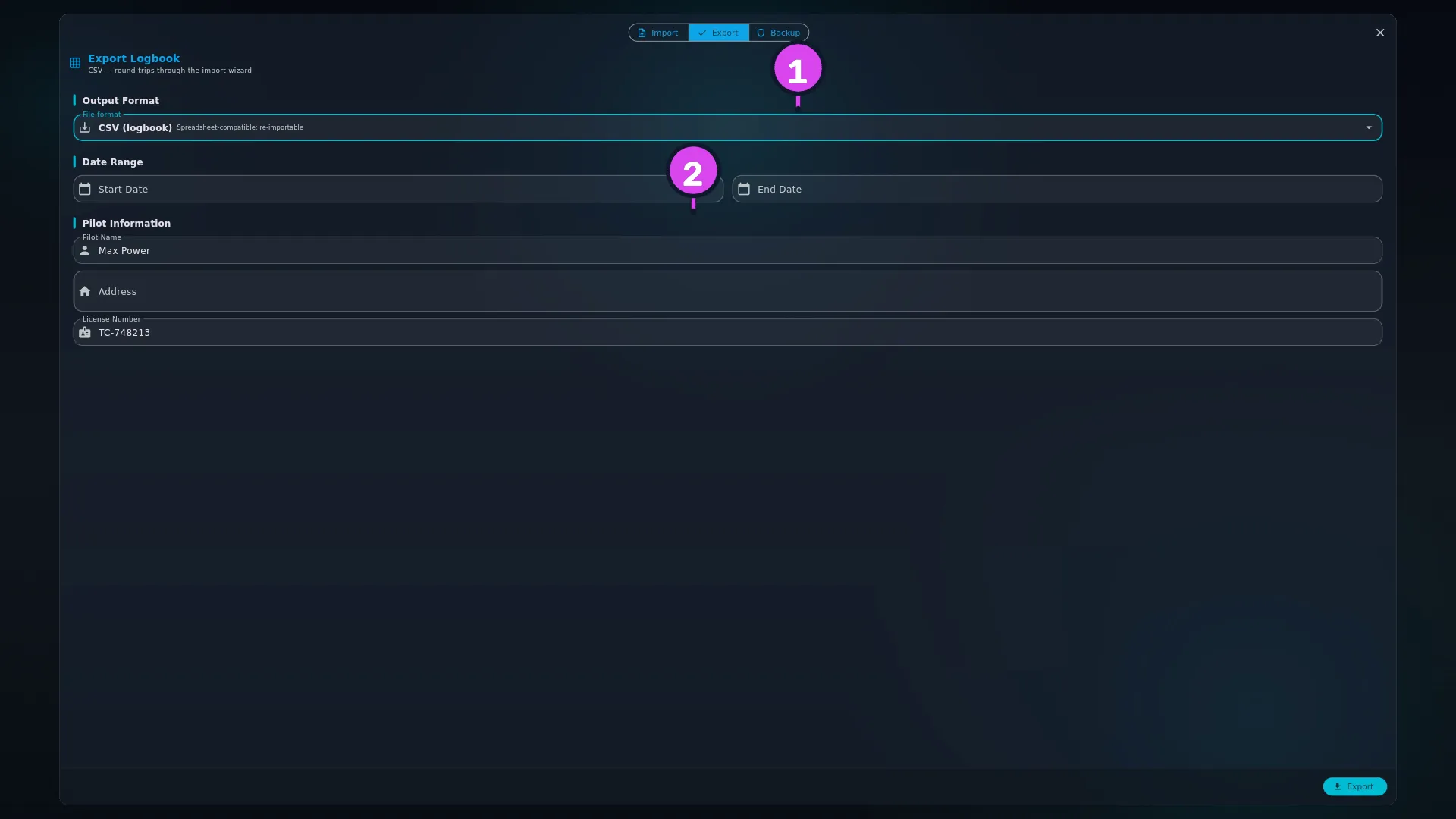
Menu entry Description shown Pick it when CSV (logbook) Spreadsheet-compatible; re-importable Anything wants a plain comma file — a spreadsheet, another logbook app, an airline’s form TSV (logbook, tab-delimited) Tab-delimited; for LogTen Pro and re-import The receiving tool asks for tab-delimited, or you’re moving data to LogTen Pro Excel (.xlsx) Excel workbook with native numeric cells You’re going to add up columns yourself, or you want the other four kinds of record in the same file -
Set Date Range if you want to — it’s the only way to narrow the export; the filters and search box on the Logbook screen have no effect here. The PDF-only sections — Logbook Format, Page Format, Options — have gone, and Pilot Information is still there but does nothing in these three formats.
-
Tap Export, then choose where to save. The name offered is
logbook_YYYYMMDD.csv,.tsvor.xlsx. On a phone, the system’s own file picker saves it.
How to tell it worked
A message reads Logbook exported successfully! Open the file. There’s one
header row of column names in lower case with underscores — date,
aircraft_registration, departure_airport, and so on — and one row per flight
under it.
If something goes wrong
| What you see | Why | What to do |
|---|---|---|
| The upgrade screen opens | You’re on PDF or FAA 8710-1 Section III rather than one of these three | Change File format. The three here are always free |
| Export failed: … | The file couldn’t be written | Check you have free storage and can save to that folder, then try again |
| Accented characters or non-Latin names look wrong in Excel | The file is UTF-8, with a marker at the start that tells Excel so (a byte-order mark). A tool that ignores the marker has guessed the encoding | Open it by double-clicking rather than through an import dialog, or set the import dialog’s encoding to UTF-8 |
| A remark now begins with an apostrophe | It stops a spreadsheet reading the remark as a formula — see below | Nothing to fix. The text isn’t damaged |
| Fewer rows than you expected | Drafts are left out, and there may be a Date Range set | Finish the drafts (→ C3), and clear Start Date and End Date |
| Your opening balance is missing | Previous Experience isn’t written to these formats | See below. It’s in the PDF and the 8710 |
How the three differ
CSV and TSV are the same file with a different separator: the same 116 columns in the same order, the same quoting rules, and the same UTF-8 byte-order mark, so a double-click opens them correctly in Excel on Windows.
Excel differs in two ways. First, every hours column, the landing and take-off
counts and the approach count are real numbers, so SUM and AVERAGE work on
them straight away — in the CSV they’re text that a spreadsheet has to be
persuaded to read as numbers. Every other numeric column stays text — fuel
figures, tach readings, distance, acres, and the other counts such as
passengers, holds, go-arounds, sectors, taxi minutes and lifts — so those still
need converting.
Second, the workbook isn’t one sheet: it has five — Logbook, Aircraft, People, Organizations and Airports. The other four are F4’s subject.
What is in the file
116 columns, covering the route and the aircraft, every stamp and meter reading,
all 22 time totals, the specialised-operations hours, your declared device class
and whether the session was supervised, every operational count, approaches,
external loads, duty and rest, schedule, fuel, the ten crew roles, your tags and
your remarks. On the end of those, one custom_<name> column for each custom
field you’ve defined. Photos, flight memories, documents and their scans are in
none of these formats.
Every one of those 116 is a column name the import wizard already understands, so the file is a way back in as well as a way out. What survives that round trip exactly, and what changes shape on the way, is F6.
A cell that starts with = + - or @ gets an apostrophe
A spreadsheet treats a cell beginning with =, +, - or @ as a formula. A
remark reading -2 kt crosswind isn’t a formula, and neither is an aircraft note
somebody typed starting with =. So the app puts an apostrophe in front of
those cells, and the spreadsheet keeps them as text. A cell that begins with a
tab or a carriage return gets the same apostrophe, for the same reason.
That’s why a remark can look slightly different in Excel from how it looks in the app. Values that are entirely numbers are left alone.
Previous Experience is not in these files
Your carry-forward opening balance — the hours you flew before this logbook started — is left out of CSV, TSV, the ZIP and Excel.
These files can’t mark a line as an opening balance rather than a flight. If the balance were written out, re-importing the file would turn a summary of 1,200 hours into a fake flight of 1,200 hours. So the balance stays in the app, and it appears in the two formats that can represent it properly: the PDF’s Brought forward figure (→ F1) and the FAA 8710-1 (→ F5). To move it somewhere else, enter it there as an opening balance too (→ B7).
The file is a snapshot, not a link
Editing the exported file changes nothing in the app. Importing it back adds flights rather than updating the ones it came from, because nothing in the file says which flight in the app each line was — so re-importing it into the logbook it came from sends every flight to duplicate review. F6 covers why, and what to do instead.