
Export every entity
What this does
Gets the four things in your logbook that aren’t flights out of the app, alongside your flights.
They are your aircraft, the people in your Directory, your organizations and the airports you’ve used.
Before you start
- Choose the format. Excel (.xlsx) already writes five sheets: Logbook, Aircraft, People, Organizations and Airports. CSV (all entities, .zip) is the same five lists as five separate files. Choose the ZIP when the receiving tool wants plain CSVs, and Excel otherwise — there’s nothing in the ZIP that the workbook lacks. Both are free. Only PDF and FAA 8710-1 Section III are Pro (→ F3).
- The ZIP isn’t a backup, and neither is the workbook. There’s no encryption in it, no settings, no sync identity and no attachments. It’s data about your logbook, not a logbook you can restore. Backups are Area H.
- The ZIP can’t be imported as a ZIP. Unzip it first — see below.
Steps
- Open the export panel: Logbook → ⋮ (More Actions) → Export Data,
which opens all six formats. (Everything is exported from the Logbook
screen — the Hangar and the Directory have no Export.) Under Output Format, choose CSV (all
entities, .zip) — ZIP of CSVs covering every entity type. The panel’s
subtitle changes to ZIP of CSVs — logbook, aircraft, people, orgs,
airports.
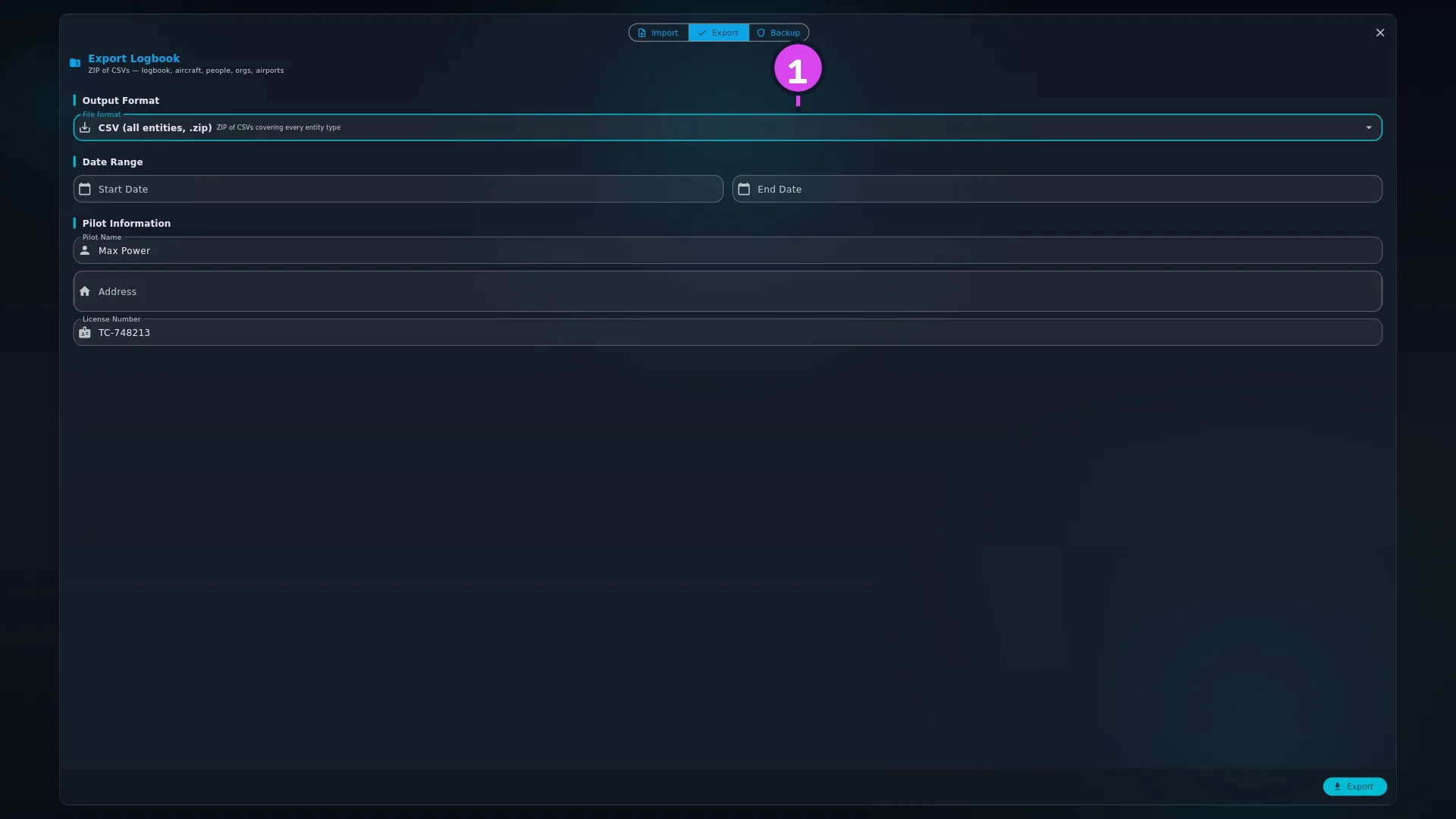
- Set Date Range if you want to narrow it, then tap Export and save. The
file offered is
logbook_YYYYMMDD.zip. Open it and there are exactly five files inside —logbook.csv,aircraft.csv,people.csv,organizations.csv,airports.csv. - For the same five lists in one file instead, choose Excel (.xlsx) at step
- The workbook opens with five sheet tabs along the bottom, Logbook first.
How to tell it worked
The message reads Logbook exported successfully!, and the file you saved holds five lists rather than one. The column headings are identical in the ZIP and the workbook, so a tool that reads one reads the other.
If something goes wrong
| What you see | Why | What to do |
|---|---|---|
| There’s no export entry in the Hangar or the Directory | Their ⋮ menus offer Import Data and Find Duplicates — plus Filter Airports by Country on the Directory’s Airports tab — and nothing else | Export from the Logbook screen. The aircraft and Directory data is in the same file |
| The save dialog is headed Save logbook data bundle | That’s what the bundle is: everything, not only the logbook | Nothing to fix. It saves the right file |
An airport you added isn’t in airports.csv | The file only includes airports used by the flights in the export | Fly to it, or take the airport data from wherever you added it |
| You were expecting the airline list, or the ICAO type designators | The app’s built-in reference data is left out | Nothing to fix. You get your data, not the app’s |
The import wizard won’t take the .zip | It accepts CSV, TSV, Excel, HTML and LogTen Pro files | Unzip it and import the files one at a time — see below |
What is in each file
| File / sheet | Columns |
|---|---|
logbook.csv / Logbook | The 116 flight columns (→ F3) |
aircraft.csv / Aircraft | aircraft_registration, aircraft_fleet_number, aircraft_type, serial_number, year_manufactured, aircraft_category, aircraft_class, engine_type, engine_count, engine_manufacturer, engine_model, owner, operator, notes |
people.csv / People | first_name, last_name, email, phone, license_number |
organizations.csv / Organizations | name, organization_type, iata_code, icao_code, website, email, phone, address, city, region, postal_code, country |
airports.csv / Airports | icao_code, iata_code, name, latitude, longitude, iso_country, municipality |
What is left out
The app comes with a large amount of built-in reference data — a hundred and sixty-odd IATA airlines, ten thousand ICAO type designators, eighty thousand of the world’s airports — and most of it isn’t in your export. You get the organizations you created, not the built-in airline list; the aircraft types your own aircraft actually use, not the designator catalogue. Airports are the exception: the ones your exported flights used are in the file, including built-in ones.
Airports are limited to the flights in the export — their departure, arrival, and, for a diversion, the airport it was originally headed to. An airport you added but never used in one of those three ways isn’t in the file. Setting a Date Range narrows the airport list too, because it narrows the flights the list comes from.
People is different: it’s everybody in your Directory, including you.
Your Previous Experience placeholders are not in the file
If you’ve entered an opening balance, the app keeps it against a stand-in
aircraft for each category, with a registration that’s really a label —
Previous Experience — SEL, and one per category you filled in. Those aren’t
aircraft you’ve flown, and they’re not exported: aircraft.csv and the
Aircraft sheet hold your real fleet only. There’s nothing to delete by hand
before you hand the file on.
Putting a ZIP back in
The import wizard accepts CSV, TSV, Excel (.xlsx), HTML and LogTen Pro files.
It doesn’t accept .zip. Unzip the archive first, then bring each file in
through the screen for that kind of record: aircraft.csv through the
Hangar’s Import, and people.csv, organizations.csv and airports.csv
through the matching tab of the Directory. logbook.csv goes in through the
Logbook’s own import (→ B2).