
How cloud-less sync works
What this does
Explains what happens when your devices sync: what travels between them, which version of an edit survives, and what never leaves the device it was made on.
Before you start
- Read One logbook, every device (→ A2) first. It explains that a profile is one logbook with its own hidden identity, and that a device holding a different profile never appears in your device list at all.
- Sync is free. There’s no Pro gate on any part of it.
- Four things have to be true before two devices can see each other. If any one
of them isn’t, you get the same empty screen:
- both devices on the same Wi-Fi, and a network that lets them talk to each other. A guest network, or an access point that keeps its devices apart, is the usual culprit;
- no VPN running on either device;
- both apps open and in the foreground, with the profile open. Sync only runs while a profile is open and stops when the app closes, so a phone in your pocket can’t be reached;
- the same profile open on both. Not a profile with the same name — the same profile.
- Nothing syncs on its own. There’s no schedule, no background sync, and no sync when you open the app. A sync happens when someone taps a device in the list. A device that’s been switched off for a month is a month behind until somebody syncs it.
Steps
This is a tour of one screen rather than a task. Running a sync is I5.
- Open Cloud-Less Sync: on the dashboard, tap the Cloud-Less Sync card;
or in Profile Settings, tap Data Sync → Cloud-Less Sync. The card at
the top reads Listening with an address and port when other devices can
reach this one. Beneath it you’ll see how many other devices are members of
this logbook — No paired devices yet, 1 paired device or N paired
devices — counting the ones paired from another of your devices too.
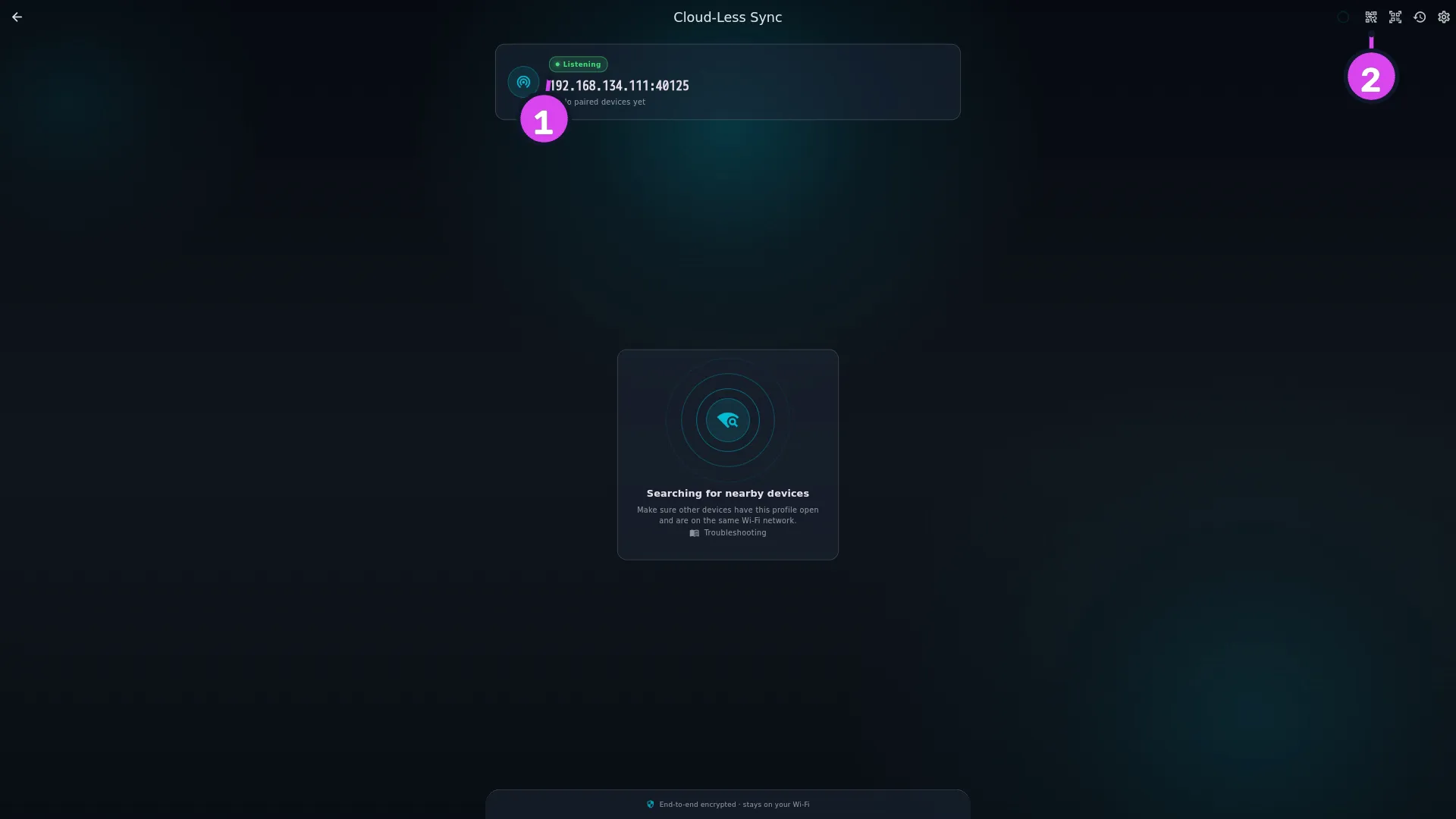
1 the status pill — showing this device is reachable2 the Invite a device icon - Point at each of the four icons in the app bar to see its name: Invite a device, Scan invite, Changes From Devices, Sync settings. Each has its own guide in this area.
- Find your other device in the list below the card. Each entry is a device that’s on this network, awake, and holding this logbook. A device that fails any of those isn’t shown at all — not even greyed out.
- Tap a device to start a sync in both directions at once (→ I5). It ends with a green header reading Sync Successful! and Sent: / Received: counts.
How to tell it worked
Your other device is in the list, with its name, its hardware line and its address. That one fact tells you two things you can’t otherwise see: both devices hold the same profile, and the network is letting them find each other.
If something goes wrong
| What you see | Why | What to do |
|---|---|---|
| The other device never appears | Either it’s holding a different profile, or one of the four network conditions above isn’t met. Both look the same | Check the profile first (→ A2), then work down family 1 in I9 |
| It appears, but tapping it reports an account problem | The two devices aren’t signed in to the same Aviator Archive account | Sign both in to the same account. The exact wording tells you which device to fix (→ I9) |
| A Connection Request with six digits on the other device | The two haven’t been paired yet — the third thing that has to match, below | Type the digits on the device you started from, with Trust this device left ticked (→ I4). It’s once per new device |
| The two devices have different logbooks open, so they will not sync… | One of them switched to another logbook between being listed and being tapped | Open the same logbook on both and try again (→ I5) |
| Sync Successful! but a photo is still missing | Photos travel after the flights and other records, and the app doesn’t guarantee each one arrives on the first try | Sync again. A missing photo isn’t a failed sync |
| A field you cleared on one device is still filled on the other | It depends on the field. A flight’s remarks, route or flight number, and the notes on an aircraft or a training event, clear on the next sync. Any other field keeps the value already on that device when the incoming copy is blank | For one of those fields, sync again. For anything else, clear it on the other device too. See “which version wins”, below |
Reference: the three things that must match
They’re checked in this order, and each failure looks completely different.
| What | What it is | What you see when it doesn’t match | Where to fix it |
|---|---|---|---|
| Profile identity | A permanent marker written into the logbook when it was created. Not the name | Nothing. The other device is missing from the list, with no message | Send the real profile across (→ I2, I3), or restore its backup (→ H6) |
| Account | Both devices signed in to the same Aviator Archive account. That’s how each device proves the other is yours | The device is listed, but the connection is refused with a message naming the account | On whichever device the message names (→ I9) |
| Membership | Both devices are members of this logbook: each was paired with it once, by PIN, invite or over the air, on any one of your devices | The first time, a PIN rather than a refusal: the device you tapped shows six digits, and you type them on the device you started from. A device removed from the logbook is refused with a message that says so | Pair once with a PIN (→ I4). Devices shows which devices are members (→ I7) |
The account isn’t one of the four things that hide a device. A device signed in to a different account — or signed out altogether — still shows up in the list. The account is only checked when the two devices connect, and a mismatch there gives you a refusal naming the account, not an empty screen (→ I9).
The account is used to prove the two devices are yours, and for nothing else. The screen says so in its footer: End-to-end encrypted · stays on your Wi-Fi. You have to be signed in to sync at all, on both devices.
Pair once, with any one of your devices. The list of members travels with the logbook, like your flights do. Pair a new device with any one device that already has the logbook — by PIN, invite QR or over the air — and it’s a member. Once that device has synced with your others, every one of them accepts the new device without asking. So three devices need two pairings, not three. Until that sync has happened, a device that hasn’t heard about the new one yet asks for a PIN.
A member can only be added by a pairing you watched happen. Someone who edits a logbook file, or a backup, to add a device of their own gets nothing: the app ignores a member it can’t trace back to a real pairing.
Two pilots, one device. Each signs in with their own account, and each gets their own identity on that device. Each logbook syncs with its own pilot’s devices while it’s the logbook open on the shared one — the shared device only offers the logbook that’s open on it.
Reference: what the network needs on Android and Linux
On Android 13 and later the app asks for Nearby devices permission, and can’t
find anything without it. On the Linux snap, finding other devices needs two
avahi permissions; the empty screen prints the exact sudo snap connect command
for you.
Reference: what travels, and what stays
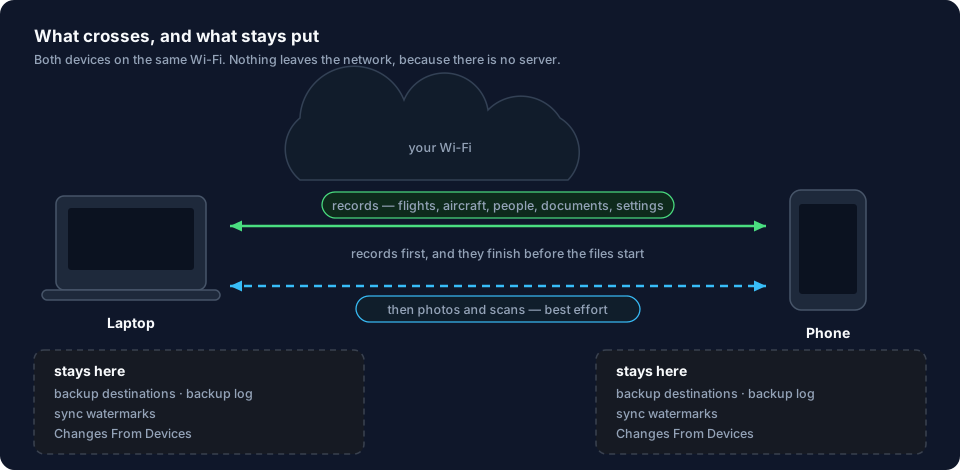
Travels between your devices — 36 kinds of data in all, which group into this:
| Group | What’s in it |
|---|---|
| Flights | Every flight and everything attached to it: times, duty times, schedule, fuel, approaches, crew, tags, external loads, attachments, custom field values |
| Your directory | Aircraft, aircraft types, people, organizations, airports, employment history |
| Documents | Documents and their scans, and the training, medical and rating records behind currency |
| Currency setup | Your authorities, rule settings, operating context and compliance settings |
| Your PIN | A PIN belongs to the logbook, so every synced device gets it (→ A5) |
| Who’s a member | The devices paired with this logbook, so pairing a new device with one of them reaches the rest (→ I7) |
| The Review queue | So scanning on a phone and reviewing on a desktop show the same queue |
| Import leftovers | Your saved column mappings, and the raw entries a scan or import produced |
| Three layout editors | Your Logbook Stats bar, your Detail View field choices and your Entry Form field choices, plus your saved filters and sorts |
| Media | Photos, document scans, avatars and organization logos. These travel last — see below |
Stays on the device it was made on. No sync carries any of this. A Merge restore leaves it behind too. A Replace restore copies the whole logbook file, so some of it comes along — with consequences of its own (→ I8, H6).
- Backup destinations and their passwords, and the backup log (→ H).
- This device’s Sync Status — its bookmark of what it has already sent each other device.
- The Changes From Devices log itself, which is why two devices never show the same one (→ I6).
- Scan pages still waiting to upload, and the records that let you undo an import.
- Your theme and livery — the app’s word for a look, a colour scheme plus a wallpaper — along with interface scale, units and time format, and your Flight Card, Aircraft Card and Quick Filter layouts. Those are device settings, which is why three layout editors follow you and three don’t (→ J4).
- The reference data the app comes with — countries, regions, the ICAO type catalogue, the built-in currency rules. Every device already has its own copy.
Reference: which version wins
- The later edit wins, and it wins the whole record. The app works out which edit came later without relying on your two devices’ clocks agreeing.
- Fields aren’t merged one by one. Change the remarks on one device and the times on the other, on the same flight, and the later save replaces the earlier one completely. The value you lose wasn’t overwritten on its own — the whole flight was replaced.
- A deletion is an ordinary edit. It syncs like any other change, and a delete made later beats an edit made earlier.
- An endorsed flight isn’t overwritten. A locked flight turns away an incoming change.
- Clearing a field only clears it everywhere for a short list of fields. Blanking a flight’s remarks, route or flight number, or the notes on an aircraft or a training event, reaches the other device on the next sync — they’re free-text fields nothing else depends on. Blanking anything else doesn’t: the other device keeps its value. There, an incoming blank is as likely to be an incomplete copy — an airport imported with no coordinates, a link that never got filled in — as a deliberate clear, and taking it would erase data nobody asked to lose.
- Photos and scans arrive last, and separately. Once the records are done, media travels in its own phase, in 512 KB pieces, and the same photo is never sent twice. The app doesn’t guarantee every file on the first try: a photo that doesn’t make it leaves a placeholder and is fetched on the next sync. The header names the phase and counts it — Transferring photos and files (N of M)…, with a bar that fills as each one lands. When this sync has nothing to fetch, it shows the same words with no count, Transferring photos and files…, and a bar that only shows the phase is running. Neither adds to the Sent: / Received: counts, and Sync Successful! doesn’t promise a photo arrived.
Gotchas
It isn’t for two people sharing one logbook. Sync keeps two copies of your logbook the same, and the later edit wins without telling you. Two pilots need two profiles on two accounts, not one logbook on two phones. They can share a device, though: see Two pilots, one device, above.
A sync happens once, when you tap it, and needs both devices awake. Nothing catches up later. If you want the laptop up to date before a trip, sync it before the trip — nothing will do it while the app is closed.
The counts are records, not flights. One flight is several records — times, crew, approaches — so correcting one landing time can report Sent: 4.
Worked example
The same flight, edited on both devices, with no Wi-Fi between them.
- Monday. You log G-ABCD, LHR–EDI, on your phone. The laptop is at home and gets it at the next sync.
- Tuesday, on the laptop. You open that flight — the laptop already has it from an earlier sync — and correct the block time from 1.9 to 2.1.
- Tuesday evening, on the phone. Still no sync between them. You add a remark to the same flight.
- Wednesday. You sync.
The phone’s version wins, whole. The remark is there, and the laptop’s
block-time correction has gone — the phone saved later, and the whole flight is
replaced rather than merged. On the laptop, Changes From Devices shows one
entry, Flight Updated, with flight_hours: 1.9 -> 2.1, and you can put the
laptop’s version back from there (→ I6).
Do the same two edits the other way round — add the remark first, then correct the time afterwards on the same device — and you keep both, because the second save carried both values. So the practical rule is: make both edits to one flight on one device, or sync in between.