
Upgrade to Pro
What this does
Buys Pro on the device in front of you, and switches it on in the logbook you’ve got open.
Before you start
- Open the logbook you want Pro on, first. The purchase binds to whichever logbook is open when you start it. Getting this wrong is recoverable (→ K5), but avoiding it is easier.
- Sign in first, and note which account you use. Profile Settings → ACCOUNT & DATA → Sign in with Google / Sign in with Apple (→ K7). Pro is held by that account. A purchase made under one account can’t be seen from another.
- If you’ve already paid, don’t start here. Read the Gotchas at the bottom of this guide instead, and come back if it turns out you haven’t.
- Pro is a one-time purchase. There’s nothing to cancel afterwards, and nothing that renews.
Steps
- Open the Upgrade to Pro screen: dashboard profile card → Profile Settings → ACCOUNT & DATA → tap Subscription Status, then SEE PRO in the dialog that appears. (What else this tap can show, and other ways in, are below.)
- Look for a One-Time Purchase: line above the buttons at the bottom — LATER, RESTORE and UPGRADE NOW — and follow the matching steps below. The screen also lists the five things Pro unlocks (→ K1).
If the screen carries a One-Time Purchase: line — iPhone, iPad and Android always; a Mac when its own App Store has the product
- Check the price on the One-Time Purchase: line. It’s the current price, in your own currency, from the store.
- Tap UPGRADE NOW. Your device’s store sheet appears; confirm the purchase there as you would any other.
- Stay on the screen for a few seconds after the store says the payment succeeded. The app waits up to 20 seconds for the licence.
If there is no One-Time Purchase: line — Windows and Linux always, and any machine whose store has no product to sell
- Tap UPGRADE NOW. It opens
aviatorarchive.com/purchasein your web browser. (The screen reads Price is shown at checkout instead of a figure.) - On that page, sign in with Google or Apple again, in the browser. Use the same account you’re signed in with in the app.
- Check the price on that page, and complete the checkout there.
- Switch back to the app window. That’s what makes the app look for your licence. For ten minutes after handing off to the browser, it checks each time you come back.
How to tell it worked
Profile Settings → ACCOUNT & DATA → Subscription Status reads Pro Tier — thank you for your support! (signed in with Google), or Apple.
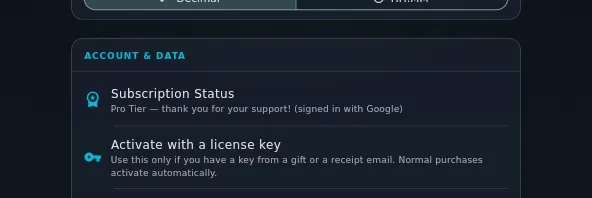
The other sign is in the export panel: select PDF, and the blue PDF and regulatory exports are a Pro feature notice is gone. Export produces a PDF instead of the upgrade screen.
If something goes wrong
Purchase messages appear inside the upgrade screen, under the price, and stay until you do something else.
| What you see | Why | What to do |
|---|---|---|
| Payment received, but we’re still finalizing your upgrade. You do not need to buy again. Tap RESTORE in a moment if it does not unlock automatically. | The payment worked; the licence hadn’t arrived within 20 seconds | Wait a moment, then tap RESTORE. Don’t buy again |
| Your store account has already bought Pro, but Pro is not active for this logbook. Get in touch at aviatorarchive.com/faq and we will sort it out. | The store says this store account owns Pro, and the app’s own restore found no Pro licence for this logbook. Most often Pro was bought for another logbook, or a refund left the store purchase in place. If the licence is there, the upgrade screen closes with Pro on and you see no message | If Pro belongs to another logbook, see K5. Otherwise get in touch. Buying again won’t work |
| No Pro purchase found to restore. | RESTORE found nothing under this store account, and no licence under this sign-in | Check you’re signed in with the account you bought with — see Gotchas |
| No internet connection. Check your network and try again. | No connection | Reconnect and retry |
| The app store is having issues. Try again in a few minutes. | The store is unavailable | Retry later. Nothing has been charged |
| Purchases are not allowed on this device or account. | Purchasing is restricted on the device or the store account | Check the device’s own purchase restrictions |
| The upgrade screen is titled Payment pending, with no price and no UPGRADE NOW | The store accepted your payment method and hasn’t settled the payment yet. This can take minutes, or days for some payment methods. Subscription Status reads Payment pending meanwhile | Nothing. The app checks by itself: Pro switches on when the payment clears, and a banner reading Your payment cleared. Pro is now active on this logbook. stays until you tap OK. CHECK NOW asks straight away. If the store declined the payment, tap Payment was declined? Try again to get the buy button back |
| This product is not currently available for purchase. | The store has nothing to sell on this device right now | Report it (→ A11). Buying on another device you own is a good way round it |
| Could not open the checkout page. Visit aviatorarchive.com/purchase in your browser. | The app couldn’t hand off to a browser | Open that address yourself, and sign in there with the same account |
| The checkout button on the web page is disabled, reading Checkout opens shortly — we’re completing payment-provider verification. | The page has no live price to sell yet | Try later, or buy on a phone or tablet if you have one |
| You paid and the app still shows Free after a few minutes | The licence is issued to the account used at checkout | Read Gotchas, then K5. Don’t buy again |
Other ways into the upgrade screen
- By hitting a gate: any of the five Pro features opens it directly (→ K1).
- From the banner on the logbook list between 75 and 100 hours: UPGRADE (→ K2).
What tapping Subscription Status can show instead
If the row already reads Pro Tier, the tap answers You are on the Pro tier! and stops there. Otherwise the app shows Checking latest subscription status… and re-checks with the server. If the check finds Pro, nothing more appears. If it doesn’t, one of two dialogs appears:
- Pro is on another logbook: this account has Pro, but it’s active on a different logbook. MOVE PRO HERE moves it to the open one, and the other logbook goes back to free (→ K5).
- No Pro licence on this account: the account you’re signed in with has no Pro at all. SEE PRO opens the upgrade screen.
Reference: what happens on each platform
| The store rail — iPhone, iPad, Android, Mac | The browser rail — Windows, Linux | |
|---|---|---|
| Who takes the payment | The device’s own app store | A checkout page at aviatorarchive.com/purchase, in your browser |
| Price shown in the app | Yes — the One-Time Purchase: line on the upgrade screen | No — the screen reads Price is shown at checkout instead; the price itself is on the web page |
| Sign-in needed at the checkout | No — the store already knows you | Yes, again, in the browser |
| What binds the licence to a logbook | The open logbook is attached to the purchase before the store sheet opens | The open logbook travels in the checkout link |
| What RESTORE does | Asks the store to look up your purchases, and re-checks your licence with us | There’s no store to ask, so it re-fetches your licence from our server |
| What makes the app notice | It checks for up to 20 seconds after the store confirms | Returning to the app window, any time in the ten minutes after handoff |
The app picks the rail on one thing: whether the store has a product to sell. So a Mac is on the store rail only while its App Store has the product. On any machine, an upgrade screen with no One-Time Purchase: line is the browser rail — with no store product, the app has no price of its own to show.
Gotchas
Bought with one account, signed in with another. This is the most common failure in this area, and it looks exactly like a payment that didn’t go through. The app has a dialog for it: tapping Subscription Status while not Pro, on an account with no Pro licence, shows No Pro licence on this account, reading We checked your Google account and found no Pro licence. and then If you already bought Pro, it is tied to the account you used at checkout — which may be a different one. Sign out and sign back in with that account. Nothing is lost, and signing in does not use up your licence. That’s the fix: sign out, sign back in with the other account, and check Subscription Status again. Do that before you consider paying for anything.
An expired sign-in never takes Pro away, so signing in again never restores it. A banner saying your session has expired is about sync and cloud features. Pro is checked on the device from a signed file, and keeps working offline for as long as the device lives. So if you’ve paid and you’re shown a paywall: check which account, then Subscription Status, then K5 — never “sign in again to refresh the licence”.
Bought on the web, now checking in the app. Use Subscription Status, which forces a fresh check with the server. Signing out and back in is slower, does more, and isn’t what fixes this.
Bought on the web without signing in. A logged-out checkout has no account to
give Pro to, so the success page shows you a licence key instead — AA- and
four groups of five characters. Copy it straight away: the key never expires, but
that page only shows it for 72 hours. Reloading the page inside that window is
safe and doesn’t use the key up. Then type it into the app
(→ K4). If the 72 hours have passed, the key is
still valid and still yours — contact support and say so.
RESTORE means two different things, and both are correct — see the RESTORE row in the table above.
Buying for the wrong logbook. If you had a different profile open when you paid, nothing is lost and nothing needs re-buying. Open the logbook you meant, and move the licence to it (→ K5).