
Sign in, and what the account is for
What this does
Attaches a Google or Apple account to the logbook you’ve got open. That account is what can reset a forgotten PIN, and what owns anything you buy.
Before you start
- Signing in doesn’t put your logbook anywhere. No flights, documents, photos or settings are uploaded, and there’s no logbook of yours at our end to read. What travels is an identity — enough to say “this is the same person” when a PIN needs resetting or a purchase needs matching — your logbook’s hidden ID, so the account knows which logbook is yours, and a certificate request for sync. None of those carries any logbook data.
- Sign-in is per logbook. Signing in while one profile is open doesn’t sign you in on another profile on the same device; each keeps its own session. It’s the same separation that makes a profile a logbook (→ A2).
- An account has one logbook. The first logbook you sign in on becomes your account’s logbook, and Pro belongs to it. Signing in on a different one with the same account brings up This account already has a logbook instead — see below.
- Signing in with a different account on a logbook that was signed in before can discard the first account’s stored licence from this device — but only if no other logbook on this device is still signed in to that first account. If another profile here still uses it, its licence is left alone. If you own Pro, sign in with the account that holds it.
- You can do this at any time, but the safer time is before you set a PIN (→ A5).
Steps
- On the dashboard, tap your own profile card to open Profile Settings. There’s no Settings tab.
- Scroll to ACCOUNT & DATA, and within it past the Subscription Status and Activate with a license key rows to the sign-in buttons at the foot of the section.
- Tap Sign in with Google or Sign in with Apple.
- Complete the sign-in. On a phone, tablet or Mac, this is your device’s usual Google or Apple sign-in. On Windows or Linux, a browser tab opens; when it says you’re signed in, close the tab and come back to the app.
How to tell it worked
The buttons are replaced by a row naming the provider — Signed in via google — with Establishes identity for Profile recovery. beneath it and a Sign Out button at its edge.
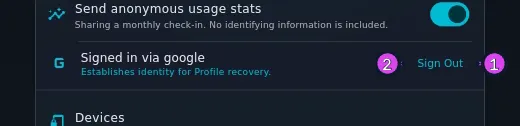
Subscription Status, in the same section, stops saying Not signed in — sign in to restore Pro and names the account it checked instead: Free Tier — checked your Google account, or Pro Tier — thank you for your support!
If something goes wrong
| What you see | Why | What to do |
|---|---|---|
| Sign-in failed: … with a Try Again button | The sign-in didn’t complete | Tap Try Again. If it keeps happening, report it with the message and your version number (→ A11) |
| the browser never returned to the app. The Google sign-in page may have opened behind this window — check your other windows and try again. | On Windows or Linux, the browser page opened behind the app and was never finished | Check your other windows, finish the page, or start again |
| The sign-in closes and the buttons are still there, with no message | The sign-in was cancelled | Tap the button again |
| Your session has expired, with Sign in again to restore sync and cloud features. Your logbook and Pro status remain available offline. | The 30-day session ran out. There’s no silent renewal — only a fresh sign-in | Sign in again when it suits you. This is not why Pro or a logbook would stop working, and signing in again isn’t a fix for a Pro problem (→ K3) |
| A sync won’t start from this device, and the sync screen says so | Starting a sync needs a signed-in session. A signed-out device also has no sync certificate, so it can’t accept an incoming sync either, whatever that banner says | Sign in here; it re-enrols the certificate (→ I9) |
What the account is for
The app gives its reason above the buttons: Sign in to establish your identity for profile recovery and premium purchases. It does one more thing that line doesn’t name: it enrols this device’s sync certificate, which is why signing out stops sync (see What Sign Out does).
What Sign Out does
Sign Out is the button beside Signed in via … in ACCOUNT & DATA. It ends the account session for this logbook:
- The logbook shows Free Tier afterwards, even if you own Pro — with no session, the app can’t read your licence. Your licence isn’t lost. It stays on the device, and signing back in with the same account restores Pro with no purchase and no key. The licence is checked on the device, but signing back in needs a connection.
- Sync stops in both directions on this device until you sign in again. Signing out clears the sync certificate, and a device without one can neither start a sync nor accept one. The sync screen’s banner says other devices can still sync to this one — that isn’t true for a signed-out device. Signing back in re-enrols it.
What Sign Out does not do
- It doesn’t leave the profile or close the logbook. That’s the red Logout on the dashboard profile card — a different control with a confusingly similar name (→ A8).
- It doesn’t lock the logbook. A PIN does that, and the PIN is untouched (→ A5).
- It doesn’t remove the recovery account from the profile. The account that secured this profile stays recorded on it, so Forgot PIN? still works with that same account after a sign-out (→ A7).
- It doesn’t delete anything in your logbook, and it doesn’t remove your Google or Apple account from the device.
Related guides
- Setting a PIN, and why the sign-in comes first: A5
- Getting back into a logbook whose PIN is lost: A7
- Leaving a profile rather than an account: A8
- What the account owns once you buy: K1, K3
“This account already has a logbook”
You see this when you sign in on a logbook that isn’t your account’s — almost always a second profile made by mistake on another device, or on this one. The logbook you’re in isn’t signed in, and nothing in it is touched. The screen names the devices your account is signed in on, and if your account’s logbook is another profile on this device it names that too. Then it offers three ways out:
| Choice | What it does |
|---|---|
| Use my existing logbook | Takes you to your account’s logbook — straight to it if it’s on this device, or step by step through bringing it here with Scan invite (→ I2). If the logbook you’re in has flights, it tells you how to combine them in first (→ H8) |
| Make " | Moves your account, and Pro, to this logbook. The other one is signed out of your account the next time it opens. Once every 30 days, and you confirm by typing the logbook’s name (→ K5) |
| This isn’t my account | Signs out. Each pilot needs their own Google or Apple account |
Decide later closes the screen and leaves the logbook signed out.
A logbook can also be signed out this way by itself, with the message "