
Times, OOOI and time basis
What this does
Puts the block times on a flight so that Flight Time comes out right — including on a leg that crosses midnight, or two timezones.
Before you start
- The entry form is open on a flight (→ C1). Times is the one section that can’t be hidden, so it’s always there.
- Decide which clock your times are in before you type them. Changing the basis afterwards changes the calculated total.
Steps
- Under Block Times, choose the basis: UTC / Zulu or Airport local.
UTC / Zulu is the default, and it’s right for most pilots. The line under
the buttons explains whichever one you’ve chosen.
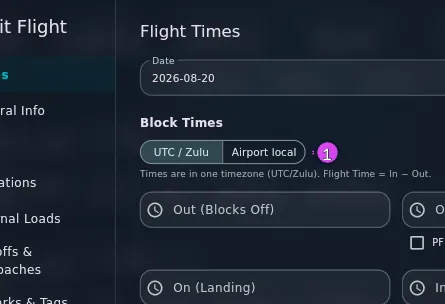
1 the UTC / Zulu vs Airport local toggle - Tap Out (Blocks Off). A date picker opens first, then a time picker. Set both.
- Fill in Off (Takeoff), On (Landing) and In (Blocks On) the same
way. Off and On are optional.
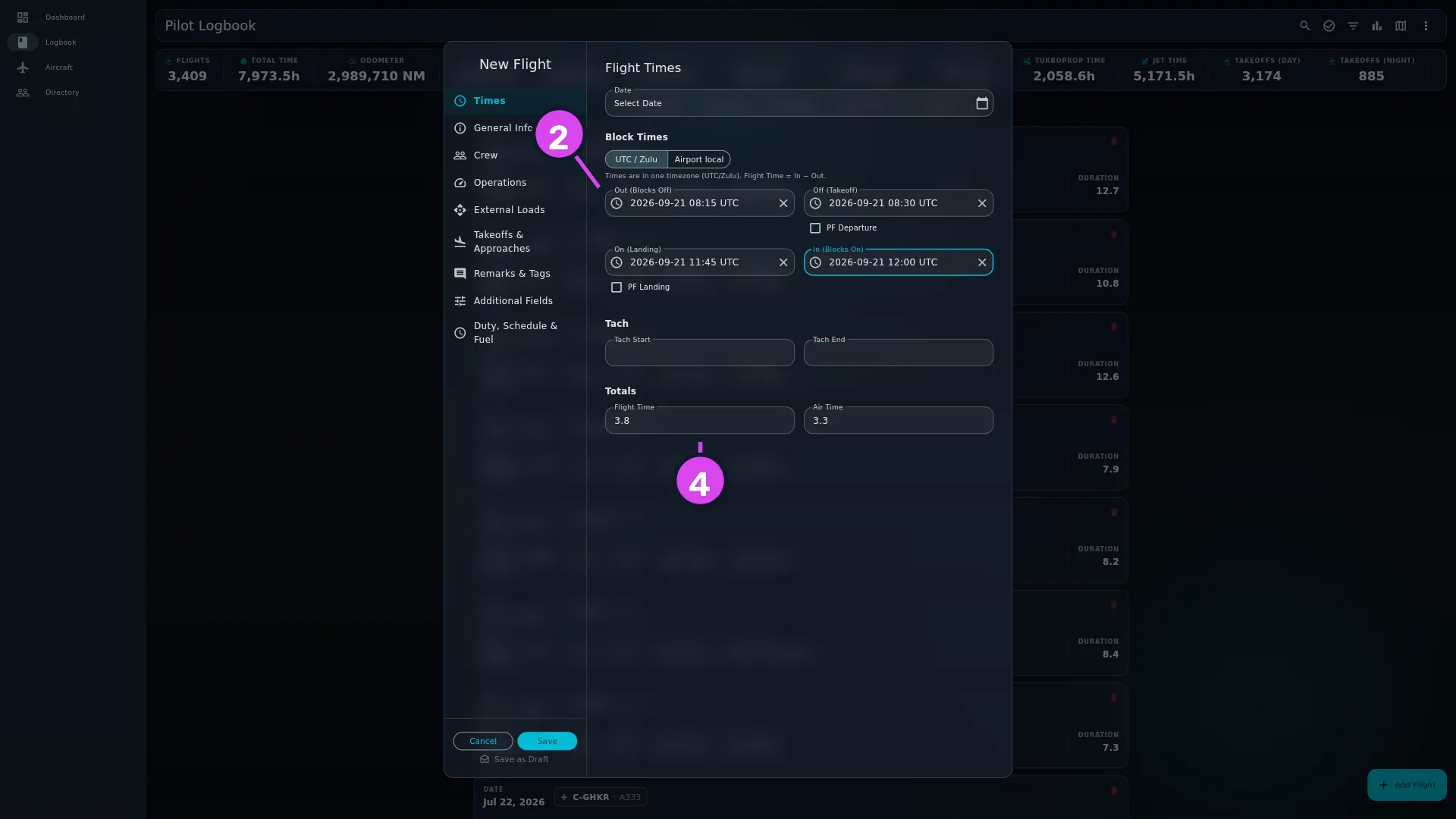
- Check Flight Time, under Totals. It has filled itself in from In minus Out, and Air Time from On minus Off.
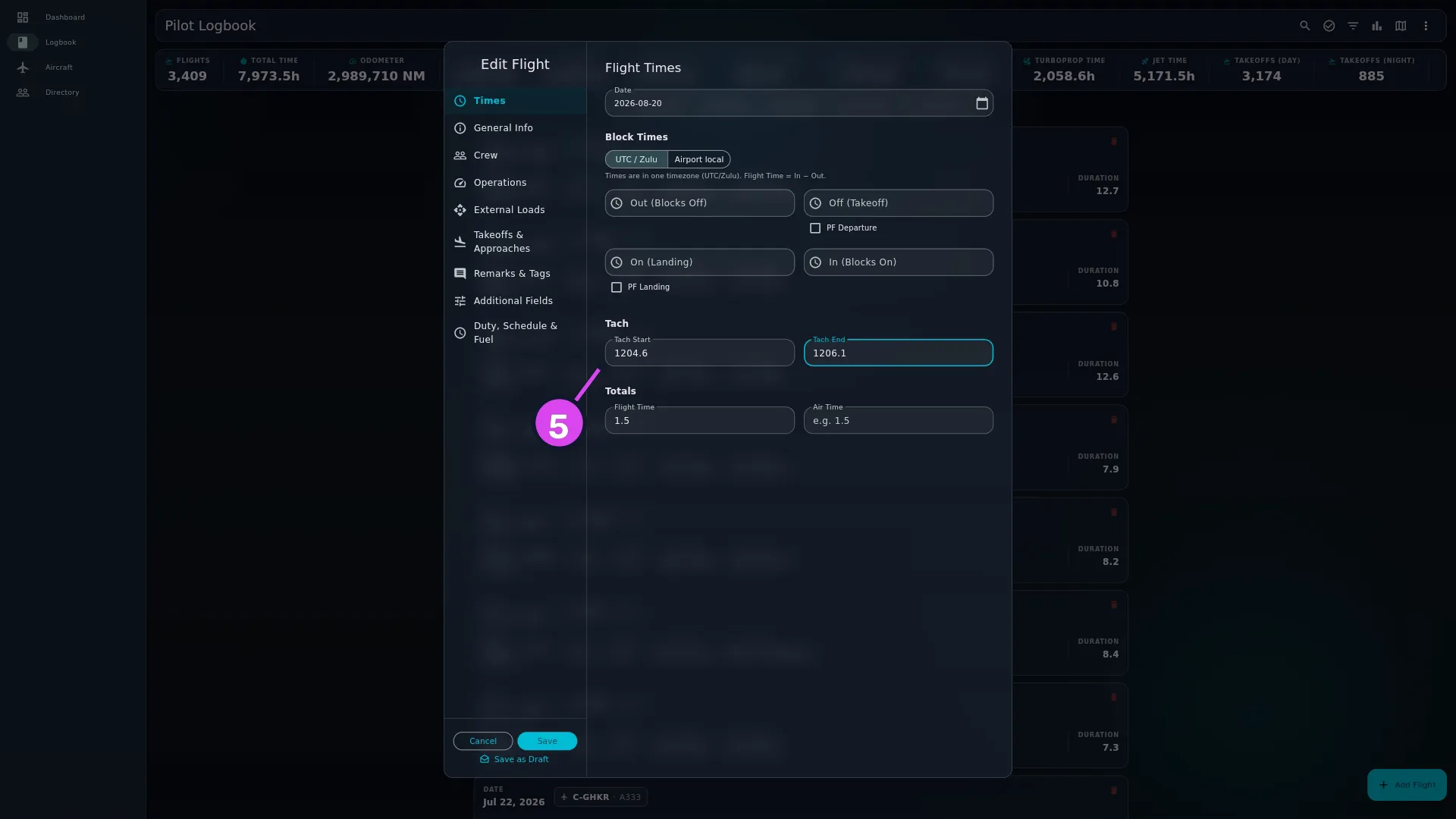
- If the aircraft is logged by tachometer instead, leave the block times empty
and fill in Tach Start and Tach End. Flight Time comes from the
difference between them.
How to tell it worked
Flight Time holds a number you didn’t type, and it matches the leg. On a 1.5-hour leg it reads 1:30 or 1.5, depending on your time-format setting (→ J3). If you filled in Off and On as well, Air Time holds a slightly smaller number.
If something goes wrong
| What you see | Why | What to do |
|---|---|---|
| Flight Time is required. Enter Out & In times, Tach Start & End, or a manual value. | None of the three sources gave a total | Fill in Out and In, or both tach readings, or type the total yourself |
| Invalid under Tach Start or Tach End | The app can’t read the reading as a number | Type it again as a plain number |
| Override Flight Time? | You typed a total that differs from the calculated one | See Typing over the calculated total below |
| Flight Time doesn’t change when you correct a time on an existing flight | The saved total stays until you edit a time field while the form is open | Edit any of the four times, or type the total you want |
| Flight Time stayed where it was on Airport local | One of the two airports has no timezone the app can find, so it left your existing total alone rather than work out a wrong one | Use UTC / Zulu and Zulu times, or type the total yourself |
| Block In is before Block Out. If this flight landed the next day, set the date on In (Blocks On) as well as the time. under Block Times | Out and In are the wrong way round for the basis you’ve chosen | If the leg really did cross midnight, set the date on In to the next day rather than changing the time. Otherwise correct whichever time is wrong |
| Takeoff must be after Block Out / Landing is before Takeoff… / Block In must be after Landing under Block Times | Off and On are out of order with Out and In | Fix the time that’s out of order, or move the date forward a day on the field that crossed midnight |
| Tach End must be >= Start under Tach | Tach End is lower than Tach Start | Check the two readings and type the wrong one again |
| A Required Items dialog even though Flight Date, Aircraft and both airports show green ticks | One of the four time problems above is still there. It has no tick of its own, so it shows as red text under the five items instead | Read the red text, fix the time it names, and Save again |
Where Flight Time comes from
Flight Time is the number the whole app is built on. Totals, currency, analytics and every export read it. The app has three sources for it and tries them in a fixed order: In minus Out first; Tach End minus Tach Start if there are no block times; and whatever you type if there’s neither.
The four fields, and which two matter
OOOI is the four block times together — Out, Off, On, In. The app uses those four letters as the field labels, and heads the group Block Times.
| Field | What it is | Feeds |
|---|---|---|
| Out (Blocks Off) | Off the blocks — chocks away, brake released | Flight Time |
| Off (Takeoff) | Wheels up | Air Time |
| On (Landing) | Wheels down | Air Time |
| In (Blocks On) | On the blocks at the gate or the ramp | Flight Time |
Out and In make block time, which is what this app calls Flight Time. Off and
On make Air Time. Air Time is recorded, and it leaves in an export as its own
air_hours column, but it’s never a total and feeds nothing else. So if you log
Off and On but not Out and In, you have no Flight Time at all.
Each time field asks for a date as well
Tap any of the four and you get a date picker first, then a time picker. That’s how you log a leg that lands on a different day from the one it left: set Out to the 11th at 23:40 and In to the 12th at 01:15, and the total comes out at 1.6 rather than negative. A field that’s already set has a small clear button beside it.
The timezone label on these fields says the wrong thing
All four fields are hinted Tap to select local time and show their value with
an LT suffix, whichever basis is selected. That suffix is cosmetic. The
UTC / Zulu and Airport local buttons decide the calculation, whatever
the field underneath calls itself. So if you’ve chosen UTC / Zulu, type Zulu
times and ignore the LT.
Choosing a basis
| Basis | The app’s own words | Use it when |
|---|---|---|
| UTC / Zulu | Times are in one timezone (UTC/Zulu). Flight Time = In − Out. | You log in Zulu, or your legs stay inside one timezone. This is the default |
| Airport local | Times are local to each airport. Flight Time adjusts for the timezone difference between departure and arrival. | All four times are the wall clock at their own airport, and both airports are in the database with coordinates |
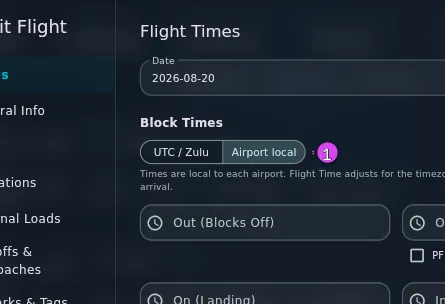
Airport local does real work: 09:00 out of one zone and 10:00 into a zone three hours ahead is a four-hour leg, and this basis gets that right. To do it, the app has to find a timezone for both airports. When it can’t for one of them, and the two airports aren’t the same, it leaves an existing total where it is rather than replace it with a number it doesn’t trust. That’s why a total can look stuck on this setting.
Tach readings aren’t affected by any of this. Two meter readings have no timezone, so the app trusts the tach fallback even when it can’t place the airports.
Typing over the calculated total
You can type into Flight Time yourself. When you leave the field — not while you’re still typing — the app compares your number with the one it calculated, and if they differ it asks:
Override Flight Time? The calculated value is X, but you entered Y. Keep the entered value?
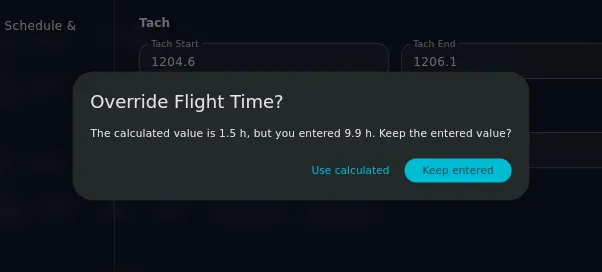
Keep entered takes your number; Use calculated puts the app’s number back. The same dialog appears for Air Time, headed Override Air Time?.
Overriding is fine — a total from an old paper page is often the only number you’ve got. Do it knowingly, though: a typed total doesn’t update if you go back and correct the times later.
Editing an existing flight does not refresh the total
Open a flight you saved a month ago and its Flight Time is whatever was saved, not a fresh calculation from its times. It’s only recalculated when you change one of the time fields while the form is open, so an overridden or imported total isn’t replaced without you knowing. If a flight has times you trust and a total you don’t, type one of the times again to make the app work it out afresh.