
Renew a document
What this does
Adds this year’s certificate to last year’s, so the two are one document with a history rather than two documents sitting side by side.
Before you start
- You’re in the Document Store screen (→ G1), or on the dashboard’s Document Store strip. Both offer Renew and both do the same thing — see Renewing from the dashboard, below.
- The document already has a record. If this is the first of its kind, you’re adding, not renewing (→ G2).
- Have the new certificate and its scans to hand. Scans aren’t carried forward; each record keeps its own. Renewing a medical: have the certificate’s own expiry to hand too, and your date of birth on file (→ A9) — see Renewing a medical, below.
- Don’t change the authority, the subcategory or the aircraft type while you’re renewing. Those three, with the event type, are what make two records the same document.
Steps
- Find the document’s card, tap ⋮, and tap Renew.
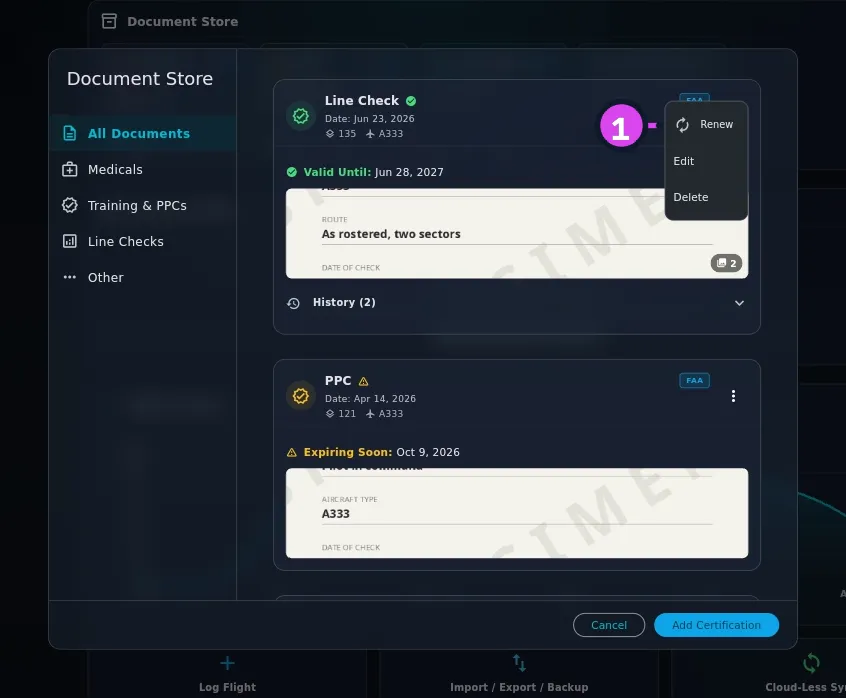
1 Renew — keeps the old record as history - A sheet headed Renew Certification opens with Event Type,
Certification Authority, the subcategory and Aircraft Type already
filled in. Leave all of it alone.
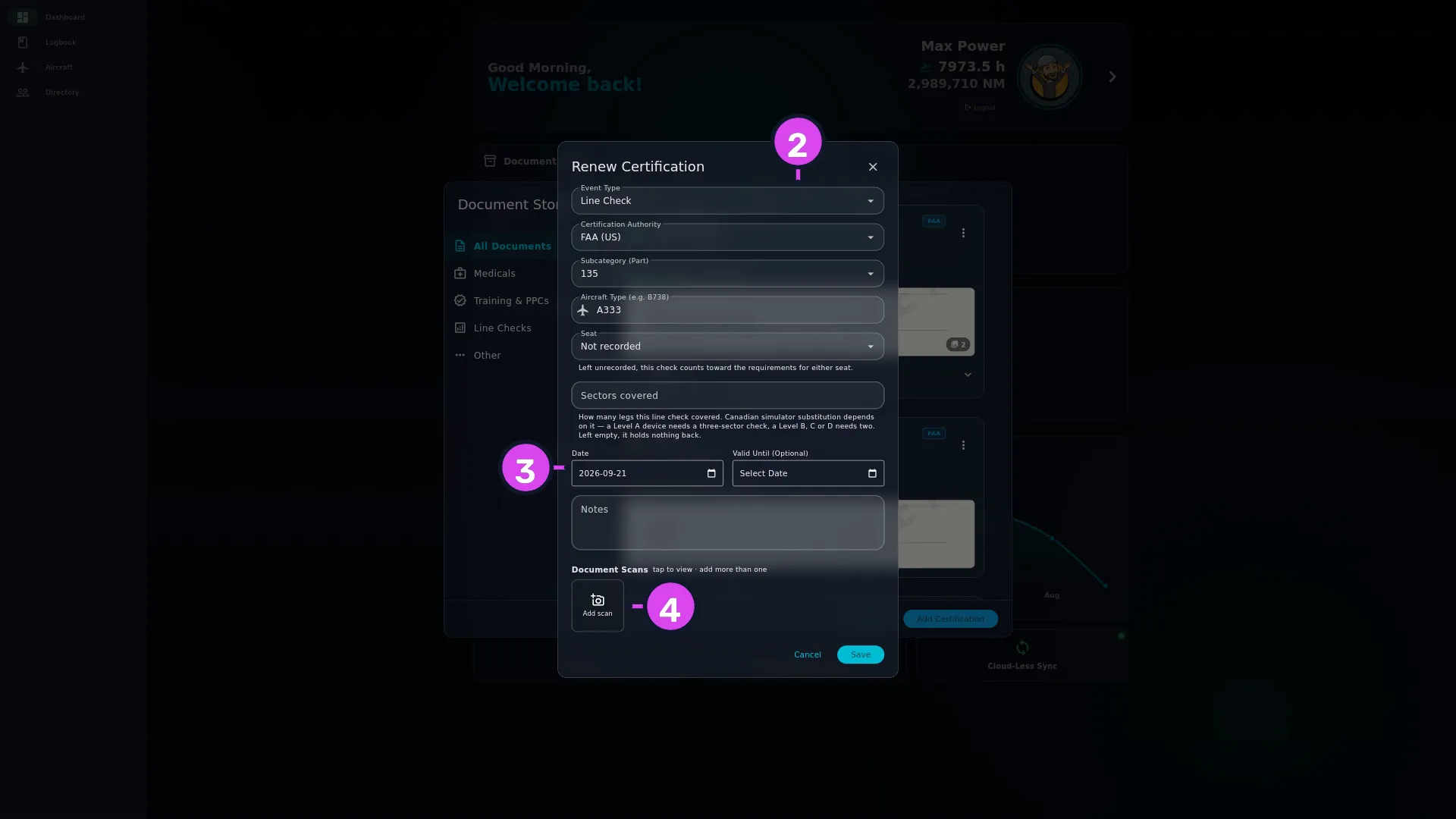
2 the prefilled identity fields — leave them alone3 Date4 the gallery — empty because scans are not carried forward - Set Date to the day of the new exam or check. It starts on today, which is only right if you took it today.
- Set Valid Until (Optional) if the new certificate prints an expiry. The scan gallery starts empty: tap Add scan and attach the new certificate. For a Line Check or Route Check, fill in Sectors covered again too.
- Tap Save.
How to tell it worked
The card now shows the new date, its status line is green, and at the foot of the card an expander reads History (1) — or one higher than it read before. The old record is inside it (→ G4). On the dashboard, the Currency Status row for that requirement should have moved (→ G8).
If something goes wrong
| What you see | Why | What to do |
|---|---|---|
| Two cards of the same type, the old one still looking expired | The renewal had a different authority, subcategory or aircraft type from the original, so it became a second document | Open the new record with ⋮ → Edit, set those fields to match the old one exactly, and Save. The two then join into one document |
| No History expander on the card | There’s only one record in this document, so the renewal went somewhere else | As above |
| The currency row hasn’t moved | The subcategory on both records may be one no rule reads | Check it against the table in G2 |
| The expiry on the card isn’t the date you expected | Valid Until was set on the old record but left blank on the new one, so the expiry is now worked out from the rule instead of typed | Set Valid Until on the new record to the date the certificate prints |
| Could not save: … | The record couldn’t be saved | Try again. The old record is untouched either way |
What the sheet fills in, and what it doesn’t
Aircraft Type is only filled in if the old record had one. Seat carries forward too, if the old record had it set: it isn’t part of what makes the document, but it’s not something that changes with a renewal either.
Sectors covered starts empty: a renewal is a new check, so don’t assume last time’s count still applies.
Renew, Edit and Delete do different things
Renew creates a new record and leaves the old one alone, which is how history builds up. Edit replaces the record you’re on and leaves no history — use it to correct a mistake, like a mistyped date or a missing scan. Delete can’t be undone (→ G1).
After a renewal there’s nothing to tidy up. The newest record is the one that counts and the older ones are history, so don’t delete the old record — you’d lose the trail and gain nothing.
Renewing from the dashboard
When a medical turns amber, the Document Store strip on the dashboard is the
obvious thing to tap. Tapping a tile opens a small panel, headed with the event
type and Dated
- Renew — Add the new certificate. This record is kept as history.
- Edit details — Correct this record. It replaces what is here and leaves no history.
Renew opens the same Renew Certification sheet as the ⋮ menu in the Document Store, with the same result: a new record in the same document, with the old one under History. Cancel leaves the record alone.
Read the two subtitles before you choose. Edit details is the one you can’t take back: saving from there writes the new exam over the old record, and the old date, expiry, notes and scans are lost, with no history. If the sheet is titled Edit Certification when you meant to renew, close it and start again.
Renewing a medical
If you leave Valid Until blank, the expiry is worked out from the validity period for your age on the day of the exam. With no date of birth on file, the app uses the shortest period the rule has, so a fresh renewal can read as expiring within months (G5).
One renewal, start to finish
An EASA Class 1 medical, renewed on 12 August. In the Document Store, find
the card reading Medical with the EASA badge and the Class 1 chip. Tap
⋮ → Renew. The sheet opens with Medical, EASA (EU) and Class 1
already set — don’t touch them. Set Date to 12 August, attach a photo of the
new certificate, and tap Save.
The card now reads Date: Aug 12, 2026, and History (1) holds the old one. If you left Valid Until blank, the expiry on the card was worked out from the validity period for your age on 12 August — which the app can only do if it has your date of birth (→ A9). Without it, the EASA Class 1 rule falls back to its shortest tier, and the renewal shows as valid for six months whatever your age, when a holder under sixty gets twelve (→ G5).