Photographs the pages of a paper logbook, sends them off to be read, and brings
the flights back through the same import wizard a CSV goes through.
Before you start
AI Scan is a Pro feature. The paywall states the allowance: AI Scan is a
Pro feature — Pro comes with a 10-page preview so you can try it on your own
pages.
You’re signed in and this device has a connection. Pages captured without
either are held on the device and uploaded later (→ What you cannot take
back).
You’ll be asked to accept a privacy disclosure the first time you open AI
Scan in each profile, so a second logbook on this device asks again. Pages are
sent to a named cloud AI provider, and there’s no way to scan without
accepting.
A page already sent can’t be taken back. Removing its thumbnail afterwards
stops neither the upload nor the charge. A page you discard before it’s sent
is the exception, and a page that fails can be retried — see What you cannot
take back below.
Steps
On the import screen, tap AI Scan.
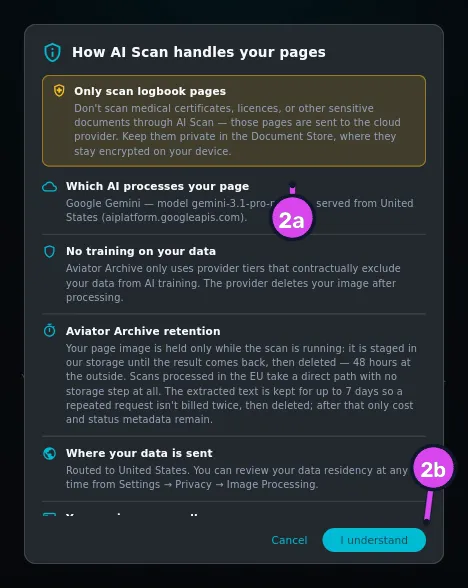
Read How AI Scan handles your pages and tap I understand. It covers
which provider processes the page, that the provider is contractually barred
from training on it, that the image is held only while the scan runs, that the
extracted text is kept for a short period afterwards, and that nothing gets
into your logbook without you accepting it. It also asks you to scan logbook
pages only (→ Two more things to know). Cancelling closes the scanner.
2a the Only scan logbook pages caution2b I understand
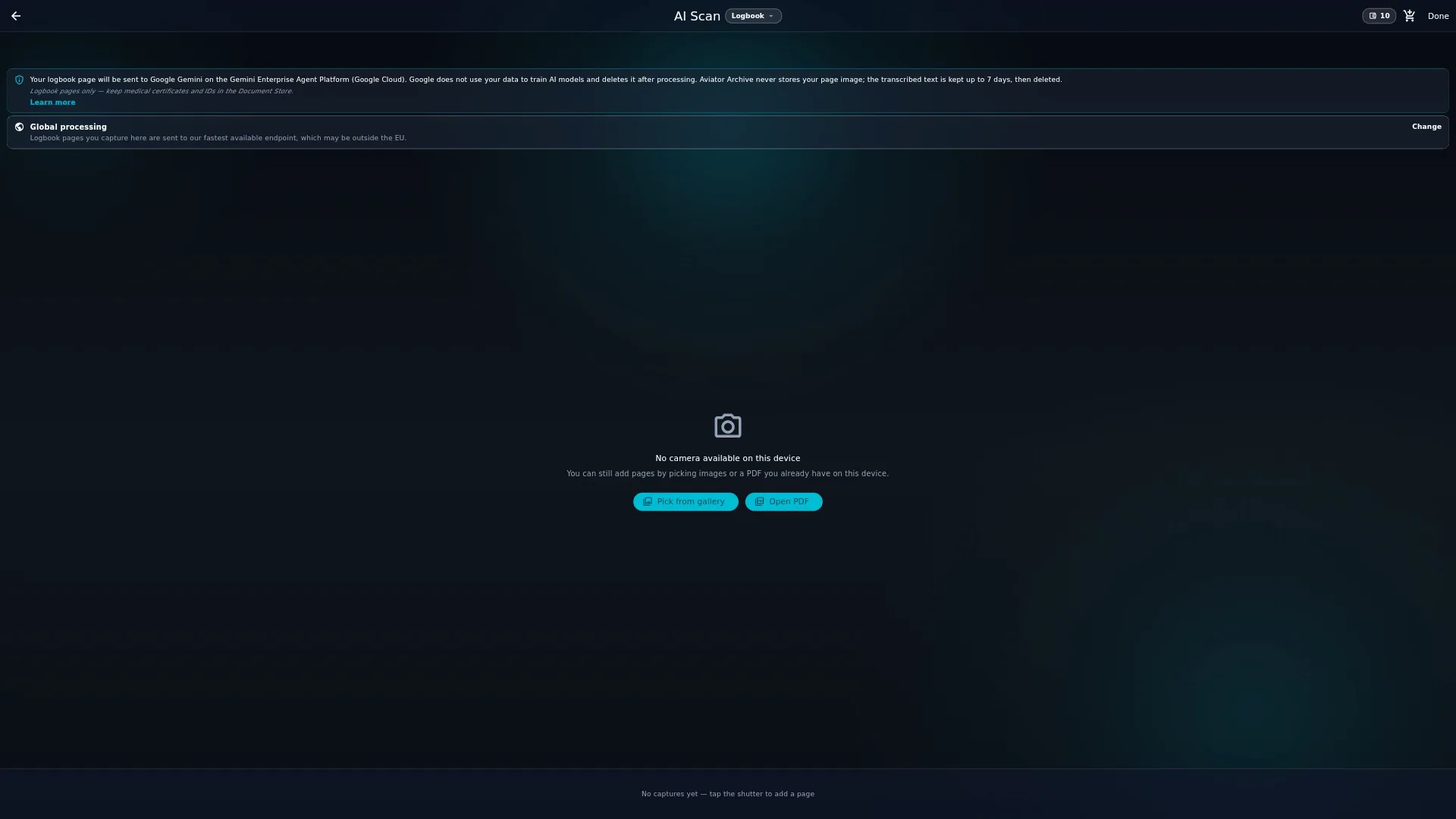
The scanner opens on the camera. Check the pill — Logbook or Roster /
Document, for the kind of page you’re capturing — and the card naming where
your pages are sent, EU processing or Global processing; tap the card
to change region. You can add pages three ways: the shutter, the gallery
button, and a PDF.
If your account is EU-based and Global processing is selected, a dialog
titled Your pages will leave the EU appears first, every time you open the
scanner. Cancel backs out without opening the camera, Switch to EU
changes the setting and carries on, and Continue anyway goes ahead as
things are (→ Processing region).
Photograph the page: lay it flat, light it evenly, and get the whole page in
the frame with its edges visible. Cropping and straightening are automatic and
can’t be adjusted, so the photograph is the only part under your control.
Watch the number in the top bar — that’s your pages remaining. It turns amber
below five and red at zero.
When you add a PDF, or more than one image from the gallery, the app asks
first: Use AI Scan pages? — Importing N images will use N AI Scan pages
from your purchased quota — one page per image. Tap Continue. A single
gallery image and the camera shutter never ask — each spends a page with no
prompt at all.
For a PDF, Choose pages to scan opens. Tap tiles to include or exclude
them — one button switches between None and All — and confirm with
Scan N pages.
To fix an upside-down page, tap its thumbnail before it’s sent and choose
Rotate 90° clockwise, Rotate 90° counter-clockwise or Rotate 180°.
On a computer with no camera, the scanner opens on a fallback screen instead:
tap Pick from gallery or Open PDF. Everything after that is the same.
Expand
Tap Done. The pages upload and are read on the server, not on this device,
so you can close the app; the scan’s card on the Scans page shows its
progress. Most scans finish within a few minutes, though one can occasionally
take longer.
Expand
When the card on the Scans page reads Ready to review, tap Review N
pages.
Expand
If a banner above the card reads A fallback model ran on N of these pages —
please verify multi-engine columns before importing., a second model handled
those pages. Note which ones they are before you go on.
Expand
If Some pages use different columns appears, finish this batch, then
reopen the scan for the rest. Pages whose headers differ from the first page
are reviewed in a second pass — nothing has been dropped.
Expand
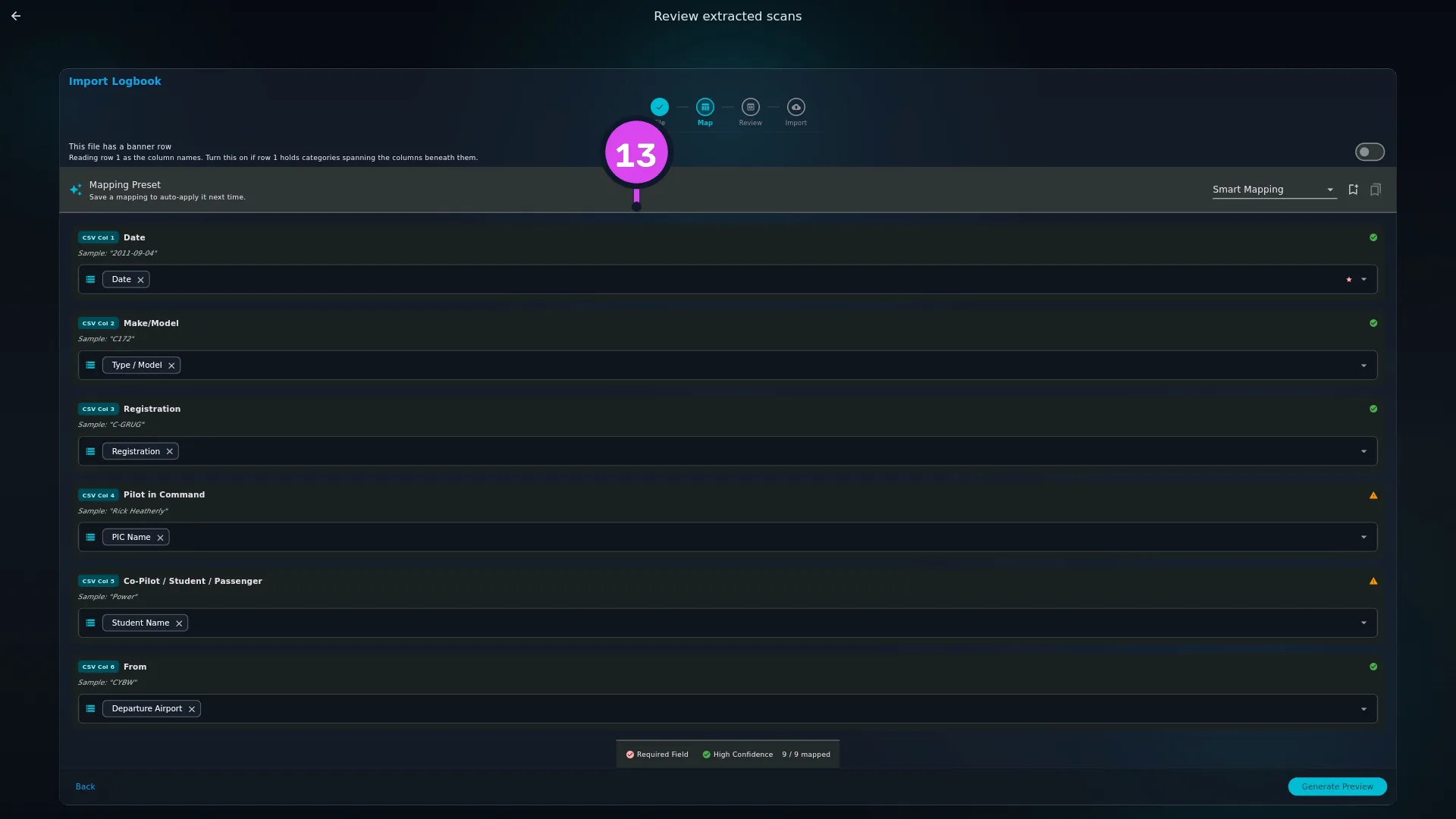
The wizard opens on Review extracted scans, at the Map step. From here
on it’s the import you already know, with the same mapping and date rules
(→ B3, B4).
Expand
On the Review step, check every row against the page in front of you
before you import. What you’re reading is a machine’s reading of handwriting.
How to tell it worked
The Scans card reads Imported, the flights are in your logbook, and the
green badge on the Import / Export / Backup card has gone. Rows the import
couldn’t place are held in the Review inbox, the same as they would be from a CSV
(→ B5).
If something goes wrong
What you see
Why
What to do
Upgrade to Pro
AI Scan is Pro-only
See what Pro includes, and what it costs, in the app (→ K1, K3)
Scan session not ready — close and reopen this screen
The session hadn’t finished starting
Close the scanner and open it again. Nothing is lost
Capture failed: …
The camera couldn’t deliver the photograph
Take it again. A failed capture costs you nothing
Added N images; M couldn’t be read
Some of the files you chose aren’t images the app can open
Re-export those pages, or photograph them
Couldn’t add that PDF. / Could not preview this PDF
The PDF is encrypted or damaged
Open it on a computer, re-save it, and try again
Hold on — still processing captures
Done was tapped while a page was still being prepared
Wait a few seconds and tap Done again
Already submitted for extraction — discard and re-scan to fix orientation
The page has gone. Rotation only works before sending
Nothing to do for that page. Rotate the next one before you tap Done
Saved. AI Scan will process these pages when you’re back online.
The device is offline
Reconnect and sign in. The pages upload by themselves
A banner reading A fallback model ran on N of these pages — please verify multi-engine columns before importing.
A second model handled those pages
Check the multi-engine columns row by row before importing
What a page costs
One image is one page of your quota. One photo, one image from your gallery,
or one page of a PDF each cost a page, so a 12-page PDF costs 12. Buying more is
covered in Area K (→ K6), which is also where you’ll find what they cost.
What you cannot take back
Discarding a capture before it’s sent cancels it, for free. Removing a
thumbnail from the strip stops the page wherever it’s got to: if it’s still being
detected, cropped and straightened on the device, it never reaches the upload
queue; if it’s queued but not yet sent, the queued entry is deleted. Either way
nothing uploads, and nothing comes off your quota.
Once a page has been sent, discarding it no longer reaches it. Removing the
thumbnail of a page that has started uploading or being read takes it off the
strip on this device, but the page still uploads, is still charged, and still
turns up on the Scans page afterwards. Check the frame before you press the
shutter — it’s the surest way to avoid needing to discard at all.
A page that fails can be retried. On the Scans page
(→ B9), a session where every page failed
offers a Retry N failed pages button, and its Upload queue sheet offers
the same Retry one row at a time — no need to remove the scan and photograph
the page again. The stated policy is that a failed page is refunded: A failed
page is refunded — check your remaining pages. Check the quota chip rather than
assuming either way.
Being signed out is silent. Nothing uploads until you sign in again, and
nothing anywhere says so. Being offline is better behaved: tap Done and you
get Saved. AI Scan will process these pages when you’re back online., and the
session shows Waiting for connection on the Scans page until it can send.
Processing region
Pages are processed in one of two regions, named on the capture screen. Moving to
EU processing needs no confirmation; moving away from it does. Choosing
Continue anyway in Your pages will leave the EU is recorded against your
account — when, and how many times — on a best-effort basis, and that record
never blocks or delays the scan, even when it fails to save. You can re-read the
privacy disclosure any time from Profile Settings → Privacy: Image
Processing → Review disclosure. The full detail on what the region decides
is in → J9.
Two more things to know
Scan logbook pages only. Medical certificates, licences and other sensitive
documents belong in the Document Store, where they stay encrypted on your
device — the app calls that screen Certifications (→ G1, G2).
Why the Review step matters. Everything on these cards is a model’s reading
of somebody’s handwriting, and the fallback-model banner exists because
multi-engine time is misread often enough to be worth warning you about. Check
every row against the page. It’s still faster than typing them, and it’s the
only point where a misread number is cheap to fix.