
Date formats and time units
What this does
Gets your dates and your hours read the way you meant them. These are the two columns the app is most likely to misread.
The surest fix for both is in the source file, before you import.
Before you start
- The source file is open in a spreadsheet, and you can still edit it and save it again. Everything worth doing here is done before the import, not during it.
- Know which order your dates are written in. A logbook kept in the UK, Canada, Ireland, Australia or most of Europe is day-first; a US logbook is month-first.
- Know what a whole number in an hours column means in your logbook.
2can mean two hours or two minutes, and the two readings are a factor of sixty apart. - The app never re-reads a file after an import. If a column was read the wrong way, you fix it by undoing the import and doing it again (→ B6), not by changing a setting.
Steps
- In your spreadsheet, format the date column as
YYYY-MM-DD—2002-07-03, not03/07/2002. It’s the first pattern the app tries and the only one that can’t be read two ways. Save the file. - In every hours column, rewrite bare whole numbers as
30.0or30:00. A bare whole number leaves the app to guess between hours and minutes (→ Reference below); a decimal point or a colon doesn’t. Save the file. - Start the import (→ B2). On the Map
step, check the chip on each time column — HH:MM, Decimal, Int hrs
or Int min — which tells you how that column will be read. If an Int
hrs or Int min reading is wrong, tap the chip and choose Hours (e.g.
“30” means 30 hours) or Minutes.

- If a column shows a red Mixed chip, tap it and pick Hours or
Minutes to settle the whole column, or go back to the spreadsheet and make
the column consistent. Mixed means no single shape accounted for at least
60% of the values it sampled, so different rows would be read by different
rules.

- Move on from the Map step. The app checks the whole date column for any
value that can be read two ways —
03/07/2002could be 3 July or 7 March. If another date in the column proves the order (a day above 12, say), the app applies that order to every date in the column and shows a banner instead of asking: Dates in this file were read as day / month / year — the column contains values that can only be read that way. Dismiss it with its ×. If nothing in the column proves an order, or two dates in it disagree, you get the Pick a date format dialog (next step). - If the dialog appears, choose the reading that matches your logbook — Day /
Month / Year, Month / Day / Year or Year-Month-Day. Each shows what
your own first three values become under it, and your choice applies to the
whole column. Cancel takes you back to the mapping without importing.
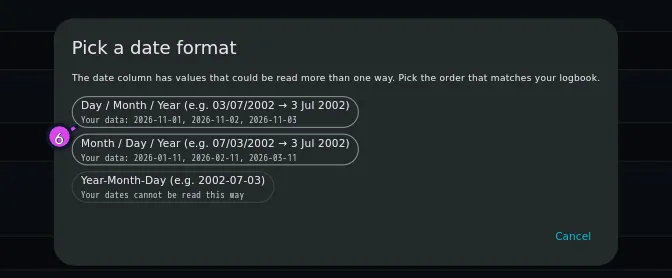
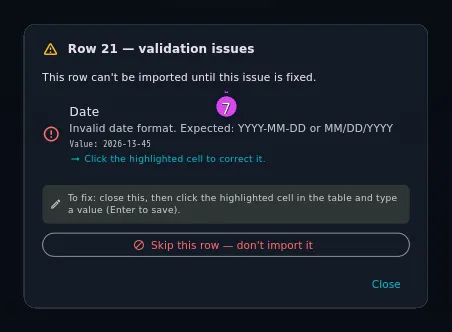
6 the preview line under Day / Month / Year - On the Review step, click any red date cell to see why it’s red. Invalid
date format. Expected: YYYY-MM-DD or MM/DD/YYYY means the value couldn’t be
read at all — fix it in the cell, or skip the row.
How to tell it worked
If the app had to decide anything about your dates, it told you: either the
banner naming the order it used for the whole column, or the Pick a date
format dialog, where you chose the order yourself. If the date column was
already YYYY-MM-DD, or every value in it could only be read one way, you’ll see
neither — there was nothing to decide.
To be certain the order matches your logbook — worth doing the first time you import from a new source, or on any file where the formats might be inconsistent (see Gotchas):
- Open your logbook and sort it so the imported flights are visible.
- Pick one flight whose day of the month is above 12, and one whose day is 12 or under.
- For each, open the flight, tap Source, and compare the date on the flight with the date in the source row (→ B6).
If a date reads 7 March where the source row says 03/07, the column was read
in the wrong order. Undo the import, convert the column to YYYY-MM-DD, and
import it again.
For hours, open one flight and compare its total against the source row in that same dialog. A total that’s exactly sixty times too small, or too large, is a units problem rather than a mapping problem.
If something goes wrong
| What you see | Why | What to do |
|---|---|---|
| Invalid date format. Expected: YYYY-MM-DD or MM/DD/YYYY | The cell holds text, a stray character, or a pattern from the table below that the app doesn’t try | Fix the cell, or fix the column and re-import |
| Invalid duration format. Expected: HH:MM, decimal hours, or minutes | An hours cell holds something that isn’t a number or a time | Fix the cell. A blank beats a dash or the word “nil” |
| Invalid time format. Expected: HH:MM | An Out/Off/On/In time of day couldn’t be read | It’s a warning, not an error. The row imports without that time |
| Flights are months out of place even though you saw the banner or picked a format | The column mixes dates written in different orders (see Gotchas), so the one order that was chosen doesn’t fit all of it | Undo the import (→ B6), convert the column to YYYY-MM-DD, import again |
| Every total is roughly sixty times too small | Whole-number hours were read as minutes — see the reference below | Undo, write the column as 30.0 or 30:00 (or tap the chip and choose Hours), import again |
| A 1949 flight is dated 2049 | A two-digit year in a separate Year column: 00–49 is read as 2000s | Write four-digit years, or correct the flights afterwards |
Reference: date patterns, in the order they are tried
| Order | Pattern | Example |
|---|---|---|
| 1 | The order resolved automatically, or the one you chose in Pick a date format, if either of those happened | — |
| 2 | YYYY-MM-DD | 2002-07-03 |
| 3 | MM/DD/YYYY | 07/03/2002 |
| 4 | DD/MM/YYYY | 03/07/2002 |
| 5 | YYYY/MM/DD | 2002/07/03 |
| 6 | DD-MM-YYYY | 03-07-2002 |
| 7 | MM-DD-YYYY | 07-03-2002 |
| 8 | An ISO value with a time on the end, of which the first ten characters are used | 2002-07-03T14:05:00Z |
The first pattern that fits wins. MM/DD/YYYY is tried before DD/MM/YYYY
in this list, which is why a slash-separated day-first column is the one worth
converting to YYYY-MM-DD. It’s also why the whole-column check in step 5
exists: so a day-first file isn’t left to this ordering by accident.
Two more rules apply only to separate Year / Month / Day columns (see Gotchas), not to a single date column:
- Two-digit years:
00–49become 2000s,50–99become 1900s. A 1949 flight whose Year cell reads49becomes 2049, and nothing flags it. - Month names work in a Month column, in any case, with or without a
trailing full stop:
Jul,JUL,July,Sept.are all read. A single date column is matched against the patterns above, which are all numeric.
Reference: the four ways an hours column is read
| The cell holds | Read as | 1:30 becomes | The chip says |
|---|---|---|---|
| A value with a colon | Hours and minutes | 1.5 h | HH:MM |
| A value with a decimal point | Decimal hours | 1.5 → 1.5 h | Decimal |
| A whole number under 24 | Hours | 2 → 2 h | Int hrs |
| A whole number of 24 or more | Minutes | 30 → 0.5 h | Int min |
| None of the above in 60% of the sampled values | Row by row, by the rules above | — | Mixed |
The chip’s verdict covers the whole column. On an Int hrs column every whole number is read as hours, and on an Int min column every whole number is read as minutes, whatever its size. Only a Mixed column is read value by value.
Put plainly: in a column read as Int min, 30 meaning thirty hours is stored
as 0.5 h, and in a column read as Int hrs, 2 meaning two minutes is stored
as 2 h. There are two fixes. Tap the chip and choose Hours or Minutes,
which settles that column for this import. Or correct the source file — write
30.0 or 30:00 — which settles it for every future import, and for any other
tool that ever reads the file.
Reference: the time chip
- On HH:MM and Decimal the chip is only a readout: the shape can’t be read two ways, so there’s nothing to choose.
- On Int hrs, Int min and Mixed — the three that can be read two ways — it’s a button. Tap it and choose Hours, Minutes, or hand the column back to the app’s own detection. A column you’ve set reads Hours ✓.
- The chip is worked out when the file is first read, from the field the app guessed. Map a column to an hours field by hand and it gets a chip then; map it away from one and the chip goes.
Gotchas
Separate Year, Month and Day columns disappear before you see them. A file
with all three has them rewritten into one Date column, added at the end of
the column list, with the three originals removed. A blank Year cell takes the
year from the row above, the way you’d read a logbook page with the year written
once at the top. It’s almost always right, and it’s invisible — the reason to
know is that the Map step will otherwise look as though three of your columns
are missing. The same fold happens with Year, Month and a Date column used
as the day of the month, and it doesn’t happen at all if the file already has a
second Date column.
One date proves the order for the whole column. The Pick a date format
dialog only appears when nothing in the column settles the question, or when two
dates disagree. A single day above 12 anywhere in the file — even on the last row
— is enough for the app to read every ambiguous date in that column that way,
with the banner in step 5 as your record of it. That’s also why step 1
recommends YYYY-MM-DD regardless: an ISO column needs no proof, and raises
neither a banner nor a dialog.
A file that isn’t consistent still gets one answer for all of it. The order
is decided once per column and applied to every ambiguous date in it, whether
the app decided or you did. So if a column mixes flights entered in different
orders — pasted in from two sources, say — neither the banner nor the dialog
catches the mix. If some row elsewhere has a day above 12, the app confidently
applies that order to the whole column, banner and all, including the rows
written the other way round. If nothing has a day above 12, the dialog asks you
once, and your answer is applied to every ambiguous date. Either way, a row
written in the other order is read wrong, silently: from its own values it looks
the same as all the others. Sort a file like that by source before importing, or
convert the whole column to YYYY-MM-DD by hand.
The time chip only looks at the start of your file. It samples the first 10 values of a column, not all of them (the date check reads every row). A file whose hours format changes halfway through is judged on its first 10 rows alone, and the change is never flagged. Likewise, a column that’s mostly one shape shows that shape’s chip and says nothing about the rest of it.
Worked example
A UK logbook with two flights, a fortnight apart:
| Source cell | What you mean by it |
|---|---|
03/07/2002 | 3 July 2002 |
15/07/2002 | 15 July 2002 |
Import it as it stands. 15/07/2002 can only be day-first — there’s no month 15
— so the app reads the whole column as day-first on its own, shows the banner
Dates in this file were read as day / month / year — the column contains values
that can only be read that way, and no Pick a date format dialog appears.
Both flights land correctly: 3 July and 15 July.
Now suppose the file isn’t consistent — a day-first logbook with one flight copied in from a US-format export, and neither row has a day above 12:
| Source cell | What you mean by it |
|---|---|
03/07/2002 | 3 July 2002 (day-first, like the rest of the file) |
07/03/2003 | 3 July 2003 (this one row, pasted in month-first) |
Both cells can be read either way, and no number anywhere in the column is above
12. So Pick a date format appears, because the app can’t tell. Pick Day /
Month / Year to match the rest of the logbook, and the first row lands
correctly on 3 July 2002. The second is read the same way — day 07, month 03 —
and lands on 7 March 2003, six months off, with no error and no further
warning. The dialog had no way of knowing one row came from somewhere else.
Converting that row to 2003-07-03 in the spreadsheet before importing is the
only fix that gets both right.