
People and employment history
What this does
Adds a crew member to the Directory and records who they flew for, and when.
Before you start
- A profile is open and you’re on the Directory, People tab (→ E6).
- Know the real start date of any job you record. On your own record, employment dates decide which of your already-logged flights get attributed to an operator (see the end of this guide). If you don’t know a date yet, leave the job out and add it later.
Steps
- On the People tab, tap Add Person.
- Type the surname into Last Name — the only required field — and fill in
First Name (Optional) if you know it. Older logbooks often record crew by
surname or callsign alone.
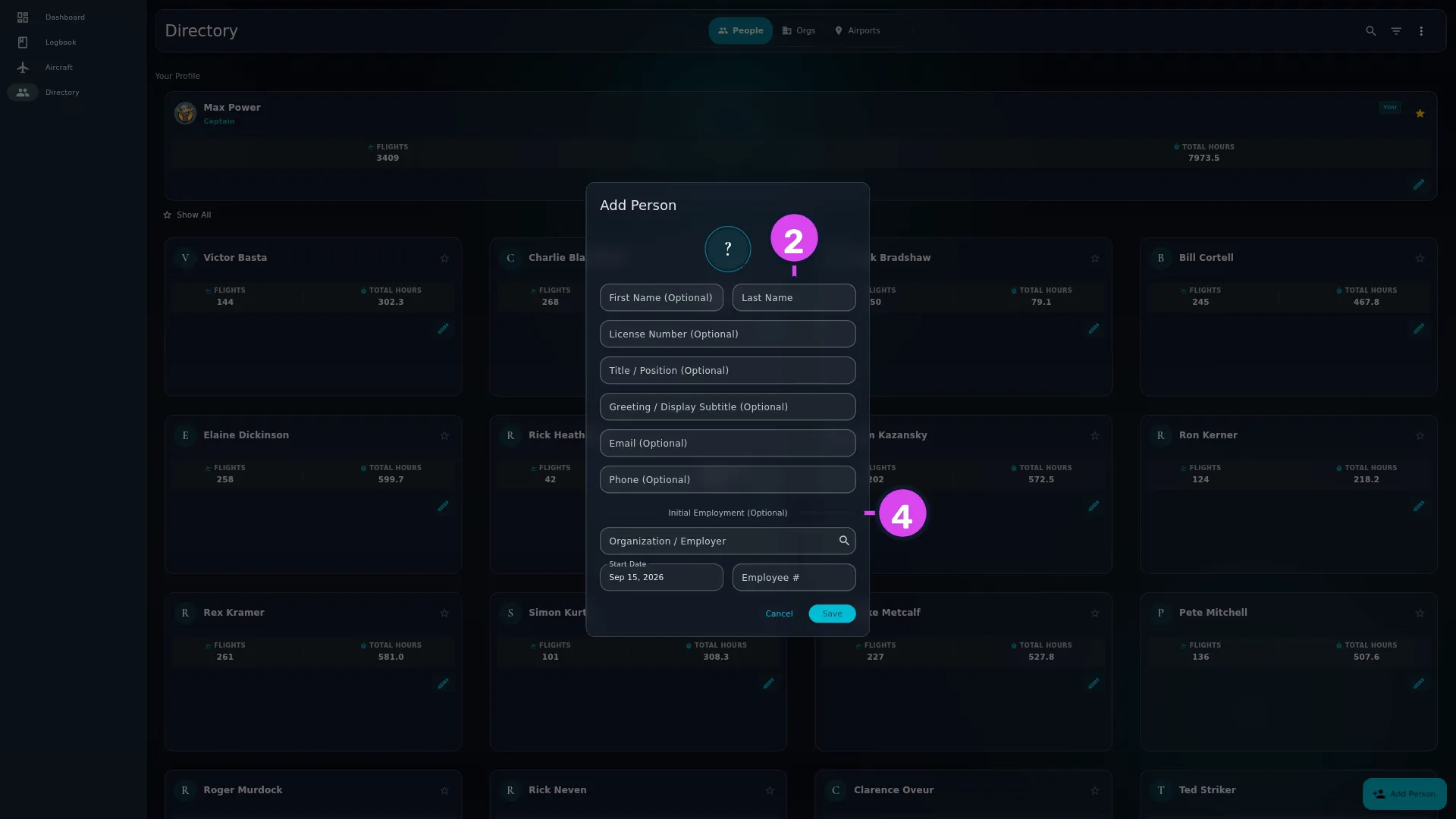
2 Last Name4 Initial Employment — starts on today unless changed - Fill in any of License Number (Optional), Title / Position (Optional), Greeting / Display Subtitle (Optional), Email (Optional) and Phone (Optional). Tap the circle at the top to add a picture.
- If you know their employer, fill in Initial Employment (Optional): pick the Organization / Employer, then tap Start Date and change it to the day the job actually began — it opens on today, which is usually wrong. Tap Save, then close the Person Details modal that opens on the person you’ve created.
- To record a job, open the person from the People list. The full screen headed
Pilot opens. Scroll to Employment History.
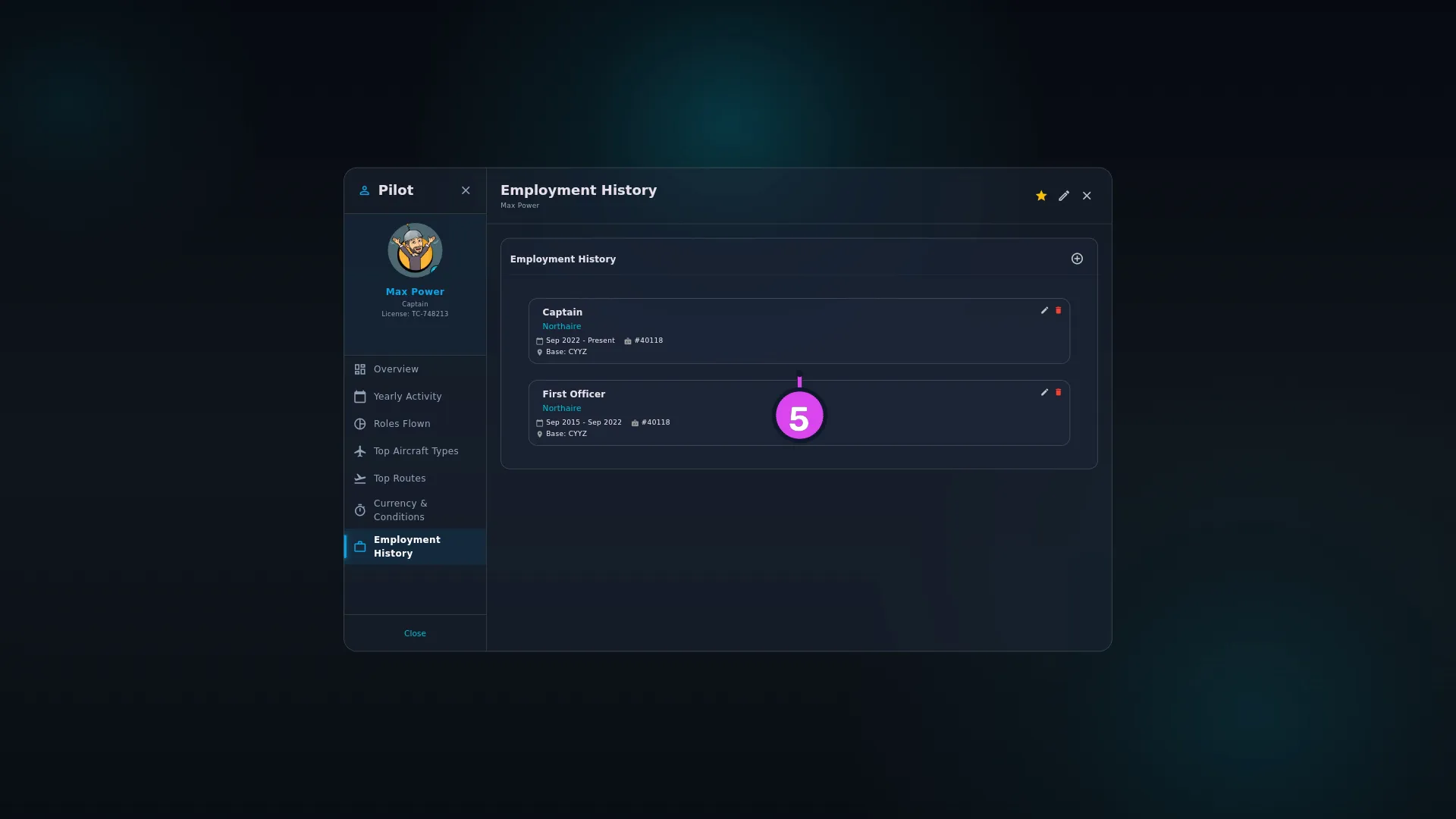
- Tap Add Employment and fill in Organization / Employer, Position /
Rank, Employee #, Base (ICAO) and Start Date. Until you add a
job, the section reads No employment history recorded.
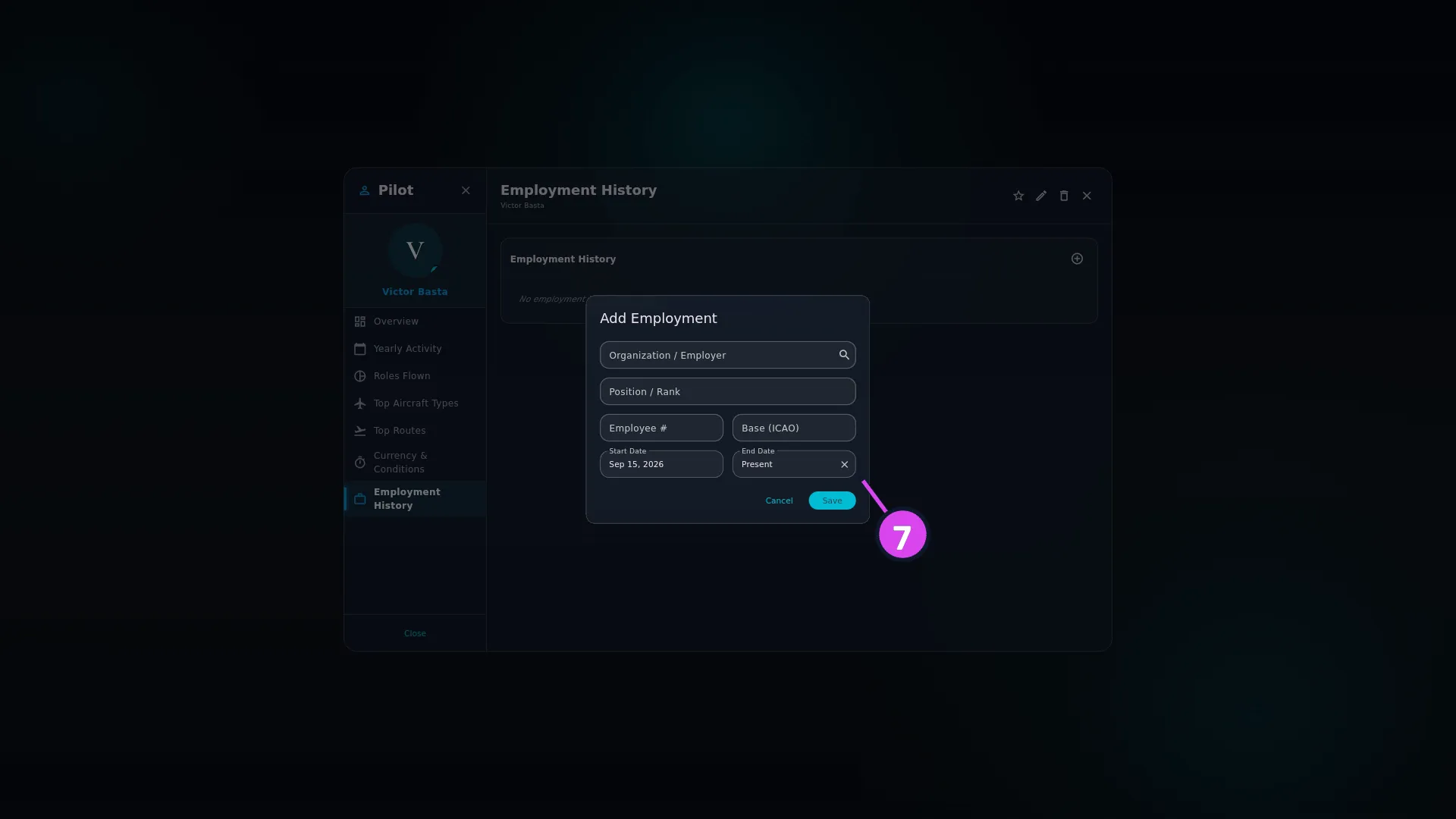
7 End Date — cleared to read Present - For a job they’re still in, clear End Date with the clear icon beside it,
so it reads Present. There’s no “current job” switch, and nothing on
screen tells you to do this. Tap Save.
How to tell it worked
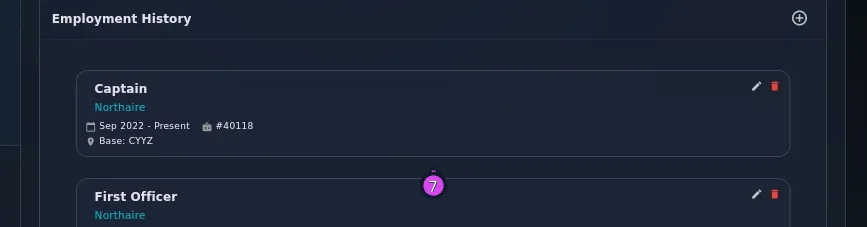
The person is in the People list with their employer under their name. Under
Employment History on the Pilot screen there’s a card showing the
position, the organization, a date range like Mar 2019 - Present, and — where
you filled them in — #12345 and Base: CYYZ.
If something goes wrong
| What you see | Why | What to do |
|---|---|---|
| Required under Last Name | The field is empty | Type something. It’s the modal’s only required field |
| Duplicate Person — A person named ”…” already exists. | The same first and last name is already in the Directory, ignoring case | Tap Continue Editing and change something. Two pilots who really do share a name need a distinguishing initial. Discard Entry is only offered when you opened the form from a quarantined import entry |
| A snackbar reading Please select an organization | You saved the employment editor with no employer chosen | Pick one in Organization / Employer. It’s the only required field there |
| An employment card reads Unknown Organization | The organization it pointed at has been deleted | Edit the card and choose an organization that still exists (→ E8) |
| An employment card reads No Position | Position / Rank was left empty | Edit the card and fill it in |
| The record has no Yearly Activity or Employment History | You’re on the Person Details modal, not the Pilot screen | Close it and tap the person’s card in the list |
| Cannot Delete Person | The person is crew on at least one flight in your logbook | Remove or reassign the crew on those flights first (→ C1). The Pilot screen and the Person Details modal both say: … is still assigned as crew on one or more flights. Remove or reassign those crew entries first, then delete this person. with Understood |
| No delete control on your own record | You can’t delete yourself, so the control isn’t there | Nothing |
Two detail views, and they’re not the same
Creating a person opens a modal headed Person Details. Tapping a card in the People list opens a full screen headed Pilot, with Overview, Yearly Activity, Roles Flown, Top Aircraft Types, Top Routes, Currency & Conditions and Employment History.
Both can add and edit employment, and the editor is titled Add Employment, or Edit Employment when you come back to a job. Only the Pilot screen has the statistics — if you can’t find Yearly Activity, you’re on the modal.
Editing a person
Tap Edit on the Pilot screen. The same form opens, titled Edit Person. (The aircraft and airport forms are different: they keep their Add headings while you edit — → E2, E9.)
Why the dates matter more than they look
When you set an operator on an aircraft, the app may fill that operator in on flights you’ve already logged (→ E2). It does so only when your employment records show exactly one employer on a flight’s date, and it’s the company being set. A flight outside every employment period you’ve recorded, or inside two that overlap, is left unattributed.
Only your own record counts — the one badged YOU. A colleague’s job over the same dates doesn’t make a date ambiguous. And with no record of your own on the profile, the app has no evidence of who you flew for, so it fills in nothing.
So if you’ve imported years of history and want operator totals from it, record your own jobs first — with real start dates, and Present on the current one — then go through the Hangar setting operators. That’s what the Initial Employment (Optional) section’s Start Date field is for: it defaults to today, and for a job that started earlier, today is wrong. Change it there rather than fixing it afterwards from the Pilot screen.
Base (ICAO) is a code you type, not a link
The Base (ICAO) field holds text. It isn’t attached to the airport record of the same name. That’s why an airport used only as somebody’s base can still be deleted (→ E9), and why merging two airport records doesn’t update it (→ E10). If you merge or delete an airport, check the bases you’ve typed.
Deleting a person
A person who has crewed a flight can’t be deleted, and you can never delete yourself. Otherwise, from the Pilot screen, tap Delete, then Delete again on Delete Person?. From the Person Details modal, the same confirmation adds the line This action cannot be undone.
Both do the same thing: the person is hidden rather than erased, and the deletion reaches your other devices.
Only flights still in your logbook count against the person. A crew entry you’ve already removed, or a flight you’ve already deleted, doesn’t. So if you removed the last crew entry naming somebody and the delete still refuses, another flight still names them.