
Custom fields
What this does
Adds fields the app doesn’t have, and controls where each one appears.
A custom field is one you invent, or one an import brought in, kept beside the built-in fields rather than instead of them.
Before you start
- A profile is open. The editor is reached through Profile Settings.
- A field’s type is chosen once, when you create it, and can’t be changed afterwards. Decide between Duration and Number before you tap Add, not after.
- Custom fields are part of your logbook, so they travel to your other devices — the field, its values, its order and its visibility (→ J4).
Steps
- On the dashboard, tap your own profile card at the top to open Profile Settings, scroll to LAYOUTS and tap Custom Fields.
- Check the editor’s instruction at the top: Fields beyond the built-in set —
created here or imported from LogTen. This switch shows or hides a field on
the entry form only — a field hidden here can still appear on a flight’s
Detail View. To hide it there too, use Layouts → Detail View. Drag the handle
to set the order they appear in the entry form. With nothing created yet, it
reads No custom fields yet. / Add one above, or import a LogTen file.
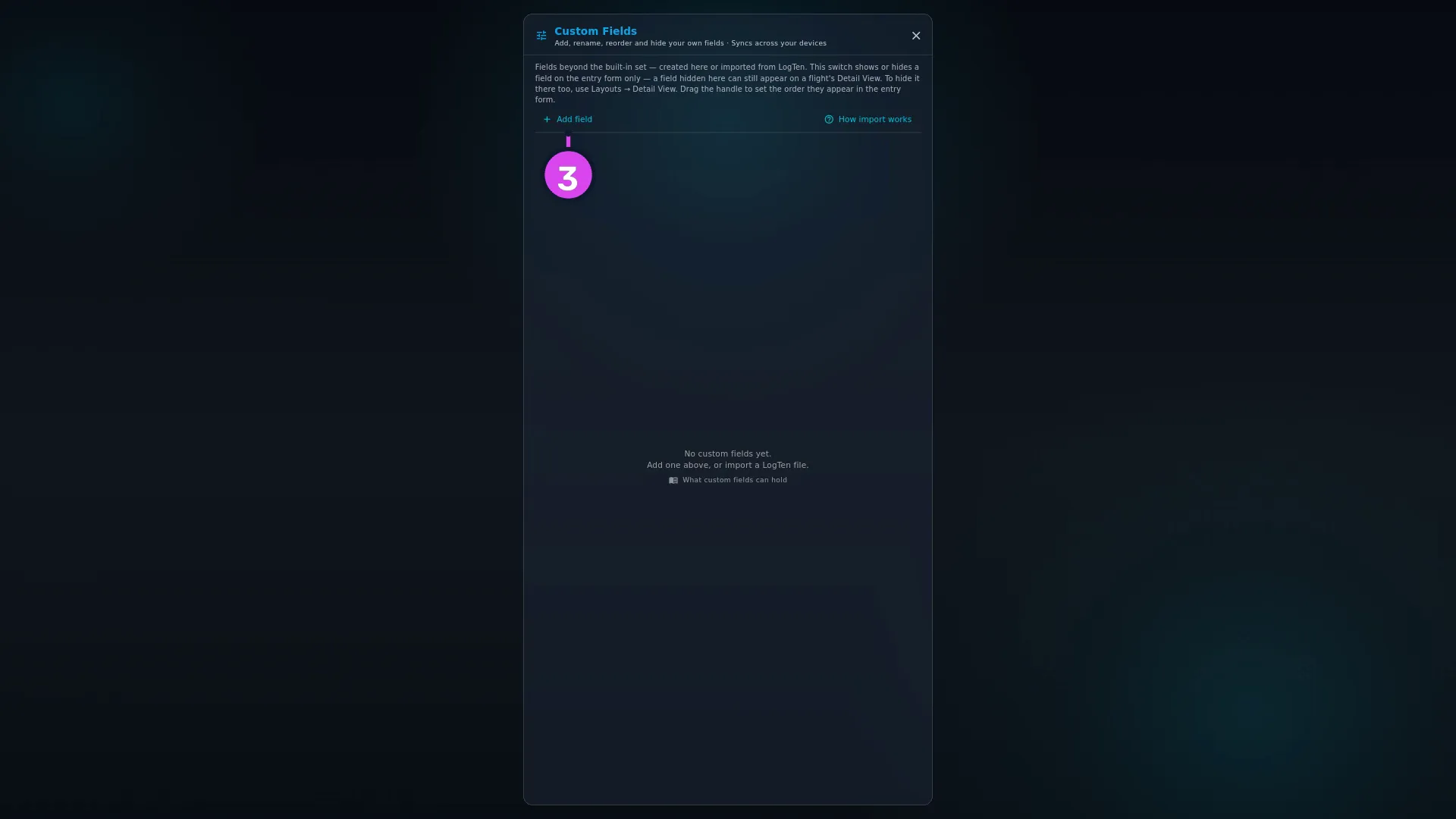
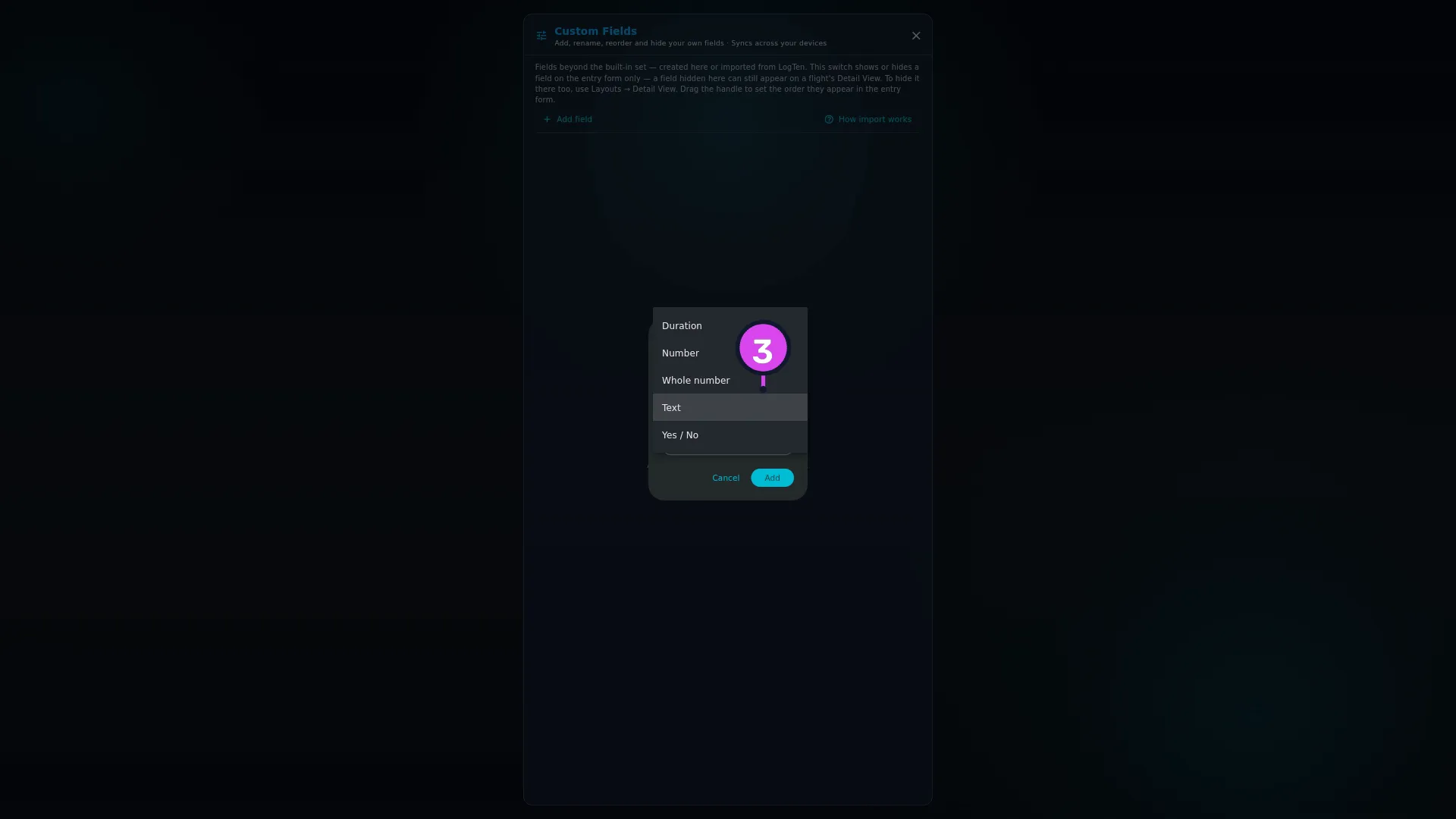
3 Add field - Tap Add field. In the New Custom Field dialog, type a Label,
choose a Type, and optionally a Unit (optional) — the hint suggests
h, L, nm…. Tap Add.
- Find the new field in the list. It’s visible, with its type and unit under the label, and up to three real values from your logbook as examples once it has any.
- To rename a field, or to remove it, tap ⋮ on its row and choose Rename or Delete.
- Drag a row by its handle to set the order the fields appear in on the entry form.
- Use the switch on a row to hide the field on the entry form. It isn’t the only switch — see Gotchas before you rely on it.
- To undo everything, tap Reset in the header and confirm. The dialog is
headed Reset to defaults? — This shows every custom field and returns
them to alphabetical order. Fields and their recorded values are not
affected. Reset only appears once you have at least one field.
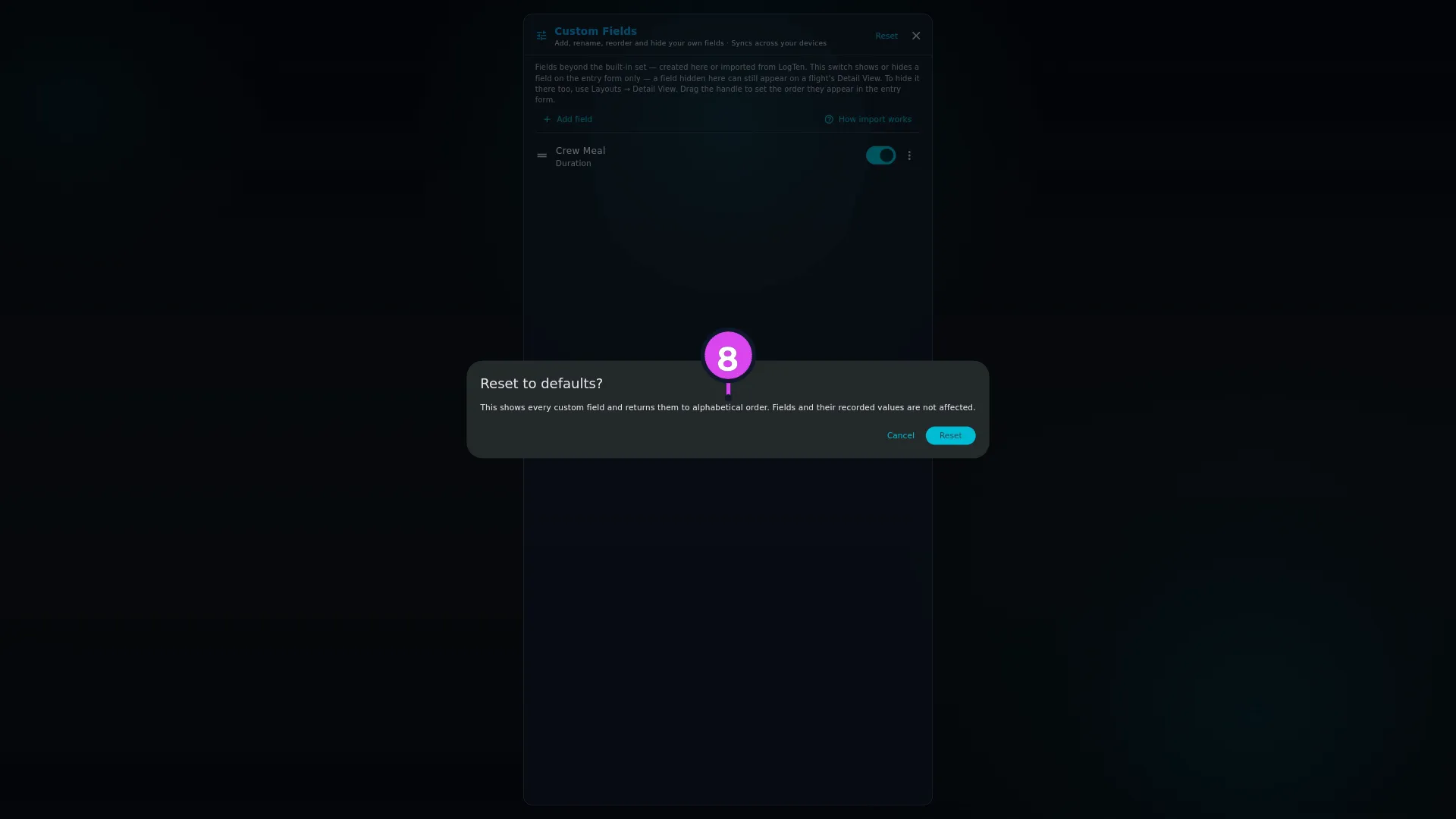
8 the Reset to defaults? dialog - Tap the ✕ in the header to close the editor.
How to tell it worked
Log or edit a flight: the field is on the Additional Fields step, in the order you set, labelled and followed by its unit. Fill it in, save, and open the flight’s detail view — it appears under Additional Fields there too.
If something goes wrong
| What you see | Why | What to do |
|---|---|---|
| Add shows A label is required instead of closing | Label is blank. Nothing is created until you type one | Type a label and tap Add again |
| The field is on the entry form but not in the detail view, or the other way round | Two different switches control the two screens | See Gotchas |
| The field has the wrong type | The type can’t be changed | See Gotchas — the only fix is a new field |
| LogTen Custom Time 3 in your field list after an import | An imported field is named after its column in the import file, not by you | Rename it. The example values tell you which column it was |
| The first drag of a long list is slow | The first reorder has to save every field’s position | Wait for it. Later drags are quick |
| New Custom Field is missing from the wizard | The Additional Fields step is hidden (→ J5) | Use this editor, or turn the step back on |
Adding a field while you log a flight
There’s a second way to the New Custom Field dialog, for the moment you need a field you haven’t got: the New Custom Field button on the wizard’s Additional Fields step. It creates the field without you leaving the flight you’re logging (→ J5).
Reference: the five field types
In the order the Type dropdown offers them.
| Type | Stores | Accepts | Counts as a number |
|---|---|---|---|
| Duration | a flight-time duration, held in hours | 1.5 and 1:30 alike | yes |
| Number | any decimal | a decimal | yes |
| Whole number | a count | an integer | yes |
| Text | free text | anything | no |
| Yes / No | a switch | on or off | yes |
Text is the safe choice for anything you’re unsure about: it accepts whatever you type and never reinterprets it. The cost is that it can’t be charted, and the type can’t be changed later.
Reference: what a LogTen import brings in
An import creates a custom field for each of the file’s own custom columns, and picks the type from the column’s name.
| Source column | Type it becomes |
|---|---|
customTime… | Duration |
customCapacity… | Number |
customCount… | Whole number |
| anything else | Text |
Only columns that look like custom columns become fields. Other columns the app doesn’t have a field for go to the import archive instead, where you can still read them from the flight’s Source in the detail view. The editor’s second button, How import works, opens the same explanation the import wizard shows.
An imported field arrives with a temporary name built from its column —
flight_customTime1 becomes LogTen Custom Time 1 — and its row says
imported. Tap ⋮ → Rename on one and a dialog headed Rename Field
shows Imported field, the Source column it came from, and Example values
from your logbook. Rename it as freely as you like: the link to its column is
kept separately, and renaming doesn’t break it.
Gotchas
Two switches hide a custom field, and they control different screens. The switch in the Custom Fields editor controls the entry form only. The switch under Additional Fields in the Detail View editor controls the detail view only. The editor’s instruction says so (step 2), but it’s easy to skim past on the way to the switch. Remember it as: entry form → Custom Fields; detail view → Detail View (→ J6).
The type is permanent. There’s no type control in Rename, and nothing else changes it. Picking Duration where you wanted Number means deleting the field and adding a new one, which leaves every value already recorded behind under the old one. Two minutes deciding the type is cheaper, especially for a field you’ll be filling in for years.
A custom field isn’t added into anything. It isn’t part of any total, and it isn’t used for currency. It records a number or a note; nothing adds it up for you.
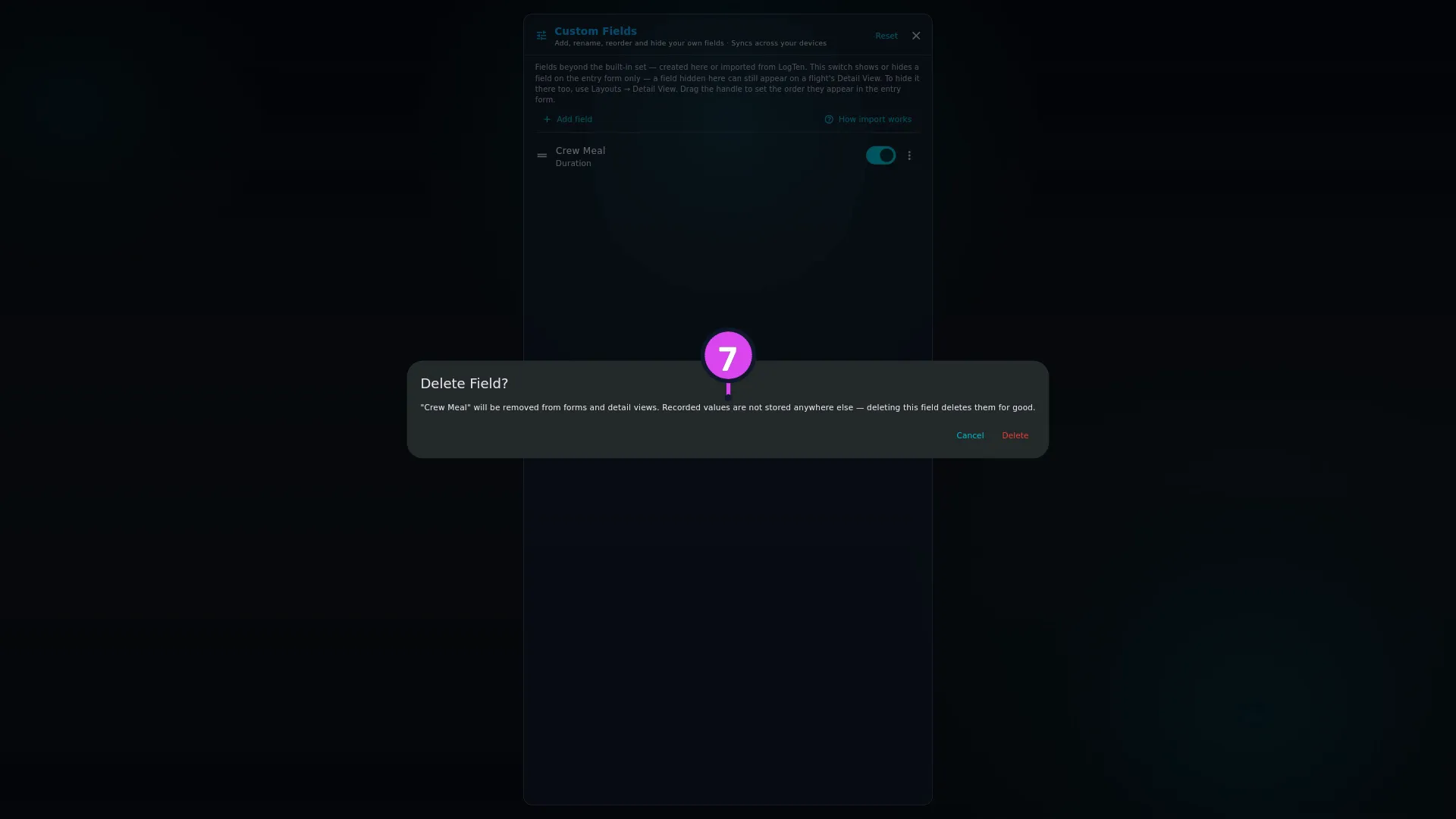
A deleted field’s values stay, but you can’t see them. The confirmation is Delete Field? — " That’s only fully true of imported fields. The recorded values are kept, but nothing in the app shows them once the field has gone. For an imported field, the original column is also in each flight’s import archive, which you can open through Source in the detail view, one flight at a time. A field you made yourself has no archive and no Source button, so its values can’t be seen anywhere on screen. Treat a delete as final either way.
A new field is created visible, so it appears on the entry form and in the detail view straight away. If you’re setting up a dozen at once, expect the Additional Fields step to get long before you start hiding any.
Reset returns order and visibility, not names or types. Reset to defaults? shows every field again and puts them back in alphabetical order. It doesn’t undo a rename, and it can’t touch a field’s type, because nothing can.
Worked example
You import a LogTen file and find three new fields in this editor: LogTen Custom Time 1, LogTen Custom Count 2 and LogTen Custom Note 4.
- Tap ⋮ → Rename on LogTen Custom Time 1. The dialog shows Imported field, Source column: flight_customTime1, and under Example values from your logbook the values themselves — 1.2, 0.8, 2.4 — which is how you recognise it as the simulator time you kept in that column. Set the label to FFS Time and save.
- LogTen Custom Count 2’s row reads e.g. 3, 1, 2. Rename it Sectors.
- LogTen Custom Note 4 is Text, and its examples are your own remarks. Rename it Dispatch note.
- Drag FFS Time to the top, because it’s the one you fill in most.
- You don’t want Dispatch note on the entry form, but you do want to see it in the detail view on the flights that have one. Turn its switch off here, and leave it on in the Detail View editor.
None of that changed a single value. Renaming a field renames it everywhere it appears, including flights imported years ago.