
Entry form fields
What this does
Hides the parts of the flight-entry wizard you never use, so logging a flight shows your fields and nothing else.
Before you start
- A profile is open. The editor is reached through Profile Settings.
- Hiding a field doesn’t delete anything. Values already recorded stay on the flight, still show in the detail view and still appear in exports. Turn a field back on and there they are, unchanged. The editor looks destructive and isn’t.
- This selection follows your logbook to your other devices (→ J4).
Steps
- On the dashboard, tap your own profile card at the top to open Profile Settings, scroll to LAYOUTS and tap Entry Form — Show or hide sections and fields when logging.
- Find the group you want among the nine listed. The instruction at the top
reads: What appears when adding or editing a flight. Turn a section off to
hide the whole step, or expand it to hide individual fields.
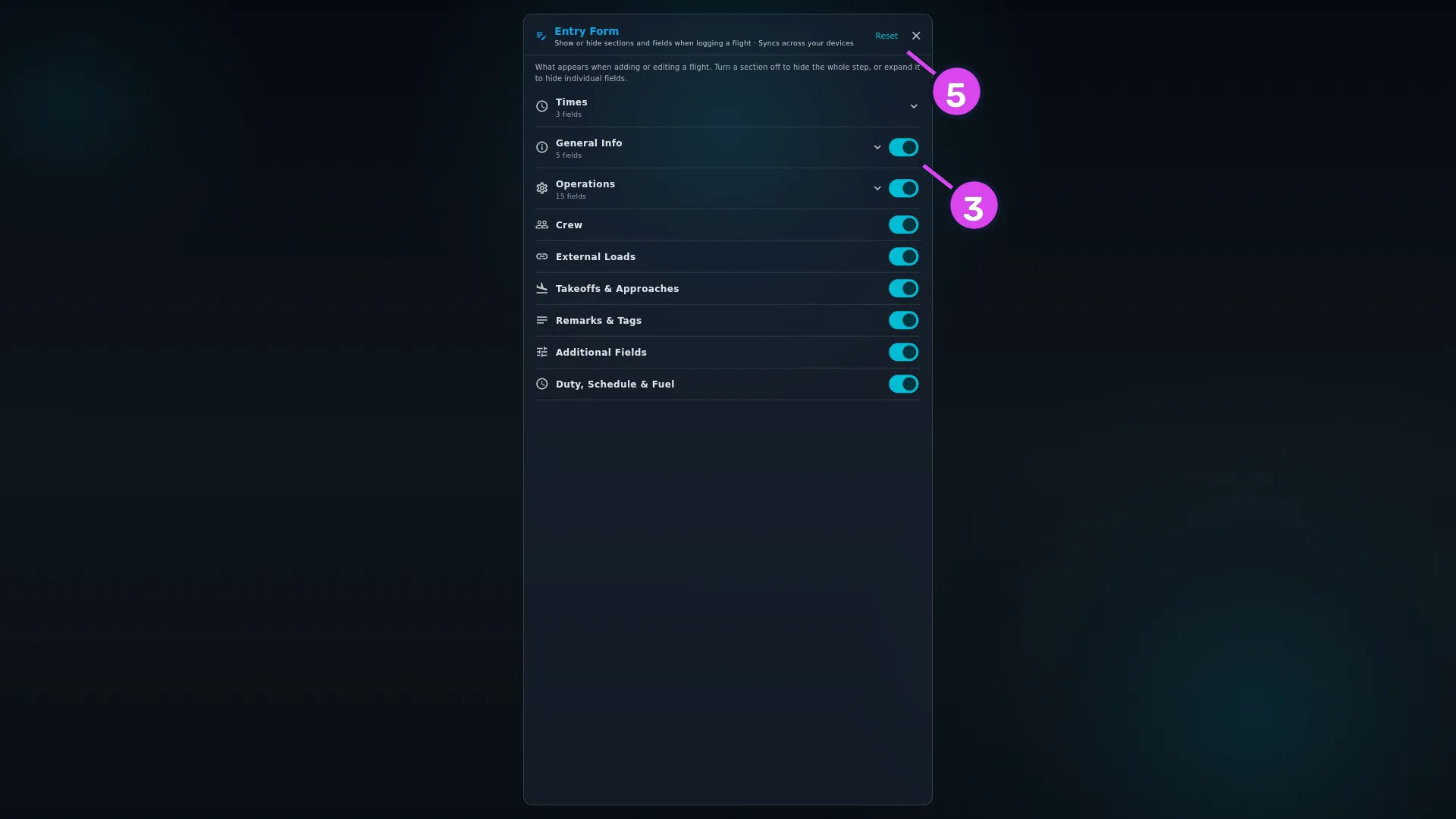
3 a section switch — hides that whole step5 Reset - Turn off the switch beside a group to hide that whole step of the wizard. A group that’s off reads Hidden where it would otherwise count its fields.
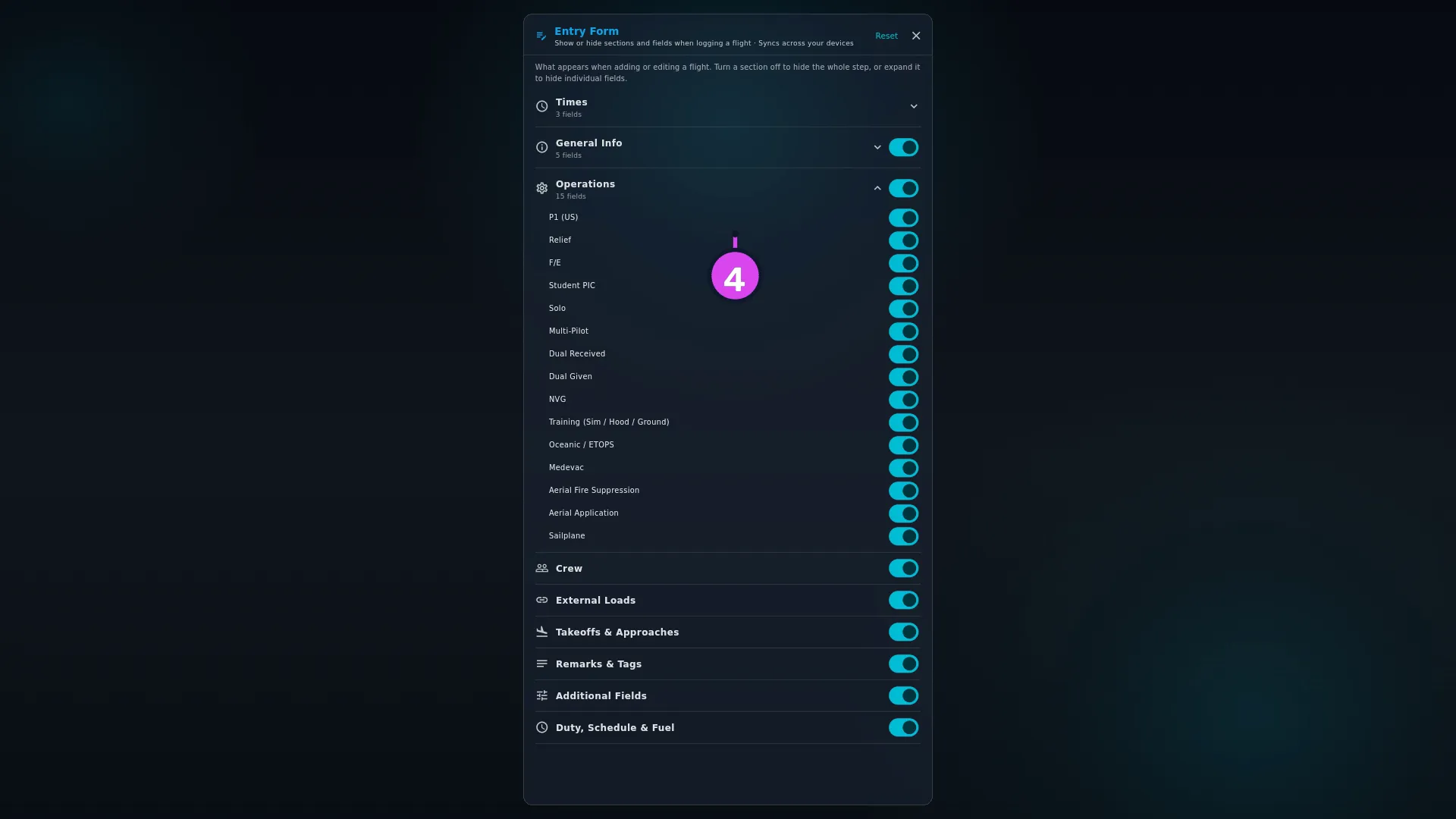
- To hide single fields instead, tap a group to expand it and turn off the ones
you don’t want. Only Times, General Info and Operations have fields
to expand.
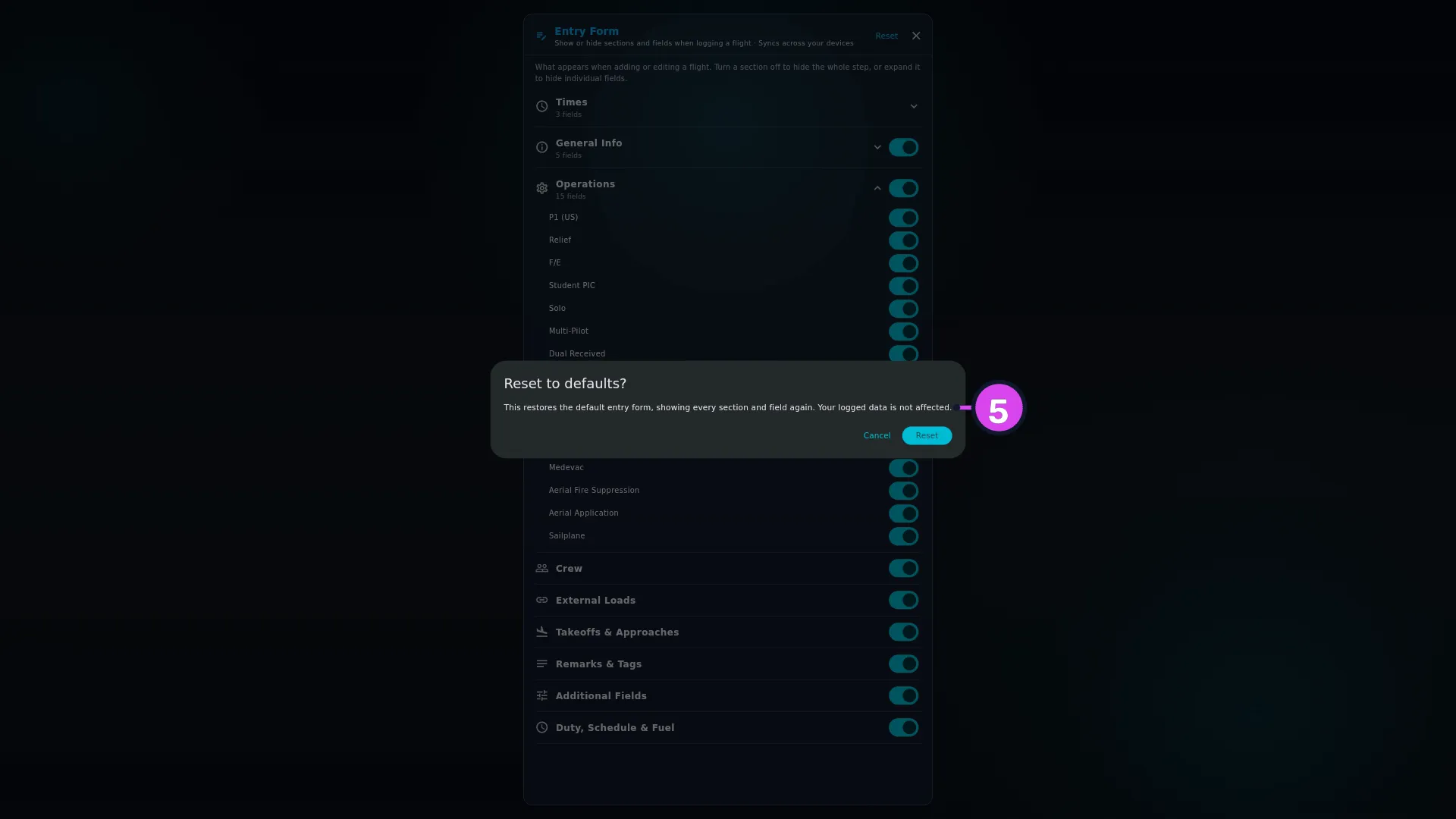
- To undo everything, tap Reset in the header and confirm. The dialog is
headed Reset to defaults? — This restores the default entry form, showing
every section and field again. Your logged data is not affected.
- Tap the ✕ in the header to close the editor. There’s no background to tap away.
How to tell it worked
Start a new flight. The steps you turned off have gone from the wizard — from the sidebar on a desktop and from the scrolling page on a phone — and the fields you turned off have gone from the steps that remain. There’s nothing to save: each switch takes effect the moment you flip it.
If something goes wrong
| What you see | Why | What to do |
|---|---|---|
| Tapping a group does nothing, and it has no chevron | Six of the nine groups have no individual fields to show | Use the group’s own switch to hide the whole step |
| Times has no switch | It holds the date and the totals, so it’s always shown | Hide its three parts individually instead |
| A total still counts something you hid | Hiding changes the form, not the logbook. A flight that already has cross-country time still has it | Edit the flight to clear the value, if the value is what’s wrong |
| The New Custom Field button has disappeared from the wizard | See below | Use Profile Settings → LAYOUTS → Custom Fields (→ J7) |
| A phone shows a step you hid on the desktop, or the other way round | The two devices haven’t synced since the change | Run a sync (→ Area I). This selection does travel |
| You want a section hidden for one aircraft but not another | There’s one form for the whole logbook | Not possible. The same form is used for every aircraft |
The nine groups
| Group | Can the whole step be hidden? | Fields you can hide individually |
|---|---|---|
| Times | no — always shown | Block Times (OOOI) · Tach · Air Time |
| General Info | yes | Cross Country · Diversion · Route · Flight Number · Operating Under |
| Operations | yes | P1 (US) · Relief · F/E · Student PIC · Solo · Multi-Pilot · Dual Received · Dual Given · NVG · Training (Sim / Hood / Ground) · Oceanic / ETOPS · Medevac · Aerial Fire Suppression · Aerial Application · Sailplane |
| Crew | yes | none |
| External Loads | yes | none |
| Takeoffs & Approaches | yes | none |
| Remarks & Tags | yes | none |
| Additional Fields | yes | none — the fields themselves are managed in the Custom Fields editor |
| Duty, Schedule & Fuel | yes | none |
Hiding Additional Fields takes a button with it
Additional Fields is the wizard step that holds your custom fields, and it has the New Custom Field button — the only way to create a field without leaving the flight you’re logging. Hide the step and the button goes with it. The fields you already have keep working and keep their values; to create a new one, go to Profile Settings → LAYOUTS → Custom Fields (→ J7).
What this editor isn’t for
It changes the form. It doesn’t correct a flight. If a flight has a value in the wrong field, fix the flight (→ Area C) — hiding the field leaves the value in place, out of sight, and still counted.